
This guide covers how to configure and test Branch Email in your dashboard and ESP.
Before you begin
Branch Email requires technical prerequisites to be completed by your development team before you can configure the integration.
Your developers must implement the Branch SDK, enable Universal Links, configure Associated Domains, and set up deep link routing in your app.
See our developer documentation for implementation details.
Enable the integration
To enable the integration:
- In the left-hand navigation, click Email.
- On the Email overview page, click the Manager tab at the top.
- Find your ESP and click Enable.
Note
Branch automatically detects any global link settings you have already provided during the initial setup of your Branch account as outlined above.
If you have not set up your global link settings and redirect preferences, you will be prompted to do so at this time.
Disable third-party click tracking
Many third-party providers add redirects to your URLs. This facilitates click tracking and analytics on those platforms, but will break Universal Link and App Link functionality. To make Universal Links and App Links work, you will need to disable click tracking in the third-party system. Here are instructions for some common platforms:
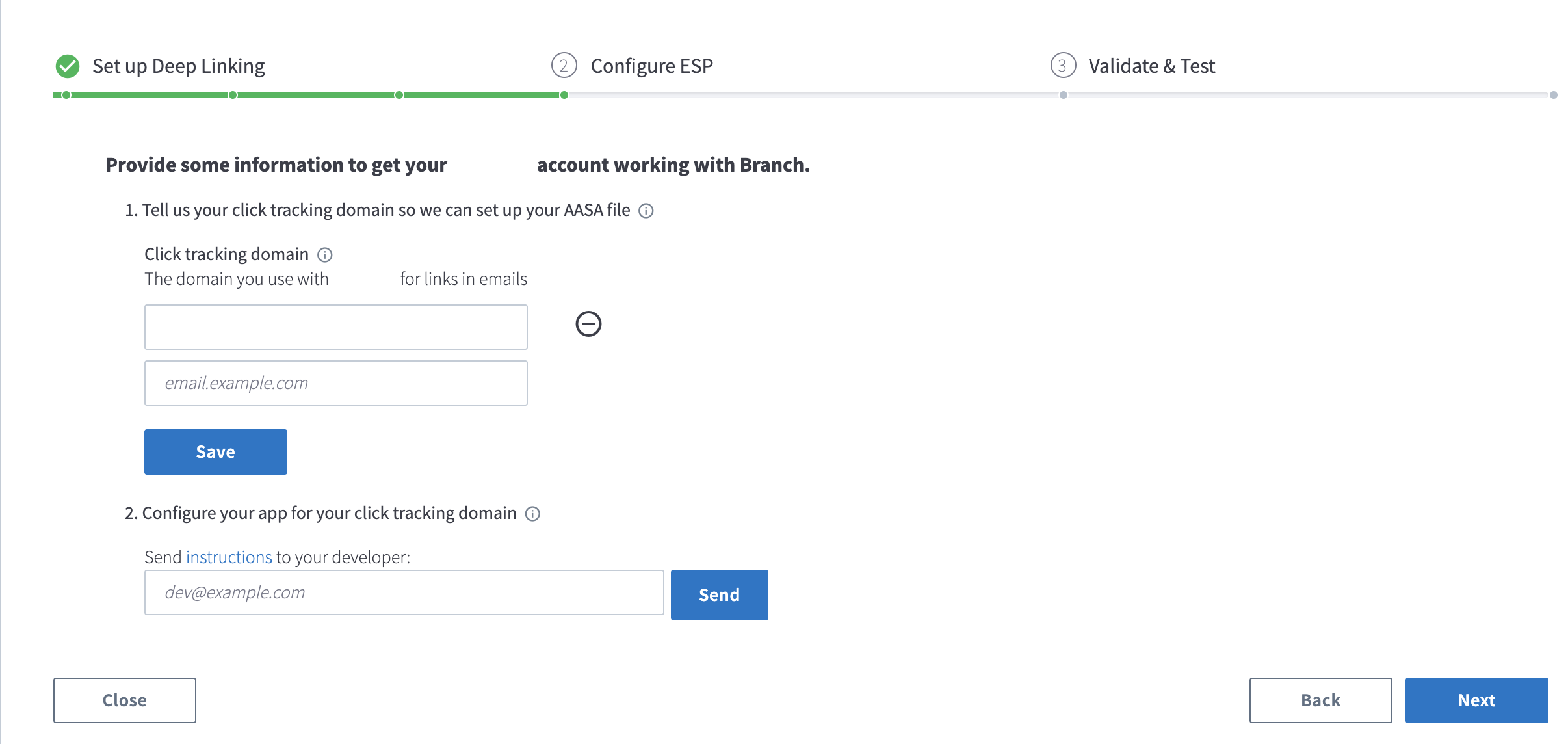
Provide click tracking domain
Click tracking domains allow you to track engagement on email opens and link clicks.
If you're unsure what your click tracking domain (CTD) is, take a look at one of your recently sent emails. If you hover over the link or right-click/copy the link address, you will see that the domain of the link in the email does not match the URL in your HTML. This domain is your click tracking domain used by your ESP to provide you click reporting.
Alternatively, use the button below to find your ESP's documentation on how to find your click tracking domain. If no documentation is available, we provide a link on how to contact the support team for your ESP.
Caution
Leave off http:// and https:// when adding your click tracking domain in the Branch Dashboard.
Caution
Before you click NEXT and proceed to the Validate & Test section, please complete the DNS CNAME configuration step, as it's required for passing integration validation. Your development or IT team will need to configure DNS settings.
Expand for ESP CTD list
- Adestra
- Adobe Campaign Classic
- Adobe Campaign Standard
- Airship
- Amazon Simple Email Service
- Betaout
- Bluecore
- Blueshift
- Braze + Mailjet
- Braze + SendGrid
- Braze + SparkPost
- Campaign Monitor
- Cheetah Digital Marketing Suite
- CleverTap + Amazon SES
- CleverTap + Mailgun
- CleverTap + Mandrill
- CleverTap + SendGrid
- CMercury
- Cordial
- Customer.io
- Emarsys
- Epsilon
- ExpertSender
- Hootsuite
- IBM Watson Campaign Automation
- Iterable Legacy
- Iterable
- Kahuna
- Klaviyo
- Leanplum
- Mailgun
- Mailjet
- MailUp
- Mandrill
- Marketo
- Message Gears
- MoEngage
- Optimove
- Oracle Bronto
- Oracle Eloqua
- Oracle Responsys
- Pepipost
- PostUp
- Rapid Mail
- Sailthru v1
- Sailthru v2
- Salesforce v1 Open Web
- Salesforce v1 Open App
- Salesforce v2
- Salesforce v3
- Selligent Marketing Cloud
- Selligent Message Studio
- Sender
- SendGrid
- Smartech
- SocialFlow
- SparkPost
- Vero
- WhatCounts
- Yes Marketing
- Yiye Technology
Important considerations
You can enable the integration with multiple CTD if needed, but you cannot add the same CTD to multiple Branch dashboards or ESP integrations.
Some ESPs are single-tenant. Each customer has their own tracking server instead of a shared one. For these ESPs, the setup page also asks for your server's domain in a field named for the ESP, such as Emarsys domain. Branch uses it to pass each click on to your ESP.
- Get this domain from your ESP account manager.
- If the field doesn't appear, your ESP uses a shared server and you don't need to add anything.
In some ESP integrations, you will also be required to send them the AASA file Branch generates by providing your ESP's contact email.
- The ESP selected will dictate whether this field appears or not - if the field does not appear, you're not required to add it.
DNS CNAME configuration
Caution
If you ever remove your click tracking domain from Branch or disable the email integration, you must also delete the corresponding CNAME record from your DNS configuration. Leaving a CNAME record pointing to Branch after the domain has been removed from your Branch account creates a dangling DNS entry that could be claimed by an unauthorized party, posing a subdomain takeover security risk.
Most ESP integrations require updating the DNS record for your click tracking domain to include a CNAME record that points to Branch's domain. Your development or IT team will need to complete this step. See our developer documentation for implementation details.
Test the integration
Once the validation process is complete, you can test the integration by generating a test link. The test link generated by Branch is unique in that it's already converted to a Branch Link for you and allows you to test without creating an email template in your ESP. In reality, this conversion happens behind the scenes once a user clicks on your normal email template link.
To generate a test link:
In the Validate & Test section, input a URL from your website.
Click Get Test Link.
Once the test link is generated, you can share it via:
Copy to clipboard
SMS
Email
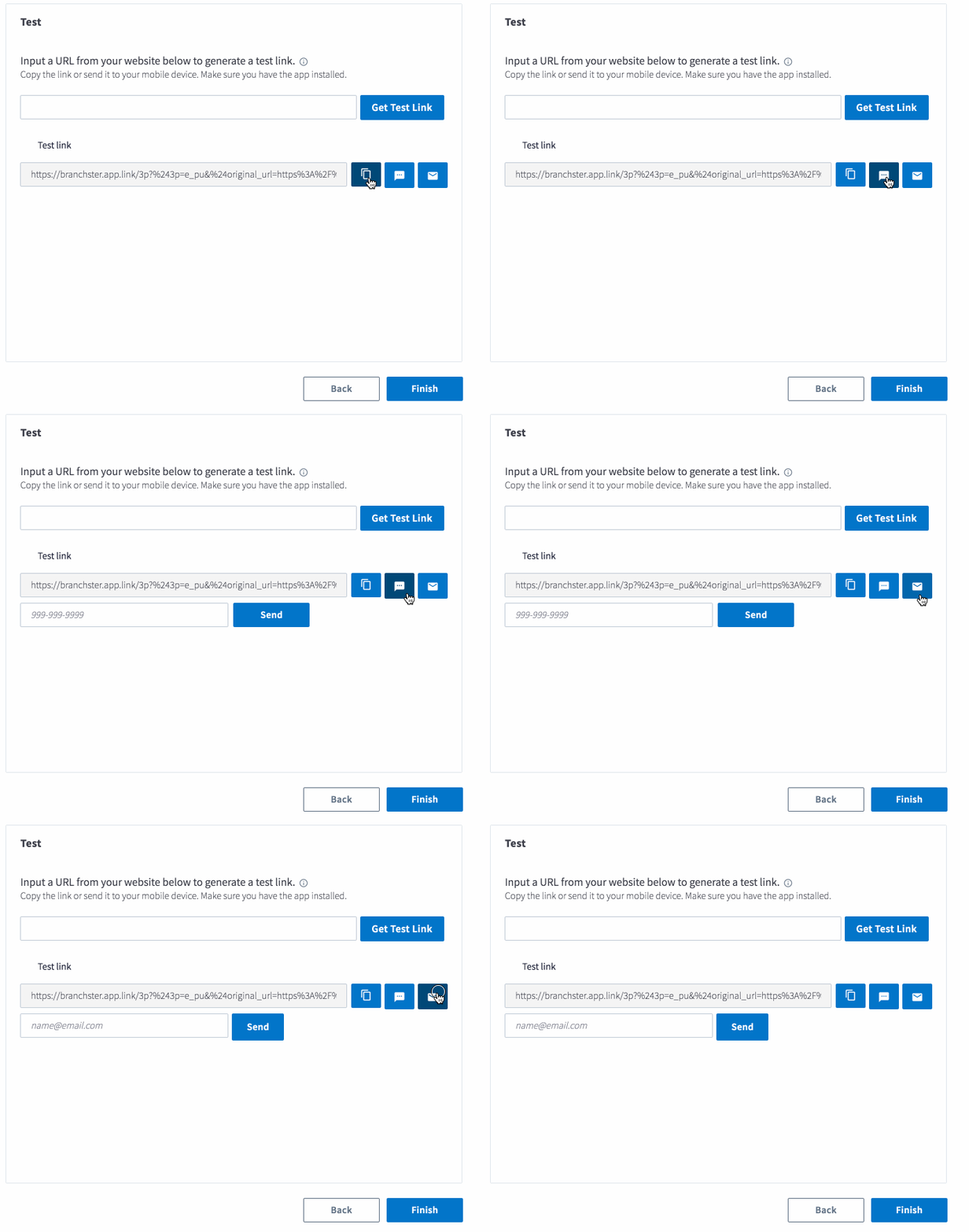
Once you've generated your test link, click the link on your mobile device.
Tip
Make sure your mobile device already has the app installed!
Send emails with flagged links
Before you start setting up your email campaigns, you need to determine what flow you want the user to experience and flag your email link accordingly.
Most ESPs support the following user flows:
Deep linking users to in-app content
- Added to your links as a URL query parameter:
<a href="links.example.com?$deep_link=true" >Link to your app!</a> - Added to the HTML:
<a href="http://example.com" deeplink="true">Link to your app!</a>
- Added to your links as a URL query parameter:
Linking users to web-only content
- Added to your links as a URL query parameter:
<a href="links.example.com?$web_only=true" >Link to your app!</a>
- Added to your links as a URL query parameter:
Expand for required link flags for each ESP
| ESP name | ESP required link flags |
|---|---|
| Adestra | • Deep linking users to in-app content: add $deep_link=true to your links as a query parameter • Linking users to web-only content: add $web_only=true to your links as a query parameter |
| Adobe Campaign Classic | See Dedicated Adobe Campaign Classic Guide |
| Adobe Campaign Standard | See Dedicated Adobe Campaign Standard Guide |
| Airship | • Deep linking users to in-app content: add $deep_link=true as a query parameter • Linking users to web-only content: add $web_only=true to your links as a query parameter |
| Amazon Simple Email Service | • Deep linking users to in-app content: add $deep_link=true to your links as a query parameter • Linking users to web-only content: add $web_only=true to your links as a query parameter |
| Betaout | • Deep linking users to in-app content: add $deep_link=true to your links as a query parameter • Linking users to web-only content: add $web_only=true to your links as a query parameter |
| Bluecore | • Deep linking users to in-app content via UI Editor: select the Deep Link checkbox • Deep linking users to in-app content via HTML Editor: add universal="true" to the HTML ⚠️If you are using dynamic links in email, contact Bluecore team to enable link scraping.⚠️ |
| Blueshift | • Deep linking users to web-only content: add web-only="true" to your HTML code |
| Braze + Mailjet | • Deep linking users to in-app content: add $deep_link=true as a query parameter • Linking users to web-only content: add $web_only=true to your links as a query parameter |
| Braze + SendGrid | • Deep linking users to in-app content: add universal="true" to the HTML |
| Braze + SparkPost | • Deep linking users to in-app content: add data-msys-sublink="uni" to the HTML |
| Braze + SparkPost (query parameter method) | • Deep linking users to in-app content: add $deep_link=true as a query parameter • Linking users to web-only content: add $web_only=true to your links as a query parameter |
| Campaign Monitor | • Deep linking users to in-app content: add $deep_link=true as a query parameter • Linking users to web-only content: add $web_only=true to your links as a query parameter |
| Cheetah Digital Marketing Suite | • Deep linking users to in-app content: add $deep_link=true as a query parameter • Linking users to web-only content: add $web_only=true to your links as a query parameter |
| CleverTap + Amazon SES | See Dedicated Clevertap + Amazon SES Guide |
| CleverTap + Mailgun | See Dedicated Clevertap + Mailgun Guide |
| CleverTap + Mandrill | See Dedicated Clevertap + Mandrill Guide |
| CleverTap + SendGrid | See Dedicated Clevertap + Sendgrid Guide |
| CMercury | • Deep linking users to in-app content: add $deep_link=true as a query parameter • Linking users to web-only content: add $web_only=true to your links as a query parameter |
| Cordial | • Deep linking users to in-app content: add $deep_link=true as a query parameter • Linking users to web-only content: add $web_only=true to your links as a query parameter |
| Customer.io | • Deep linking users to in-app content: add $deep_link=true as a query parameter • Linking users to web-only content: add $web_only=true to your links as a query parameter |
| Emarsys | • Deep linking users to in-app content: add $deep_link=true as a query parameter • Linking users to web-only content: add $web_only=true to your links as a query parameter |
| Epsilon | • Deep linking users to in-app content: add $deep_link=true as a query parameter • Linking users to web-only content: add $web_only=true to your links as a query parameter |
| ExpertSender | • Deep linking users to in-app content: add $deep_link=true to your links as a query parameter • Linking users to web-only content: add $web_only=true to your links as a query parameter |
| Hootsuite | • Deep linking users to in-app content: add $deep_link=true as a query parameter • Linking users to web-only content: add $web_only=true to your links as a query parameter |
| IBM Watson Campaign Automation | • Deep linking users to in-app content: add $deep_link=true as a query parameter • Linking users to web-only content: add $web_only=true to your links as a query parameter |
| Iterable v1 (legacy) | • Deep linking users to in-app content: add $deep_link=true as a query parameter • Linking users to web-only content: add $web_only=true to your links as a query parameter |
| Iterable v2 | • Automatic Link Recognition: requires setting up iOS Universal links in your Iterable account. |
| Kahuna | • Deep linking users to in-app content: add kahuna_branch_deep_link=true as a query parameter |
| Klaviyo | • Deep linking users to in-app content: add universal="true" to the HTML |
| Leanplum | • Deep linking users to in-app content: add universal="true" to the HTML |
| Mailgun | • Deep linking users to in-app content: add deeplink="true" to the HTML |
| Mailjet | • Deep linking users to in-app content: add $deep_link=true as a query parameter • Linking users to web-only content: add $web_only=true to your links as a query parameter |
| MailUp | • Deep linking users to in-app content: add $deep_link=true as a query parameter • Linking users to web-only content: add $web_only=true to your links as a query parameter |
| Mandrill | • Deep linking users to in-app content: add $deep_link=true as a query parameter • Linking users to web-only content: add $web_only=true to your links as a query parameter |
| Marketo | • Deep linking users to in-app content: add $deep_link=true as a query parameter • Linking users to web-only content: add $web_only=true to your links as a query parameter |
| Message Gears | • Deep linking users to in-app content: add $deep_link=true as a query parameter AND add mobile="true" to the HTML • Linking users to web-only content: add $web_only=true to your links as a query parameter |
| MoEngage | • Deep linking users to in-app content: add $deep_link=true as a query parameter • Linking users to web-only content: add $web_only=true to your links as a query parameter |
| Optimove | • Deep linking users to in-app content: add universal="true" to the HTML |
| Oracle Bronto | • Deep linking users to in-app content: add deeplink="true" to the HTML |
| Oracle Eloqua | • Deep linking users to in-app content: add $deep_link=true as a query parameter • Linking users to web-only content: add $web_only=true to your links as a query parameter |
| Oracle Responsys | See Dedicated Oracle Responsys Guide |
| Pepipost | • Deep linking users to in-app content: add $deep_link=true as a query parameter • Linking users to web-only content: add $web_only=true to your links as a query parameter |
| PostUp | • Deep linking users to in-app content: add $deep_link=true as a query parameter • Linking users to web-only content: add $web_only=true to your links as a query parameter |
| Rapid Mail | • Deep linking users to in-app content: add $deep_link=true as a query parameter • Linking users to web-only content: add $web_only=true to your links as a query parameter |
| Sailthru v1 | • Deep linking users to in-app content: add $deep_link=true as a query parameter • Linking users to web-only content: add $web_only=true to your links as a query parameter |
| Sailthru v2 | • Linking users to web-only content: add &noapp=true to your links as a query parameter. Requires enabling web-only tagging for your Sailthru account. |
| Salesforce Open Web Default | See Dedicated Salesforce Open Web Default Guide |
| Salesforce Open App Default | See Dedicated Salesforce Open App Default Guide |
| Salesforce Legacy v2 | See Dedicated Salesforce Legacy v2 Guide |
| Salesforce Legacy v3 | See Dedicated Salesforce Legacy v3 Guide |
| Selligent Marketing Cloud | • Deep linking users to in-app content: add $deep_link=true as a query parameter • Linking users to web-only content: add $web_only=true to your links as a query parameter |
| Selligent Message Studio | • Deep linking users to in-app content: add $deep_link=true as a query parameter • Linking users to web-only content: add $web_only=true to your links as a query parameter |
| Sender | • Deep linking users to in-app content: add $deep_link=true as a query parameter • Linking users to web-only content: add $web_only=true to your links as a query parameter |
| SendGrid | • Deep linking users to in-app content: add universal="true" to the HTML |
| Smartech | • Deep linking users to in-app content: add $deep_link=true as a query parameter • Linking users to web-only content: add $web_only=true to your links as a query parameter |
| SocialFlow | • Deep linking users to in-app content: add $deep_link=true as a query parameter • Linking users to web-only content: add $web_only=true to your links as a query parameter |
| Vero | • Deep linking users to in-app content: add universal="true" to the HTML |
| WhatCounts | • Deep linking users to in-app content: add $deep_link=true as a query parameter • Linking users to web-only content: add $web_only=true to your links as a query parameter |
| Yes Marketing | • Deep linking users to in-app content: add $deep_link=true as a query parameter • Linking users to web-only content: add $web_only=true to your links as a query parameter |
| Yiye Technology | • Deep linking users to in-app content: add $deep_link=true as a query parameter • Linking users to web-only content: add $web_only=true to your links as a query parameter |
FAQs
Why is there an additional Safelink redirect on top of my Click Tracking Domain?
While testing your Branch Email integration, you may see an additional wrapping around your email links. Platforms like Outlook will add an additional redirect for security purposes.
For example - you might see https://safelinks.protection.outlook.com/ before a 302 Redirect to the Click Tracking Domain.
Fix: Send and open the email to a non-Outlook email address
How can I request a new Email partner?
Have your Email Service Provider (ESP) Account Manager fill out the Branch Partner Profile form.
How can I send additional data to my ESP?
Branch's Branch Email integration will automatically send click tracking analytics to ESPs. Some ESPs have formal data integrations with Branch to send additional data like installs.
Please refer to Branch's Data Integrations Partner List to see if your ESP supports this.
Do I need to renew the SSL certificate for my click tracking domain?
No. Once your CNAME points to Branch, Branch issues the SSL certificate for your click tracking domain and renews it automatically before it expires. You don't need to do anything, and you don't need to change your CNAME or any other DNS record to trigger a renewal.
Don't remove or change the CNAME record to force a renewal. Doing so breaks the integration. Until the record points back to Branch and the certificate is issued again, which can take up to an hour, clicks on that domain redirect to your account's default URL instead of the intended destination.
If Branch Support set up your certificate manually, ask Support how renewal works for your domain.