
Attention
Branch's new experience is rolling out in phases, so your interface may differ. This article covers the legacy linking experience. For the new version, see Links Page (New).
Overview
Use LinkHub to build, manage, and deploy links at scale through a dedicated interface in the Branch Dashboard. LinkHub also provides enhanced governance and data reporting on your Branch Links. Additionally, you get capabilities like template creation, export access, and fast search/filters.
Manager
LinkHub’s Manager tab allows you to easily organize and view all of your Branch Short Links and Ad Links in one place.
Here you'll be able to search, filter, export, and bulk publish Branch Links.
Create links
You can create Branch Links directly through LinkHub, and you should see a similar interface to how you were generating Branch Links in the Dashboard already. For full guides on creating Branch Links, please read the following articles:
Search and filters
On the Manager tab, you can easily find the links you need using the search bar to search by title/URL. If you have Activation, you can switch between All Links, Web Short Links, App Short Links, and Custom QR Codes views. If you have Performance, you can also select a separate Ad Links view.
You can also apply the following filters to make your organization easier:
| Filter | Description |
|---|---|
| Archived | Filter for only archived/deleted Branch Links. |
| Unique | Filter for showing analytics unique to a user. For example: if 1 user clicks 100 times, it will count as 1. There is no concept of "unique revenue"; "revenue" is always the sum of all purchase events. |
| Link Analytics Window | Filter to only show Branch Links with attribution in a specific window. |
| Link Created Window | Filter to only show Branch Links created within a specific window. |
| Campaign | Filter for specific campaign names. Dropdown options are set when you create the Branch Link. |
| Feature | Filter for specific feature names. Dropdown options are set when you create the Branch Link. |
| Channel | Filter for specific channel names. Dropdown options are set when you create the Branch Link. |
| Tags | Filter for specific tags. Dropdown options are set when you create the Branch Link. |
Bulk link tools
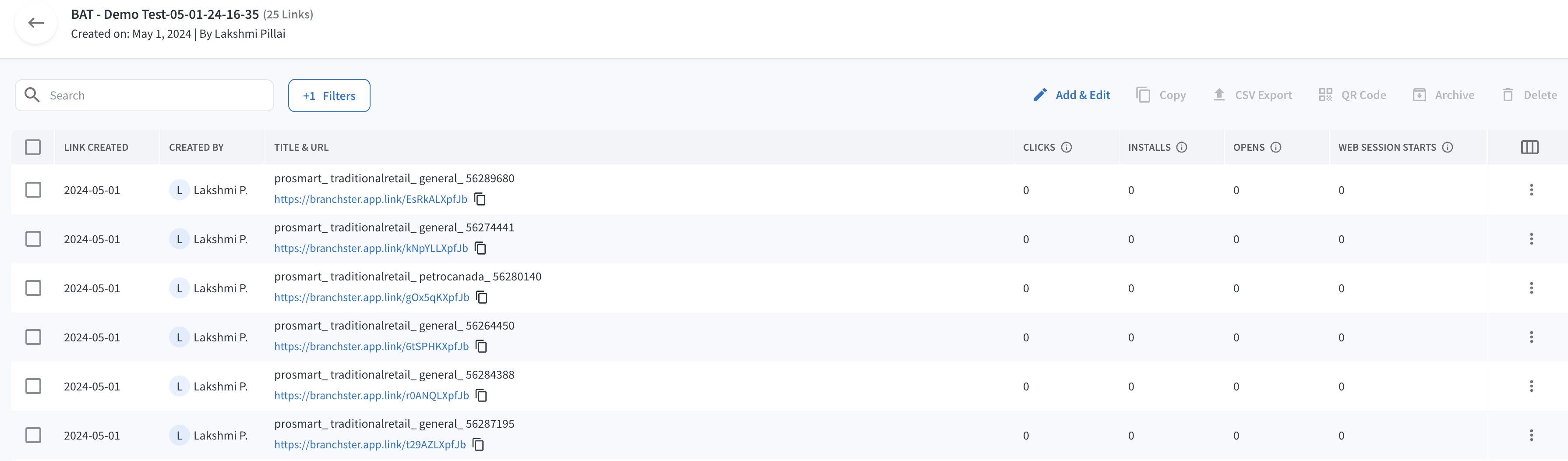
When you click the Create Bulk Links button, you will be prompted to select a Link Template or upload a CSV to create bulk links. Once you select, you can begin creating standardized links in bulk, and once you're done, you can copy and/or export all links.
When using any bulk actions like bulk link creation, all of your links associated with the bulk action will be under the one Collection. You'll be able to:
- Add/edit links in bulk. Columns in the bulk editor can now be re-sized and re-arranged via drag and drop.
- Upload a CSV for bulk link creation
- Export a CSV of both link attributes (with the bulk editor) and links (with the Link Manager table)
- Create QR codes
- Archive links
- Delete links
Analytics
LinkHub Manager allows you to easily view your Branch Link performance through a report similar to Branch's Events/Performance Table. It has the same column customizability and sorting for your measurement but specific to your Ad Links and Short Links.
Note
The Activation product only includes the Clicks metric.

Individual link stats
You can also access detailed statistics for your individual Branch Links from the Manager tab.
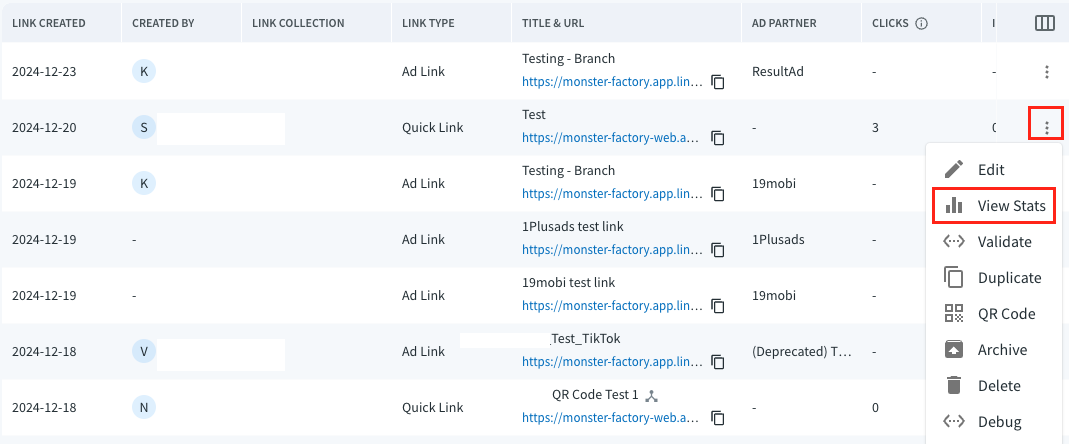
Select the three-dot icon in the row of the link you are interested in, then click on the View Stats option in the dropdown that opens.
Note
The Activation product only includes the Clicks metric.
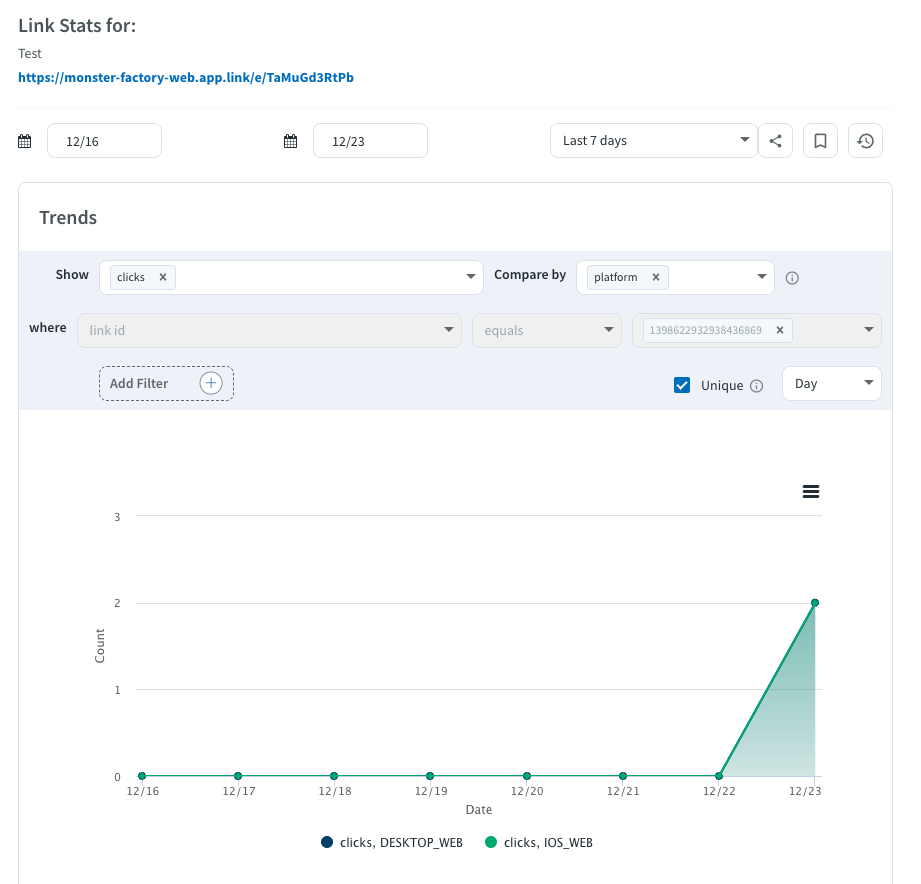
This will take you to a page where the link id has already been set for you for that particular link.
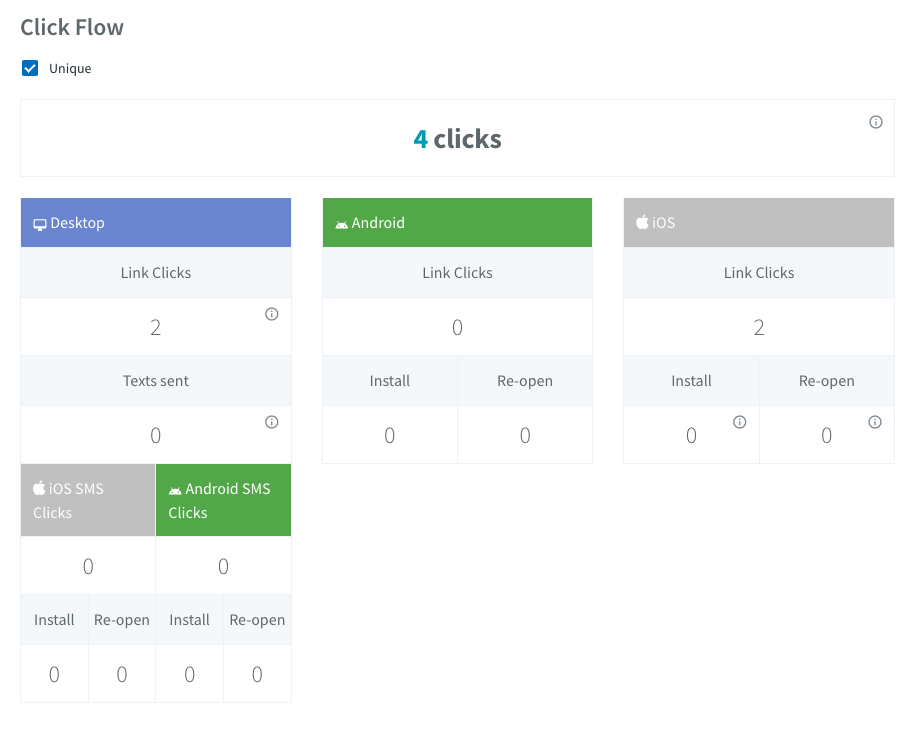
You will also see a click flow count, broken out by operating system.
Templates
Link Templates are a way to apply specific standardizations to Branch Links you create on the Dashboard. Read our Link Templates article for more information.