
Manage your audiences on the Audiences page. From there, you can see every audience in your account, open its details, change its rules, copy it, turn updates on or off, delete it, and download its files.
Attention
Branch's new experience is rolling out in phases. This article covers Audiences in new Branch. If you use legacy Branch, see the Engagement Builder documentation.
View your audiences
Select Audiences in the left-side navigation in Branch to open the Audiences page. The page shows how many of your plan's active audiences you're using, for example "4 of 10 active audiences." To find an audience by name, enter text in the Search field.
To sort the table, select a column name. The Audiences table includes:
| Column | Description |
|---|---|
| Created | The date you created the audience. |
| Name | The audience name. Select it to view the audience's details. |
| Update frequency | How often Branch updates the audience, One time or Daily. For audiences that have updated, it also shows the date of the last update. |
| User count | The number of users in the audience. |
| Owner | The person who created the audience. |
| Collaborators | The agencies or teams with access to the audience. |
| Status | Active if Branch is updating the audience, or Deactivated if it isn't. |
Select the Audience actions icon at the end of a row to open its menu. The menu includes View details, Edit, Make a copy, Deactivate or Activate, and Delete.
View audience details
Open an audience's View page to see its settings, rules, and files in one place.
To open an audience's View page, select the audience name on the Audiences page. Alternatively, select the Audience actions icon for the audience, then select View details.
The page header shows the audience name and these actions:
- Back to Audiences: Returns you to the Audiences page.
- Audience actions icon: Opens a menu with Deactivate or Activate and Delete.
- Edit audience: Opens the audience so you can change its settings.
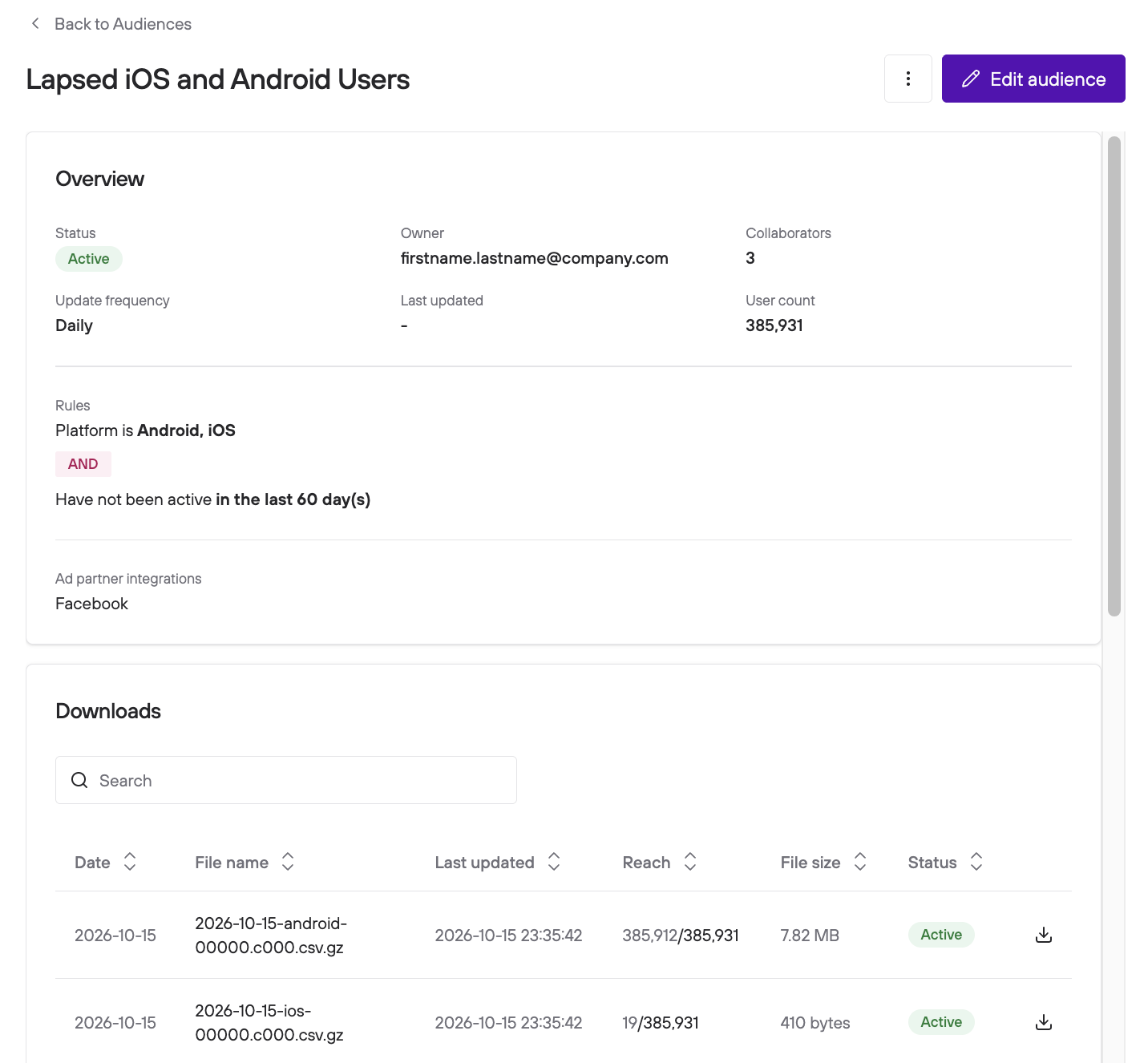
Overview
The Overview card shows the audience's settings and current state.
| Field | Description |
|---|---|
| Status | Active if Branch is updating the audience, or Deactivated if it isn't. |
| Owner | The person who created the audience. |
| Collaborators | The number of agencies or teams with access to the audience. Hover over the number to see their names. |
| Update frequency | How often Branch updates the audience, One time or Daily. |
| Last updated | The date of the audience's most recent update. A dash means the audience hasn't updated yet. |
| User count | The number of users in the audience. A warning icon appears when the count is 0. |
| Rules | The rules that users must meet to join the audience. Branch combines the rules with AND logic. |
| Ad partner integrations | The ad partners that receive the audience. A dash means none are connected. |
If an update finds no users, a banner appears in the Overview card. The banner tells you the date of the update and says that Branch added no new file. Select Edit rules in the banner to change the audience's rules.
Edit an audience
To edit an audience:
- On the Audiences page, select the three dot icon for an individual audience.
- Select Edit from the dropdown that appears. The page opens with the same Define, Permissions, and Ad partner integration tabs you used to create the audience.
- Change the settings you want.
- Select Save changes in the top-right corner of the page.
You can also select Edit audience on the audience's View page.
Copy an audience
Copy an audience to use its rules, collaborators, and ad partner integrations as a starting point for a new one. Branch doesn't copy the audience's files.
- On the Audiences page, select the Audience actions icon for the audience.
- Select Make a copy. The Create audience page opens with the settings filled in.
- Enter a name for the new audience in the Group name field.
- Change any other settings you want.
- Select Create audience in the top-right corner of the page.
Deactivate or activate an audience
Deactivate an audience to stop Branch from updating it. Deactivating frees up a slot under your plan's active audience limit. Activate it again to resume updates.
- On the Audiences page, select the Audience actions icon for the audience.
- Select Deactivate or Activate.
The audience's Status changes to Deactivated or Active.
You can also select Deactivate or Activate from the Audience actions menu on the audience's View page.
Delete an audience
Warning
Deleting an audience is a permanent action and can't be undone. Branch also deletes the audience's data.
- On the Audiences page, select the Audience actions icon for the audience.
- Select Delete.
- In the dialog that opens, select Delete to confirm.
You can also select Delete from the Audience actions menu on the audience's View page. After you confirm, Branch returns you to the Audiences page.
Download audience files
The Downloads card on an audience's View page lists its files. To open it:
- On the Audiences page, select the audience name. Alternatively, select the Audience actions icon for the audience, then select View details.
- Scroll to the Downloads card.
If the audience hasn't produced files yet, the card says "No downloads yet." Files appear after the audience's next scheduled update.
The Downloads table shows 10 files per page and includes:
| Column | Description |
|---|---|
| Date | The calendar date that Branch created the audience data on. |
| File name | The name of the file. |
| Last updated | The date and time the file was last updated. |
| Reach | The first number is the number of users in this file. The second number is the total number of users in the audience. |
| File size | The size of the file. |
| Status | Active if you can download the file, Disabled if it expires within a day, or Deactivated if it has expired. |
To download a file, select the download icon at the end of its row. To find a file by name, enter text in the Search field.
Additional information
- Branch updates audiences every 24 hours at 8 PM Pacific Standard Time (PST). Depending on when you create an audience, its files can take up to 24 hours to become available.
- Each file is a compressed CSV. Its name includes the date and the platform, and ends with the
.csv.gzfile extension. - Each file lists one device ID per line, with no header and no other data.
- Branch prepares one file for Android device IDs (GAID) and one for iOS device IDs (IDFA).
- Files expire seven days after their last update. The Status column shows whether a file is available, expires within a day, or has expired. Expired files stay in the table without a download link.
FAQ
What's the difference between deactivating and deleting an audience?
Deactivating stops Branch from updating the audience, but keeps its settings so you can activate it again. Deleting removes the audience and its data permanently.
Why can't I activate an audience?
You might have reached your plan's active audience limit. Deactivate another audience first.
Why is my audience's reach zero?
No users met your audience's rules during the most recent update. To change the rules, open the audience's View page and select Edit rules in the banner, or select Edit audience. For help with rule settings, see Create an Audience.