
Overview
SingleTap by Digital Turbine simplifies app advertising, recommendation, delivery, and tracking. Maximize revenue, increase user engagement, and save cost.
Partner capabilities
| Partner Capabilities | Details |
|---|---|
| Company Type | Contact support at SingleTap by Digital Turbine for more information. |
| Deep Linking | Supported |
| Attribution | Contact support at SingleTap by Digital Turbine for more information. |
| Ad Campaign Types | Contact support at SingleTap by Digital Turbine for more information. |
| Ad Formats | Contact support at SingleTap by Digital Turbine for more information. |
| Click Types | Contact support at SingleTap by Digital Turbine for more information. |
| Supported Platforms | Contact support at SingleTap by Digital Turbine for more information. |
| Link Wrapping | Contact support at SingleTap by Digital Turbine for more information. |
| Cost Ingestion Support | Contact support at SingleTap by Digital Turbine for more information. |
| Cost Ingestion Types | Contact support at SingleTap by Digital Turbine for more information. |
| Pricing Models | Contact support at SingleTap by Digital Turbine for more information. |
1. Complete Ads Prerequisites
DEVELOPER MAY BE REQUIRED
The following Ads prerequisite includes providing URI schemes and other components that may require a developer:
2. Enable the Integration
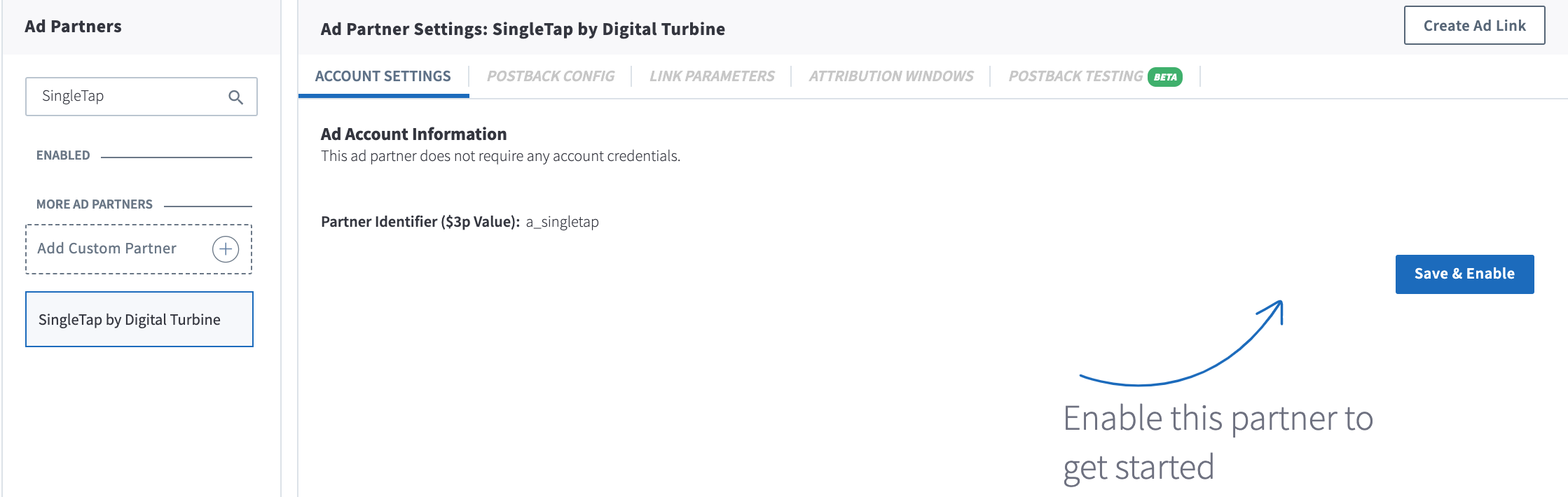
- Visit the Ads page on the Branch dashboard.
- Select Partner Management from the sidebar.
- Search for SingleTap by Digital Turbine.
- Select SingleTap by Digital Turbine and click Save & Enable.
3. Enable Postbacks
Note: PAM uses two separate toggles
The PAM for Publishers toggle on the Postback Config tab is separate from the PAM switch in your attribution settings. PAM for Publishers must be enabled to reconcile conversion events with your partner. To attribute events with PAM, you also need PAM enabled at the org-level or app-level under Configure > App Settings > Attribution. Learn more in our PAM Overview.
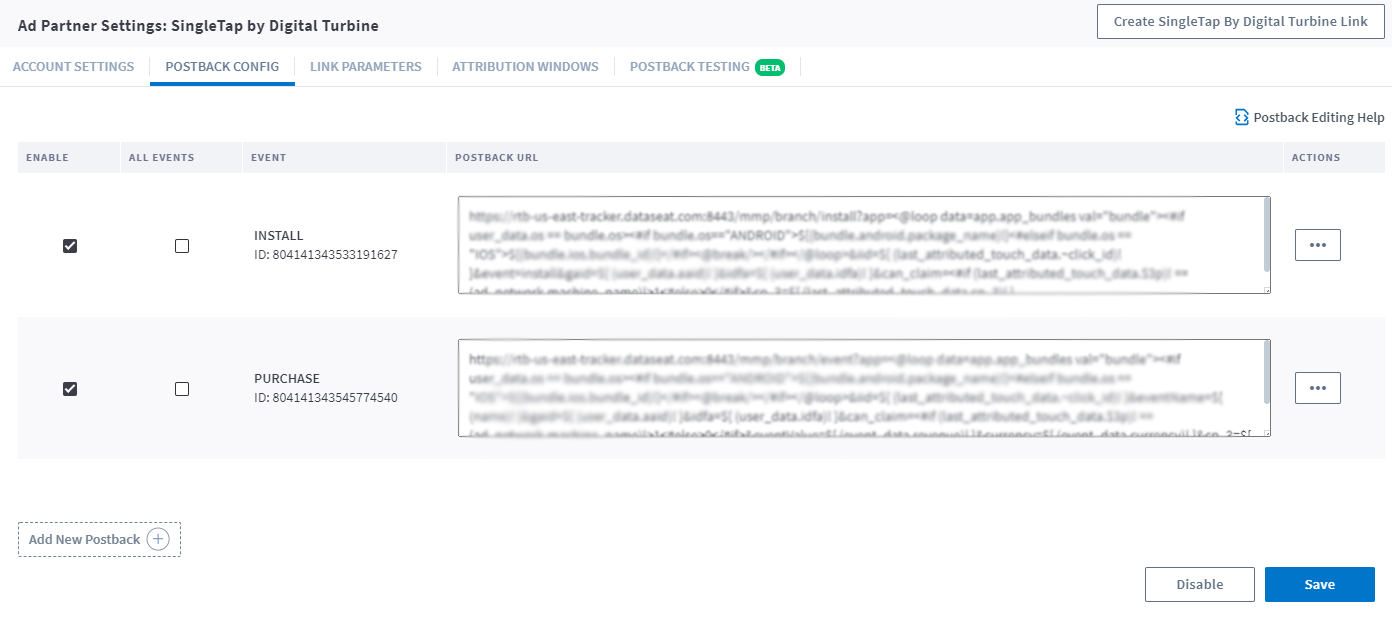
When Branch measures a conversion (install or other event), it determines which ad network or partner is responsible for generating the action, then attributes credit to the proper partner accordingly. Branch notifies the Ad partner of these events via postbacks which are turned on when you enable any Ads integrated partner.
Basic postbacks will automatically be activated for events like Install and Purchase when you enable your ad partner.
Branch’s postback system is highly customizable; you can set up postbacks for specific events, as well as specific subsections of events, filtered by link data, user data, or event properties.
You can then add additional postbacks, for example, if you wanted to add postbacks for custom events that are specific to your app like Account Created. You can also edit postbacks if there's additional data you really need to pass along to your ad partner.
Troubleshoot Postbacks
There may be times when you need to reset a partner's settings; i.e. when a partner updates their postback templates or when perhaps you've made a mistake during partner setup. Resetting a partner's settings allows you to re-enable the partner integration with the correct information to accurately measure and attribute conversion.
Note, by resetting your partner settings, this will:
- Disable the ad partner
- Clear out all of your saved credentials and postbacks that are already set up
- Return the ad partner to its basic configuration
4. Verify Integration Setup
View Link Parameters
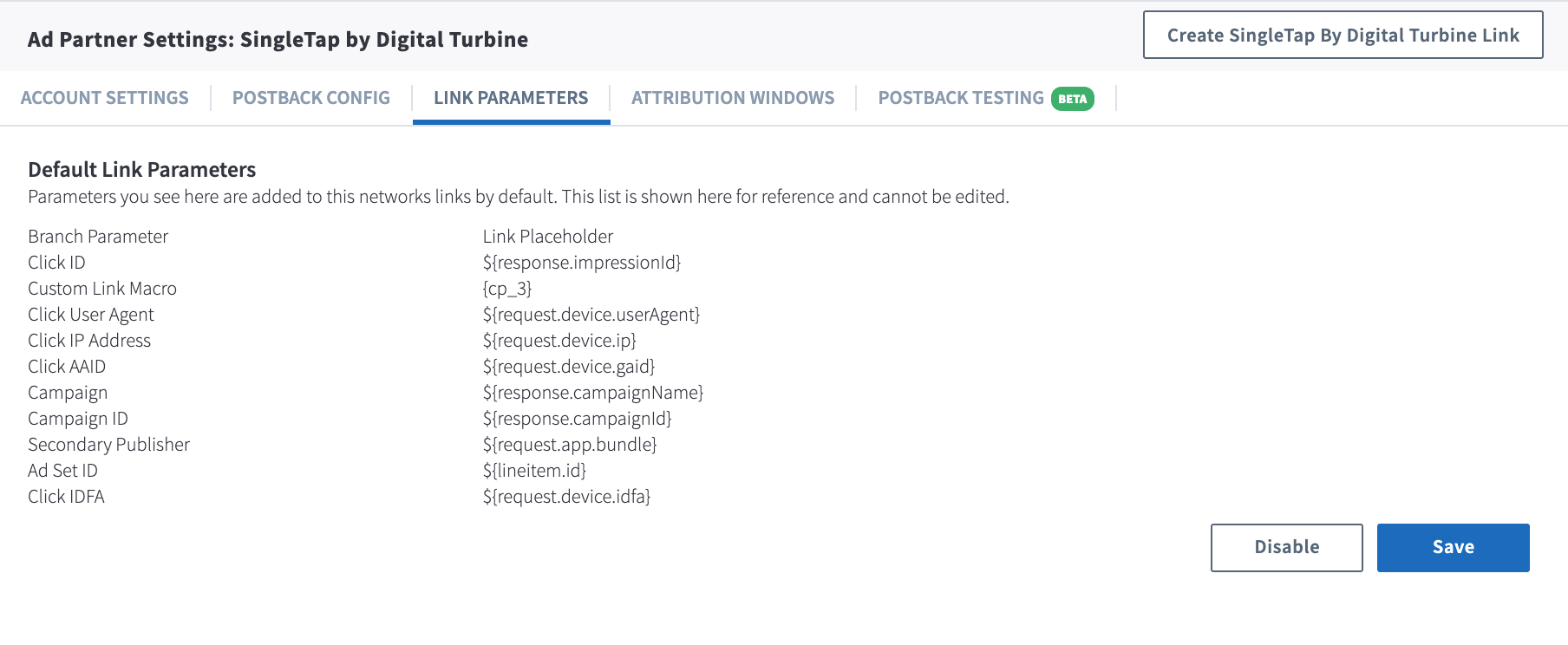
By default, Branch automatically appends partner-specific link parameters during the link creation process. When a user clicks on the link, SingleTap by Digital Turbine provides the appropriate parameter values which Branch ingests and uses for attribution and reporting purposes.
Below are the link parameters that Branch automatically appends for this ad partner:
View Attribution Windows
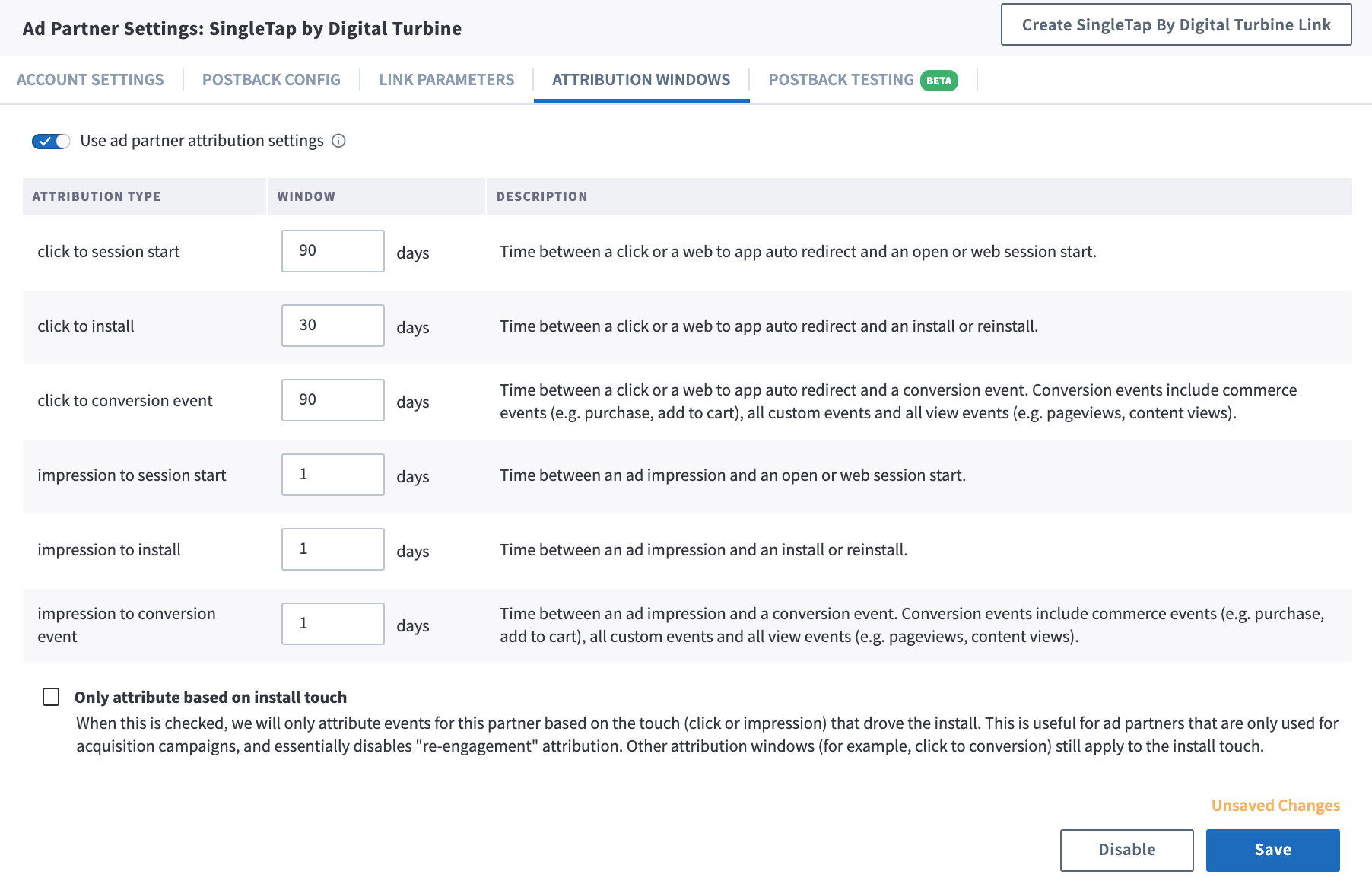
Branch employs Attribution Windows at both the app level and the ad partner level. When you enable SingleTap by Digital Turbine, Branch uses the attribution windows you've selected at the app level.
However, you can choose to use the attribution windows provided specifically by SingleTap by Digital Turbine. To do so, toggle the Use Ad Partner Attribution Windows to on. Please keep in mind that only conversions attributed to this ad partner will use these specific windows; otherwise, the app-level windows prevail.
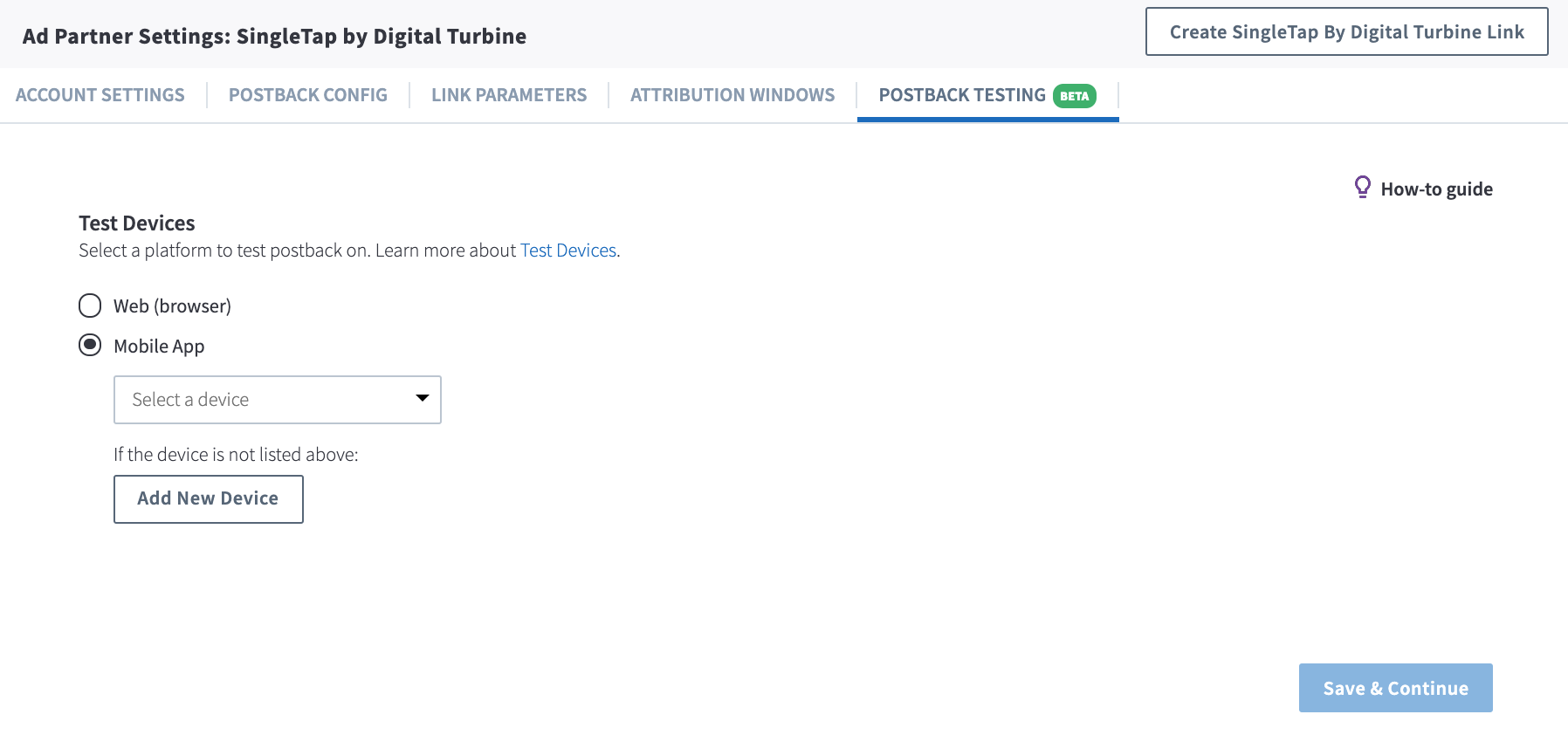
Test Postbacks
Testing your configuration is a very important step that we highly recommend you take the time to complete before going live with marketing campaigns.
Learn how to Test Postbacks.
5. Create a Branch Link
If you are running paid advertising campaigns, you'll want to create a Branch Ad Link so we can accurately attribute resulting app conversions to the appropriate advertising partner.
- Create a Branch Short Link.
- Make your Branch Link compatible with SingleTap™.
- Retrieve your base SingleTap™ link from your SingleTap by Digital Turbine Account Manager.
- Add
&dvURL=followed by your URL encoded Branch link to the end of your Digital Turbine URL.
https://delivers.dtignite.com/v2/delivers/clickAd.jsp?siteId=11365&campaignId=28394https://skdm3.app.link/pzBYIfsilZhttps://delivers.dtignite.com/v2/delivers/clickAd.jsp?siteId=11365&campaignId=28394&dvURL=https%3A%2F%2Fskdm3.app.link%2FpzBYIfsilZCreate a Branch Journey.
When customizing your Journey’s appearance:
- Select the "Open" CTA on your Journey.
- In the “Deep Link Data” section, add an entry with the key
$journeys_ctaand the value as your SingleTap URL from step 4 above.
To avoid split analytics data:
- The ~campaign value for your Short Link should match the name of your Journey.
- The ~channel value for your Short Link and your Journey should match.
- The ~feature value for your Short Link should be set to
journeys. - A parameter should be added to your Short Link in the “Deep Linking” section with the key
$3pand the valuea_digital_turbine.
More information
For more information about SingleTap by Digital Turbine, including how to use Branch Journeys with SingleTap, please visit our developer documentation.