
Introduction
Note: Dynamic Defense only available on new Branch
Please note that Dynamic Defense is only available on the new Branch platform. If you’re using legacy Branch, please visit our legacy Fraud articles.
Dynamic Defense is Branch's fraud protection system. It monitors your traffic in real time and identifies invalid traffic from sources like bots, emulators, spoofed devices, suspicious networks, and more. It flags this suspicious activity before it distorts your attribution data and wastes your ad spend.
Dynamic Defense evaluates every touch and conversion against a set of rules. One or more child rules makes up a rule, and each child rule tests a single fraud signal: a specific, observable indicator of invalid traffic. When an event matches a rule, Dynamic Defense either tags the event (labels it as invalid while keeping it in your standard reporting) or blocks it (excludes it from attribution entirely).
Using Ivy, your strategic AI partner in Branch, Dynamic Defense goes beyond static rules: Ivy analyzes your app's traffic patterns and creates intelligent rules tuned to the invalid traffic it detects in your data.
Caution: legacy Fraud moving toward deprecation
If you previously configured rules in legacy Branch, those rules have been automatically migrated to Dynamic Defense in new Branch. You don't need to do anything.
Migrated rules can't be edited. What else you can do with one depends on where it came from in legacy Branch:
- Branch locks migrated Universal rules. You can't edit, disable, or delete them, and they always show a status of Enabled. This matches how they behaved in legacy Branch.
- Migrated Standard rules arrive in the exact state they were in, either enabled or disabled. You can enable, disable, or delete them, but you can't change their configuration.
Migrated rules stay in Dynamic Defense until you delete them or legacy Fraud is fully deprecated. Branch will announce the deprecation timeline in advance.
Please note that legacy experience is moving toward deprecation, so use Dynamic Defense to manage your fraud protection going forward.
Key terms
The guide uses the following terms extensively throughout.
| Term | Definition |
|---|---|
| Rule | A named set of conditions that Dynamic Defense uses to identify invalid traffic. Each rule has one or more child rules and an action (Tag or Block) that determines what happens to matching events. |
| Child rule | A single condition within a rule. Each child rule tests one fraud signal, so a rule's child rule count is also the number of signals it checks. Dynamic Defense joins child rules with OR logic, so an event matches the rule when it matches any one of them. |
| Fraud signal | A specific, observable indicator of invalid traffic, and the thing a child rule tests for. For example, a device model that identifies an Android emulator, or an OS version that has been end-of-life for years. The Rules list counts these as child rules; the Rule details tab lists them by name under All fraud signals. See the Dynamic Defense Fraud Signals Reference for definitions. |
| Filter | A condition you define yourself, made up of a field, an operator, and one or more values, for example, Operating System equals IOS. You build custom rules from filters instead of fraud signals. A rule can have up to five filters, joined with either AND or OR logic. |
| Rule builder | The interface you use to create a custom rule, opened from the Create rule button on the Dynamic Defense page. The Rule builder is available on every plan. |
| Tag | An action that labels matching events as invalid. Tagged events remain in your standard activity reporting, where you can identify and analyze them using fraud dimensions. Tagging is useful for auditing a rule's impact before you commit to blocking. |
| Block | An action that excludes matching events from attribution and standard reporting. Blocked events are reported in the Activity Fraud data source and on the Dynamic Defense dashboard. |
| Ivy | Branch's AI. In Dynamic Defense, Ivy analyzes your traffic and creates intelligent rules tailored to the invalid traffic patterns it detects in your data. Ivy labels the rules it creates. |
Access
Dynamic Defense is available on the new Branch platform. Rules you migrated from legacy Branch and custom rules you build in the Rule builder are available on every plan.
Premium rules require an upgrade. These include:
- Ivy intelligent rules: Ivy Intelligent Protection and Ivy Advanced Persona.
- Event analysis rules: Branch's preset rules that analyze the traffic we see for signs of invalid activity.
Premium rules appear in your Rules list with a Requires upgrade badge, and you can't edit or enable them until your plan includes them.
Please contact our Sales team to learn more.
Dynamic Defense page
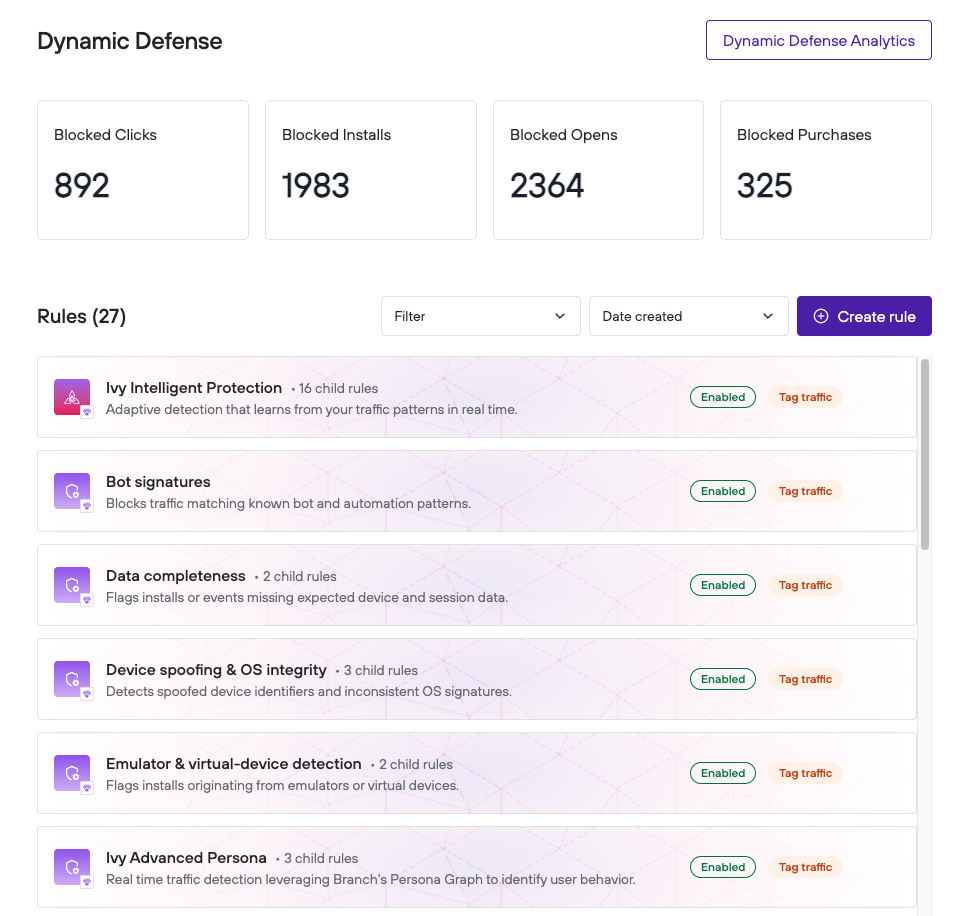
You can find Dynamic Defense in the left-side navigation of Branch. The Dynamic Defense page has two main areas: a summary of your fraud protection activity at the top, and your list of rules below it.
Summary metrics
The cards at the top of the page summarize the traffic Dynamic Defense has stopped in the last 30 days:
| Metric | Definition |
|---|---|
| Blocked Clicks | The number of link clicks excluded by your blocking rules. |
| Blocked Installs | The number of install events excluded by your blocking rules. |
| Blocked Opens | The number of app open events excluded by your blocking rules. |
| Blocked Purchases | The number of purchase events excluded by your blocking rules. |
For deeper reporting, including breakdowns by ad partner, campaign, and fraud rule, select the Dynamic Defense Analytics button in the top-right corner of the page, and then choose Tagged traffic or Blocked traffic to open the matching Dynamic Defense dashboard. You can also find these dashboards under Analysis > All Dashboards.
Rules list
Below the summary metrics, the Rules list shows every fraud rule configured for your app. Each rule displays:
Name: The name of the rule.
- Rules migrated from legacy Branch start with [Migrated Rule], followed by either the legacy rule type, such as [Migrated Rule] Geo conflict, or the legacy Rule ID such as [Migrated Rule] 005b0db2-ca5d-408b-aa28-7bacdd5e0068.
- Because legacy Branch let you configure several rules of the same type, you may see more than one migrated rule with an identical name. Open each one to tell them apart by its configuration.
Rule type: Shown by the icon at the start of the rule. It matches the options in the Filter dropdown:
- User Defined: A rule created by someone on your team in the Rule builder.
- Ivy created: A rule that Ivy created from patterns in your traffic.
- Branch created: A preset rule maintained by Branch, including rules migrated from legacy Branch.
Condition count: How many conditions make up the rule.
- Branch and Ivy rules display a child rule count, for example, 16 child rules. Because each child rule tests one fraud signal, this is also the number of signals the rule checks.
- Custom and migrated rules display a filter count instead, for example, 1 filter.
Status: Whether the rule is currently evaluating traffic. Can be Enabled or Disabled. Premium rules that aren't in your plan show Requires upgrade instead.
- Migrated Universal rules are always Enabled and you can't turn them off.
Action: The rule's current action (Tag traffic or Block traffic). Disabled rules and rules that require an upgrade don't show an action.
Manage rule button: The arrow icon at the end of the rule opens the rule's Manage rule page. Migrated Universal rules don't have this button because you can't edit them.
To narrow down the list:
- Select the Filter dropdown to filter rules by type: User Defined, Ivy created, or Branch created.
- Select the Date created dropdown to sort rules by Date Created (newest) or Date Created (oldest).
Rule types
Your Rules list can contain four types of rules: Ivy intelligent rules, event analysis rules, custom rules, and migrated rules.
Ivy intelligent rules
These rules use Ivy, Branch's AI, to make judgments about your traffic instead of matching fixed device or network signatures. There are two:
- Ivy Intelligent Protection is Branch's post-attribution detection system. It analyzes your attributed traffic for emerging fraud patterns, then dynamically creates pre-attribution rules, so Branch catches traffic matching a newly detected pattern before it reaches attribution.
- Ivy Advanced Persona uses Branch's user device graph to identify suspicious traffic, evaluating each event in the context of that user's wider behavior rather than judging the event on its own.
Ivy intelligent rules are premium rules.
Event analysis rules
These are preset rules created and maintained by Branch that analyze the traffic we see for signs of invalid activity, each targeting a well-understood category. These include Bot signatures, Data completeness, Emulator & virtual-device detection, Device spoofing & OS integrity, Network & anonymization, and Outdated or unsupported environment. Event analysis rules are premium rules.
Custom rules
These are rules created by you or someone on your team in the Rule builder, built from up to five filters rather than from Branch's fraud signals. Custom rules are available on every plan.
Migrated rules
These are rules carried over automatically from Branch's legacy fraud protection experience, in the exact state they were in. Migrated rules are available on every plan. They come in two categories:
- Branch locks migrated Universal rules, exactly as it did in legacy Branch. You can't edit, disable, or delete them, and they stay Enabled. Examples include Suspicious persona and Suspicious IP.
- Migrated Standard rules are the rules you configured yourself in legacy Branch, including Custom, Threshold, and Once-Ever rules, and types such as Geo conflict and Device conflict. Their names start with [Migrated Rule] and they arrive Enabled or Disabled, matching their legacy state. You can enable, disable, or delete these, but you can't change their configuration.
Some migrated rules display their legacy Rule ID after the [Migrated Rule] prefix rather than a descriptive name.
Tag versus block
Every rule takes one of two actions on matching events:
- Tag: Branch labels the event as invalid, but it continues to flow through attribution and your standard reporting. You can identify tagged events in your Analysis reporting using fraud dimensions like
Fraud Names,Fraud Types, andFraud Suspicious, or on the Dynamic Defense - Tagged Events dashboard, so you can measure exactly how much of your traffic a rule would affect. - Block: Branch excludes the event from attribution and standard reporting entirely. Blocked events are reported in the Activity Fraud data source, so you always retain visibility into what Dynamic Defense stopped and why.
Tip: start with tagging
Not sure whether a rule is too aggressive? Start with Tag. Let the rule run, review the tagged traffic in the rule's Recent activity tab and on the Dynamic Defense - Tagged Events dashboard, and switch to Block once you're confident the rule is only catching invalid traffic.
Manage a rule
To view or edit a rule, select the arrow icon at the end of it in the Rules list. This opens the Manage rule page, which has three tabs:
- Rule details, which includes the rule's Rule analytics panel
- Recent activity
- Audit trail
When you're finished making changes, select the Save changes button in the top-right corner. To return to the Rules list, select Back to rules.
Rule details
The Rule details tab is where you configure what the rule does:
- Rule name: On a custom rule, use the Rule name field to rename the rule. You can't rename Branch and Ivy rules.
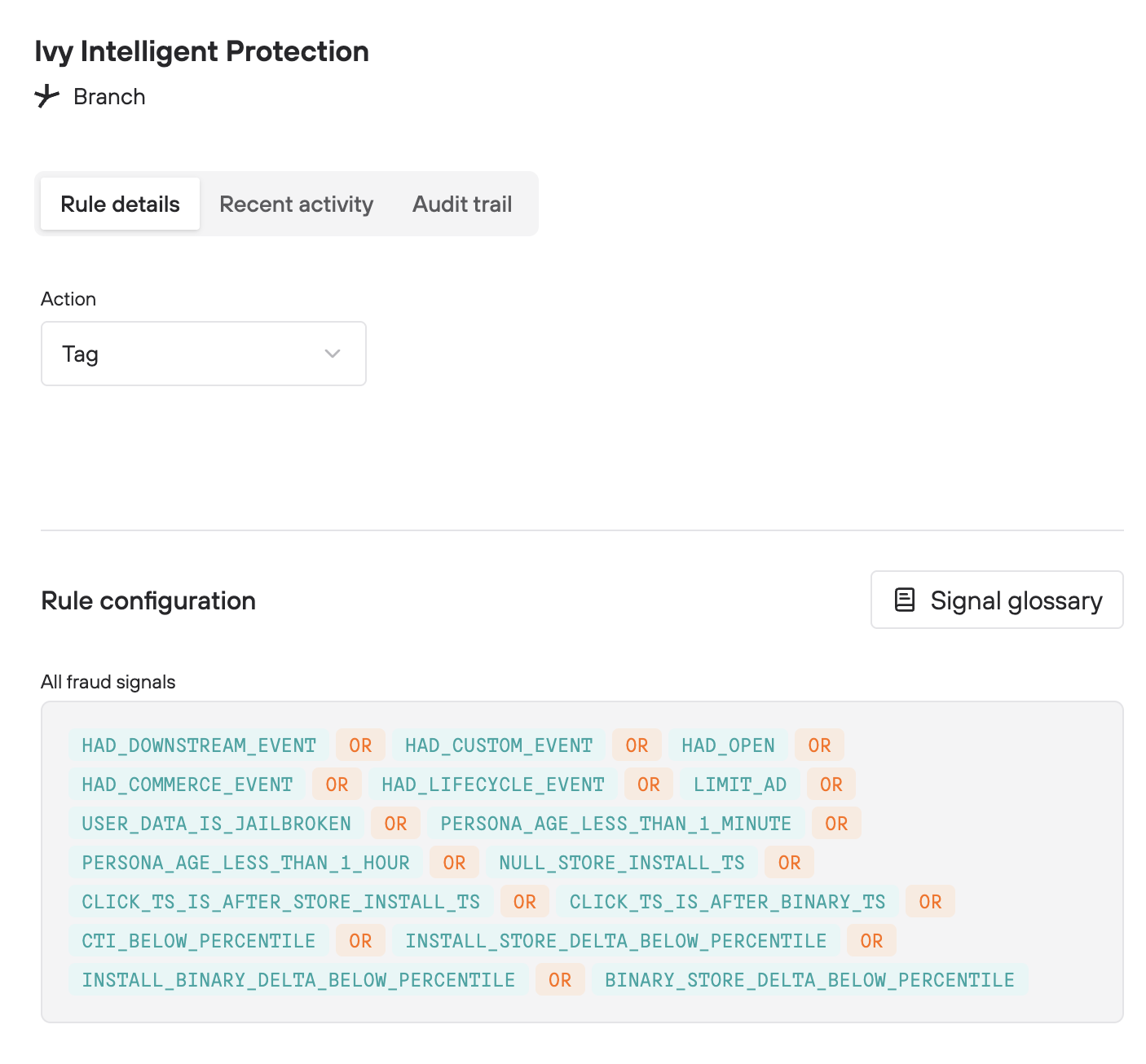
- Action: Use the Action dropdown to choose whether the rule will Tag or Block matching events.
- Rule configuration: What this section contains depends on the rule type.
On Branch and Ivy rules, the All fraud signals section lists the rule's child rules by the signal each one tests, joined with OR logic. An event matches the rule when it matches any one of these signals. A rule listed as 16 child rules shows 16 signals here. To look up what any signal means, select the Signal glossary button, or see the Dynamic Defense Fraud Signals Reference.
On custom rules, you build the conditions yourself in the Rule builder:
- Use the scope dropdown to choose which events the rule applies to, for example, Installs. The dropdown label reads Tags or Blocks to match the rule's action.
- Add up to five filters. Each filter is a field, an operator, and one or more values, for example, Operating System equals IOS. Branch shows the underlying field name below each filter, such as
userData.os. - Use the conditions dropdown to choose Match ALL (AND) conditions or Match ANY (OR) conditions. Within a single filter, an event matches if it matches any of that filter's values.
- Select Add Filter to add a condition, or the trash icon to remove one.
Migrated rules are also built from filters, but you can view them only. You can't change their filters, action, or scope.
The Rule analytics panel appears alongside this tab. See Rule analytics for what it shows.
Rule analytics
The Rule analytics panel on the right side of the Manage rule page shows the rule's recent impact, so you can audit its effect at a glance. The panel matches the rule's action. A rule set to Block shows these widgets:
- Blocked Events: The total volume of events this rule blocked, broken out by event type.
- Blocked Events by Day: A daily trend of blocked events, so you can spot spikes and see how the rule's impact changes over time.
- Blocked Events Heat Map: A grid view of blocked events that shows where the rule blocks the most events.
A rule set to Tag shows the equivalent widgets for tagged events: Tagged Events, Tagged Events by Day, and Tagged Events Heat Map.
If a rule hasn't affected any recent traffic, this panel displays No data found for this query. For a rule you haven't saved yet, it displays No analytics data yet. Data isn't available for rules migrated from legacy Branch.
Recent activity
The Recent activity tab answers the question "what's the effect of this rule?" It contains tables of the rule's activity, including:
- A monthly summary of affected events by ad network, event name, and action taken (
TAGorBLOCK), with total event counts and effective dates. - A detailed breakdown by ad network and other fields, so you can see exactly where the affected traffic is coming from.
Use the Recent activity tab to audit a rule before changing its action, for example, to confirm that a rule in Tag mode is only catching traffic you'd be comfortable blocking.
Audit trail
The Audit trail tab shows the change history for the rule: the creation date, the initial configuration, every later change, and who made each change (including changes by Branch or Ivy). Each entry has a timestamp.
Reporting
Dynamic Defense gives you several levels of visibility into your fraud protection:
- Page-level summary: The metric cards at the top of the Dynamic Defense page summarize your blocked traffic.
- Per-rule auditing: Each rule's Recent activity tab and Rule analytics panel show that rule's specific effect.
- Full reporting in Analysis: The Dynamic Defense dashboards track blocked and tagged events across campaigns and ad partners. Tagged events remain part of your standard activity reporting, where you can identify them using fraud dimensions. Blocked events are reported in their own Activity Fraud data source.
Tip: finding the Dynamic Defense dashboards
The Dynamic Defense dashboard doesn't have its own item in the left-side navigation. To open the tagged or blocked traffic dashboards, select Dynamic Defense Analytics in the top-right corner of the Dynamic Defense page, and then choose Tagged traffic or Blocked traffic. You can also find them in the Analysis > All Dashboards list.
FAQ
What's the difference between tagging and blocking?
Branch labels tagged events as invalid, but they stay in your standard reporting and attribution, so you can audit a rule's impact. Branch excludes blocked events from attribution and standard reporting entirely and reports them in the Activity Fraud data source.
Do tagged events affect my metrics?
Yes. Tagged events continue to count in your standard activity reporting. Tagging identifies invalid traffic without changing your numbers, which makes it a safe way to evaluate a rule before switching it to Block.
What's the difference between a child rule and a fraud signal?
They're two views of the same thing. A rule is the top level: it has a name, an action (Tag or Block), and a scope. Within a Branch or Ivy rule, each child rule tests one fraud signal. The Rules list counts the child rules, and the All fraud signals section on the Rule details tab names the signal each child rule tests. A rule with 16 child rules checks 16 signals.
Custom and migrated rules work differently: they're built from filters you define yourself rather than from Branch's fraud signals, so the Rules list shows a filter count for them.
Why can't I edit a rule?
Rules with a Requires upgrade badge are premium rules. Please contact our Sales team to learn more.
You also can't edit migrated rules. You can enable, disable, or delete a migrated Standard rule, but Branch locks migrated Universal rules entirely, and they stay Enabled.
What are Ivy intelligent rules?
Ivy intelligent rules use Ivy, Branch's AI, to make judgments about your traffic instead of matching fixed device or network signatures. Ivy Intelligent Protection analyzes your attributed traffic for emerging fraud patterns, then dynamically creates rules enforced at the pre-attribution level. Ivy Advanced Persona identifies suspicious traffic by evaluating each event against that user's wider behavior. Both are premium rules.
Where can I see the events that were blocked?
The Dynamic Defense page summarizes blocked events at the top, each rule's Recent activity tab details them, and the Dynamic Defense - Blocked Events dashboard reports on them in full. To open it, select the Dynamic Defense Analytics button on the Dynamic Defense page, and then choose Blocked traffic. You can also find it in the All Dashboards list.
What happened to my legacy fraud rules?
Branch migrated them to Dynamic Defense automatically, in the exact state they were in. Migrated Universal rules like Suspicious persona and Suspicious IP stay locked and always enabled, just as they were in legacy Branch. Migrated Standard rules, including your Custom, Threshold, and Once-Ever rules, start with [Migrated Rule] in your Rules list. You can enable, disable, or delete them, but not edit them.
Migrated rules stay in Dynamic Defense until you delete them or legacy Fraud is fully deprecated, whichever is first. The legacy experience is moving toward deprecation, so please manage your fraud protection in Dynamic Defense going forward.
Why does one of my rules show an ID instead of a name?
For some migrated rules, the legacy Rule ID is the only reliable way to identify them. Those rules display the ID after the [Migrated Rule] prefix, for example, [Migrated Rule] 005b0db2-ca5d-408b-aa28-7bacdd5e0068.
For the same reason, you may see several migrated rules with identical names. Open each one to tell them apart by its configuration.