
An audience is a group of users that match the rules you define. To build an audience, you'll configure settings across three tabs: Define, Permissions, and Ad partner integration. A preview on the side of the page updates as you work, so you can check your settings before you create the audience.
For background on how Audiences works, see Audiences Overview.
Attention
Branch's new experience is rolling out in phases. This article covers Audiences in new Branch. If you use legacy Branch, see the Engagement Builder documentation.
Before you begin
To create an audience, you first need to:
- Have Edit access for the Engagement builder permission in your Branch account.
- Accept the ad network partner terms the first time you open Audiences. To learn more, see Access.
- Have valid authentication in Branch for each ad partner you want to connect. To refresh an ad partner's credentials, see View account settings.
- Have an open slot under your plan's active audience limit.
1. Start a new audience
- Select Audiences in the left-side navigation in Branch.
- Select Create audience in the top-right corner of the page. If you can't select the button, you've reached your active audience limit.
The next page opens on the Define tab.
2. Define the audience
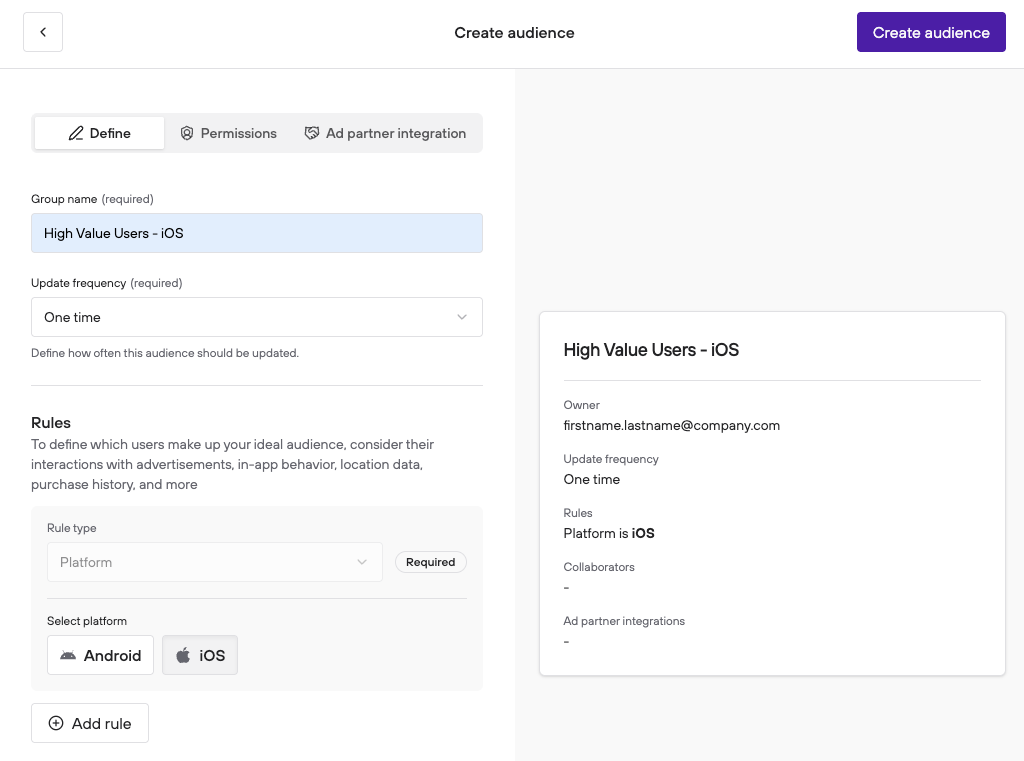
On the Define tab, name your audience, choose how often it updates, and set its rules.
Enter a name in the Group name field. Use a name that tells you and your teammates what the audience is for, such as
High Value Users - iOS.Select an option from the Update frequency dropdown:
- One time: Branch builds the audience once and doesn't refresh it.
- Daily: Branch rebuilds the audience every day, based on users who start or stop meeting your rules.
Under Rules, select a type from the Rule type dropdown, then set its options.
To add another rule, select Add rule.
To remove a rule, select Remove rule next to it.
Under All users who, Branch combines your rules with AND logic, so users must meet every rule to join the audience.
Rule types
Rules fall into three categories. Each rule type has its own settings.
| Category | Rule type | What it selects |
|---|---|---|
| In-App Behavior | Platform | Users on Android, iOS, or both. You must include this rule and can't remove it. |
| In-App Behavior | Countries | Users in the countries you select. By default, there are no restrictions. You can add this rule once. |
| In-App Behavior | App version | Users whose app version matches your condition. You can add this rule once. See App version. |
| In-App Behavior | Active App Users | Users who were active in the app. Select a timeframe and frequency. |
| In-App Behavior | Complete Event | Users who have or haven't completed an event. Select the event, then select a timeframe and frequency. You can select a Branch standard event or one of your custom events. |
| In-App Behavior | Recently Installed App | Users who installed the app within the timeframe you set. |
| In-App Behavior | Lapsed App Users | Users who haven't been active within the timeframe you set. |
| Monetization | Abandoned Cart | Users who abandoned items they added to a cart. Select a timeframe. |
| Monetization | Purchasers | Users who purchased. Select a timeframe and frequency. |
| Monetization | Revenue | Users who generated revenue. Select a timeframe and a worth. |
| Advertising Exposure | Advertising Partner | Users who have or haven't been attributed to an ad partner. Select the partner, then select a timeframe. |
| Advertising Exposure | Clicked Adverts | Users who clicked an ad. Select a timeframe and frequency. |
| Advertising Exposure | Viewed Adverts | Users who viewed an ad. Select a timeframe and frequency. |
| Advertising Exposure | Clicked Emails | Users who clicked an email. Select a timeframe and frequency. |
| Advertising Exposure | Interacted with Journey | Users who interacted with a Journey. Select a timeframe and frequency. |
| Advertising Exposure | Organically Acquired | Users whose first install was organic or inorganic. Select a timeframe. |
Note
The Advertising Partner rule doesn't list Facebook (Meta), Pinterest, Reddit, Roku, or Samsung.
Timeframe
Rules that use a timeframe offer two options.
| Option | Choices |
|---|---|
| In the last | 1 day (yesterday), 7 days, 30 days, 60 days, 90 days, 179 days, Exactly X days, Month to date, or Quarter to date |
| Between dates | A start date and an end date |
Timeframes reach back up to 179 days. For Exactly X days, enter 179 days or fewer. For Between dates, the start date must be within the last 179 days, and the end date must be within 179 days of the start date.
Frequency
Rules that use a frequency set how many times users must do the action.
| Option | What it selects |
|---|---|
| More than or equal to X times | Users who did the action at least X times. |
| Less than or equal to X times | Users who did the action at most X times. |
| Exactly X times | Users who did the action X times. |
| Between X and Y times | Users who did the action at least X and at most Y times. |
You can enter a count of up to 250.
Worth
The Revenue rule uses Worth to set how much revenue users generated.
| Option | What it selects |
|---|---|
| Worth more than or equal to $X | Users who generated at least $X. |
| Worth less than or equal to $X | Users who generated at most $X. |
| Worth exactly $X | Users who generated exactly $X. |
| Worth between $X and $Y | Users who generated between $X and $Y. |
App version
The App version rule selects users by the version of your app. Select an operator, then select one or more versions.
| Operator | What it selects |
|---|---|
| equals | Users on one of the versions you select. |
| does not equal | Users on any version other than those you select. |
| starts with | Users on versions that start with the value you select. |
| does not start with | Users on versions that don't start with the value you select. |
3. Add collaborators (optional)
Collaborators are agencies or teams that can view and manage the audience. This step is optional.
- Select the Permissions tab.
- Under Collaborators (Agencies), select an agency or team from the dropdown.
- Select the plus icon next to the dropdown to add them.
- To remove a collaborator, select Remove collaborator next to their name.
The dropdown lists the agencies and teams linked to your app. If it's empty, you haven't linked any yet. To learn more, see Third-Party Overview.
Collaborators don't need separate permissions. As the audience owner, you give them access by adding them here.
4. Connect ad partners (optional)
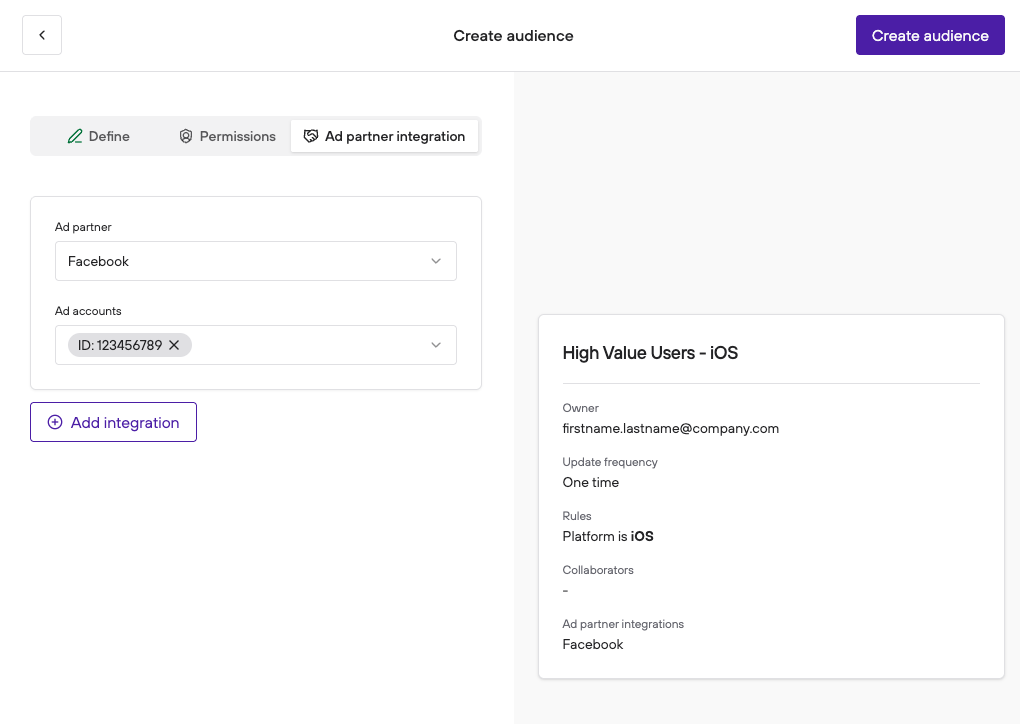
Connect an ad partner so Branch can share the audience with your ad account. This step is optional.
The Ad partner dropdown lists Facebook, Google AdWords, TikTok For Business SAN, and Snap. A partner appears in the list only after you enable it in Branch.
- Select the Ad partner integration tab.
- Select a partner from the Ad partner dropdown.
- Select one or more accounts from the Ad accounts dropdown.
- If the partner has terms you need to accept, select the checkbox next to I agree to. For example, Google requires you to agree to Google's Customer Match policies.
- To connect another partner, select Add integration, then repeat steps 2 through 4.
- To remove a partner, select Remove integration next to it.
Note: Google Customer Match
For more information on Google Customer Match and eligibility requirements, see Google's Customer Match policy.
Note: Facebook Custom Audience Terms
To upload an audience to Facebook, a user in your Meta business must first accept Meta's Custom Audience Terms of Service from one of the business's ad accounts. To learn more, see Meta's Custom Audience Terms of Service documentation.
5. Preview and create audience
The preview panel shows your audience's name, update frequency, owner, collaborators, rules, and ad partner integrations. Compare it with what you intended.
If something looks wrong, go back to the tab that holds that setting and change it. When everything looks right, select Create audience in the top-right corner of the page. A message tells you when Branch creates the audience, and the audience appears on the Audiences page.
Branch updates audiences every 24 hours at 8 PM Pacific Standard Time (PST). The first files can take up to 24 hours to appear in the Downloads card on the audience's View page. To learn more, see Download audience files.
FAQ
Can I combine rules with OR logic?
No. Branch combines an audience's rules with AND logic. To build an audience for users who meet one rule or another, create a separate audience for each rule.
Can I add the same rule type more than once?
You can add Platform, Countries, and App version once each. You can add the other rule types as many times as you need.
Can I change an audience after I create it?
Yes. To learn more, see Edit an audience.