
Introduction
Funnel Analysis simplifies multi-touch attribution reporting by visualizing the journey users take across your campaigns before converting. Instead of viewing only the last touchpoint before a conversion event, you can see the sequence of up to three interactions that led to each conversion.
Traditional last-touch attribution assigns full credit to the final touchpoint a user interacted with before converting. This model can potentially undervalue assisted touchpoints, which are touchpoints that play important roles earlier in the user journey but don't receive last-click credit.
Funnel addresses the limitations of last-touch attribution by tracking and displaying the full path users take, enabling you to understand how different interactions work together to drive conversions.
With Funnel, you can:
- View aggregated paths showing how users moved between touchpoints before converting.
- Compare conversion paths across different dimensions such as campaigns, ad partners, and other attributes.
- Analyze user journeys leading to any type of conversion event including installs, Branch Standard Events like “Add to Cart”, or other Branch Custom Events that you’ve defined.
- Identify touchpoints that serve as effective entry points versus those that drive final conversions.
- Understand the role of assisted touches, where channels may receive little last-touch credit but significantly influence user behavior.
This path-level insight allows you to make more informed budget allocation decisions by accounting for the contribution of more touchpoints in the conversion journey, not just the final interaction.
Overlapping lookback windows
Funnel supports overlapping lookback windows, allowing each partner to maintain its own attribution window length simultaneously.
In traditional attribution, when a user converts, the most recent touchpoint within an active window receives credit, effectively cutting off earlier partners from their full lookback periods.
With Funnel, each partner’s attribution window runs independently. If a user interacts with multiple ad partners and then converts after some partners’ windows have expired, the conversion is still attributed to the last partner whose window is still active. This is true even if that partner wasn’t the most recent touchpoint.
This approach ensures that partners with longer attribution windows can receive credit for conversions that occur throughout their full window period, providing a more accurate view of each partner’s contribution to user behavior over time.
Set attribution windows
To set your global attribution windows at the app level:
- In Branch, go to Configuration > Attribution.
- Set your values for the various attribution types.
To set custom attribution windows at the ad partner level:
- In Branch, go to Configuration > Integrations.
- Search for the ad partner you want to update.
- Select the Attribution Windows tab.
- Turn off the “Use ad partner attribution settings” toggle.
- Set your own custom attribution window values for that ad partner’s attribution types.
Packaging
Funnel is available as part of certain Branch plans. For more information, please see our Pricing page or contact our Sales team.
Use Funnel
To access Funnel, go to Analysis > Funnel in Branch.
Funnel requires three parameters:
- The date range you want to see user journeys for.
- The event that you consider the conversion event for your scenario.
- The “compare by” dimension to break out the user journeys by, such as ad partner or campaign.
In addition to these three parameters, you can use filters to narrow your results. These are helpful if you only want to see certain countries or operating systems.
Your chosen date range, conversion event, and “compare by” dimension will be displayed at the top of the screen, alongside the other filters on the dashboard.
By default, Funnel shows the last 30 days, compares by channel, and uses install as the conversion event. It also applies two default filters: First and Second are both set to exclude No Touch. These filters hide journeys with fewer than three touchpoints. To include shorter journeys, edit the First and Second filters.
Available dimensions
The values available in the Compare Dimension filter, which sets the required “compare by” field, include:
ad_set_idad_set_nameadvertising_partner_namebranch_channelcampaigncampaign_idchannelfeature
Available filters
The Funnel dashboard includes the filters listed below. You can edit these filters, but you can’t add other filters to the dashboard.
- Compare Dimension
- Conversion Event
- Date
- First
- Geo Country
- OS
- Second
To edit a filter such as Compare Dimension, Conversion Event, Geo Country, or OS:
- Select the filter at the top of the dashboard.
- Select the Include or Exclude tab.
- Search for the values you want and select them, or select Add values in bulk.
- Select Apply.
To edit the Date filter:
- Select the Date filter at the top of the dashboard.
- Select Rolling to use a recent time period, such as the last 30 days, or Fixed to use specific dates.
- If you selected Rolling, set the time period. Optionally, select Include this day.
- If you selected Fixed, set the start and end dates.
- Check the Preview, and then select Apply.
Check data coverage
A daily job processes new Funnel data. For each conversion, Funnel includes touchpoints from the 15 days before the conversion. Funnel’s reporting data refreshes every 30 minutes, and Funnel keeps two years of data.
Read Funnel data
Funnel has a strong visual component, as well as structured table components. Use these views together to gain a more complete understanding of user engagement and drop-off points. The Funnel dashboard includes two visualizations: Funnel Paths (a Sankey diagram) and Funnel Pivot (a pivot table).
Read visual data
Funnel Paths presents data visually in the form of a traditional Sankey diagram. Sankey diagrams have two main parts:
Nodes: These represent the different touchpoints a user goes through on their journey to a conversion event. Funnel will show up to three nodes, or touchpoints, before a conversion. This information is displayed in the form of text. Each label shows the attributed value and the touch type in parentheses, such as Google (CLICK) or Facebook (IMPRESSION). Note that in a user journey with three touchpoints:
- Final is the most recent touchpoint.
- Second is the second-to-last touchpoint.
- First is the initial touchpoint.
If a user journey has fewer than three touchpoints, you will see that reflected with the No Touch label in the First and/or Second columns. By default, Funnel filters these journeys out. To see them, edit the First and Second filters.
- Links: These are the colored lines that connect touchpoints together. By following these flows, you can track groups of user journeys between touchpoints, and see where they diverge or drop off. The width of a link represents the Count.
Tip
By setting your date range and filters to be appropriately selective, you can make sure that you’re viewing a manageable number of flows at once.
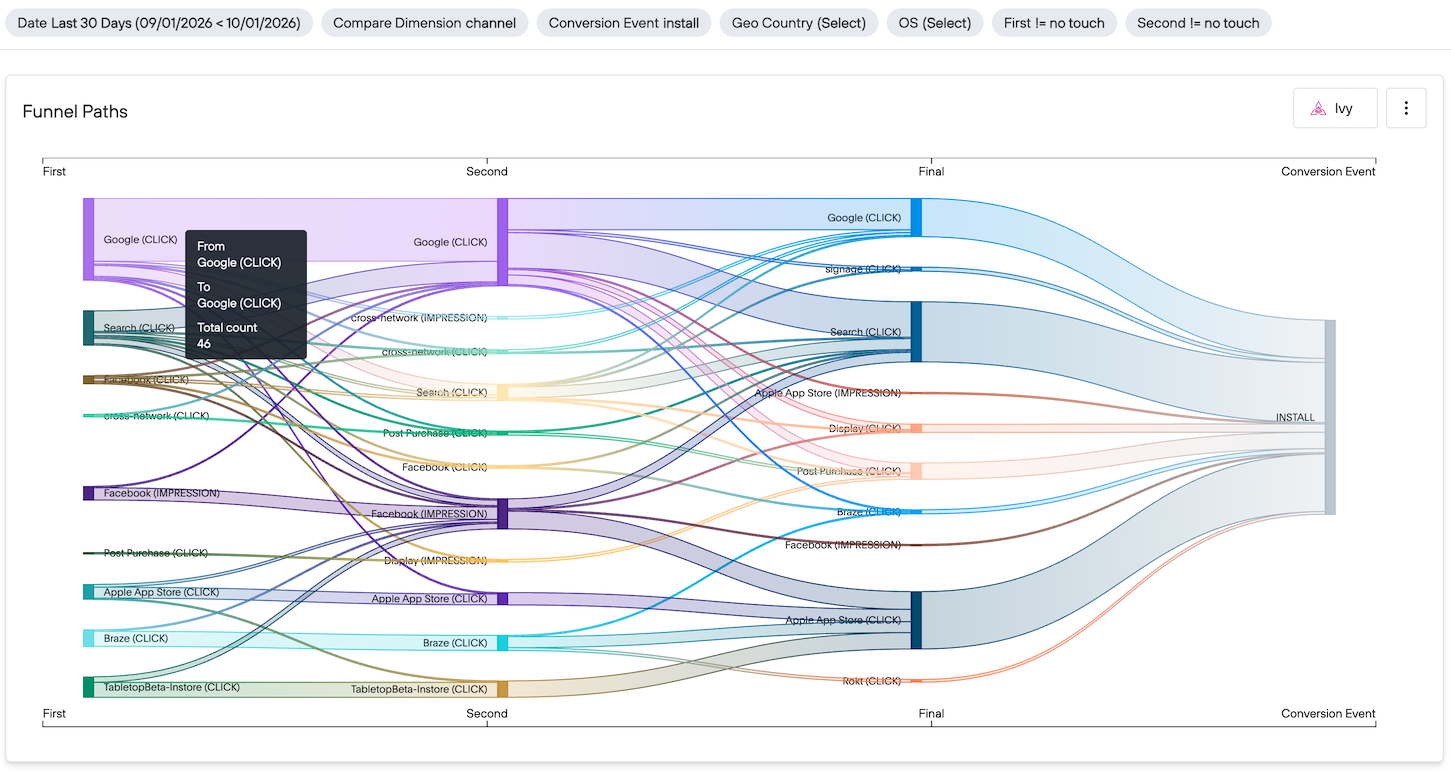
To read the visual diagram:
Find the identical horizontal lines at the top and bottom of the diagram, with the benchmarks First, Second, Final, and Conversion Event. User journeys move from left to right along these benchmarks.
Notice that user journeys are batched together based on having a shared touchpoint, and that the touchpoint is given a label. This label tells you what that touchpoint is attributed to.
- If a label says No Touch, follow the path(s) to the right until you see a label populated with data. This is where attributed touches start for those user journeys.
Hover over one of the paths. A popover will appear that contains:
- From: What this touchpoint is attributed to.
- To: What the next touchpoint is attributed to.
- Total Count: How many user journeys shared this particular section of the path.
Observe that a single touchpoint is often the starting point for many different paths. Paths can start at the same touchpoint and then diverge. This can happen at the First, Second, and/or Final benchmarks.
All user journeys then converge at a single Conversion Event. The label for that touchpoint will reflect the name of the conversion event you set for your Funnel report.
Read pivot table data
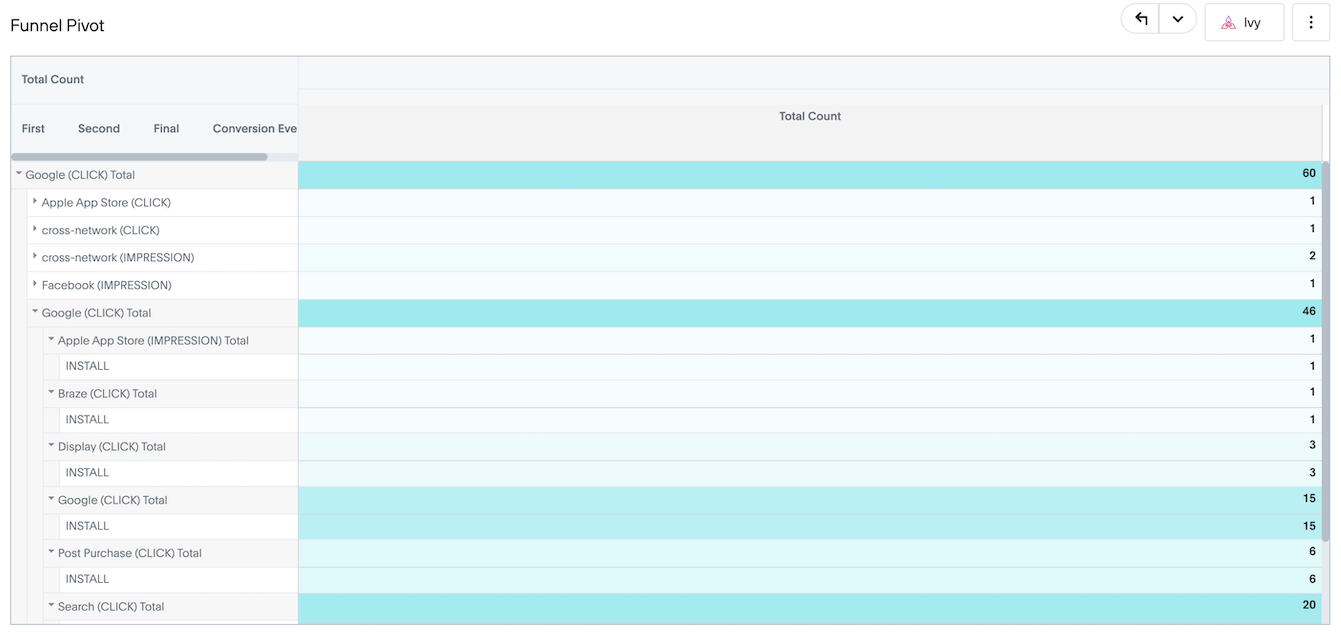
Below the Sankey diagram, Funnel Pivot shows the same journeys as a pivot table. In the table:
- Rows nest by First, Second, Final, and Conversion Event.
- The Total Count column shows how many conversions each row represents.
- Each parent row shows a total, such as Google (CLICK) Total, for the journeys nested beneath it.
Select the arrow next to a row to expand or collapse the next level of the funnel path.
Read structured data
To view Funnel data as a table other than Funnel Pivot:
- At the widget level, hover over the top-right corner of the Funnel visual diagram until the three-dot icon appears.
- Select the three-dot icon.
- Select Show underlying data from the menu that appears.
You can also right-click the visualization or a table cell and select Show underlying data. Each row represents a unique scenario, and the Count column tells you how many users that scenario applies to. For example, if two users have all the same touchpoints but are on different operating systems or in different geolocations, they will be in separate rows in the table.
To change the columns included in the table:
- Select the Edit columns button.
- Check the box next to each column you want to include in the table.
- Select the Done button when you are finished.
Use Ivy for insights
Funnel works best when you start with a specific marketing question in mind. Ivy, your powerful AI partner in Branch, can answer that question using your Funnel data and surface insights tailored to your situation. To ask a question, enter it in the Ask Ivy box at the top of the Funnel page.
Use the example questions in the table below to get started with Ivy in Funnel.
| Question for Ivy | Funnel configuration |
|---|---|
| What channels perform best at different stages of the user journey? | Select the channel dimension. |
| What different path combinations result in the best conversion rates? | Select the channel dimension. |
| Which partners contribute most effectively to conversions? | Select the advertising_partner_name dimension. |
| Which partners are more effective at first touch versus last touch? | Select the advertising_partner_name dimension. |
| Are some of my campaigns better at initiating user journeys, while others are better at closing conversions? | Select the campaign dimension. |
| Do users in one country require more touchpoints than another country? | Select the campaign or channel dimension, and edit the Geo Country filter for the countries you want to compare. |
| Is CRM stealing credit from paid advertising? | Select the channel or feature dimension, and look for patterns where Paid Search or Paid Advertising appear early in the journey, followed by Email or CRM touchpoints at the end. If you see this frequently, your CRM might be getting last-click credit for conversions where paid campaigns served as crucial assisted touches earlier in the journey. |
Share Funnel
To share the Funnel dashboard with other users in your organization:
- At the dashboard level, select the Share icon in the top-right corner.
- If Branch prompts you to update your name, enter the name you want on the share email in the Display name field. Select Save, or select Ignore to skip this step.
- In the Enter user name field, select or search for a user.
- Repeat step 3 for each user you want to share with.
- Select Share.
Can View gives read-only access. Users you shared with earlier appear under Previously shared with.
A warning icon next to a user means that user doesn’t have access to the underlying data. Point to the icon to read the message, such as “Data source access required: Creators and editors must enable data access to Funnel.”
Use the dashboard menu
At the dashboard level, select the three-dot icon to the right of the Share icon. The menu includes Edit, Rename, Make a copy, Download, and Present.
To present Funnel as a slideshow:
- Select the three-dot icon to the right of the Share icon.
- Select Present.
Funnel opens in full screen and shows Funnel Paths and then Funnel Pivot. Use the left and right arrow keys, or the arrows in the upper-right corner, to move between slides. Select the x to end the presentation.
Download data
To download the Funnel visual diagram as a PNG:
- At the widget level, hover over the top-right corner of the Funnel visual diagram until the three-dot icon appears.
- Select the three-dot icon.
- Choose Download from the menu that appears.
- Select PNG as the download type.
- Select the Download button.
To download the Funnel visual diagram as a PDF:
At the dashboard level, select the three-dot icon to the right of the Share icon.
Select Download.
Select a PDF format:
- PDF (continuous) keeps the dashboard layout without page breaks.
- PDF (A4 pages) fits the dashboard to A4 pages.
Select Download.
Note
A4 PDF exports capture only the visible portion of a pivot table, so rows you must scroll to see in Funnel Pivot aren’t included.
To download Funnel data as a structured table:
- At the widget level, hover over the top-right corner of the Funnel visual diagram until the three-dot icon appears.
- Select the three-dot icon.
- Choose Download from the menu that appears.
- Select XLSX or CSV as the download type.
- Select the Download button.
Alternatively, to download your Funnel data specifically as a CSV:
- At the widget level, hover over the top-right corner of the Funnel visual diagram until the three-dot icon appears.
- Select the three-dot icon.
- Select Show underlying data from the menu that appears.
- If you want to change the columns included in the table, select the Edit columns button and update your chosen columns.
- When you’ve confirmed your columns look as expected, select the Download CSV button.
Fields reference
The full list of fields available in Funnel are outlined in the table below.
| Field | Field Type | Description |
|---|---|---|
| Ad Set Id | Dimension | The attributed ad set ID |
| Ad Set Name | Dimension | The attributed ad set name |
| Advertising Partner Name | Dimension | The attributed advertising partner name |
| Branch Channel | Dimension | Identifies which Branch product or feature measured the attributed event |
| Campaign ID | Dimension | The attributed campaign ID |
| Campaign Name | Dimension | The attributed campaign name |
| Channel | Dimension | The attributed channel |
| Compare Dimension | Dimension | The dimension used for Funnel comparison |
| Conversion Event | Dimension | The conversion event type in the Funnel path |
| Count | Measure | The total count of conversions |
| Date | Dimension | Time-series date |
| Feature | Dimension | Indicates what Branch feature or link campaign was attributed |
| Final | Dimension | The final touch in the funnel path, immediately preceding the conversion event |
| First | Dimension | The first touch in the funnel path leading to conversion |
| Geo Country | Dimension | The geographic country name in English |
| Keyword | Dimension | The attributed keyword |
| OS | Dimension | Indicates the Operating System of the device |
| Second | Dimension | The second touch in the funnel path leading to conversion |
FAQ
What is Branch Funnel?
Branch Funnel simplifies multi-touch attribution reporting by visualizing the complete journey users take across campaigns before converting.
How does Funnel differ from traditional last-touch attribution?
Funnel tracks and displays the actual path users take, allowing you to see up to three interactions that led to each conversion, rather than just the last touchpoint.
Why don’t I see journeys with only one or two touchpoints?
By default, Funnel filters out journeys where First or Second is No Touch. To include shorter journeys, edit the First and Second filters.
Is there a table view of Funnel besides the Sankey diagram?
Yes. Funnel Pivot appears below the Sankey diagram and shows the same journeys as a pivot table. You can also select Show underlying data on the diagram.
What are assisted touches?
Assisted touches are touchpoints that appear in the conversion path but aren't the final interaction before conversion. These touchpoints play important supporting roles in the user journey, such as initial awareness or mid-funnel engagement, even though they don't receive last-touch credit.
Can I set custom attribution windows for ad partners?
Yes. You can set custom attribution windows at the ad partner level by turning on the Use ad partner attribution settings toggle at the ad partner level in Branch.
What parameters are required to generate a Funnel report?
You need to specify the date range, the conversion event, and a dimension to break out the user journeys by.
What types of conversion events can I analyze with Funnel?
You can analyze various conversion events, including Installs, Branch Standard Events like Add to Cart, or any other Branch Custom Events you’ve defined.
Is Funnel available for all Branch plans?
No, Funnel is only available as part of certain Branch plans. For more information, please contact our Sales team or reach out to your Account Manager.
What visual representation does Funnel use?
Funnel uses a traditional Sankey diagram to visually represent user journeys.
What format can I download my Funnel data in?
You can download the visual Sankey data as a PNG or PDF file, and the structured table data as a CSV or XLSX file.
What should I do if I see the error message “One of your x-axis attributes contains too many values”?
Funnel Paths can’t display when one of its axis attributes has more than 13 values. If you see this error message, you should narrow your results using the filters on the dashboard. For example, you can filter down your results to just one country or operating system. This will narrow down the number of user journeys displayed into a more manageable number.