
Overview
Unity Ads is Unity Technologies' mobile ad network, providing user acquisition and monetization for mobile apps and games across iOS and Android. Connect Unity Ads to Branch to attribute clicks and installs, configure Postbacks, and import cost data into a single workspace.
For more information about integrating ad partners in general, visit our Ad Partner Integration Guide.
Note: this guide is for new Branch
This guide covers integrating Unity Ads in the new Branch experience. For information on Unity Ads in legacy Branch, visit our legacy guide.
Partner capabilities
| Capability | Details |
|---|---|
| Company type | Ad Network |
| Deep linking | Supported |
| Attribution | Click-through attribution, View-through attribution |
| Ad campaign types | Retargeting campaigns |
| Ad formats | Banner, Video |
| Click types | Server-side click |
| Supported platforms | iOS, Android, Windows, Mac OS, Unix |
| Link wrapping | Supported |
| Cost ingestion support | Supported |
| Cost ingestion types | API |
| Cost time zone | GMT |
| Cost data scheduling | 4 times/day for Days 0–1; 1 time/day for Days 3–5; 1 time/week for Days 8–14 |
| Pricing models | CPC, CPM, CPA |
Before you begin
To set up the Unity Ads integration, you need:
- Ad partner integrations enabled for your Branch account. Availability varies by Branch plan. See Branch pricing or contact your Branch representative.
- A Branch account with access to Configuration > Ad Partners and admin permissions to enable and configure integrations.
- The Branch SDK implemented in your app (iOS | Android) with event tracking configured.
- A Unity Cloud account with a core organization ID and a service account (required if you plan to import cost data).
- Active campaigns running in Unity Ads.
- PAM enabled (recommended).
Note: PAM uses two separate toggles
The PAM for Publishers toggle for this partner, found under Partner settings > Manage account, is separate from the account-level PAM switch. PAM for Publishers must be enabled to reconcile conversion events with your partner. To attribute events with PAM, you also need PAM enabled on the Attribution page under Configuration > Attribution. Learn more in our PAM Overview.
Enable Unity Ads
To begin, navigate to Configuration > Ad Partners > Unity Ads.
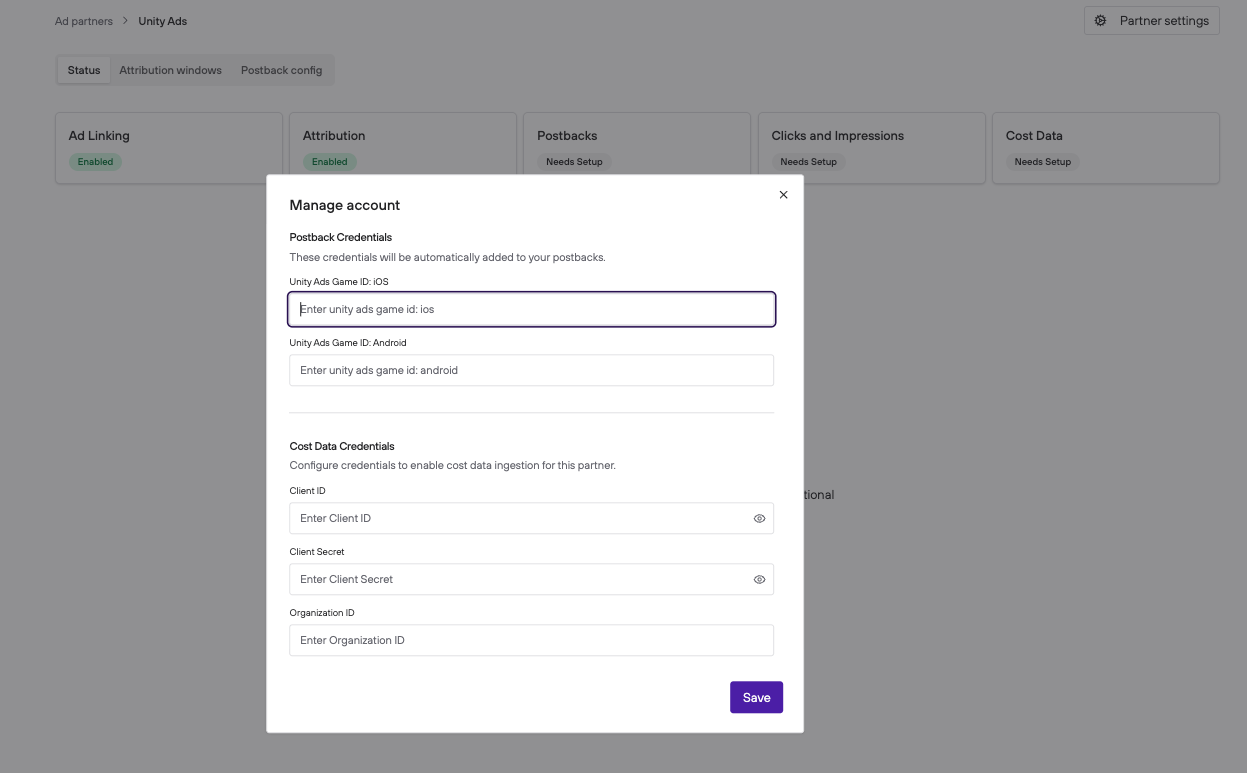
Unity Ads is a credential-based partner. Follow Provide account credentials in the general Ad Partner Integration Guide. In the Account information dialog, enter:
- Game ID: iOS: your Unity Ads Game ID for iOS
- Game ID: Android: your Unity Ads Game ID for Android
Select Save.
To update these credentials later, see Manage partner settings in the general Ad Partner Integration Guide.
Configure attribution
Unity Ads' recommended attribution windows differ from Branch's defaults.
To configure attribution windows, select the Attribution windows tab on the Unity Ads page.
| Attribution type | Default | Unity's recommendation |
|---|---|---|
| Click to start session | 1 day | 90 days |
| Click to install | 7 days | 30 days |
| Click to conversion event | 30 days | 90 days |
| Impression to start session | 1 day | 1 day |
| Impression to install | 1 day | 1 day |
| Impression to conversion event | 7 days | 1 day |
For more information, follow Configure attribution in the general Ad Partner Integration Guide.
Configure postbacks
Enabling Unity Ads automatically activates postbacks for INSTALL, OPEN, and PURCHASE. The default postback URL template is:
https://ads-secondary-conversion.unityads.unity3d.com/v1/events?ifa=${ (user_data.idfa)! }&tracking_enabled=<#if (user_data.limit_ad_tracking)! >0<#else>1</#if>&game_id=<#if (user_data.os)! == "IOS">${ (ad_network.credentials.ios_game_id)! }<#elseif (user_data.os)! == "ANDROID">${ (ad_network.credentials.android_game_id)! }</#if>&platform=${(user_data.os)!?lower_case}&store_id=<@loop data=app.app_bundles val="bundle"><#if user_data.os == bundle.os><#if bundle.os=="ANDROID">${(bundle.android.package_name)!}<#elseif bundle.os == "IOS">${(bundle.ios.itunes_id?substring(2))!}</#if><@break/></#if></@loop>&custom_event=${ (name)! }&event=custom&ts=${ (timestamp/1000)?long }&install_ts=${(install_activity.timestamp/1000)?long}&was_conversion_attributed=<#if (last_attributed_touch_data.$3p)! == (ad_network.machine_name)!>1<#else>0</#if>&value=${ (event_data.revenue)! }¤cy=${ (event_data.currency)! }&campaign_id=${ (last_attributed_touch_data.~campaign_id)! }&campaign_name=${ (last_attributed_touch_data.~campaign)! }&gamer_id=${ (last_attributed_touch_data.gamer_id)! }&aid=${ (user_data.aaid)! }&organic=<#if (last_attributed_touch_data.$3p)?? >0<#else>1</#if>&mmp=branchTo add postbacks for additional events or to customize behavior, follow Configure postbacks in the general Ad Partner Integration Guide.
Import cost data
Unity Ads cost ingestion uses API authentication. You'll need three values from Unity Cloud:
- Client ID
- Client Secret
- Organization ID
Retrieve your Client ID and Client Secret
- In Unity Cloud Grow, navigate to API Management.
- Open your service accounts.
- Create a new service account, then create a key for the service account to generate the Client ID and Client Secret.
Retrieve your Organization ID
- In your Unity Cloud service account, add the Advertise Stats API MMP Viewer role. The role appears under the Grow list.
- Retrieve your Organization ID from the service account details.
If you have trouble finding these values, contact your Unity Ads account manager.
Authenticate Unity Ads cost data in Branch
- From the Unity Ads page in Configuration > Ad Partners, locate the Cost Data card on the Status tab.
- Select the card (it displays a Needs Setup badge) to open the Enable Cost Data modal.
- Enter your Client ID, Client Secret, and Organization ID.
- Select Save.
After saving, the Cost Data card on the Status tab updates to reflect the connected state.
Tip: time zone alignment
For the most accurate cost data, match the time zone between your Branch account and your Unity Ads account.
Create a Branch Ad Link
To attribute conversions from Unity Ads campaigns, create a Branch Ad Link and use it in your Unity Ads campaign setup. See Branch Ad Links.
Verify your data
After your integration is connected and events are flowing, you can verify data is reaching Branch:
- In Branch Liveview: confirm events from your app appear in real time. This is the fastest way to confirm SDK events are firing.
- In Branch Analysis dashboards: review attributed installs, events, and cost data attributed to Unity Ads. Filter by
Ad Partner Name = Unity Adsto see Unity-attributed activity.
Cost data appears after approximately 24 hours. Confirm campaigns are actively running in Unity Ads before troubleshooting missing cost data.