

Overview
Driving your customers from email to app is an amazing way for them to get more comfortable with your brand and increase conversions. Branch Email and Salesforce Marketing Cloud integrate together to improve user experiences and boost retention rates.
How does it work?
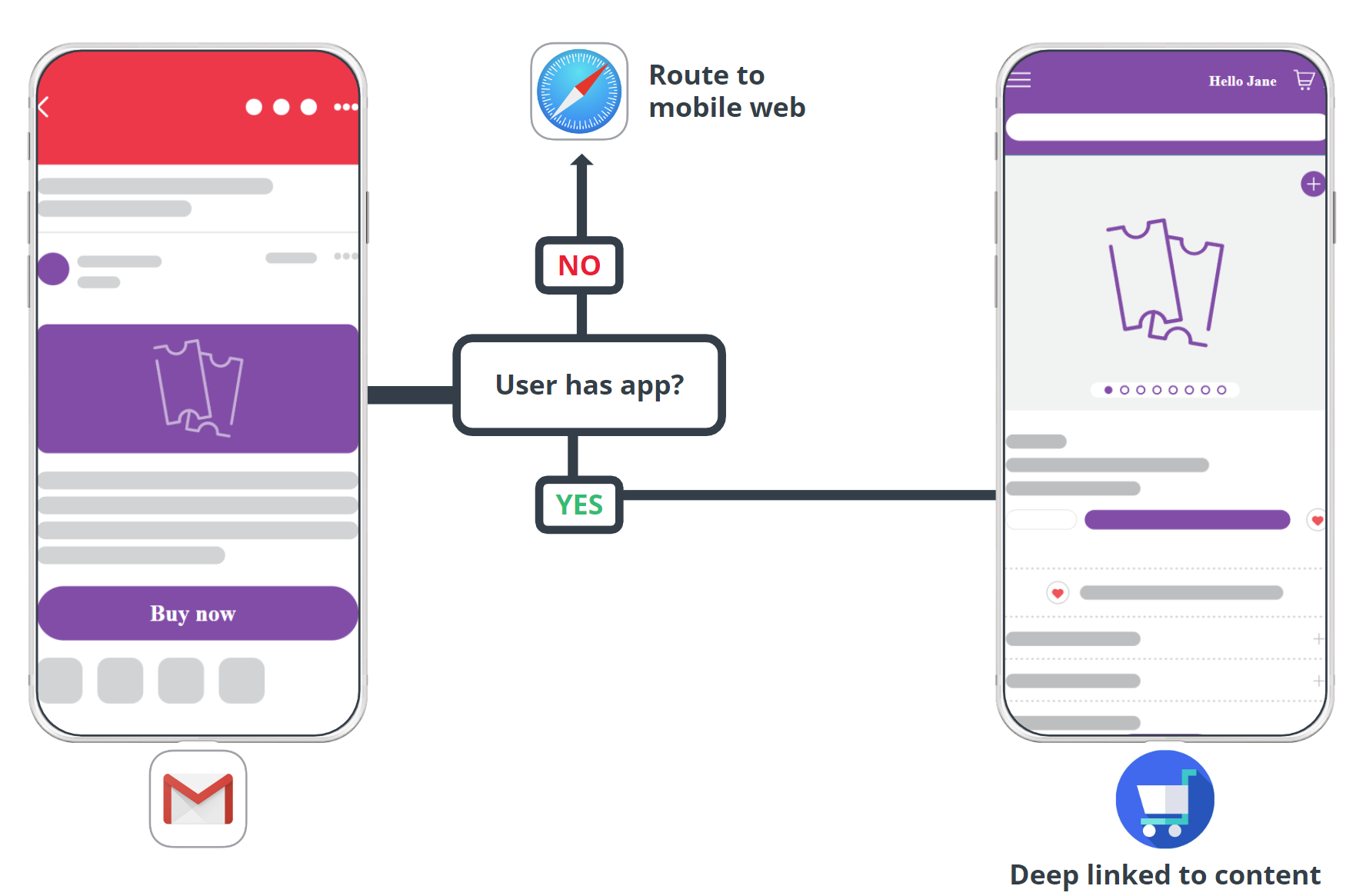
User clicks on a link in an email from their mobile mail client (Gmail, Apple Mail, etc.).
If the user has the app installed and the link has a corresponding screen in the app, the app will open and deep link the user to the right content.
- Ex. Product detail page, category shopping page, etc.
If the user does not have the app installed or the link only corresponds to a screen on the web, the user is routed to the website using their default mobile web browser.
- Ex. Unsubscribe link, privacy policy, etc.
Before you begin
Required Roles
Branch Email requires the following roles involved in order to enable:
- Developers
- CRM/Email Team
- Salesforce Account Manager / Support Team
In order to enable Salesforce Marketing Cloud Web Default, you must first:
Have admin access to your Branch Dashboard.
Have Branch's Engagement product enabled for your Branch Account.
Implement the Branch SDK into your mobile app (iOS | Android).
Set Up Deep Link Routing. How your mobile app routes to in-app content will determine how you will create and tag your Branch Links.
Review our Email Overview and Basic Email Integration Guide to understand the feature and our integrations.
Obtain or set up your Salesforce Marketing Cloud click tracking domain (CTD). Reach out to your Salesforce account manager for assistance on this.
- Only one SAP & CTD is allowed per business unit (BU/MID).
- Ensure that CTD is secure (
https://). If not, purchase an SSL SKU through your Salesforce account manager.
1. Connect Salesforce in Branch
In the Branch Dashboard in Email → Manager tab, find Salesforce Marketing Cloud Ver. 1 and click Enable.
Input Click Tracking Domain
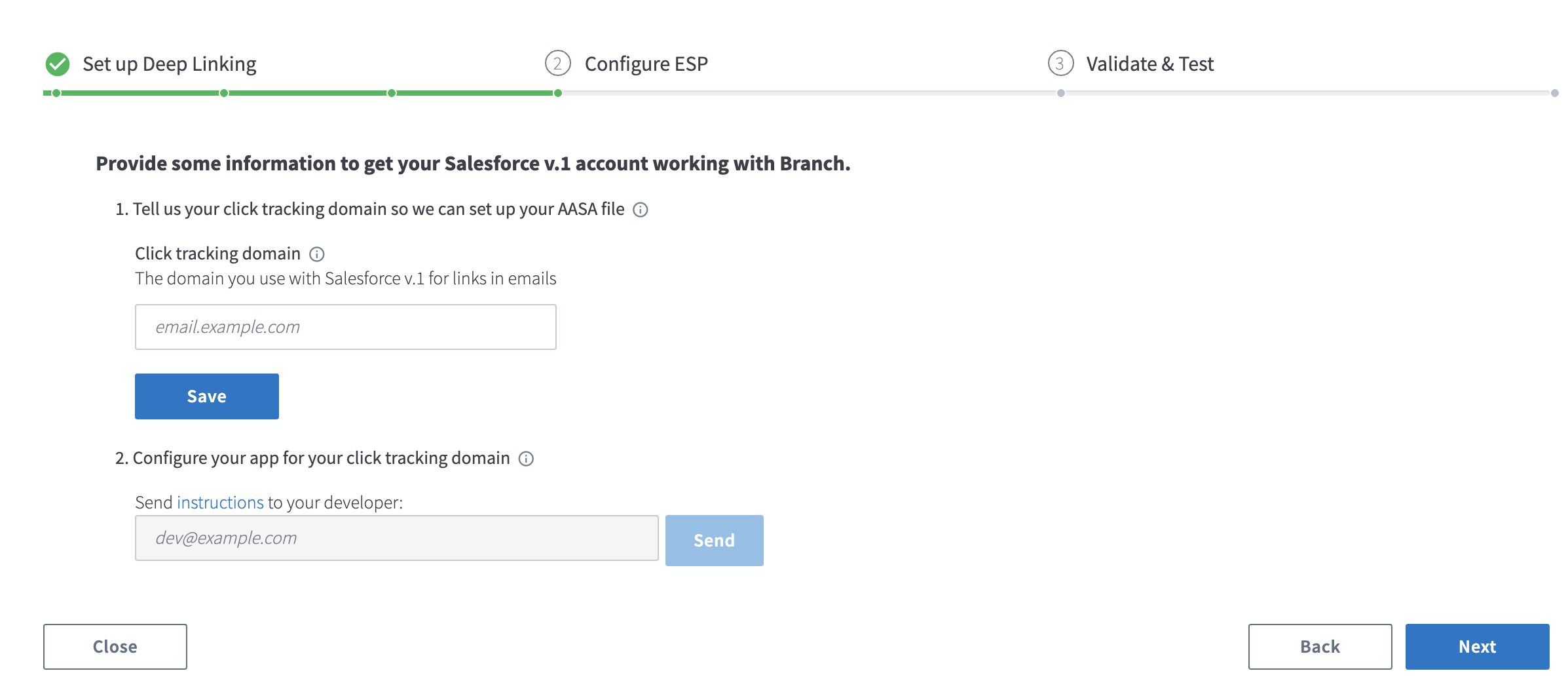
Enter your click tracking domain in the open field and click Save.
Click Tracking Domain
- Remove
https://when adding your click tracking domain. - Never add the same CTD to both your Live and Test Branch environments.
- You can enable the integration with multiple CTDs, if needed, but you cannot add the same CTD to multiple Branch Dashboards or ESP integrations.
2. Configure Salesforce
Enable Web-Only Default Tagging
Reach out to your Salesforce account manager to enable Web-Only Default Tagging for your Salesforce BU by providing your Salesforce account MID(s).
Once enabled, all emails sent from those MIDs will click wrap every link with a click tracking domain using a /u path, which prevents the app from opening in iOS (Emails that have already been sent before enabling will open the app because they will not have /u in the path).
If you run Journey Builder or Triggered Sends, you must do one of the following to ensure the web-only tagging is applied to those emails:
- Republish the journey triggered sends via Email Studio Triggered Send dashboard
- Update the email activities in Journey Builder
- Create a new journey version
Configure AASA File in Salesforce Marketing Cloud
Your Salesforce account must be configured to correctly handle Universal Links. Configure the settings in Deep Linking under the Send Management section in Email Studio. Ensure you're in the account corresponding to the correct click tracking domain.
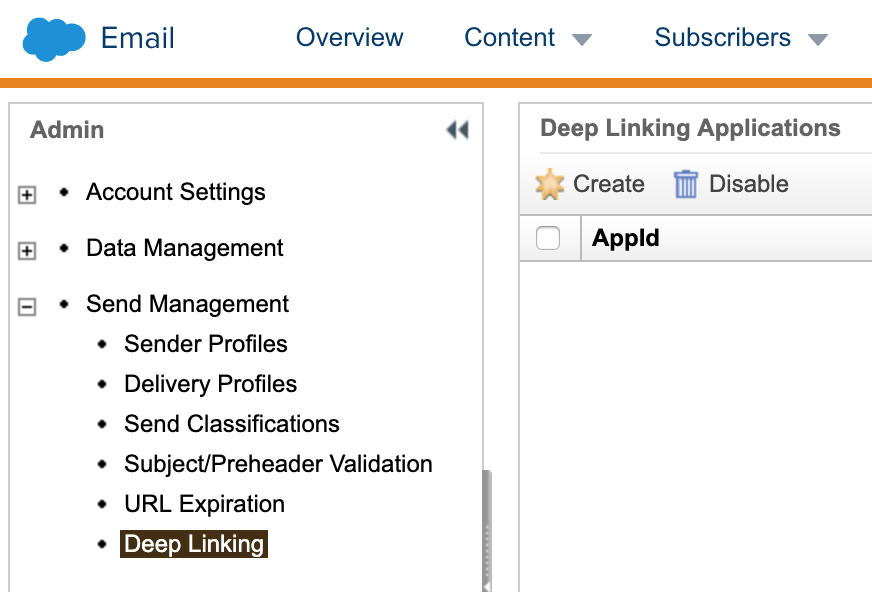
- Enter the AppID value.
- Check the "Exclude Profile" and "Unsub Center" checkboxes to force links to these items to open in the browser and not the app, if desired.
- Click "Save" to save the configuration.
- Let Salesforce and Branch know that you've finished this step and your Technical Account Manager will verify that everything looks good.
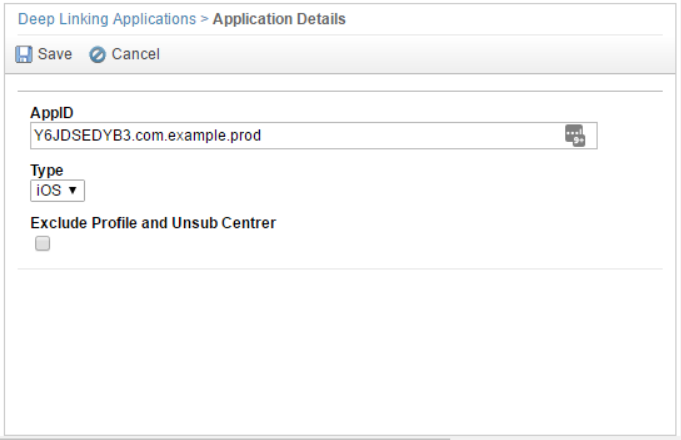
Note: AppID = prefix+bundleID
3. Configure your App
Add your Salesforce CTD to your Associated Domains
For your iOS App, you must add the CTD to the Associated Domains. Additional details can be found here.
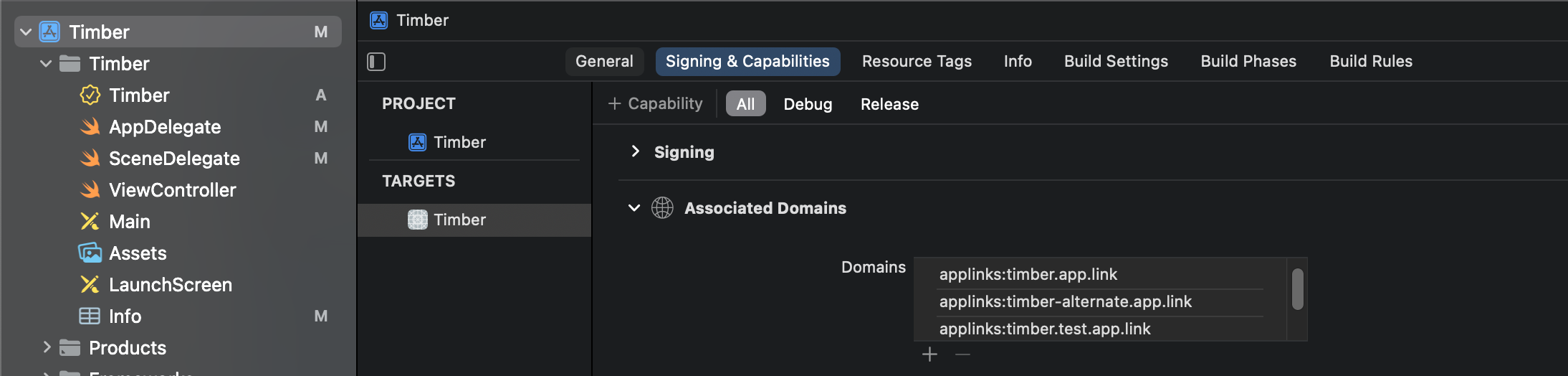
If you do not have your CTD, reach out to your Salesforce Marketing Cloud account manager.
Return YES to continueUserActivity
Additionally, you will need to add the CTD to your iOS app's info.plist file. Additional details can be found here.

Custom Link Domain
If you are using a custom link domain and AMPscript to generate Branch Links (more on this on the next step), include your original app.link domain in both Associated Domains and info.plist and use the app.link domain as the base Branch URL in AMPscript.
4. Add Branch Links to your Emails
Add Deep Linking Flag
For the links in your email that you want your customers to deep link into app content, you must add the mc-deep-link="true" flag to the links.
<a mc-deep-link="true" href="https://branch.app.link/..."> click me! </a>Add Branch Links
Advanced AMPscript
If your workflow utilizes AMPscript for your email sends, you can configure AMPscript to generate your Branch Links. Follow the AMPscript guide here.
Short Links
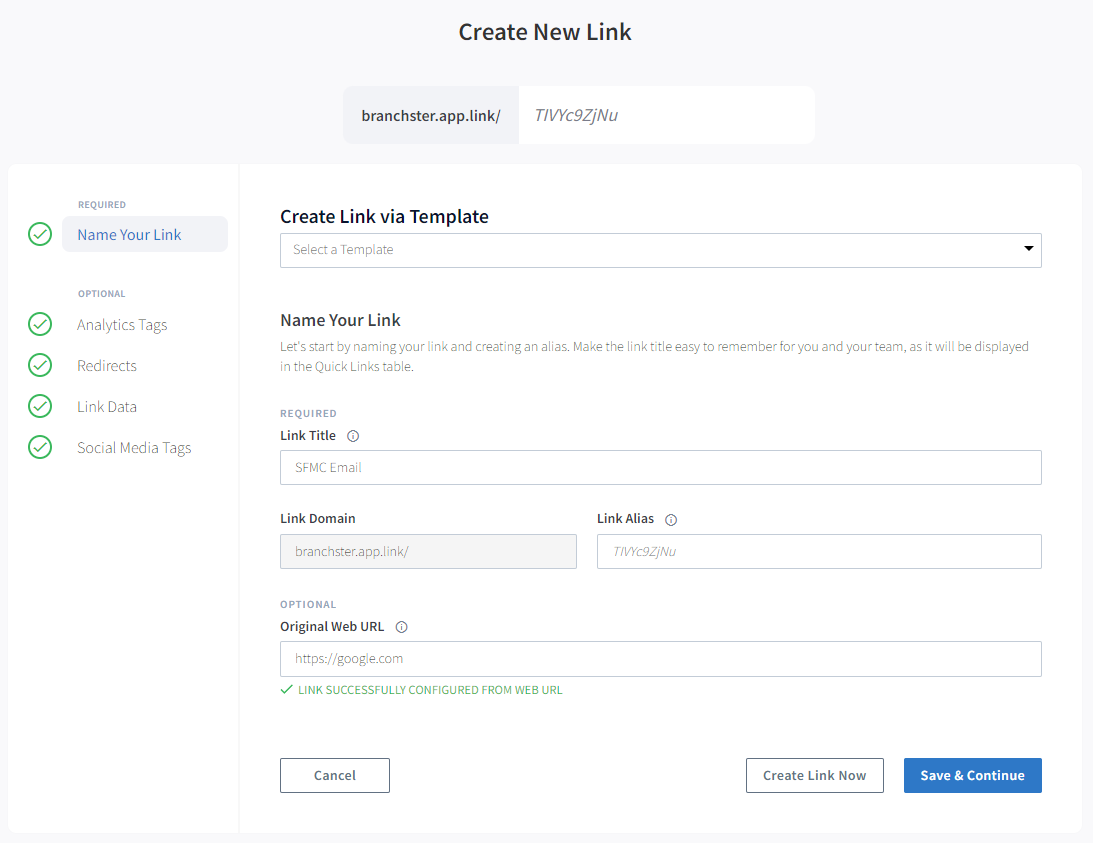
Use Branch Short Links to create your Branch Link to be placed in your email template.
Name your Link
Add your original URL (ex. link to your product) to the Original Web URL field.
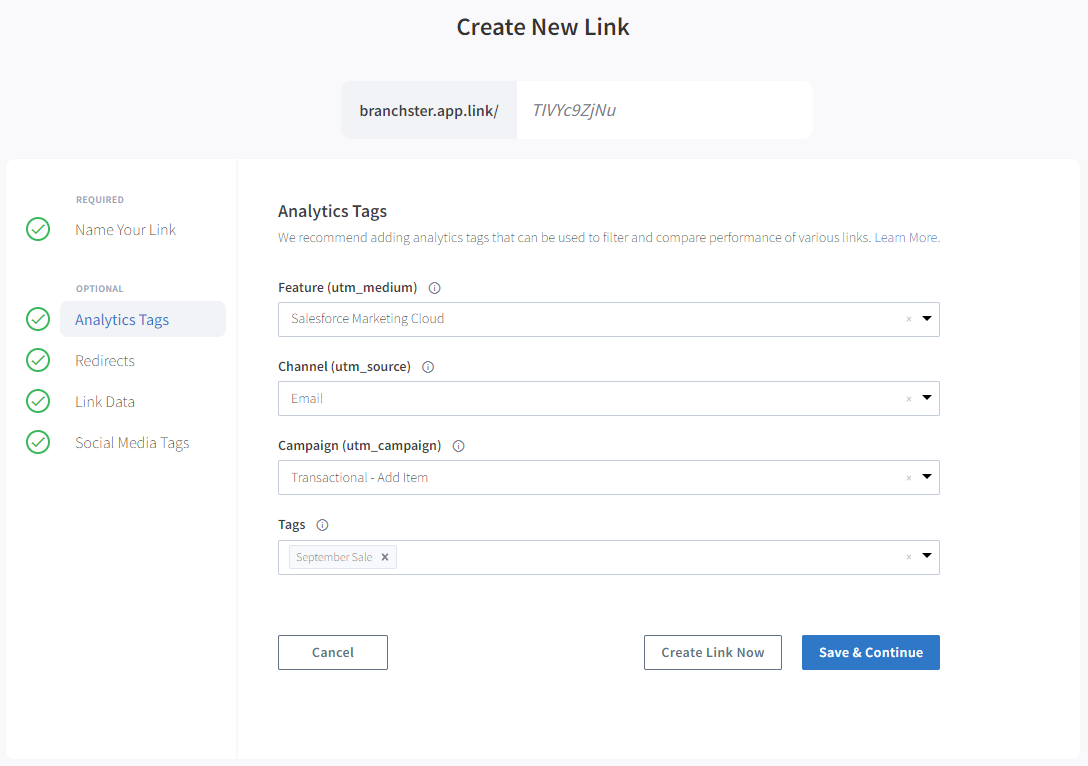
Analytics Tags
| Analytics Tag | Description | Example |
|---|---|---|
| Feature | Feature should describe the action or product where this link is placed. In the UTM world, this is typically utm_medium. | Salesforce Marketing Cloud |
| Channel | Channel should describe the platform or source from which you are expecting users to click this link. In the UTM world, this is typically utm_source. | |
| Campaign | Campaign varies from company to company, but it should describe the theme of the link. In the UTM world, this is typically utm_campaign. | Transactional - Add Item |
| Tags | Tags are a free-form list of meaningful labels that can be used as filters in the Short Links table. Use them to keep your analytics organized. | September Sale |
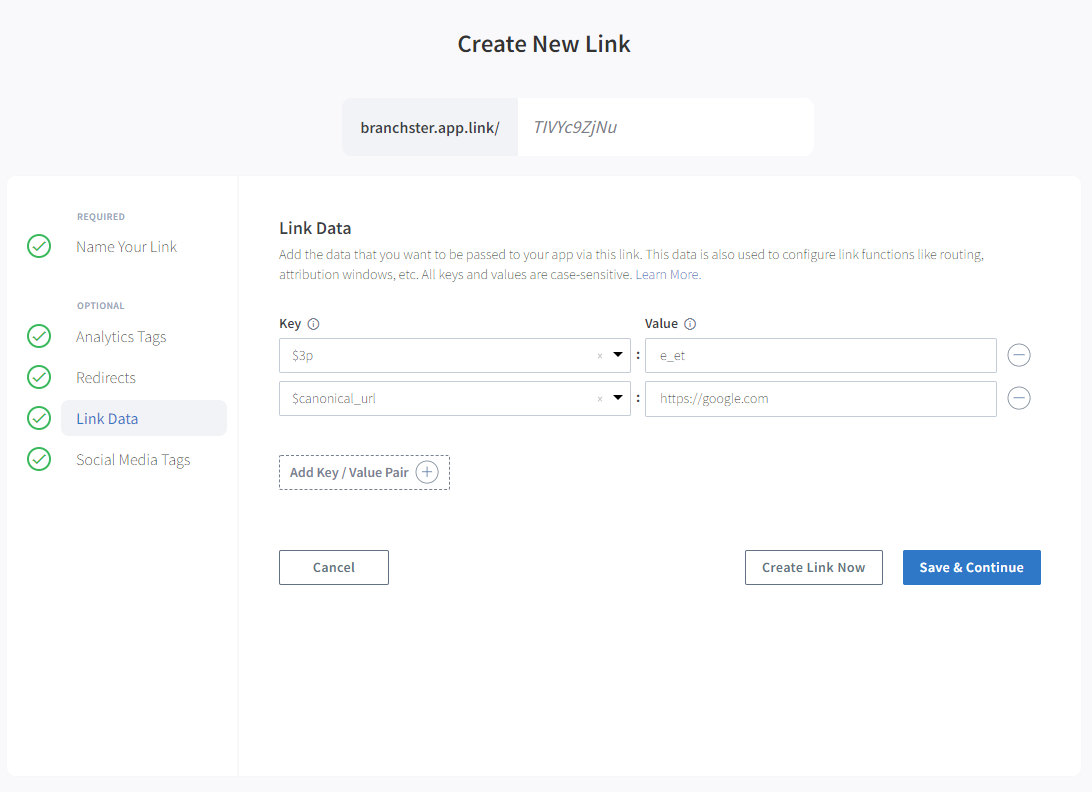
Link Data
| Key | Description | Value |
|---|---|---|
$3p | This is the indicator for a specific partner of Branch. It is set in order for Branch's systems to properly attribute conversions. | e_et |
$canonical_url | The canonical URL, served for SEO purposes. | {Automatically from the Original Web URL.} |
Link Templates
You can utilize Branch's Link Templates feature in order to make Short Link creation much faster for your workflow 👌. Learn more here.
Once you generate your Short Link, you can then place that link into your email template. Your email template should have links like this:
<a mc-deep-link="true" href="https://my.app.link/abc123" > Open App </a>Advanced
Track Web Links
By default, this integration will not let you track web links. Enabling web tracking on specific links will open the web -- not the app.
Method 1: Modified Branch Short Link
In the Branch Dashboard, create a Short Link.
Add campaign tag for tracking.
In the Deep Linking tab, add has_app = false and $web_only = true to the link data.
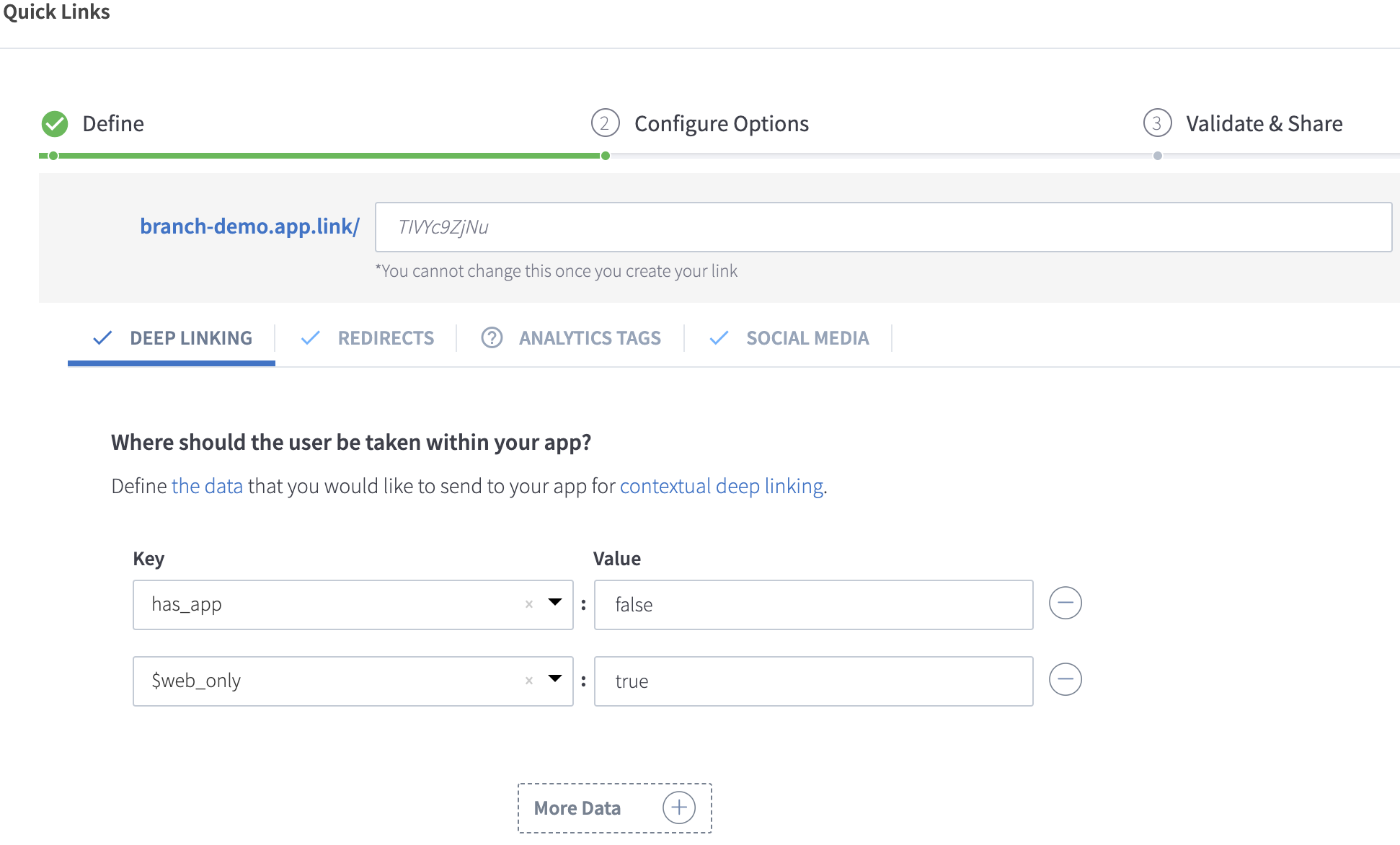
In the Redirects tab, set the web redirects for fallbacks. Select web URL for Android, iOS, and Desktop, and add the URL you want to redirect to.
After the link is created, add
_webonlyto the app.link domain.
* Ex: If the link created is https://branchster.app.link/weblinktest, convert it to https://branchster_webonly.app.link/weblinktest.
Method 2: Branch Long Link
Start with your app.link domain, and add
_webonlyto it.- Ex: If your app.link domain is https://branchster.app.link, convert it to https://branchster_webonly.app.link
Add has_app = false and $web_only=true as query parameters.
Add ~campaign tag to the link.
Add the URI encoded web redirect link as $fallback_url.
Analytics on the Branch Dashboard
To see how the email campaigns have performed and break it down into campaigns, it is very essential to tag those links with the ~campaign tag. This will help dedupe the numbers and hence see the downstream events. You can add the campaign tag in any comparisons and filters in any Dashboard views.