
Introduction
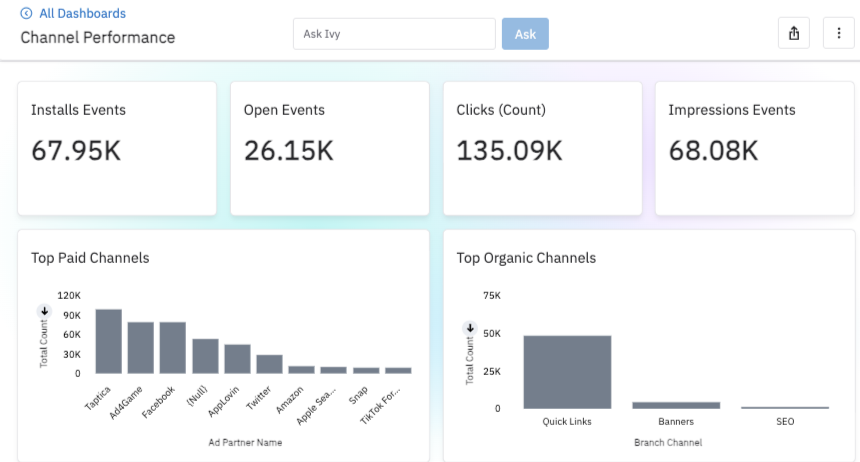
Analysis Dashboards let you build reports on your Branch data and share them with your team.
With Ivy, Branch’s AI, you can build widgets from plain English prompts and get answers to your marketing questions.
A dashboard is an individual page that contains a specific set of widgets, which themselves display metrics or charts. Use each dashboard to tell a different story with your Branch data and to track your company’s marketing growth from different angles.
You can break out your data by campaign, platform, channel, and more to see what’s driving results and where to spend your ad budget.
You can share dashboards with your team, and set KPI alerts that email you when a metric changes.
Attention
Branch's new experience is rolling out in phases, so your interface may differ. This article covers Analysis in the new experience. To learn more, see New Branch Overview. For the legacy version, see legacy reporting documentation.
Key terms
This guide uses the following terms.
| Term | Definition |
|---|---|
| Widget | A single metric or chart that displays an aspect of your Branch data. You can edit widgets extensively to make sure they capture the data you’re looking for. If you’d like to understand where an aggregated widget metric is coming from, you can preview the underlying data from the widget directly (up to 1,000 rows). You can also download data from individual widgets. |
| Dashboard | A collection of widgets that live on a single page. Dashboards can be exported as a single entity, and you can share an entire dashboard in presentation mode. A core list of your individual dashboards are listed prominently under Analysis in the left-side navigation in Branch. To see the rest of your dashboards, select All Dashboards. |
| Data source | Branch supports different data sources to power your dashboards. Each data source makes different dimensions of your data available. Depending on what data you want to display, you can use one or all of these data sources in a single dashboard or widget. The data sources you see depend on which Branch products are turned on for your account: • Activity: Default data source for most reporting. Provides extensive tracking of most user behavior. • SKAdNetwork: Contains SKAN data exclusively. • Unified Activity and SKAdNetwork: Combines Activity and SKAdNetwork data to provide a unified view of campaign performance. • Activity Fraud: Track fraud detection and prevention performance across campaigns and ad partners. • Install Cohort Activity: Track user behavior over time by grouping users by the date they installed your app. • Funnel: Multi-touch attribution paths showing touchpoints users interact with before converting. • Link And Banner Analytics: Link-level and banner-level performance reporting. • Activation: Click data only, with link-level and banner-level dimensions. Learn more about each data source and its available fields in Analysis Data Sources Reference. |
| Ivy | Branch’s AI. Ivy answers questions about your data in plain language and can build widgets for you. You can talk to Ivy using the Ask Ivy box at the top of a dashboard, or you can select the Ivy button on a widget to ask it deeper questions about that specific widget’s data. |
| Prompt | An individual query or instruction you give Ivy so it can start processing your requests and answering your questions. A well-crafted prompt helps Ivy give you a relevant answer that meets your criteria. |
Access
To open Analysis, your role needs access to aggregate data. If Analysis is turned off for your account, Analysis pages show a message with a Go to classic analytics button.
The options to create, copy, and edit dashboards appear only when dashboard editing is turned on for your account. Without dashboard editing, you can still view Branch’s default dashboards and any dashboard a teammate shares with you.
The Ask Ivy box at the top of a dashboard and the Ivy button on widgets each appear only when they’re turned on for your account. The Ask Ivy box also appears only in a wide browser window.
Dashboards
This section covers the basics of finding, creating, editing, and filtering dashboards.
Note
Please allow 2 hours for analytics data to be available in Branch. This includes standard analytics data as well as cost and API response data.
Default dashboards
Branch provides pre-configured dashboards that are ready to use when you first access Analysis. These include Channel Performance, the Classic Suite for legacy reporting use cases, and templates for campaign performance, conversions, retention, and more. The dashboards available to you depend on your Branch package.
You’ll find Channel Performance directly under Analysis in Branch’s left-side navigation. To explore the rest, select All Dashboards.
For the full dashboard library, descriptions, and legacy reporting equivalents, see All Dashboards (New).
View dashboards
Under the Analysis section in the left-side navigation in Branch, you will see several of your core dashboards listed by name. Select any of these dashboards to view them.
To view a dashboard not featured in that list, select All Dashboards and select the dashboard you’re looking for from the full list.
From this page, you can also favorite a dashboard by selecting the star icon next to its name. You can then filter the full list by dashboards that are starred or not starred.
Create a dashboard
To create a dashboard:
- Select Analysis in the left-side navigation in Branch, then select All Dashboards.
- Select the Create Dashboard button in the top-right corner of the page.
- Give the dashboard a unique name in the Name field.
- Give the dashboard a description in the Description field that explains the purpose of the dashboard and how others should read it.
- Select the Create button.
You are now ready to add widgets to your new dashboard.
Copy a dashboard
To use a dashboard as the starting point for your own version, make a copy of it.
To make a copy of a dashboard:
- Navigate to the dashboard you’re interested in copying, and select the three-dot icon in the upper-right corner.
- In the menu that opens, select Make a copy.
- Give the dashboard a unique name in the Name field.
- Give the dashboard a description in the Description field that explains the purpose of the dashboard and how others should read it.
- Select the Create button.
Edit a dashboard
You can edit any dashboard except the dashboards created by Branch. Their author is listed as “Branch” on the All Dashboards page.
If a teammate created the dashboard, they need to give you edit access before you can edit it.
To edit a dashboard:
Navigate to the dashboard you’re interested in editing, and select the three-dot icon in the upper-right corner.
In the menu that opens, select Edit.
Make any of these changes:
Add notes: Select Add note in the top-right corner. This adds a widget that holds your note. You can move and resize it, and you can add more than one note to a dashboard.
Add filters: Select Add filter in the top-right corner. Configure the filter, and then select Apply.
- To learn more about configuring filters, read “Configure dashboard filter.”
Edit the dashboard name and description: Select the pencil icon next to the dashboard’s name, make your changes, and select Save.
Remove filters: Hover over a filter in the list at the top of the dashboard, and select the X icon.
Edit filters: Select a filter in the list at the top of the page. To learn more about configuring filters, read “Configure dashboard filter.”
Move widgets: Hover over a widget’s top edge until your cursor shows four arrows and a light gray bar appears. Then drag the bar to move the widget.
Delete widgets: Hover over a widget, select the three-dot icon, and select Delete.
- Warning: Deleting a widget is permanent, and you can’t undo it.
Resize widgets: Use either of these methods:
- Hover over the widget, select the three-dot icon, and select one of the size options.
- Hover over the bottom-right corner edge of a widget until your cursor becomes an arrow icon. Drag the widget’s corner to make it bigger or smaller.
When you are done making changes to your dashboard, select the Save button.
- To discard your changes, select Cancel, and then select Discard changes.
Configure dashboard filter
Filters help make sure you’re only seeing the data you want to see on your dashboard. To set a filter at the dashboard level:
Navigate to the dashboard you’re interested in creating a filter for and select the three-dot icon in the upper-right corner.
In the menu that opens, select Edit.
Select the Add filter button in the top-right corner.
Select the filter you want to add from the list.
Configure the filter. The configuration menu has four sections:
Default values: Set the values you want to include or exclude. Depending on the type of filter, you select values from a list or add your own conditions.
Example: To see only your social media campaigns, select Feature as your filter and include only data where the value is
social.- By default, selecting values for a filter limits the values shown in any later filters you create for this dashboard. In this example, if you tried to add Branch Channel as a second filter, you could only select a channel that applies to social media campaigns, such as
SHORT_LINKS. To change this, enable the Show unfiltered values option at the bottom of the Default values section.
- By default, selecting values for a filter limits the values shown in any later filters you create for this dashboard. In this example, if you tried to add Branch Channel as a second filter, you could only select a channel that applies to social media campaigns, such as
Applicable to: Choose which widgets the filter applies to. Select All, or select individual widgets.
Link filters: Connect columns from different data sources that hold the same values, such as campaign names, dates, or regions. That way, one filter controls data from all of them.
Filter options: Choose a display name for the filter. To make the filter mandatory, select Require users to select a filter value. Viewers then don’t see any widgets until they pick a value.
Select Apply. The filter appears in the list of filters at the top of the dashboard.
Configure dashboard currency
To view your Branch data in a different currency, set the currency at the dashboard level. By default, currency values show in USD.
Important: Before you set a currency, make sure at least one widget on the dashboard has a currency-related measure.
To set the currency for your dashboard:
- Navigate to the dashboard you’re interested in setting the currency for and select the three-dot icon in the upper-right corner.
- In the menu that opens, select Edit.
- Select the Add parameter button in the top-right corner.
- Select the parameter that says Currency.
- Search for a currency or scroll to find it, and then select it.
- Select the Apply button.
To remove the currency parameter from your dashboard, select the X icon on that parameter while you’re in edit mode.
Tip
To compare your data in more than one currency, make a copy of the dashboard for each currency, and set a different currency on each copy.
Delete a dashboard
Warning
Deleting a dashboard is permanent, and you can’t undo it.
You can’t delete dashboards whose author is listed as “Branch.”
To delete a dashboard:
- Select Analysis in the left-side navigation in Branch, then select All Dashboards.
- Find the dashboard you want to delete and select the checkbox near its name.
- If you can delete the dashboard, a Delete button appears.
- Select the Delete button to permanently delete the dashboard.
Widgets
Dashboards are made of widgets. Each widget shows a metric or a visualization, or holds a note.
Use widgets to display important data related to the general theme of your dashboard.
Create and configure widget
To create a new widget:
Navigate to the dashboard you want to add the widget to and select the blue button at the bottom of the screen that says Add new widget. If you don’t see this button, you can’t edit that dashboard. To edit a dashboard, you need edit access to it, and dashboard editing must be turned on for your account.
The widget builder starts on the Activity data source. To change it, use the dropdown in the top bar to open the data sources menu, then select the data source you want your widget to draw from. If you want to use multiple sources, select Enable multiple sources.
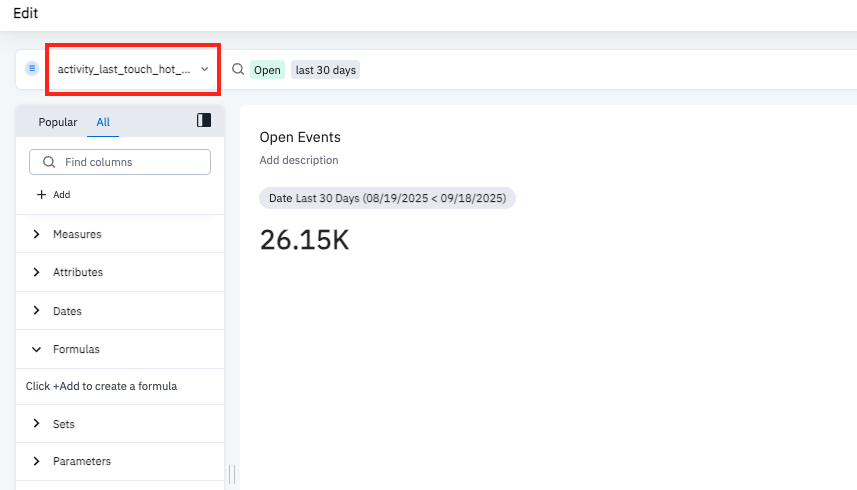
Choose the columns you want to add to your widget. The column categories are:
Measures: Numeric values, such as event counts and revenue.
Attributes: Qualitative dimensions of your data, such as Campaign Name or Platform.
Dates: Select the Date checkbox to add a date column, and then select the filter icon next to it to choose rolling or fixed dates. Rolling dates move as time passes, and fixed dates cover a set period.
Formulas: Your own calculations. To create one, select + Add, and then use the free-form formula editor or the prebuilt functions. Select an operator in the list to learn how to use it.
- For example, use the formula
Ad Partner Name = "Taptica" and contains ( Campaign Name , "spring" )to create a filter for Taptica campaigns you launched in the spring.
- For example, use the formula
Sets: Groups of values in your own categories. There are two types:
Column set: Groups the values of a single column. To create one, select + Add.
- For example, select Branch Channel as the base column, then create a group for paid channels and a group for organic channels.
Query set: Groups data using conditions on one or more columns. To create one, select + Add.
- For example, select OS, Feature, and Campaign Name for your base query, then create a group where
OS = Android,Feature = paid advertising, andCampaign Name = spring_solstice.
- For example, select OS, Feature, and Campaign Name for your base query, then create a group where
Parameters: Values you can change, such as a currency or a day range. To create one, select + Add. Give it a name and a default value, and choose its data type, such as integer, decimal, string, date, or boolean.
(Optional) To filter a column you chose in step 3, select it in the list, and then choose the values to include or exclude.
Select the Go button to run the data for your widget.
(Optional) Change the suggested title.
(Optional) Add a description so others can quickly understand the data.
(Optional) Change how the data displays. Branch suggests a format, and you can switch to a table or a chart.
- To choose a chart type, select the bar chart icon on the right side.
(Optional) To change the configuration, select the cog icon on the right side. It has two tabs:
- Configure: Choose which table columns show and how chart axes look.
- Settings: More display and formatting options, such as text wrapping and the table theme.
(Optional) To see the details of the query you’ve built, select the lowercase i icon on the right side.
Select Pin, and then choose the dashboard to save the widget to.
Configure widget currency
You can set the currency for a single widget instead of for the whole dashboard.
Important: A currency set at the dashboard level overrides the currency you set on a widget.
To set the currency for a specific widget:
- Navigate to the dashboard containing the widget you’re interested in. Make sure the widget has a currency-related measure.
- Hover over the widget and select the three-dot icon that appears.
- Select Edit.
- Find Currency under the Parameters section of the full list of columns you can add to your widget.
- Select the pencil icon to modify the currency.
- Search or scroll to find the currency you want to apply to your widget’s data, then select it.
- Select the Apply button.
- Select the Save button.
If the dashboard doesn’t have a currency yet, the first currency you set on a widget is also added to the dashboard. To change it, see Configure dashboard currency.
View widget data
To view the underlying data that a widget is based on:
Navigate to the dashboard containing the widget you’re interested in.
Hover over the widget and select the three-dot icon that appears.
Select Show underlying data.
- You can’t view underlying data for columns based on aggregate formulas.
Select the Edit columns button to edit the columns displayed in this view.
Select Download CSV at the bottom-left of the module to download the data.
Tip
The columns you choose here are also the columns in the CSV download.
To explore a widget’s data without changing the widget:
Navigate to the dashboard containing the widget you’re interested in.
Hover over the widget and select the three-dot icon that appears.
Select Explore.
From here, you can add filters, add columns, replace columns, or compare values.
- For example, you can quickly compare data where Ad Partner Name is
amazonversussnapto see which ad partner had more activity.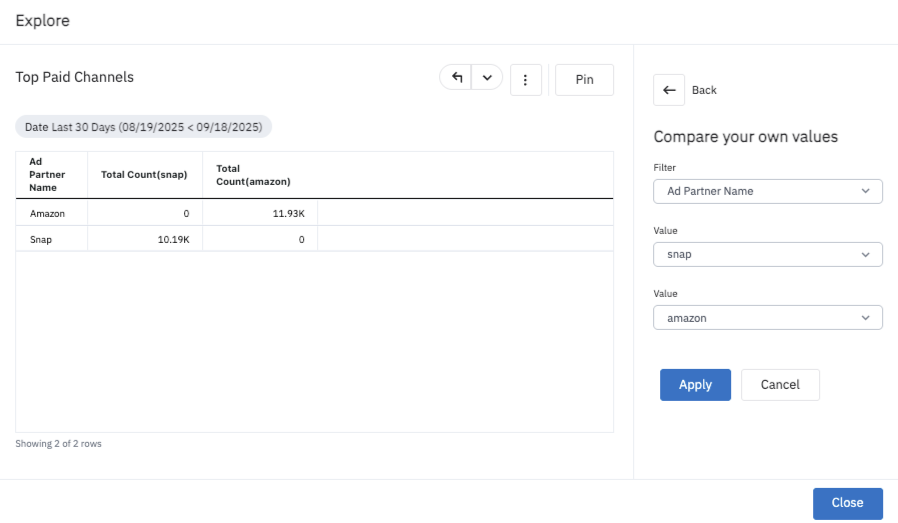
- For example, you can quickly compare data where Ad Partner Name is
Run change analysis
Widgets that display a single aggregate number also show how that number changed compared to the previous period. Change analysis breaks that change down for you, so you can see which values were responsible for it.
Change analysis is available on any widget that displays a single aggregate metric with a period-over-period comparison. For example, on the Channel Performance dashboard created for you by Branch, the Installs, Opens, Clicks, and Impressions widgets at the top of the page all support change analysis.
To run change analysis:
- On the dashboard, hover over the change shown beneath the widget’s metric, such as
99.59% (10.85K) Jul 2026. It’s green if the metric increased and red if it decreased, and a Run change analysis tooltip appears. - Select the change to open the Change analysis window. A callout at the top tells you which value accounted for the largest part of the change.
- Select an attribute from the list on the left, such as Branch Channel or Campaign Name, to break the change down by that attribute. The chart shows how much each value contributed, and distinguishes significant changes from normal ones.
- To dig into the value that drove the change, select it next to Analyze further. Use the back arrow icon in the top-left corner to return to the previous view.
- Scroll down to More insights to see the highest percentage change and the highest change in contribution.
- To change which attributes are available in the list on the left, select Customize attributes at the bottom of the list, select the checkbox for each attribute you want to include, then select Apply.
- When you are done, select the Close button.
Edit widget
To edit the data displayed in a widget or how it is displayed:
- Navigate to the dashboard containing the widget you’re interested in.
- Hover over the widget and select the three-dot icon that appears.
- Select Edit. For more information on widget configuration, read “Create and configure a widget.”
- When you’ve finished your edits, select the Save button. Then select the Close button at the top of the page.
Display widget on multiple dashboards
If you’ve already created a widget and you want to copy it to a different dashboard:
- Navigate to the dashboard containing the widget you’re interested in.
- Hover over the widget and select the three-dot icon that appears.
- Select Pin.
- Select the dashboard that you want to add your widget to, then select the Pin button.
- The widget now appears on the dashboard you selected.
Tip
Editing a pinned widget on one dashboard doesn’t change it on other dashboards.
Delete widget
Warning
Deleting a widget is permanent, and you can’t undo it.
To delete a widget:
- Navigate to the dashboard containing the widget you want to delete.
- Hover over the widget and select the three-dot icon that appears.
- Select Delete to permanently delete your widget.
Display Custom Events
There’s a wide variety of Branch Standard Events you can use to tell the story of your customer’s journey. When you use the Branch SDK to track these events, they’re automatically available for selection when creating and configuring a widget.
You can also report on your own Branch Custom Events. They aren’t automatically available in widgets. Instead, add a Custom Event Template and tell it which Custom Event to count.
To use a Custom Event Template:
Navigate to the dashboard containing the widget you want to add a Custom Event to.
Make sure to select the correct data source (typically Activity).
In the columns section, expand Measures.
Find and select Custom Event Template 0.
Select the Go button to run the query.
- Note: At this point, the widget shows a count of
0, because the template doesn’t know which Custom Event to count yet.
- Note: At this point, the widget shows a count of
Find the filter bubble that says
custom_event_total_count_param_0 defaultin the filter bar at the top of your widget configuration. Select this filter bubble.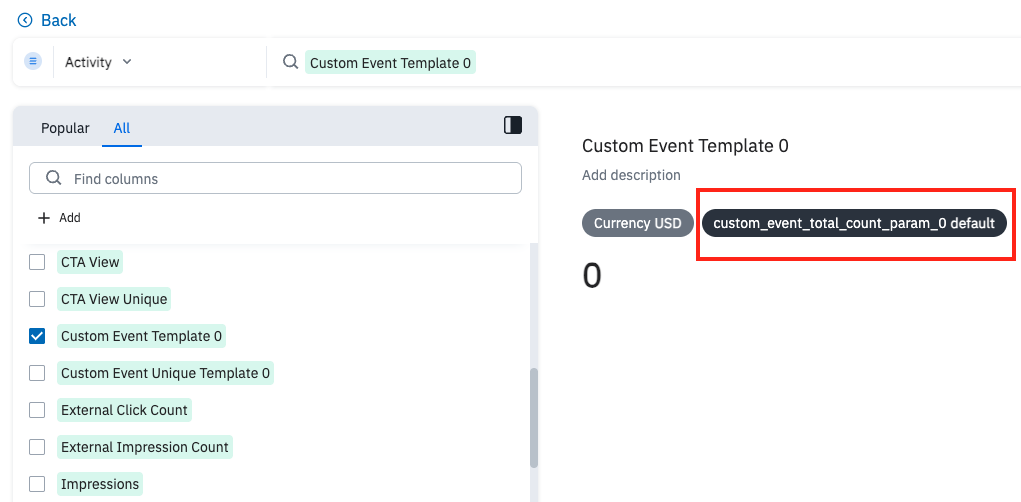
In the dialog that opens, enter your Custom Event name exactly as it appears in your Branch data, such as
First_registrationorLevel_completed.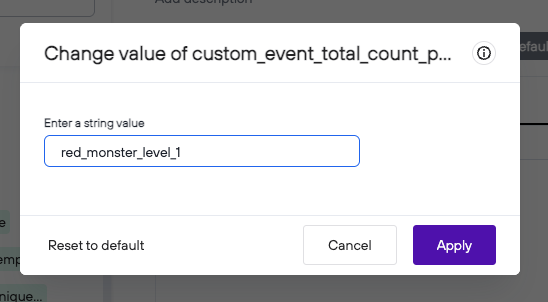
Select the Apply button. The widget now displays the count for your Custom Event.
The filter updates to show
custom_event_total_count_param 0followed by the name of your Custom Event.Select the Pin button to save your widget to a dashboard.
Use multiple Custom Events
To track more than one Custom Event:
- Each Custom Event requires its own template slot.
- You can add more Custom Event Templates as separate measures, such as Custom Event Template 1.
- Each template has its own parameter.
- You can track up to five Custom Events (one per template slot).
Example: To track both First_registration and Second_registration, set the parameter of Custom Event Template 0 to First_registration, and set the parameter of Custom Event Template 1 to Second_registration.
To get unique counts instead of total counts, use Custom Event Unique Template 0 to Custom Event Unique Template 4 the same way. Each one has its own parameter, from custom_event_unique_count_param_0 to custom_event_unique_count_param_4.
Tips
- Enter the Custom Event name exactly as it appears in your Branch data. Names are case-sensitive.
- Parameters start with technical names, such as
custom_event_total_count_param_0. After you set a value, the name changes to something friendlier, such as “Custom Event First Registration.”
Set KPI alert
Set an alert on a widget to get an email when a metric meets a condition or crosses a threshold. Widgets that support alerts show a bell icon when you hover over them.
Navigate to the dashboard containing the widget you want to set an alert on.
Hover over the widget and select the bell icon that appears.
Select an alert type from the pre-defined list of alerts. These include:
- KPI crosses a set limit
- Regular KPI updates
- Values of an attribute crosses a set limit
- Regular updates on values of an attribute
Select Next.
Name the alert, and set the conditions for when it fires.
- For example, set an alert to fire when your number of Open events goes over 25,000.
- By default, Branch checks the values daily at 09:00 UTC. To change this, select Change, and choose a new frequency and time.
Under Send alerts to users, add each teammate who should get the alert. You can also add a custom message to send with the alert.
Confirm the structure of your alert by selecting View query.
When the alert looks how you expect, select the Create alert button.
Manage KPI alert
You manage alerts at the widget level. To manage the alerts for a widget:
- Navigate to the dashboard containing the widget you’re interested in.
- Hover over the widget and select the three-dot icon that appears.
- Select Manage alerts.
- Find the relevant alert, and select the three-dot icon for it.
- From this menu, you can select Edit alerts, Add subscribers, Unsubscribe from alerts, or Delete alerts.
AI
In Analysis, Ivy, Branch’s AI, answers your questions and builds widgets for you.
Caution
Please know that Ivy’s answers are probabilistic, which means the same prompt may not always produce the exact same answer. Ivy’s answers may contain errors and should be verified.
We recommend that you manually confirm that your widgets use the models, filters, and formulas you expect.
Ivy can answer your questions about data at both the dashboard and widget levels.
You can prompt Ivy from any dashboard or widget, except widgets that hold your notes. The Ask Ivy box and Ivy button appear only when they’re turned on for your account.
If Ivy can’t process your whole prompt, it tells you and processes the part it can.
Once Ivy gives you an answer, you can switch between a table and a chart, pin the answer as a widget on a dashboard, download its data, or edit it.
Tip
To see which data source and columns Ivy used for an answer, select Edit on the answer.
If Ivy’s answer is a link, select it to see more about the columns Ivy used. In some cases, Ivy creates a new formula or set for you. You’ll find it in the left-side navigation with the rest of the available columns. The columns it used are also listed in the search bar at the top.
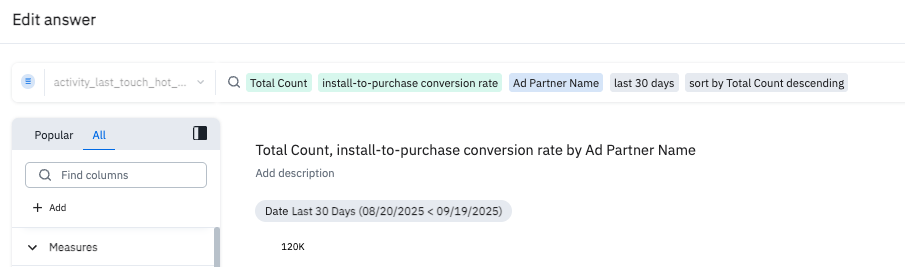
If a blue line appears under a column name, you can select it to see alternatives suggested by Ivy.
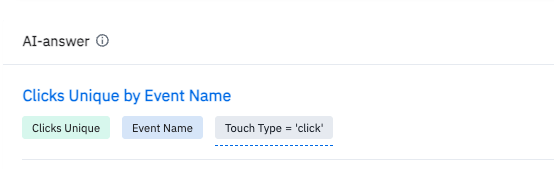
To tell Ivy whether it understood your question, select the checkmark icon or the X icon at the end of the answer.
Dashboard level
An individual dashboard is the highest level you can prompt Ivy from. Ivy answers from the data source that your dashboard’s widgets use most, so you can also ask about fields in that data source that aren’t on the dashboard.
Prompt Ivy at the dashboard level when you want a widget unlike any you already have. Otherwise, start from a similar widget and prompt Ivy from there.
Widget level
When you prompt Ivy at the widget level, it starts by restating your question. Use this to confirm that Ivy understood you. It may also refer to its earlier answers, so it has the right context.
If Ivy changes a previous answer, it lists the changes in shorthand form, for example Added:Feature, Branch Channel = 'SHORT_LINKS'. Make sure these changes are what you expect for your prompt.
Craft prompts for Ivy
Use these tips to write better prompts.
Start broad, get narrow
Instead of giving Ivy every detail upfront, ask a broader question first to establish a baseline, then build on the answers with more specific questions. For example, you might send these prompts in order:
- Prompt 1: “How many users completed trials this quarter?”
- Prompt 2: “Break that down by OS.”
- Prompt 3: “Now just show me users whose OS is Android.”
- Prompt 4: “How many of these users are in Australia?”
Use context
The more context Ivy has about your question, the better it understands what you’re asking. That’s why it’s often easier to build a new widget from one you already have than from scratch.
If you already have a widget that is a good starting point for your question, select the Ivy button on that widget to prompt Ivy from within the context of that widget. It uses the original widget to inform its answer.
Speak naturally, but be aware of keywords
Write your prompts in plain English. You don’t need Branch column names. For example, you can ask Ivy “What are the names of my top 5 campaigns?” and not use campaign_name anywhere in the prompt.
However, some terms need care:
- “Channel” and “Branch Channel” aren’t the same column. “Branch Channel” values include
ADS,SHORT_LINKS,BANNERS,SEO, andAIO. - “Paid advertising” refers to paid ad traffic. “Non-paid advertising” refers to your owned and organic channels.
- “Rate” can mean different things, so be specific, such as “click-through percentage.”
Specify time periods clearly
Be specific about the time period you want Ivy to look at when gathering your data. Instead of a word such as “recently,” say “in the past 7 days.”
Ask for comparisons
Ivy handles comparisons well. You can ask it to compare sets of data across different time periods, channels, campaigns, and much more.
Use numbers as filters
Ivy also handles numeric filters well. You can use phrases such as:
- “Top 5”
- “Above 10%”
- “Higher than 80k”
Get started with Ivy
Use these prompts as starting points for conversations with Ivy:
- Which feature is driving most of my Short Link traffic?
- Are there differences in audience demographics between Short Link and banner clickers?
- Show me installs and opens for my top 5 paid advertising campaigns this quarter.
- What are our email open rates by audience segment?
- Show me click-through percentages for our top 10 email campaigns.
- How many subscriptions did users start last quarter?
- What's our paid advertising versus non-paid advertising install split this quarter?
- How many purchase events came from each Branch channel this month?
- How many registration forms were completed per campaign last quarter?
- What's our install-to-purchase conversion rate by ad partner?
- How many attributed installs do we have per geographic region for the past 60 days?
- Compare iOS versus Android install performance by channel.
- What day of the week has the highest engagement for clicks?
- What proportion of deep link users performed an add to cart event?
Share and export data
You can present, download, and share your dashboards.
Present data
To present a dashboard in presentation mode:
- Navigate to the dashboard you want to present.
- Select the three-dot icon in the upper-right corner of the dashboard, then select Present.
- Use the arrow keys on your keyboard or the arrow icons at the top of the presentation to move through the dashboard’s widgets one by one.
You can also enter presentation mode directly from a widget. To do this, hover over the widget and select the three-dot icon that appears, then select Present.
Download data
To download an entire dashboard:
- Navigate to the dashboard you’re interested in downloading.
- Select the three-dot icon in the upper-right corner of the dashboard, then select Download.
To download data from a single widget:
- Navigate to the widget you’re interested in downloading.
- Hover over the widget and select the three-dot icon that appears, then select Download.
- Choose your download type from the available options. The types of downloads available depend on the type of data in the widget.
- Select the Download button.
Share dashboards
You can share one or more dashboards at a time with teammates who have a Branch account. You can share with a teammate once they’ve signed in to Branch and their role includes access to aggregate data.
To share dashboards:
- Navigate to the All Dashboards page under Analysis in the left-side navigation of Branch.
- Select the checkbox next to the dashboard(s) you want to share. Select the Share button.
- Add either entire groups or individual users to the list of entities to share the dashboard(s) with. Decide whether each entity can view or edit the dashboard(s) you’re sharing.
- Select the Share button. Each person gets an email, and the dashboard appears in their All Dashboards list.
Learn more
Branch University offers live, expert-led training on the new Branch experience, including Analysis. To learn more, see Branch University events.
FAQ
What is a dashboard?
Dashboards are pages that bring together a collection of widgets, so you can compare metrics and charts side by side.
What is a widget?
Widgets are individual metrics or charts that display aspects of your Branch data. You can edit them to show the data you need, and you can pin Ivy’s answers to dashboards as new widgets.
Can I create and edit Analysis Dashboards?
Yes, if dashboard editing is turned on for your account. Without dashboard editing, you can still view default dashboards and any dashboard a teammate shares with you.
Can I download data from Analysis Dashboards?
Yes, you can download entire dashboards or data from individual widgets in various formats.
What types of filters can I apply to my dashboards?
You can apply filters to include or exclude specific data, and you can configure them to apply to all or individual widgets.
What should I do if I see the error “Some x-axis values cannot be sliced by color because they have multiple y-axis values”?
Switch from chart view to table view.
What does “Viewing underlying data is not supported when there are chasm traps, fan traps, or for columns based on aggregate formulas” mean?
The widget’s metric is calculated from aggregate values, so the columns in the widget can’t show the data at a finer level.