
This page outlines the steps required to integrate the Branch iOS SDK.
At the end, you will be ready to do things like send Branch Events and use Branch Deep Links.
Availability of some Branch iOS SDK features varies by Branch plan. See Branch pricing.
| GitHub | SDK Size | Speed | Min. Xcode Version | Min. OS Version |
|---|---|---|---|---|
| Repo | ~220kb for all features | Median 80ms to 250ms | 12.3+ | iOS 9+ |
Note: Branch data retention policy
Before sending data to Branch, review the "Data Branch Hashes" section of our data best practices guide for field definitions and retention policies.
1. Configure Branch
Start by configuring Branch for your application.
New Branch
For New Branch:
- Go to Configuration > Link Controls > Link Routing Rules in Branch.
- In the Mobile Routing section, locate the iOS settings.
- Fill in the values for "iOS URI Scheme" and "iOS URL" based on your app.
- Enable Enable Universal Links.
- Get your Team ID from your Apple Developer Account and enter it as your Apple App Prefix.
- Add your Bundle Identifiers by selecting Add another Bundle ID if needed.
- Select Save changes.
Legacy Branch
For Legacy Branch:
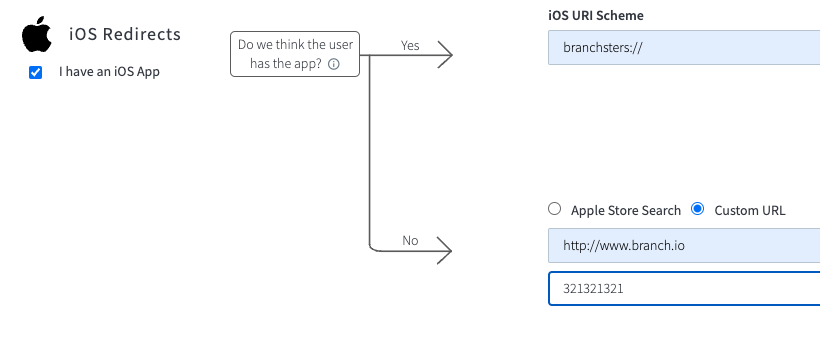
Configure the default link settings for your app within the App Settings page of Branch.
On the same page, confirm the "I have an iOS App" option is selected.
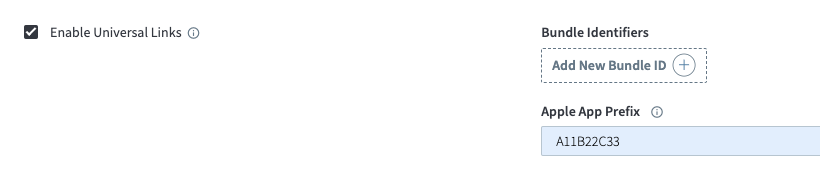
Retrieve your Team ID from your Apple Developer Account.

Go back to the Configuration page and use your Team ID as the value for your Apple App Prefix in Branch.
2. Configure Bundle ID
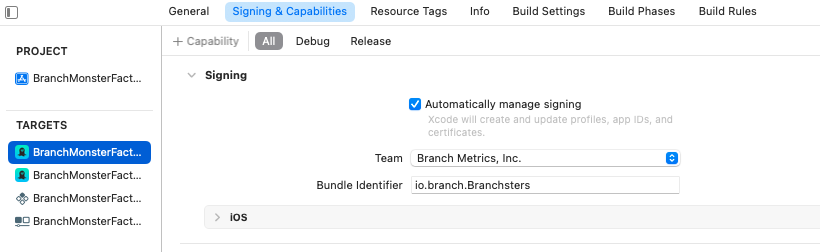
Next, make sure the Apple Bundle ID for your project matches the one in the Branch Dashboard.
Find the bundle identifier for the relevant target associated with your project in Xcode, under the "Signing & Capabilities" tab.
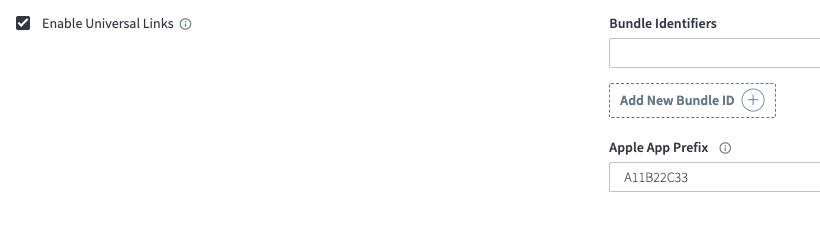
Add your Bundle ID to the Branch Dashboard:
- New Branch: Navigate to Configuration > Link Controls > Link Routing Rules > Mobile Routing > iOS, and add your Bundle ID under Bundle Identifiers.
- Legacy Branch: Return to the Configuration page and use the "Add New Bundle ID" button to add your Bundle ID.
3. Configure associated domains
You will also need to tell your project what link domains it can expect Branch to use.
In Branch, find the Link Domain section:
- New Branch: Navigate to Configuration > Link Controls > Link Appearance. Your link domains are listed under Link Domains.
- Legacy Branch: Navigate to the Link Domain section of the Configuration page.
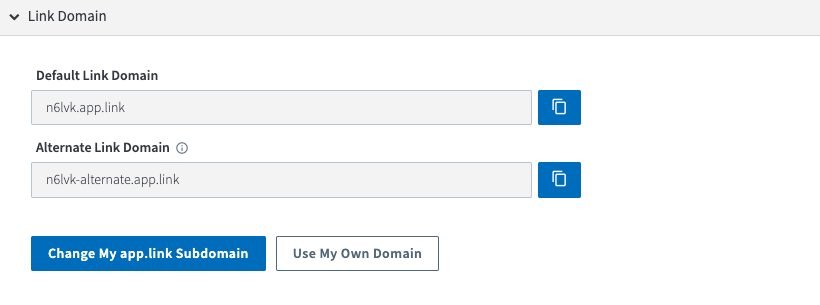
Return to the "Signing & Capabilities" tab in Xcode, and add the domains from your Branch Dashboard to your project's target.
- Use
applinks:subdomain.app.linkfor the format. - The
-alternateflag is required to ensure proper functioning of Universal Links and Deepviews for users that do not have your app installed. - The
.testflag is required if you need to use a test key.
- Use

Please note: if you use a custom link domain, you will need to include your old link domain, your -alternate link domain, and your new link domain in your project.
4. Configure Info.plist
Branch requires certain key/value pairs to exist in your project's info.plist file. These include:
The
branch_universal_link_domainskey, which refers to your associated domains.The
branch_keykey, where you add your live key and can choose to add your test key as well.The
URL typeskey, where you add values for yourURL SchemesandURL Identifier.- Note: The Branch iOS SDK will pull the first URL Scheme from your list that is not one of
fb,db, orpin. This value will be used one time to set the iOS URL Scheme under your Link Settings in the Branch Dashboard.
- Note: The Branch iOS SDK will pull the first URL Scheme from your list that is not one of
Finding these values in Branch
New Branch
For New Branch:
- Link domains: Go to Configuration > Link Controls > Link Appearance. Your
app.linkdomains are listed under Link Domains. - Branch keys: Go to Configuration > Security & Access > Credentials. Your Branch key is listed under Your Branch key.
- iOS URI Scheme: Go to Configuration > Link Controls > Link Routing Rules > Mobile Routing > iOS.
Legacy Branch
For Legacy Branch:
You can find your Branch keys on the Account Settings page. Link domains and iOS URI Scheme can be found on the Link Settings page.
Update info.plist
There are several ways you can update your info.plist file:
As of Xcode 13, many project templates do not include an
info.plistautomatically. Instead, you can edit the "Custom iOS Target Properties" and "URL Types" sections of the "Info" tab for your target. When you add new, non-default fields to these sections, Xcode will generate aninfo.plistfile for your project.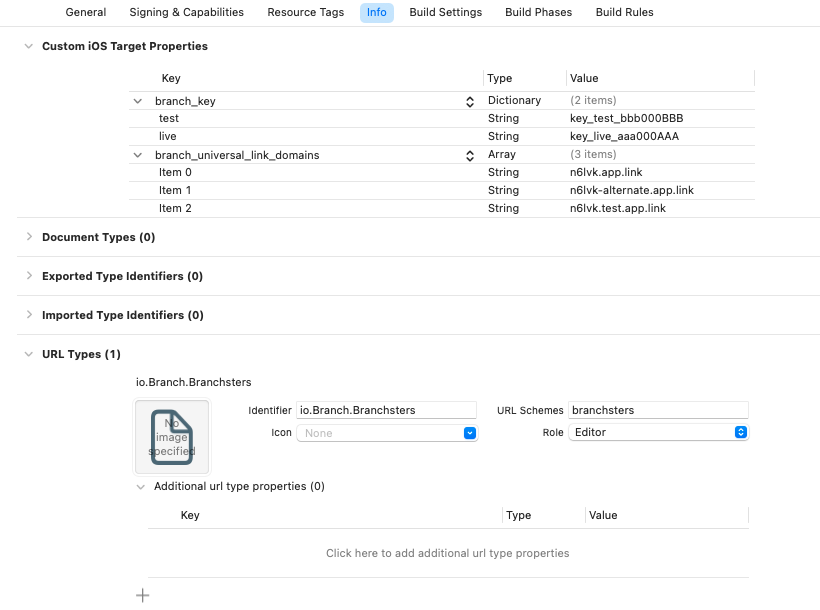
If you already have an
info.plistfile, you can edit it in the Xcode UI by selecting it from the navigation.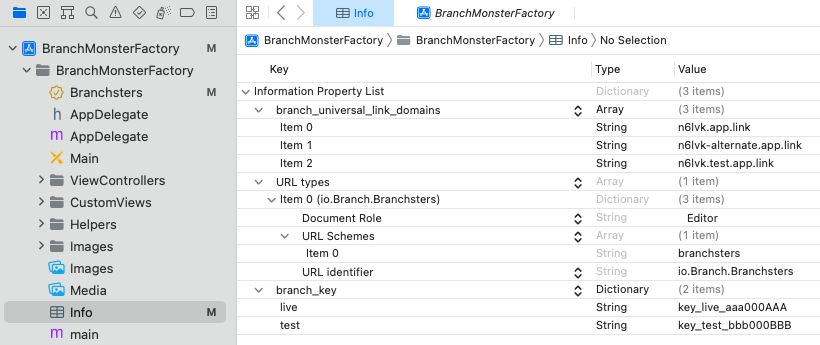
You also have the option to edit the XML in the
info.plistfile directly:
<plist version="1.0">
<dict>
<key>branch_universal_link_domains</key>
<array>
<string>n6lvk.app.link</string>
<string>n6lvk-alternate.app.link</string>
<string>n6lvk.test.app.link</string>
</array>
<key>CFBundleURLTypes</key>
<array>
<dict>
<key>CFBundleTypeRole</key>
<string>Editor</string>
<key>CFBundleURLSchemes</key>
<array>
<string>branchsters</string>
</array>
<key>CFBundleURLName</key>
<string>io.Branch.Branchsters</string>
</dict>
</array>
<key>branch_key</key>
<dict>
<key>live</key>
<string>key_live_aaa000AAA</string>
<key>test</key>
<string>key_test_bbb000BBB</string>
</dict>
</dict>
</plist>
5. Install Branch
Please choose one of the following integration methods to install the Branch SDK into your app.
Swift Package Manager
Learn more about Swift Package Manager.
To add the Branch iOS SDK to your project as a Swift package dependency:
In Xcode, go to File -> Add Packages.
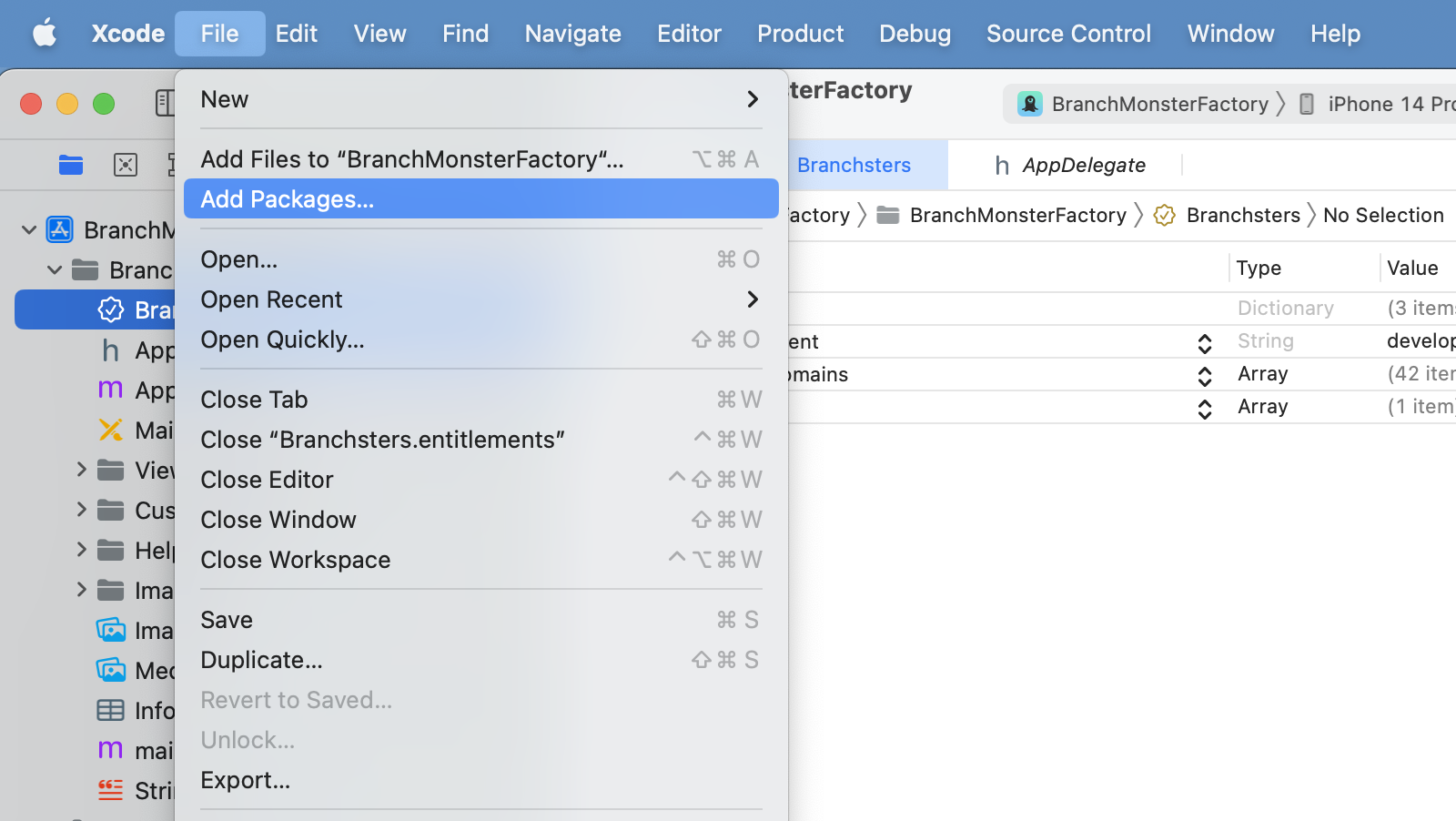
Use the search bar to look for either ios-branch-sdk-spm or https://github.com/BranchMetrics/ios-branch-sdk-spm.
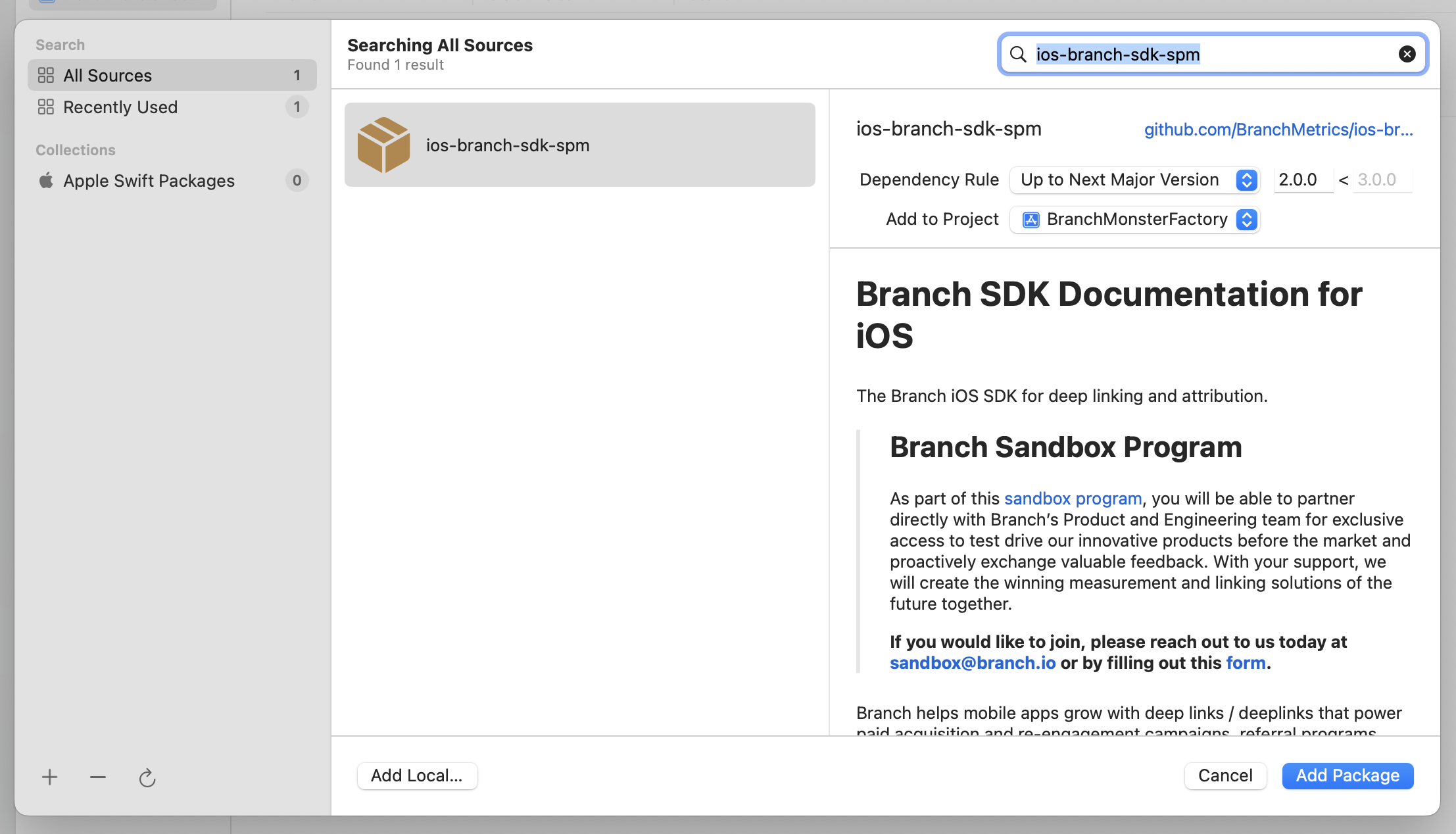
Select the
ios-branch-sdk-spmpackage and click Add Package to continue through the installer.Check that the Branch iOS SDK now appears in your project's Package Dependencies tab.
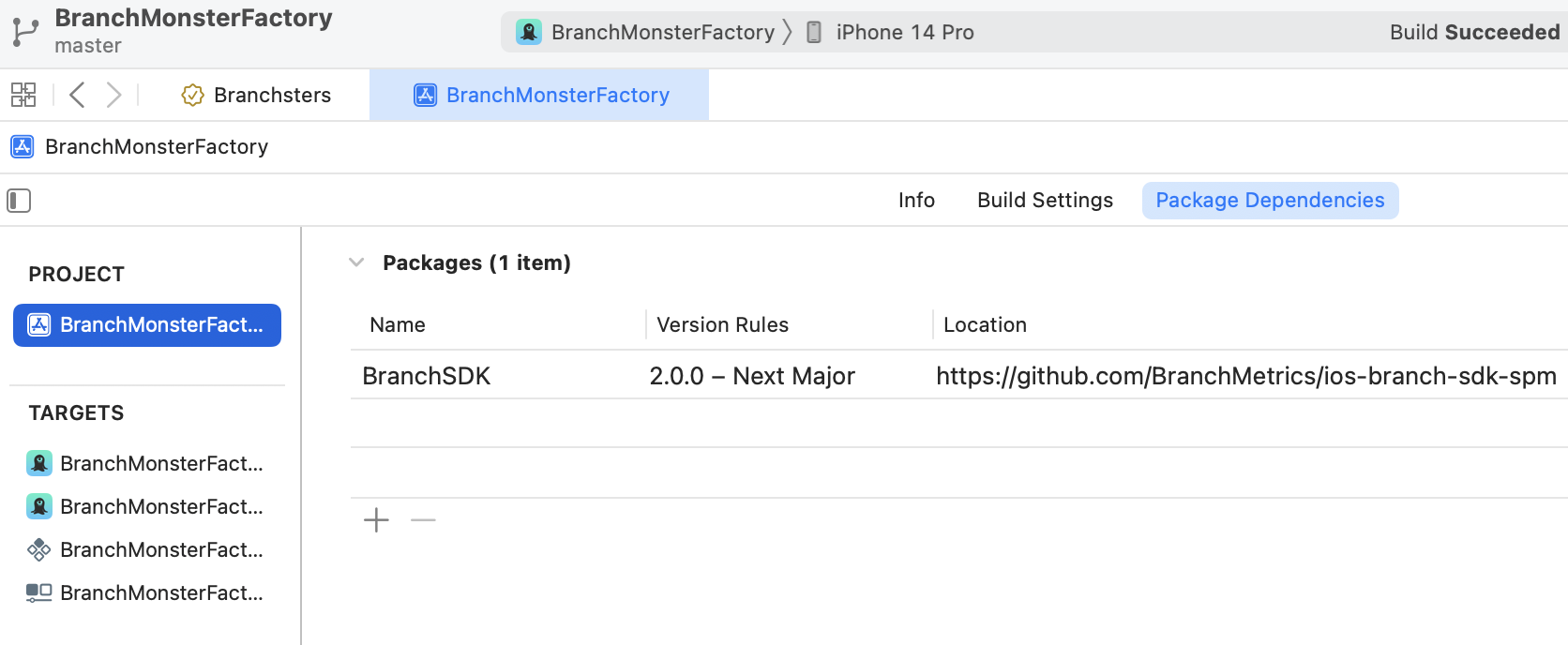
Navigate to your project's Build Phases tab and expand the Link Binary With Libraries section.
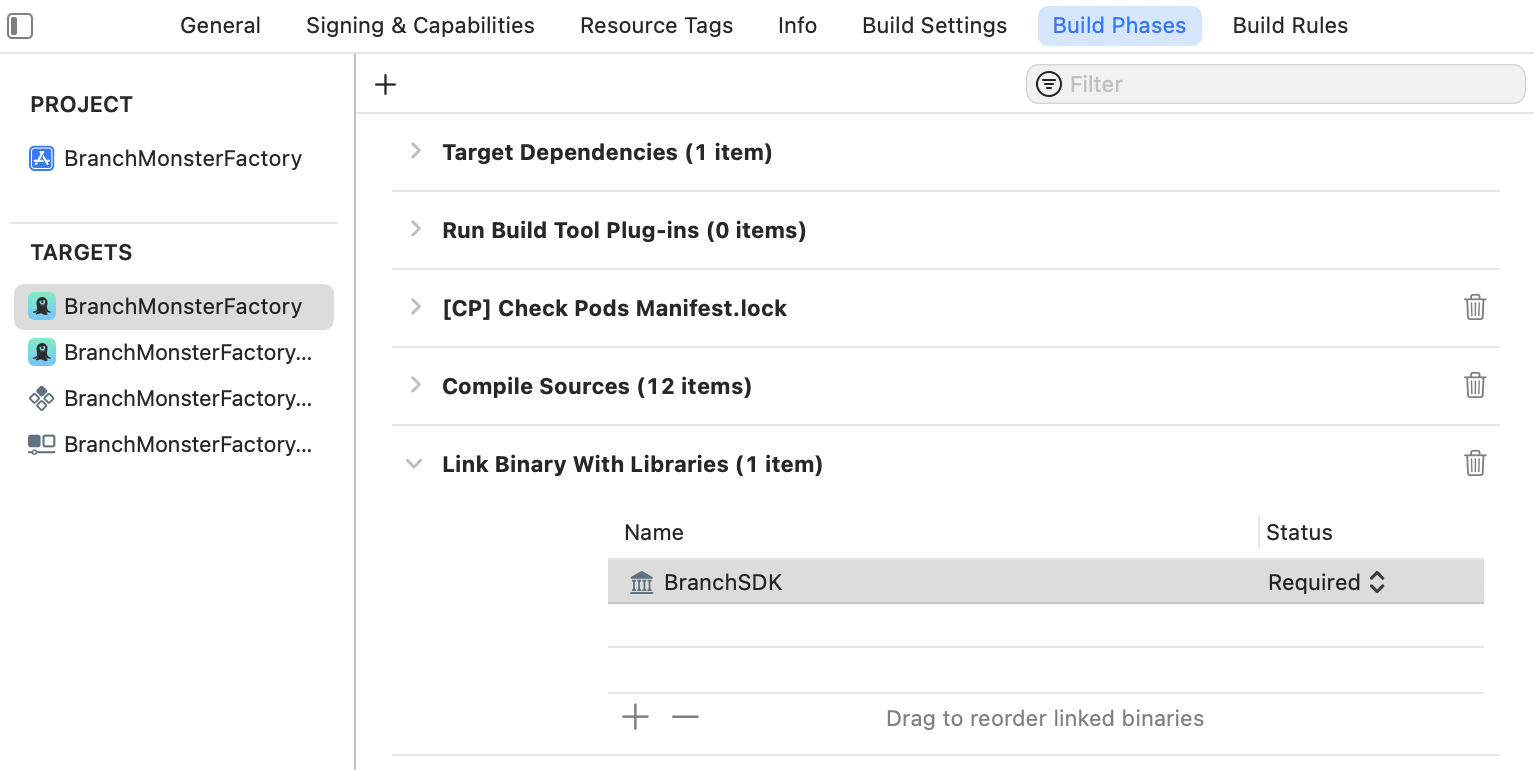
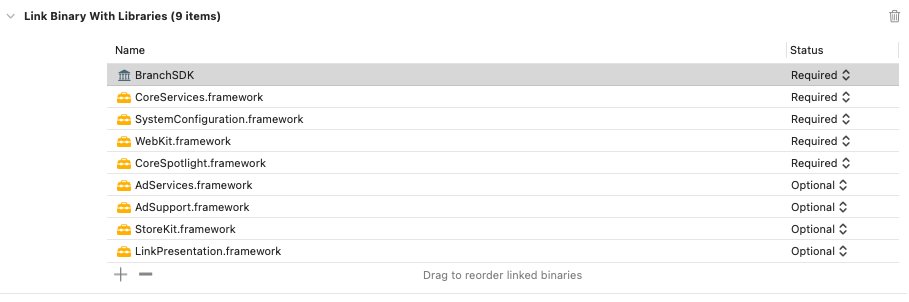
Click on the + button to search for and add the following dependencies, noting the correct import status for each:
Linked Frameworks and Libraries Import Status Description CoreServices Required Access and manage key operating system services, such as launch and identity services. SystemConfiguration Required Allow applications to access a device's network configuration settings. Determine the reachability of the device, such as whether Wi-Fi or cell connectivity is active. Used for connection type. WebKit Required Integrate web content seamlessly into your app, and customize content interactions to meet your app's needs. Used for web browser user agent. CoreSpotlight Required Index your app so users can search the content from Spotlight and Safari. CoreTelephony Required for SDK versions 2.2.2 and lower Access information about a user's cellular service provider, such as its unique identifier and whether the carrier allows VoIP. Used for mobile carrier.
This dependency is not relevant for apps using SDK versions 3.0.0+ because device carrier information is not available in newer iOS versions.AdServices Optional Attribute app-download campaigns that originate from the App Store, Apple News, or Stocks on iOS devices. This is used for obtaining Apple Attribution Token. AdSupport Optional Provide apps with access to an advertising identifier. This will give access to IDFA. StoreKit Optional Provide apps with ability to measure ad-driven installs via SKAdNetwork. LinkPresentation Optional Support customization of share sheet. Confirm that you have the required dependencies added, as well as any optional ones you would like, and that you have marked the "Status" column in Xcode appropriately.
CocoaPods
Learn more about CocoaPods.
Note: CocoaPods does not support having multiple iOS Privacy Manifest files if you are not also using use_frameworks. If you are not using use_frameworks and have multiple Privacy Manifest files, you will need to condense them into one file. Make sure to include everything declared in the Branch iOS SDK's Privacy Manifest file.
To add the Branch iOS SDK to your project using the CocoaPods dependency manager:
Open your project's
podfile. If it doesn't have one yet, create one usingpod init.Use the following sample code for your
podfile, and base it on your project's requirements:platform :ios, '12.0' # Replace APP_NAME with the name of your app target 'APP_NAME' do # If using Swift, include the following line: use_frameworks! # For Branch iOS SDK 2.0.0+ pod 'BranchSDK' # For Branch iOS SDK <2.0.0, remove previous pod line and uncomment the following line: # pod 'Branch' endRun
pod install && pod updateto install the project dependencies.Confirm in your target's General tab that a
Pods_...dependency is now listed.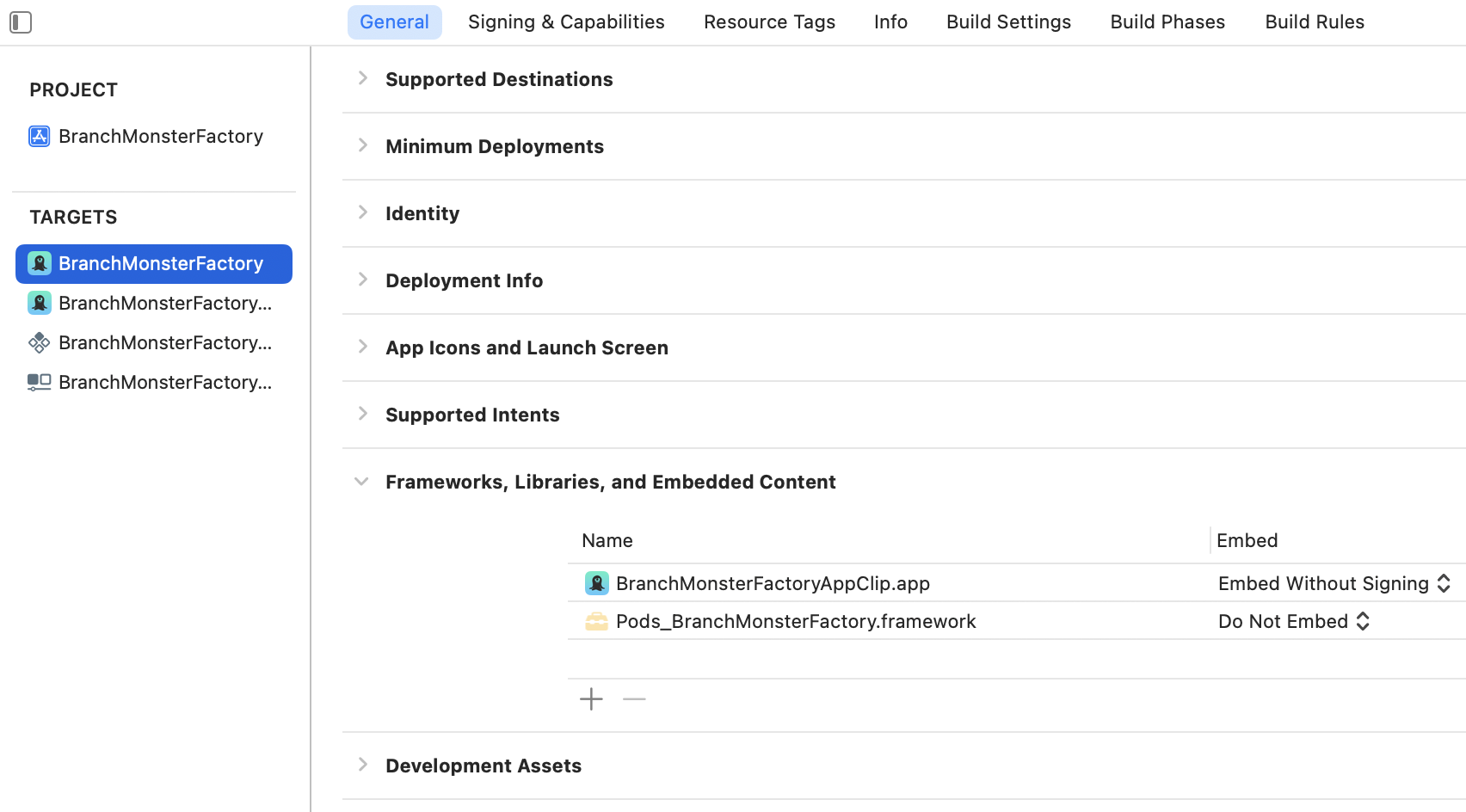
Carthage
Learn more about Carthage.
Please note that Carthage 0.37.0+ is required for xcframework support, and in turn Branch requires the Carthage --use-xcframeworks option.
To add the Branch iOS SDK to your project using the Carthage dependency manager:
Add
github "BranchMetrics/ios-branch-deep-linking"to your project'sCartfile.Navigate to your project's Build Phases tab and expand the Link Binary With Libraries section.
Click on the + button to search for and add the following dependencies, noting the correct import status for each:
Linked Frameworks and Libraries Import Status Description CoreServices Required Access and manage key operating system services, such as launch and identity services. SystemConfiguration Required Allow applications to access a device's network configuration settings. Determine the reachability of the device, such as whether Wi-Fi or cell connectivity is active. Used for connection type. WebKit Required Integrate web content seamlessly into your app, and customize content interactions to meet your app's needs. Used for web browser user agent. CoreSpotlight Required Index your app so users can search the content from Spotlight and Safari. CoreTelephony Required for SDK versions 2.2.2 and lower Access information about a user's cellular service provider, such as its unique identifier and whether the carrier allows VoIP. Used for mobile carrier.
This dependency is not relevant for apps using SDK versions 3.0.0+ because device carrier information is not available in newer iOS versions.AdServices Optional Attribute app-download campaigns that originate from the App Store, Apple News, or Stocks on iOS devices. This is used for obtaining Apple Attribution Token. AdSupport Optional Provide apps with access to an advertising identifier. This will give access to IDFA. StoreKit Optional Provide apps with ability to measure ad-driven installs via SKAdNetwork. LinkPresentation Optional Support customization of share sheet. Confirm that you have the required dependencies added, as well as any optional ones you would like, and that you have marked the "Status" column in Xcode appropriately.
Manual Framework
Manually install the Branch
xcframeworkfrom GitHub. If you prefer a staticxcframework, please download the pre-built Branch static ZIP file available with Branch iOS SDK v1.38.0+.Navigate to your project's Build Phases tab and expand the Link Binary With Libraries section.
Click on the + button to search for and add the following dependencies, noting the correct import status for each:
Linked Frameworks and Libraries Import Status Description CoreServices Required Access and manage key operating system services, such as launch and identity services. SystemConfiguration Required Allow applications to access a device's network configuration settings. Determine the reachability of the device, such as whether Wi-Fi or cell connectivity is active. Used for connection type. WebKit Required Integrate web content seamlessly into your app, and customize content interactions to meet your app's needs. Used for web browser user agent. CoreSpotlight Required Index your app so users can search the content from Spotlight and Safari. CoreTelephony Required for SDK versions 2.2.2 and lower Access information about a user's cellular service provider, such as its unique identifier and whether the carrier allows VoIP. Used for mobile carrier.
This dependency is not relevant for apps using SDK versions 3.0.0+ because device carrier information is not available in newer iOS versions.AdServices Optional Attribute app-download campaigns that originate from the App Store, Apple News, or Stocks on iOS devices. This is used for obtaining Apple Attribution Token. AdSupport Optional Provide apps with access to an advertising identifier. This will give access to IDFA. StoreKit Optional Provide apps with ability to measure ad-driven installs via SKAdNetwork. LinkPresentation Optional Support customization of share sheet. Confirm that you have the required dependencies added, as well as any optional ones you would like, and that you have marked the "Status" column in Xcode appropriately.
6. Initialize Branch
This section details how to initialize the Branch SDK depending on the kind of app you have.
Important: If you need to delay Branch initialization so you can request tracking permission from the user first or you need to set special initialization metadata because your third-party data integration partner requires it, see Branch's iOS Advanced Features guide for relevant steps.
SwiftUI apps
SwiftUI projects in Xcode no longer come with AppDelegate and SceneDelegate by default, so in order to initialize the Branch SDK you will need to create them and reference them from your App.swift and AppDelegate.swift files.
Create a new file called
AppDelegate.swiftin your project's main directory.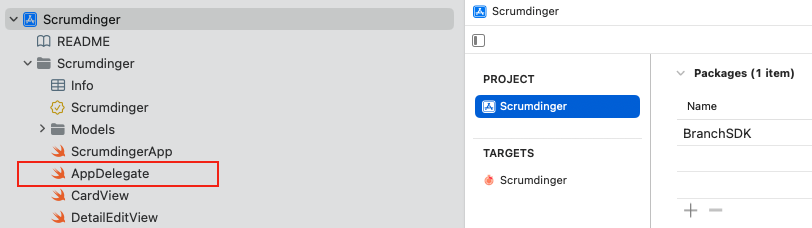
Add the following code to your new
AppDelegate.swiftfile:swiftimport SwiftUI // If using iOS SDK 2.0.0+, use the following import: import BranchSDK // If using iOS SDK <2.0.0, use the following import: // import Branch class AppDelegate: UIResponder, UIApplicationDelegate { func application(_ application: UIApplication, didFinishLaunchingWithOptions launchOptions: [UIApplication.LaunchOptionsKey: Any]? = nil) -> Bool { Branch.getInstance().initSession(launchOptions: launchOptions) { (params, error) in print(params as? [String: AnyObject] ?? {}) // Access and use Branch Deep Link data here (nav to page, display content, etc.) } return true }To ensure Branch receives the necessary
initial_referrerfor SEO App Attribution, the iOS SDK needs theNSUserActivityobject that is passed to the SceneDelegate of the App. Create aSceneDelegate.swiftfile and add following code to it:swiftimport SwiftUI // If using iOS SDK 2.0.0+, use the following import: import BranchSDK // If using iOS SDK <2.0.0, use the following import: // import Branch class SceneDelegate: NSObject, UIWindowSceneDelegate { var window: UIWindow? func scene(_ scene: UIScene, willConnectTo session: UISceneSession, options connectionOptions: UIScene.ConnectionOptions) { guard let scene = (scene as? UIWindowScene) else { return } let window = UIWindow(windowScene: scene) window.rootViewController = UIHostingController(rootView: ContentView()) self.window = window window.makeKeyAndVisible() // Workaround for SceneDelegate `continueUserActivity` not getting called on cold start: if let userActivity = connectionOptions.userActivities.first { BranchScene.shared().scene(scene, continue: userActivity) } else if !connectionOptions.urlContexts.isEmpty { BranchScene.shared().scene(scene, openURLContexts: connectionOptions.urlContexts) } } func scene(_ scene: UIScene, willContinueUserActivityWithType userActivityType: String) { scene.userActivity = NSUserActivity(activityType: userActivityType) scene.delegate = self } func scene(_ scene: UIScene, continue userActivity: NSUserActivity) { BranchScene.shared().scene(scene, continue: userActivity) } func scene(_ scene: UIScene, openURLContexts URLContexts: Set<UIOpenURLContext>) { BranchScene.shared().scene(scene, openURLContexts: URLContexts) } }Inform your application about this SceneDelegate by returning it in the configurationForConnecting API of the aforementioned AppDelegate file.
swiftclass AppDelegate: NSObject, UIApplicationDelegate { func application( _ application: UIApplication, configurationForConnecting connectingSceneSession: UISceneSession, options: UIScene.ConnectionOptions ) -> UISceneConfiguration { let config = UISceneConfiguration( name: nil, sessionRole: connectingSceneSession.role ) // Assign our custom delegate class: config.delegateClass = SceneDelegate.self return config } }Add the following code to your
App.swiftfile:swiftimport SwiftUI // If using iOS SDK 2.0.0+, use the following import: import BranchSDK // If using iOS SDK <2.0.0, use the following import: // import Branch @main struct SwiftUITestApp: App { @UIApplicationDelegateAdaptor(AppDelegate.self) private var appDelegate var body: some Scene { WindowGroup { // No ContentView() here // The SceneDelegate is responsible for setting the root view } } }
Other apps not using scenes
If your app does not use UIKit scenes, update your AppDelegate.swift file with the following code:
Swift
import UIKit

// If using iOS SDK 2.0.0+, use the following import:
import BranchSDK

// If using iOS SDK <2.0.0, use the following import:
// import Branch

@UIApplicationMain
class AppDelegate: UIResponder, UIApplicationDelegate {

func application(_ application: UIApplication, didFinishLaunchingWithOptions launchOptions: [UIApplicationLaunchOptionsKey: Any]?) -> Bool {

// Listener for Branch deep link data
Branch.getInstance().initSession(launchOptions: launchOptions) { (params, error) in
print(params as? [String: AnyObject] ?? {})
// Access and use deep link data here (nav to page, display content, etc.)
}
return true
}

func application(_ app: UIApplication, open url: URL, options: [UIApplication.OpenURLOptionsKey : Any] = [:]) -> Bool {
Branch.getInstance().application(app, open: url, options: options)
return true
}

func application(_ application: UIApplication, continue userActivity: NSUserActivity, restorationHandler: @escaping ([UIUserActivityRestoring]?) -> Void) -> Bool {
// Handler for Universal Links
Branch.getInstance().continue(userActivity)
return true
}

func application(_ application: UIApplication, didReceiveRemoteNotification userInfo: [AnyHashable : Any], fetchCompletionHandler completionHandler: @escaping (UIBackgroundFetchResult) -> Void) {
// Handler for Push Notifications
Branch.getInstance().handlePushNotification(userInfo)
}
Objective-C
#import "AppDelegate.h"

                    // If using iOS SDK 2.0.0+, use the following import:
                    @import BranchSDK;

                    // If using iOS SDK <2.0.0, use the following import:
                    // @import Branch;

                    @interface AppDelegate ()

                    @end

                    @implementation AppDelegate

                    (BOOL)application:(UIApplication *)application didFinishLaunchingWithOptions:(NSDictionary *)launchOptions {
                    // Use `setUseTestBranchKey(true)` only if you are using your test key
                    [Branch setUseTestBranchKey:YES];

                    // Listener for Branch deep link data
                    [[Branch getInstance] initSessionWithLaunchOptions:launchOptions andRegisterDeepLinkHandler:^(NSDictionary * _Nonnull params, NSError * _Nullable error) {
                    NSLog(@"%@", params);
                    // Access and use deep link data here (nav to page, display content, etc.)
                    }];
                    return YES;
                    }

                    - (BOOL)application:(UIApplication *)app openURL:(NSURL *)url options:(NSDictionary<UIApplicationOpenURLOptionsKey,id> *)options {
                    [[Branch getInstance] application:app openURL:url options:options];
                    return YES;
                    }

                    (BOOL)application:(UIApplication *)application continueUserActivity:(NSUserActivity *)userActivity restorationHandler:(void (^)(NSArray * _Nullable))restorationHandler {
                    // Handler for Universal Links
                    [[Branch getInstance] continueUserActivity:userActivity];
                    return YES;
                    }

                    - (void)application:(UIApplication *)application didReceiveRemoteNotification:(NSDictionary *)userInfo {
                    // Handler for Push Notifications
                    [[Branch getInstance] handlePushNotification:userInfo];
                    }

                    @end
Apps using scenes
If your app uses UIKit scenes, you will need to make changes to both your AppDelegate and SceneDelegate files.
In your AppDelegate, update the file to include the following:
Swift
swiftimport UIKit // If using iOS SDK 2.0.0+, use the following import: import BranchSDK // If using iOS SDK <2.0.0, use the following import: // import Branch @UIApplicationMain class AppDelegate: UIResponder, UIApplicationDelegate { func application(_ application: UIApplication, didFinishLaunchingWithOptions launchOptions: [UIApplication.LaunchOptionsKey: Any]?) -> Bool { // Override point for customization after application launch // This version of `initSession` includes the source UIScene in the callback BranchScene.shared().initSession(launchOptions: launchOptions, registerDeepLinkHandler: { (params, error, scene) in }) return true } func applicationWillTerminate(_ application: UIApplication) { } // MARK: UISceneSession Lifecycle func application(_ application: UIApplication, configurationForConnecting connectingSceneSession: UISceneSession, options: UIScene.ConnectionOptions) -> UISceneConfiguration { return UISceneConfiguration(name: "Default Configuration", sessionRole: connectingSceneSession.role) } func application(_ application: UIApplication, didDiscardSceneSessions sceneSessions: Set<UISceneSession>) { } }Objective-C
objective-c#import "AppDelegate.h" // If using iOS SDK 2.0.0+, use the following import: @import BranchSDK; // If using iOS SDK <2.0.0, use the following import: // @import Branch; @interface AppDelegate () @end @implementation AppDelegate - (BOOL)application:(UIApplication *)application didFinishLaunchingWithOptions:(NSDictionary *)launchOptions { // Override point for customization after application launch. [[BranchScene shared] initSessionWithLaunchOptions:launchOptions registerDeepLinkHandler:^(NSDictionary * _Nullable params, NSError * _Nullable error, UIScene * _Nullable scene) { }]; return YES; } - (void)applicationWillTerminate:(UIApplication *)application { } #pragma mark - UISceneSession lifecycle - (UISceneConfiguration *)application:(UIApplication *)application configurationForConnectingSceneSession:(UISceneSession *)connectingSceneSession options:(UISceneConnectionOptions *)options { return [[UISceneConfiguration alloc] initWithName:@"Default Configuration" sessionRole:connectingSceneSession.role]; } - (void)application:(UIApplication *)application didDiscardSceneSessions:(NSSet<UISceneSession *> *)sceneSessions { } @endOnce your AppDelegate is updated, use the
scene()method to optionally configure and attach the UIWindow window to the provided UIWindowScene scene. If using a storyboard, the window property will automatically be initialized and attached to the scene. This delegate does not imply the connecting scene or session are new (seeapplication:configurationForConnectingSceneSessioninstead).Swift
swiftimport UIKit // If using iOS SDK 2.0.0+, use the following import: import BranchSDK // If using iOS SDK <2.0.0, use the following import: // import Branch class SceneDelegate: UIResponder, UIWindowSceneDelegate { var window: UIWindow? func scene(_ scene: UIScene, willConnectTo session: UISceneSession, options connectionOptions: UIScene.ConnectionOptions) { guard let _ = (scene as? UIWindowScene) else { return } // Workaround for SceneDelegate `continueUserActivity` not getting called on cold start: if let userActivity = connectionOptions.userActivities.first { BranchScene.shared().scene(scene, continue: userActivity) } else if !connectionOptions.urlContexts.isEmpty { BranchScene.shared().scene(scene, openURLContexts: connectionOptions.urlContexts) } } func sceneDidDisconnect(_ scene: UIScene) { } func sceneDidBecomeActive(_ scene: UIScene) { } func sceneWillResignActive(_ scene: UIScene) { } func sceneWillEnterForeground(_ scene: UIScene) { } func sceneDidEnterBackground(_ scene: UIScene) { } func scene(_ scene: UIScene, willContinueUserActivityWithType userActivityType: String) { scene.userActivity = NSUserActivity(activityType: userActivityType) scene.delegate = self } func scene(_ scene: UIScene, continue userActivity: NSUserActivity) { BranchScene.shared().scene(scene, continue: userActivity) } func scene(_ scene: UIScene, openURLContexts URLContexts: Set<UIOpenURLContext>) { BranchScene.shared().scene(scene, openURLContexts: URLContexts) } }Objective-C
objective-c#import "SceneDelegate.h" // If using iOS SDK 2.0.0+, use the following import: @import BranchSDK; // If using iOS SDK <2.0.0, use the following import: // @import Branch; @interface AppDelegate () @interface SceneDelegate () @end @implementation SceneDelegate - (void)scene:(UIScene *)scene willConnectToSession:(UISceneSession *)session options:(UISceneConnectionOptions *)connectionOptions { // Workaround for SceneDelegate `continueUserActivity` not getting called on cold start NSUserActivity *activity = [[connectionOptions userActivities] allObjects].firstObject; if (activity) { [[BranchScene shared] scene:scene continueUserActivity:activity]; } else if ([[connectionOptions URLContexts] count] != 0) { [[BranchScene shared] scene:scene openURLContexts: [connectionOptions URLContexts]]; } } - (void)sceneDidDisconnect:(UIScene *)scene { } - (void)sceneDidBecomeActive:(UIScene *)scene { } - (void)sceneWillResignActive:(UIScene *)scene { } - (void)sceneWillEnterForeground:(UIScene *)scene { } - (void)sceneDidEnterBackground:(UIScene *)scene { } - (void)scene:(UIScene *)scene continueUserActivity:(NSUserActivity *)userActivity { [[BranchScene shared] scene:scene continueUserActivity:userActivity]; } - (void)scene:(UIScene *)scene openURLContexts:(NSSet<UIOpenURLContext *> *)URLContexts { [[BranchScene shared] scene:scene openURLContexts:URLContexts]; } @end
7. Implement ATT Prompt (Optional)
By default, the Branch iOS SDK does not include the ATTrackingManager, which is required by Apple if you want to collect the IDFA for attribution purposes. Learn more about the App Transparency Tracking (ATT) Manager in Apple's documentation.
Important: Please note that in order for ATTrackingManager to function, you must include the AdSupport framework in your Branch iOS SDK implementation.
If you have already implemented ATTrackingManager in your app, Branch will automatically have access to the IDFA.
Tip
When possible, Branch recommends that you include the ATT Prompt when using our Ads feature, to enable more accurate deterministic attribution.
Learn more about iOS attribution best practices in our guide.
8. Validate integration
It's important to validate your Branch iOS SDK integration after you've set it up, to make sure that data flows properly to the Branch Dashboard and you're able to start configuring Branch Deep Links and sending Branch Events.
Validation methods:
- The SDK integration status in Branch. New Branch: Configuration > App Settings > SDK Integration. Legacy Branch: the App Settings tab of the Branch Dashboard.
- The Branch iOS SDK's Integration Validation method.
- The Branch iOS SDK's Enable Logging method.
- Branch's Link Debugger tool, which helps you confirm Branch Deep Link configuration, data, and routing.
For additional testing scenarios and tools, visit the iOS SDK Testing page.
If you're running into issues with your Branch iOS SDK integration, start by looking at the iOS SDK Troubleshooting page.