

Overview
With a push of a button you can send your Branch data to your Segment dashboard, helping you to understand the power of Branch as an acquisition pathway, export your data to your entire suite of analytics tools, and build custom audiences upon Branch data.
This documentation explains how to send Branch-referred events to Segment. If you'd like to send Segment events to Branch, review the Segment Import integration.
How does it work?
Once the Branch SDK is integrated into an app, Branch can detect which links are leading to installs, re-opens, and users' actions. Enabling this integration and providing your Segment credentials will result in Branch automatically forwarding attributed events to Segment, in the exact format Segment expects.
Branch events sent to Segment
Branch will send attributed installs and opens, as well as any content events, lifecycle events, custom events, and commerce events you track with Branch. Non-referred events, clicks, web session starts, and pageviews will be excluded. Branch also sends all the data that is attached to the link that drove the referred event. This will allow you to analyze which campaigns, channels, etc. are helping you acquire and engage users.
| Property | Value | Sourced from | Example |
|---|---|---|---|
event | Branch event | event name | branch_OPEN |
event_id | Unique ID for the event | Branch event ID | 469939270182891107 |
properties | Branch Link Data Dictionary | Last Attributed Touch Data for the link to which the event was attributed | "campaign": "Segment test", "channel": "Slack" |
device_info | Device Data, like OS | Branch User Data for the device | "os": "ANDROID" |
anonymousId | Segment Anonymous ID | Segment SDK provided Anonymous ID | 12356 |
IP | IP of the event | Device | 192.82.115.928 |
All of the above properties are received as flat properties[key], even though some are stored as dictionaries in Branch. They are grouped in our documentation for legibility.
WebSDK events not supported
We do not support Segment export for Branch WebSDK events.
What does it look like?
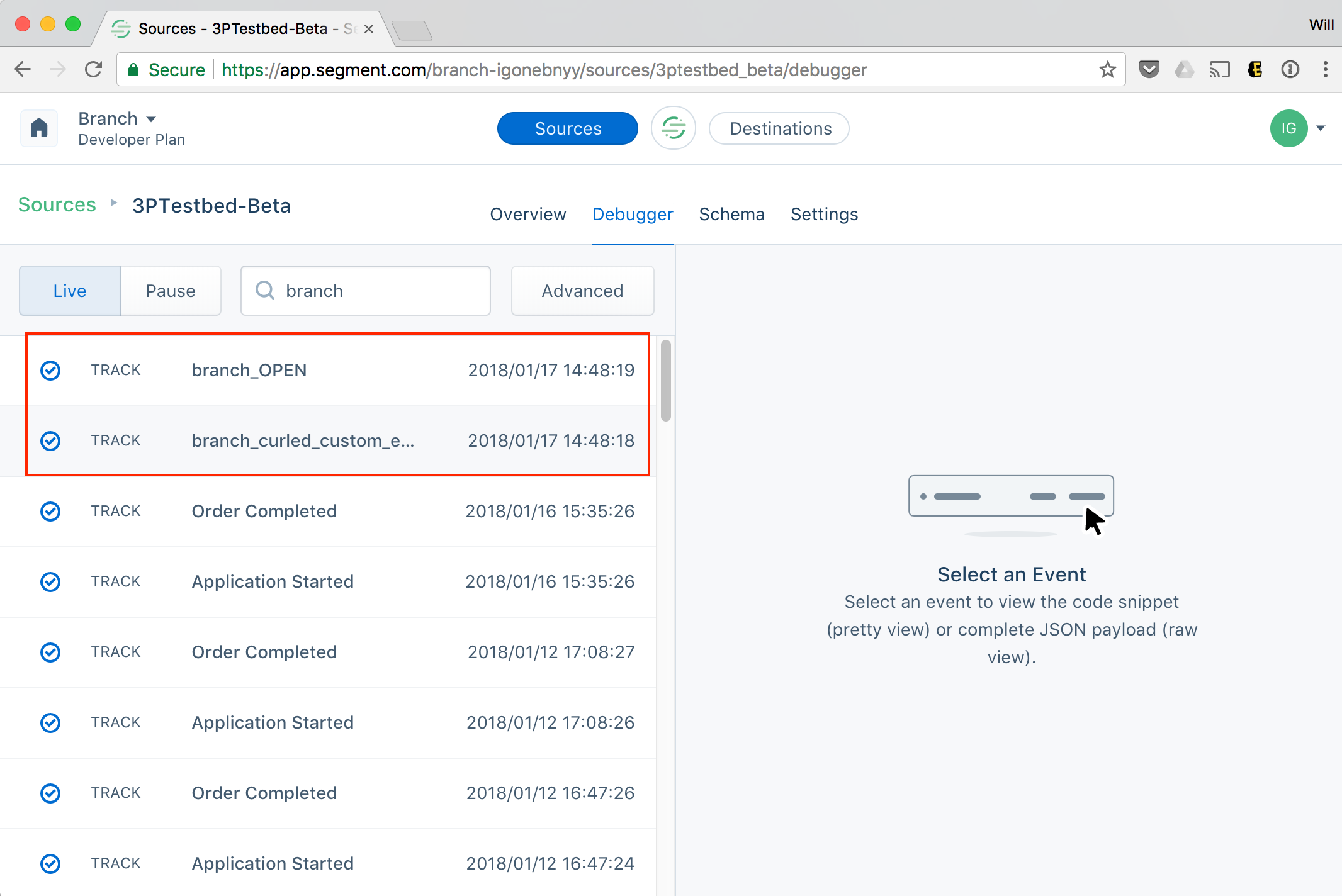
Branch events will appear as an event prepended with branch_ in your Segment debugger.
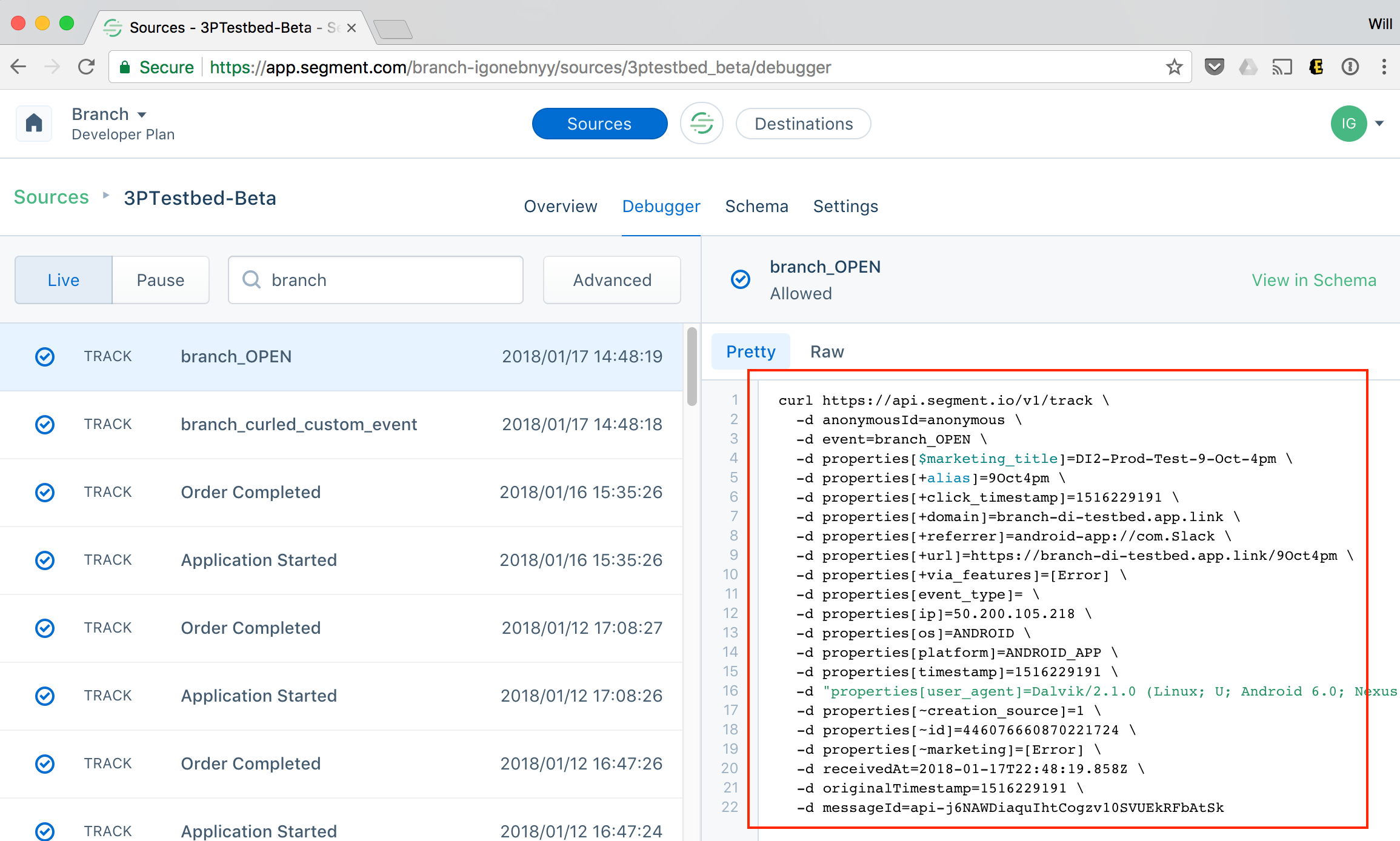
Additionally, individual events, such as those seen in Live View or visible when looking at People, will have Branch Link data included. Here's an example:
Before you begin
To set up the Segment (export) integration, you first need to:
- Admin access to your Branch account.
- Have data export functionality enabled on your Branch account. Availability varies by Branch plan. See Branch pricing or contact your Branch representative.
- Implemented the Branch SDK into your mobile app (iOS | Android).
- Implement the Segment mobile SDK.
- Admin access to your Segment account.
Enable Segment (Export)
Complete the following steps to enable Segment (Export):
1. Retrieve your Segment token
Find your Segment token and enter it into Branch.
Navigate to https://app.segment.com and log into the Dashboard.
In the dashboard, navigate to your desired Workspace.
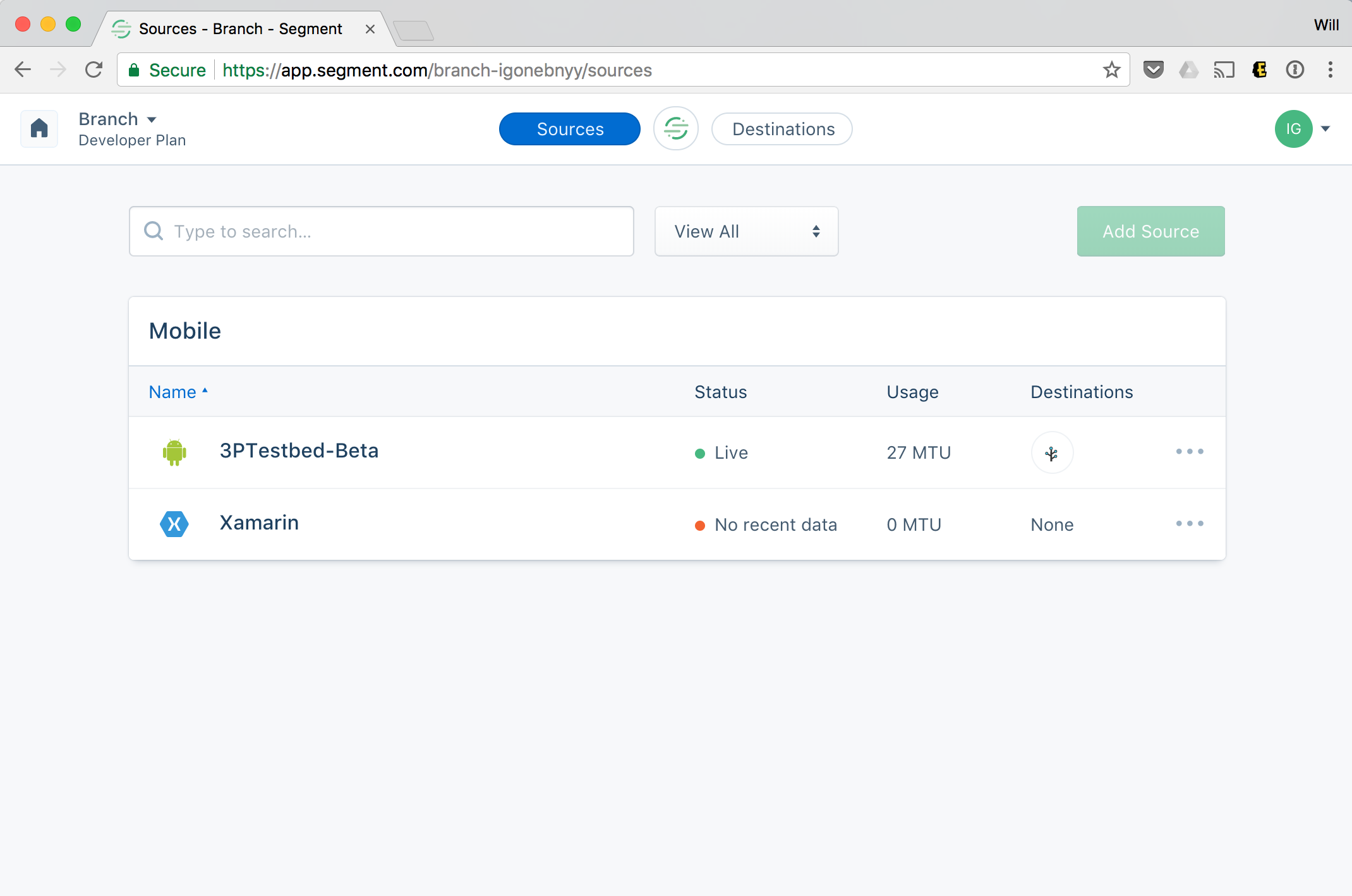
In that Workspace, navigate to Sources and select the Source that has your app listed. Branch is not yet an independent Source, so Branch events appear within your app's Source.
Select Settings > API Keys.
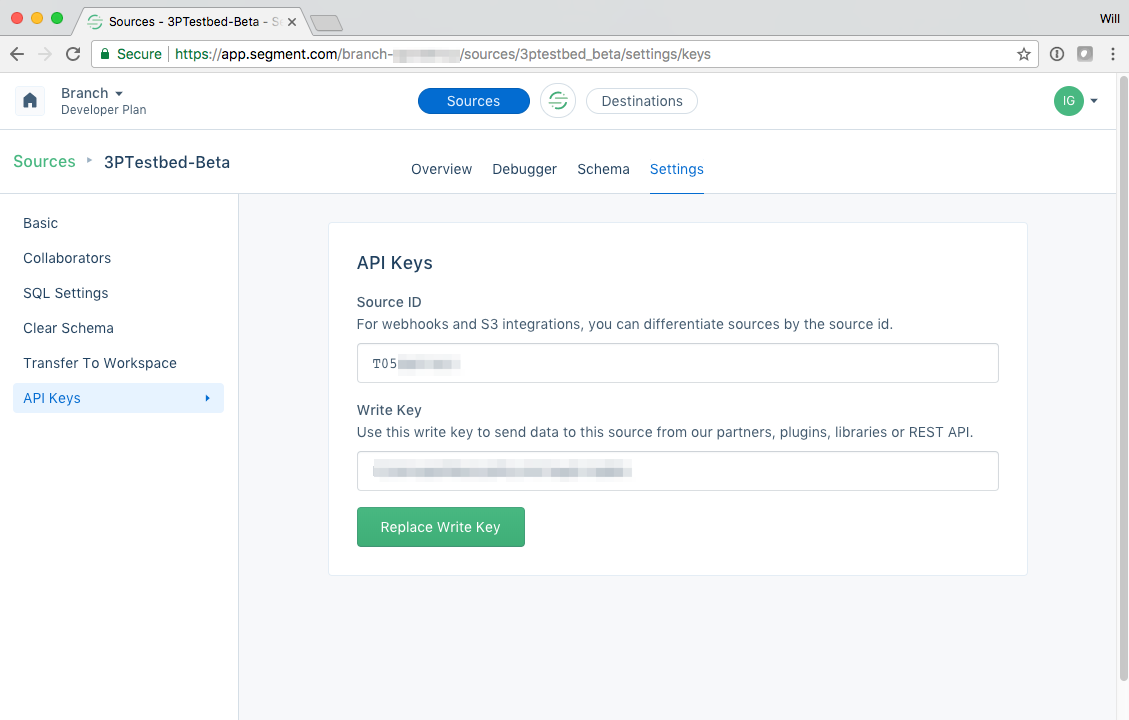
Copy your key and secret - you'll enter it into Branch in a minute.
2. Connect Segment (Export) in Branch
In Branch, go to Configuration > Integrations and select the Data tab. Search for Segment and select it to open its data partner page.
In the Export section, enter the following, then toggle Export to Enabled and select Save:
- iOS Write Key
- Android Write Key
3. Configure app
Pass Segment Anonymous ID
When you're ready to send data through Branch, you'll need to make sure you pass through the configured Segment Anonymous ID to the Branch SDKs. To do so, you'll ask the Segment SDK to provide you with the Segment Anonymous ID, and pass this value through setRequestMetadataKey on the Branch SDKs.
Here's a sample snippet showing this. NOTE you must set the correct key before calling sessionBuilder()...init(). You must also initialize the Segment SDK before setting the request metadata in the Branch SDK.
iOS
Inside didFinishLaunchingWithOptions
        Branch *branch = [Branch getInstance];
        [[Branch getInstance] setRequestMetadataKey:@"$segment_anonymous_id" value:[[SEGAnalytics sharedAnalytics] getAnonymousId]];
Swift
Inside didFinishLaunchingWithOptions
        if let branch = Branch.getInstance() {
        branch.setRequestMetadataKey("$segment_anonymous_id", value:"1234" as NSObject!);
        }
Android
Before you initialize in your Application#onCreate or Deep Link Activity's #onCreate.
        Branch.getInstance().setRequestMetadata("$segment_anonymous_id", com.segment.analytics.Analytics.with(this).getAnalyticsContext().traits().anonymousId());

        ...

        Branch.sessionBuilder(this)...init();
In the above snippet, this is the Activity context.
4. Verify data sent
Once the above steps are complete, you are now ready to start launching campaigns. Branch-attributed conversions will be sent to Segment. To verify data is being sent from Branch to Segment, you can look at Branch's Liveview Webhook Records and apply the following filter:
| Filter | Operator | Value |
|---|---|---|
| webhook partner key | equals | di_segment |
FAQs
How do I pass Segment Anonymous ID in React Native when configuring Segment Export?
The Segment Anonymous ID can be passed with the React-Native plugin by following the methods below:
iOS (Inside didFinishLaunchingWithOptions):
RNBranch.setRequestMetadataKey("$segment_anonymous_id", "value")
Android (Before you initialize in your Application#onCreate or Deep Link Activity's #onCreate):
RNBranchModule.setRequestMetadata("$segment_anonymous_id", "value");