Overview
Branch partners with Oppo in order to support preload/pre-install attribution of your app's campaigns. Enabling support for this attribution will allow you to properly measure the full lifecycle of your customer before they make their first few conversions in the app.
Before you begin
In order to attribute pre-installs, you need to have completed the following:
- Implement the latest version of the Branch Android SDK into your app.
Implementation
1. Initiate Campaign Setup
To initialize the campaign for Oppo, you will need to gather the following:
| What | Obtained from | Description |
|---|---|---|
$3p value | Branch Account Manager | Contact your Branch account manager to set up the $3p value: a_oppopai for the campaign |
| utm_campaign | Customer | Set up the utm_campaign value: a_oppopai in the auto_Install XML file |
| package name | Customer | Contact the customer to provide the Application Id in their project |
2. Oppo needs to configure the package name and utm_Campaign of the Auto-Install parameters app in the XML file which is described in the official doc.
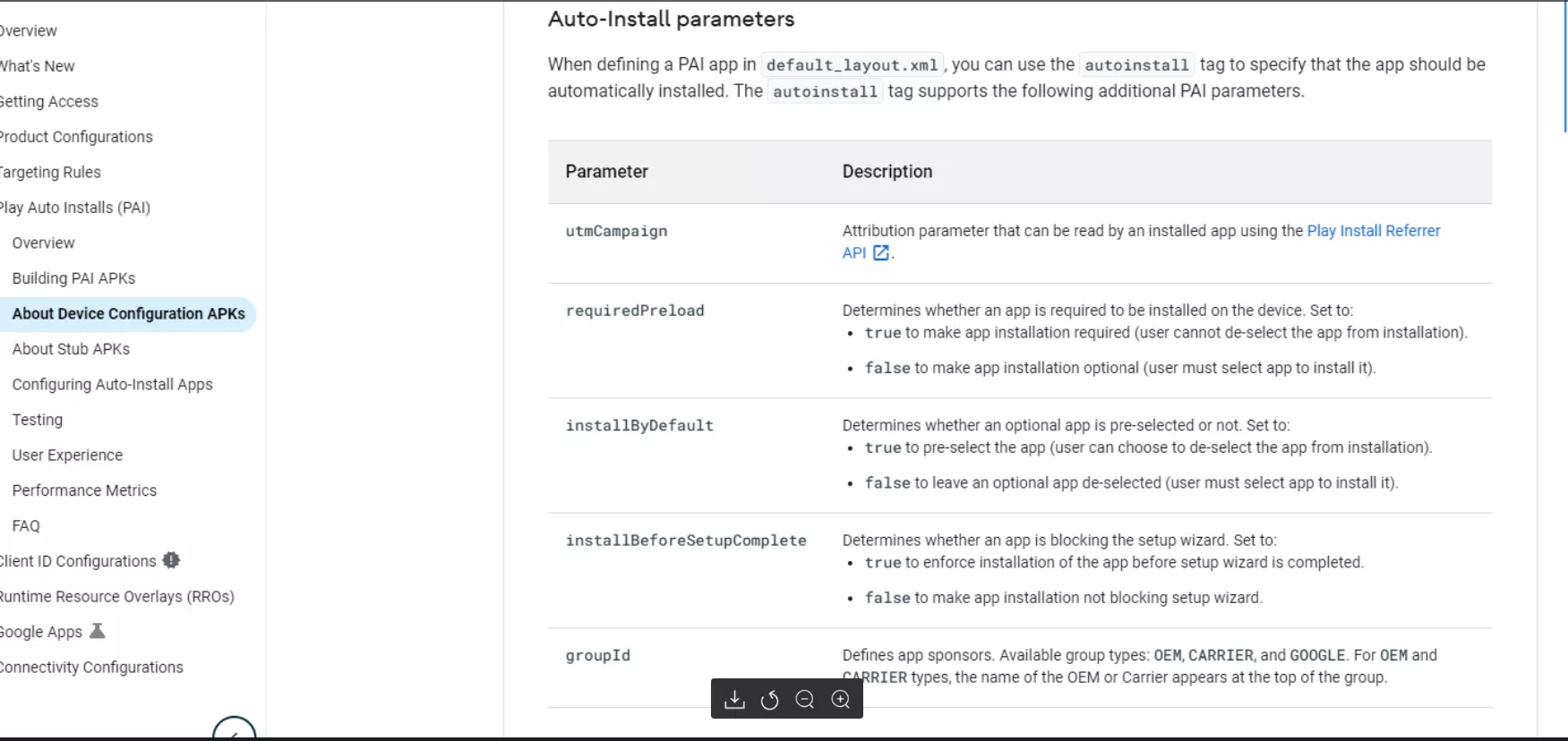
Auto-Install XML file
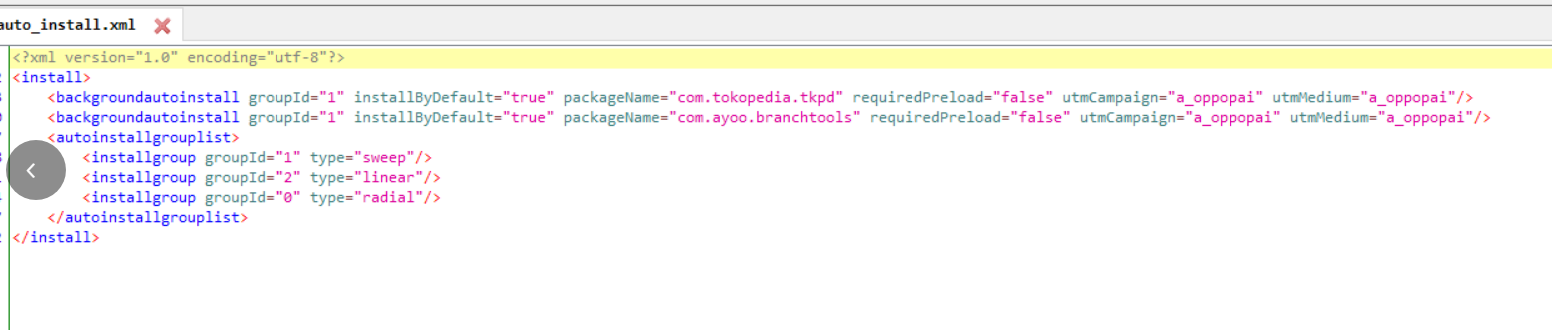
Although utmMedium is set in the configuration file, the Google Play Install referrer API gets a fixed value "preload".
3. Set the Ad Partner in the onCreate method of the application class which extends the Android Application class
@Override
    public void onCreate() {
        super.onCreate();
       Branch.getInstance().setPreinstallPartner("a_oppopai");
}
4. Enable Oppo in Branch
In the Branch Dashboard under Ads > Partner Management, find/search for OppoPai. If you're already logged into the Branch Dashboard, you can also click here to go there directly.
5. View Data in Branch
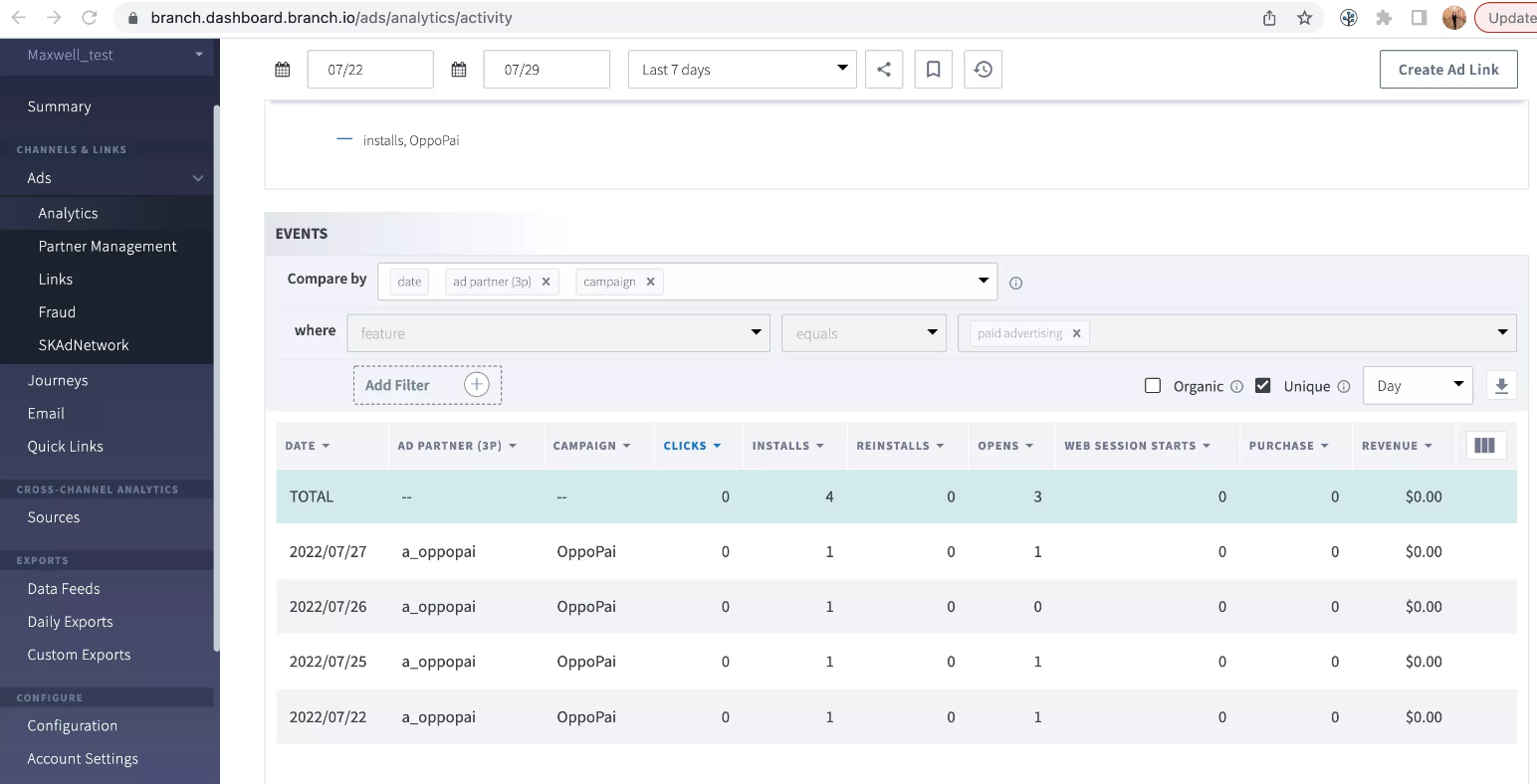
As campaigns run, you will be able to measure the performance of the pre-install analytics directly on the Branch Dashboard.