
Warning
Please note that this article explains the legacy Branch experience for this data integration, which is slated for deprecation.
In the new version of Branch, data integrations are configured under Configuration → Integrations → Data. For the updated steps, see Segment (Import) Configuration (New).

Overview
Sending events from Segment to Branch will allow you to attribute downstream conversions like purchases across web and app to Branch link clicks. Events imported from Segment to Branch will be available wherever you can normally use events within Branch, including dashboard visualizations, Data Feeds, Ads Postbacks, Journeys targeting, Liveview, and more.
This guide walks through the server-side integration for data import from Segment to Branch. For data export from Branch to Segment, go here.
How does it work?
Once the Branch SDK is integrated into an app, Branch can detect which Branch Links are leading to installs, re-opens, and users' actions. Enabling this integration and sending your events to Branch will allow Branch to enhance your Segment data with Branch data.
Branch Events Imported from Segment
Branch will import events that are not auto-tracked with the Branch SDKs. This includes commerce, content, user lifecycle, and custom events, and excludes events like clicks and installs. See the full list of supported events and associated mappings here. Branch will only import events that can be tied to a user.
Avoid Duplicate Data
To avoid duplicate data, you should either track conversion events directly with Branch or track events with Segment and then enable import to Branch, not both. Branch will warn you if you try to import events to Branch that you are already tracking.
Branch will only import events from Segment that are not already auto-tracked with the Branch SDK. This means that events like click and install cannot be imported. The following outlines how Segment events are mapped to Branch events, and which will be imported to Branch:
| Segment Event | Branch Event | Branch Event Category | Imported |
|---|---|---|---|
| Product Added | Add To Cart | Commerce Event | Yes |
| Product Added to Wishlist | Add To Wishlist | Commerce Event | Yes |
| Cart Viewed | View Cart | Commerce Event | Yes |
| Payment Info Entered | Add Payment Info | Commerce Event | Yes |
| Checkout Started | Initiate Purchase | Commerce Event | Yes |
| Order Completed | Purchase | Commerce Event | Yes |
| use the Branch event name | Spend Credits | Commerce Event | Yes |
| Products Searched | Search | Content Event | Yes |
| Product Viewed | View Item | Content Event | Yes |
| Product List Viewed | View Items | Content Event | Yes |
| Product Reviewed | Rate | Content Event | Yes |
| Product Shared | Share | Content Event | Yes |
| use the Branch event name | Complete Registration | Lifecycle Event | Yes |
| use the Branch event name | Complete Tutorial | Lifecycle Event | Yes |
| use the Branch event name | Achieve Level | Lifecycle Event | Yes |
| use the Branch event name | Unlock Achievement | Lifecycle Event | Yes |
| any event name | Custom | Custom Event | Yes |
| Deep Link Clicked | Click | - | Not Supported |
| Install Attributed | Install | - | Not Supported |
| - | SMS Sent | - | Not Supported |
| - | Pageview | - | Not Supported |
| - | Web Session Start | - | Not Supported |
| - | Branch CTA View | - | Not Supported |
| - | Impression | - | Not Supported |
| Application Installed | - | - | Not Recommended |
| Application Opened | - | - | Not Recommended |
| Application Updated | - | - | Not Recommended |
| Application Backgrounded | - | - | Not Recommended |
| Application Crashed | - | - | Not Recommended |
| Application Uninstalled | - | - | Not Recommended |
| Push Notification Received | - | - | Not Recommended |
| Push Notification Tapped | - | - | Not Recommended |
| Push Notification Bounced | - | - | Not Recommended |
| Screen | - | - | Not Recommended |
| Page | - | - | Not Recommended |
| Identify | - | - | Not Recommended |
Before you begin
In order to enable Segment (import), you need to have completed the following:
- Admin access to your Branch Dashboard.
- Have data integration functionality enabled for your Branch account. Availability varies by Branch plan. See Branch pricing.
- Implemented the Branch SDK into your mobile app (iOS | Android).
- Implement the Segment SDK.
- Admin access to your Segment account.
Enable Segment (import)
1. Set up Branch
Contact Branch to configure Branch to receive events from Segment. Please note that a subscription to Data Feeds is required to enable data import from Segment to Branch.
Then, navigate to the Data Integrations page of the Branch dashboard.
- Select Segment from the menu on the left.
- Select the platforms you would like to import events from and click Enable.
2. Set up Segment
Navigate to your Segment UI’s Destinations page.
- Click on Add Destination.
- Search for Branch within the Destinations Catalog and confirm the Source you’d like to connect to.
- Enter your Branch Key. This can be found in the Account Settings > App section of the Branch dashboard.
- Enter your Branch Secret. This can be found in the Account Settings > App section of the Branch dashboard.
For server-side event import, you can ignore the SDK integration instructions.
Segment Identifiers
Identifiers for app events
Identifiers are required for events to be imported to Branch. You must include:
- context.device.advertisingId AND context.os.name AND context.os.version
OR
- context.device.id AND context.os.name AND context.os.version
Branch maps Segment's identifiers to the following:
| Segment field | Branch field |
|---|---|
userId | developer_identity |
context. | idfa or aaid |
context. | idfv or android_id |
context. | os |
context. | os_version |
If using User ID with Segment, Branch will automatically map this to developer identity. See Developer Identity Instructions for ( iOS | Android ).
Check out Segment's User ID docs for more details.
Branch does not map Segment's anonymous ID to any field, and will not attribute logged out web events received from the server-to-server integration. Anonymous ID can still be attached to events.
Identifiers for web events
In order to attribute accurately on web it is important to collect the Branch SDK's browser fingerprint and pass it to the Segment track function. Branch uses this along with the userAgent collected by the Segment SDK to identify the user's persona, platform, os, and other parameters. Collecting the browser fingerprint can be done with the following code snippet:
For Logged in web Events Only
Branch does not attribute logged out web events for Segment, even when passing an Anonymous ID.
const loadBranchAndGetFingerprint = new Promise(function(resolve, reject) {
  branch.init('BRANCH_KEY', {}, function(err, data) {
  branch.getBrowserFingerprintId(function(err, fingerprint) {  // fetch the browser fingerprint from the SDK
    if (!!err) {
      reject(err);
      return;
    }
    resolve({...data, fingerprint});
  });
  });
});
You can then pass it into the payload of the Segment track event:
loadBranchAndGetFingerprint.then(function(data) {
    const { fingerprint } = data;
    // Load the Segment SDK and initialize with key here

    // Segment track request
    analytics.track('Order Completed', {
        browser_fingerprint_id: fingerprint // add the browser fingerprint to the Segment track event
        //... Other event details ...
    })
});
Segment Track
The Branch integration supports some of the events tracked with Segment’s Track method. The track API call is how you record any actions your users perform, along with any properties that describe the action.
Each action is known as an event. Each event has a name, like Registered, and properties, for example a Registered event might have properties like plan or accountType. Here’s the payload of a typical track call with most common fields removed:
{
  "type": "track",
  "event": "Registered",
  "properties": {
    "plan": "Pro Annual",
    "accountType" : "Facebook"
  }
}
And here’s the corresponding JavaScript event that would generate the above payload:
analytics.track("Registered", {
  plan: "Pro Annual",
  accountType: "Facebook"
});
See Segment's Track documentation for more details and examples.
3. Verify the integration
Once you have import turned on in both Segment and Branch, events should come through. You will see a green dot on the import card if Branch has seen events:
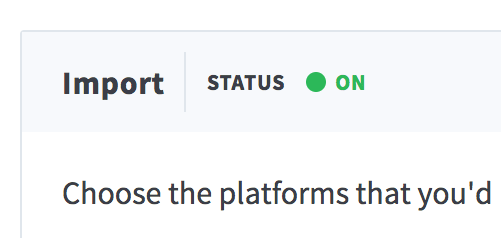
Branch imports events from Segment as commerce, user lifecycle, content, or custom events.
Using imported events
Events imported from Segment to Branch will be available wherever you can normally use events within Branch. This includes dashboard visualizations, Data Feeds (including Data Integrations, Query API, Webhooks, and Daily Export API), Ads postbacks, Journeys targeting, Liveview, and more.
Advanced
Attaching anonymous ID to events
Events imported from Segment with anonymous ID attached will retain that value on the event, and will be available in the custom_data field if exported back out from Branch. To attach anonymous ID to events auto-tracked by Branch (installs, opens, etc.), follow the instructions here.
Attribution for logged out users on web
Branch uses a custom, in-house identifier for logged out users on web. If you enable the server to server integration from Segment to Branch, you will not be able to attribute logged out web events from Segment to a campaign run with Branch. For this reason, you may want to track web events directly with the Branch web SDK, while still sending app events server to server from Segment. Branch allows you to then toggle web event import off to prevent duplicate data.