
SDK Stats
- Open Source Github Repo: https://github.com/BranchMetrics/flutter_branch_sdk
- Sample App
- Flutter Version Support: v1.22.0+
Before you begin
In order to implement the Branch SDK into your Flutter app, you need to have/complete the following:
- Created a Branch Dashboard.
- Flutter installed.
Note: Branch data retention policy
Before sending data to Branch, review the "Data Branch Hashes" section of our data best practices guide for field definitions and retention policies.
1. Configure Branch
Universal for all platforms, you first need to configure your app in Branch. Once logged in, navigate to your app settings to configure your links and redirects:
- New Branch: In the left-hand navigation, go to Configuration and click on Link Controls. Navigate to the Link Routing Rules tab to configure your app settings.
- Legacy Branch: Navigate to the App Settings screen.
Default URL
Set a URL here to designate where the user will be redirected to when opening a Branch Link on web.

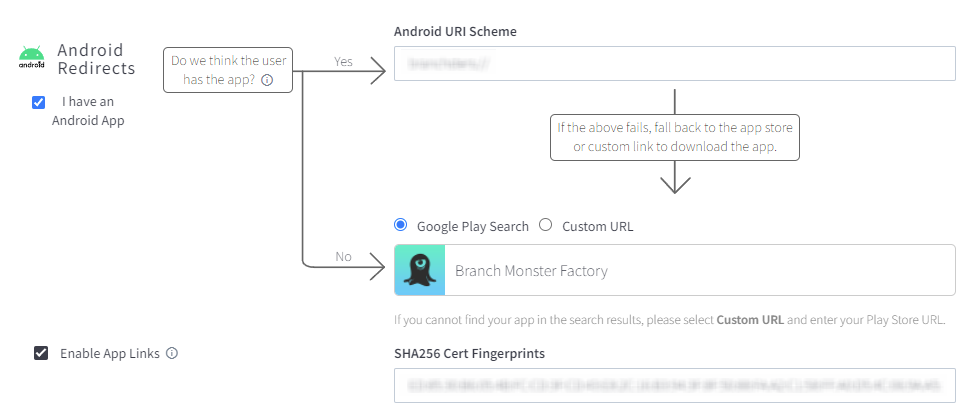
Android
Input your Android URI scheme to direct the app to open for users clicking on links with the app installed. If you have Android App Links enabled, input your SHA256 Cert Fingerprint as well.
Be sure to set your Google Play store listing as the fallback redirect for users clicking on links without the app installed.
Additional details on setting Android Redirects can be found here.
To configure Android settings in Branch:
- New Branch: In the left-hand navigation, go to Configuration and click on Link Controls. Navigate to the Link Routing Rules tab, then find the Mobile Routing section and select Android.
- Legacy Branch: Navigate to the Configuration page and find the Android section.
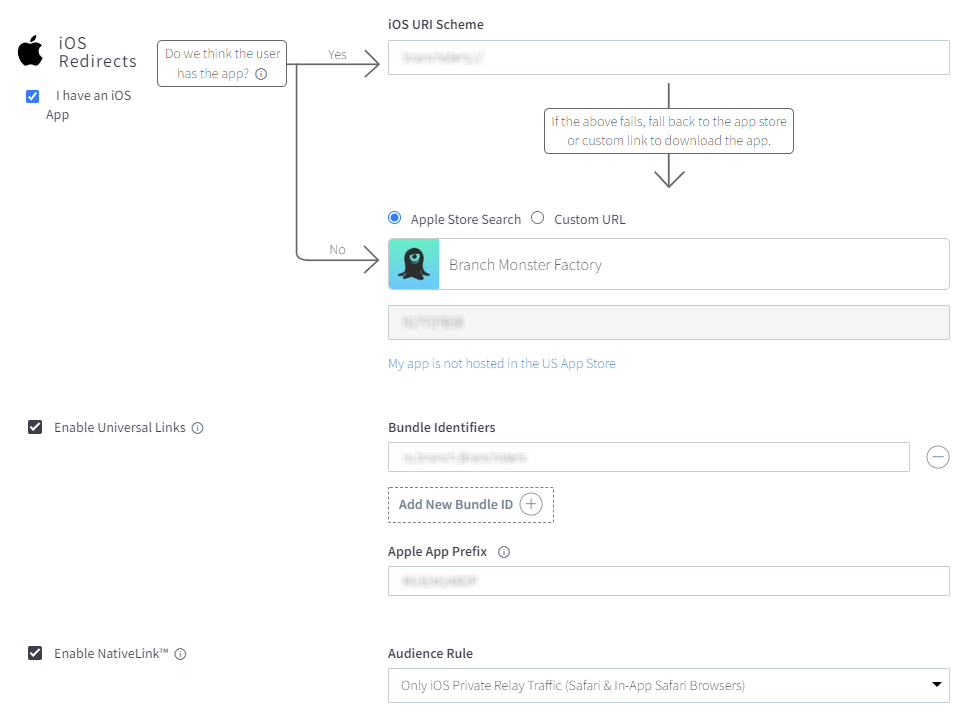
iOS
Input your iOS URI Schemes to direct the app to open for users clicking on links with the app installed. Add your app's bundle identifiers and Apple App Prefix for Universal Links.
Be sure to set your App Store listing as the fallback redirect for users clicking on links without the app installed.
Additional details on setting iOS Redirects can be found here.
To configure iOS settings in Branch:
- New Branch: In the left-hand navigation, go to Configuration and click on Link Controls. Navigate to the Link Routing Rules tab, then find the Mobile Routing section and select iOS.
- Legacy Branch: Navigate to the Configuration page and find the iOS section.
2. Configure Native Platforms
In order to set up Branch, you will need to configure each platform to prepare for session initialization.
Android
For Android, you need to configure your AndroidManifest.xml file.
iOS
For iOS, you need to configure the following:
Web
For Web, you need to add the Branch Javascript in your web/index.html at the top of your <body> tag.
<script>
(function(b,r,a,n,c,h,_,s,d,k){if(!b[n]||!b[n]._q){for(;s<_.length;)c(h,_[s++]);d=r.createElement(a);d.async=1;d.src="https://cdn.branch.io/branch-latest.min.js";k=r.getElementsByTagName(a)[0];k.parentNode.insertBefore(d,k);b[n]=h}})(window,document,"script","branch",function(b,r){b[r]=function(){b._q.push([r,arguments])}},{_q:[],_v:1},"addListener applyCode autoAppIndex banner closeBanner closeJourney creditHistory credits data deepview deepviewCta first getCode init link logout redeem referrals removeListener sendSMS setBranchViewData setIdentity track validateCode trackCommerceEvent logEvent disableTracking".split(" "), 0);
branch.init('key_live_YOUR_KEY_GOES_HERE');
</script>
3. Install Branch
Add the Dependency
Run the following command in terminal flutter pub get to add the Flutter Branch SDK package.
flutter pub add flutter_branch_sdkThis will add the Flutter Branch SDK to your project's pubspec file.
dependencies:
flutter_branch_sdk: ^5.0.0
Import Branch Package
In your Dart code, import Branch:
import 'package:flutter_branch_sdk/flutter_branch_sdk.dart';4. Initialize Branch
In your main Dart file, you need to initialize the Branch Session listener before being able to use any of the SDK methods. A listener should be called early on in your initState() method:
FlutterBranchSdk.listSession().listen((data) {
    ...
});
Validate Integration
After initializing Branch, you can validate your integration verify your keys, schemes, etc. using the validateSDKIntegration() method. Do not forget to remove this line after validation.
FlutterBranchSdk.validateSDKIntegration();5. Configure Deep Linking
Firstly, when your Branch Session is initialized, you'll want to configure your deep linking routing logic.
StreamSubscription<Map> streamSubscription = FlutterBranchSdk.listSession().listen((data) {
    if (data.containsKey("+clicked_branch_link") &&
    data["+clicked_branch_link"] == true) {
        //Link clicked. Add logic to get link data and route user to correct screen
        print('Custom string: ${data["custom_string"]}');

    }
}, onError: (error) {
    PlatformException platformException = error as PlatformException;
    print(
    'InitSession error: ${platformException.code} - ${platformException.message}');
});