
Overview
Connect Braze and Mailjet to Branch so the links in your Braze emails open your app with full tracking and attribution. Branch hosts your Mailjet click tracking domain (CTD), so a tracked link becomes a Branch Link when a user selects it.
Every tracked link opens your app
Mailjet rewrites every tracked link in your email to your CTD, including footer links such as unsubscribe, privacy policy, and terms of service. When you add the CTD to your app's Associated Domains, iOS opens your app for every one of those links before the request reaches Branch. Android App Links work the same way once Branch hosts your assetlinks.json file. Branch can't send a link to the browser on its own, because the operating system never sends the click to Branch.
Before you send to customers, make sure every link that has no screen in your app carries the $web_only=true flag and your app handles it. Otherwise, those links fail for every user who has your app installed. See Route web-only links.
How it works
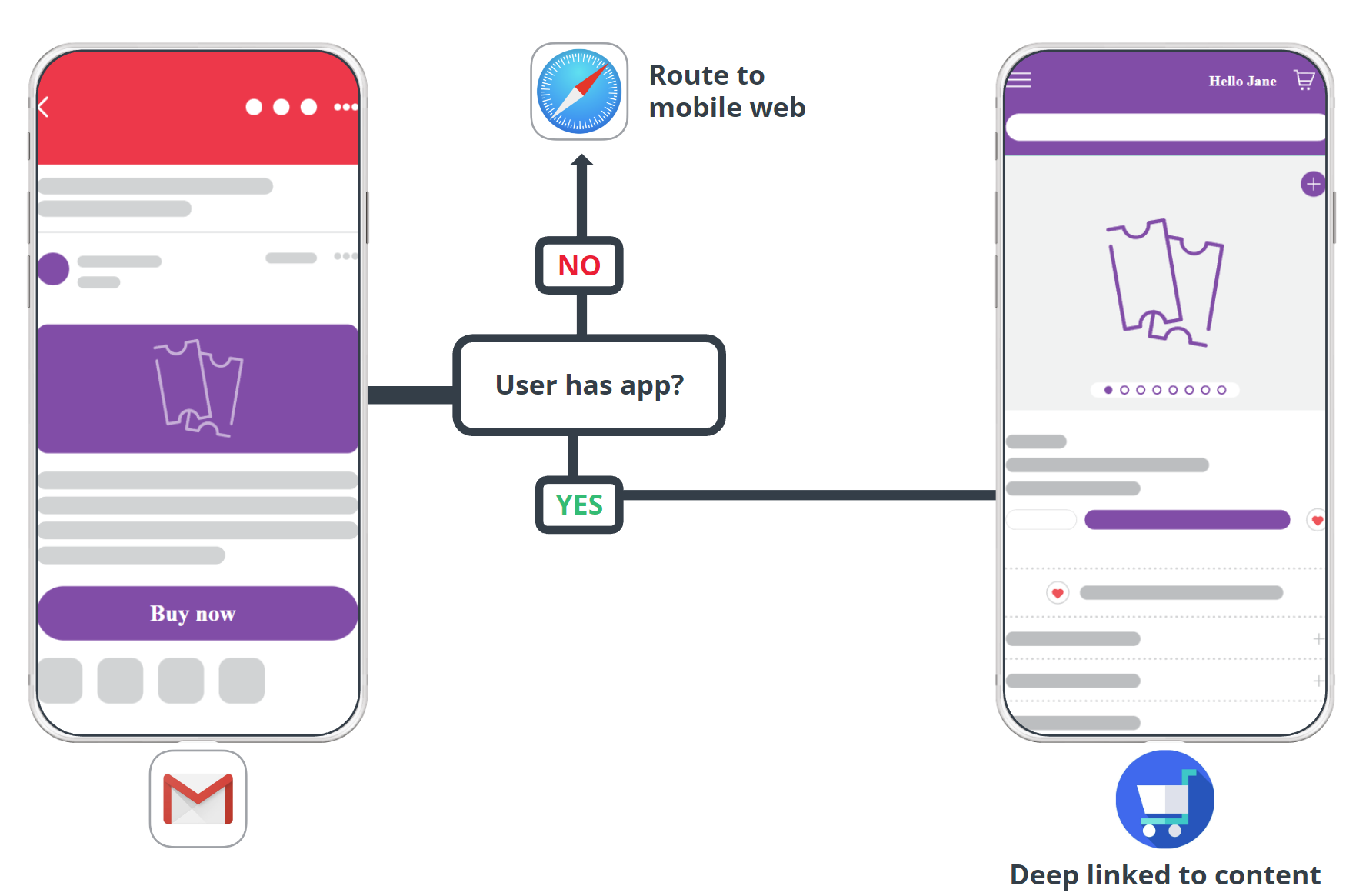
- A user selects a link in an email from a mobile mail client such as Gmail or Apple Mail.
- If the user has your app installed, the operating system opens your app. Branch routes the user to the matching in-app content, such as a product detail page or category page.
- If the user doesn't have your app installed, Branch routes the user to the web URL in their default mobile browser.
- If you flag a link as web-only, such as an unsubscribe link or privacy policy, your app opens the web URL in the browser. Your app must include the web-only handler for this to work.
Prerequisites
Required Roles
Branch's Branch Email requires the following roles involved in order to enable:
- Developers
- CRM/Email Team
- Braze Account Manager / Support Team
In order to enable Braze + Mailjet, you must first:
Have admin access to your Branch Dashboard.
Have Branch's Engagement product enabled for your Branch Account.
Implement the Branch SDK into your mobile app (iOS | Android).
Set Up Deep Link Routing. How your mobile app routes to in-app content will determine how you will create and tag your Branch Links.
Add the web-only link handler to your app (iOS | Android). You need this step if your emails contain any link that doesn't have a screen in your app.
Obtain or set up your Braze click tracking domain (CTD). Contact your Braze account manager for help.
Review our Email Overview and Basic Email Integration Guide to understand the feature and our integrations.
Connect Braze + Mailjet Service in Branch
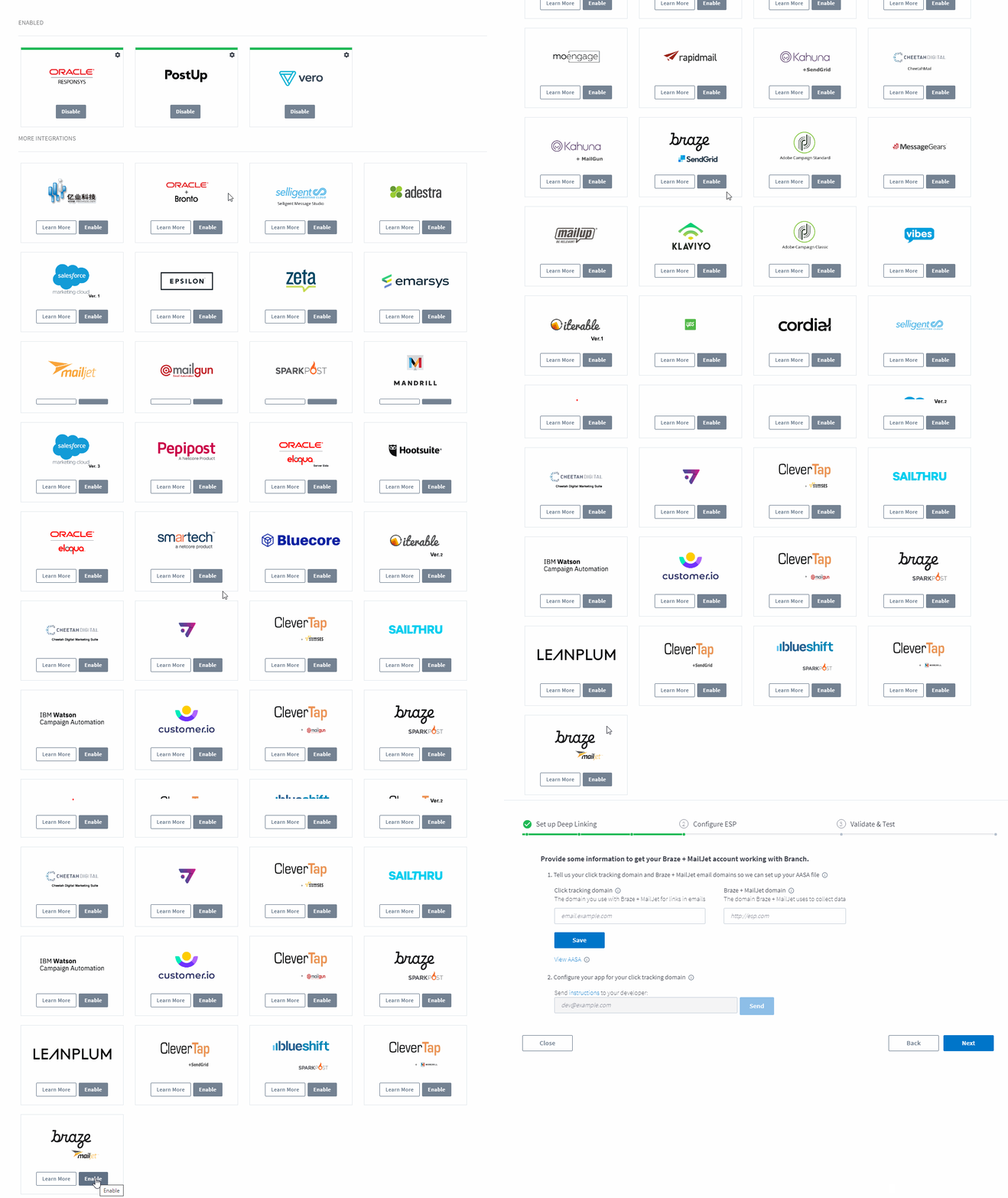
In the Branch Dashboard in Email → Manager tab, find Braze Mailjet and click Enable.
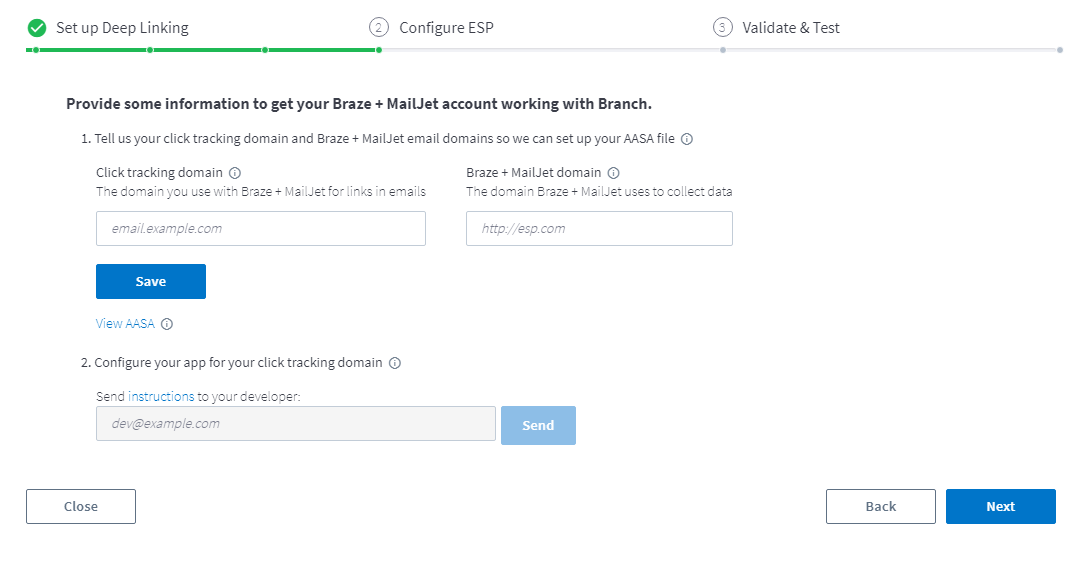
Input Click Tracking Domain
Click tracking domains allow you to track engagement on email opens and link clicks.
The Braze + Mailjet integration requires you provide the following:
- Click Tracking Domain - The domain you use with Braze + Mailjet for links in emails
- Braze + Mailjet Domain - The domain Braze + Mailjet uses to collect data
For additional help, please see Mailjet's documentation.
Click Tracking Domain
- Remove
https://when adding your click tracking domain. - Never add the same CTD to both your Live and Test Branch environments.
- You can enable the integration with multiple CTDs, if needed, but you cannot add the same CTD to multiple Branch Dashboards or ESP integrations.
Configure your App
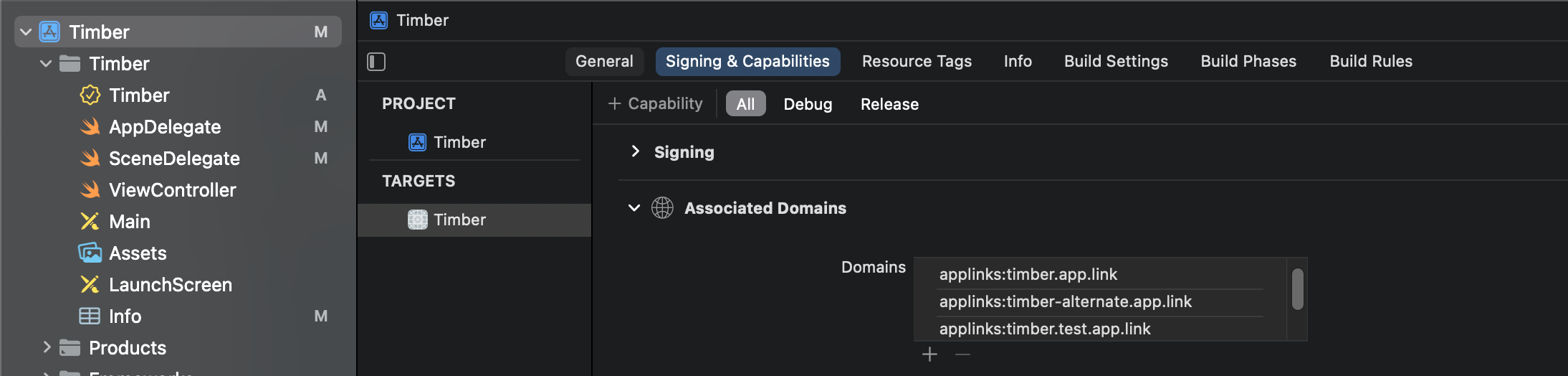
Add your Braze + Mailjet CTD to your associated domains
For your iOS App, you must add the CTD to the Associated Domains. Additional details can be found here.
Once the CTD is an associated domain, iOS opens your app for every link on that domain, not only the links you intend to deep link. Important: before you ship your app, complete the steps to Handle web-only links in your app.
Return YES to continueUserActivity
Additionally, you will need to add the CTD to your iOS app's info.plist file. Additional details can be found here.

Handle web-only links in your app
When a user who has your app installed selects a web-only link, the operating system opens your app. The Branch SDK then returns the link data to your deep link handler. The Branch SDK doesn't open the URL for you: it doesn't show any UI, open a WebView, or launch a browser. Your app must check for the $web_only parameter and open the original URL itself, either in the system browser or in an in-app browser such as SFSafariViewController on iOS or Chrome Custom Tabs on Android. Without this handler, unsubscribe, privacy policy, and other web-only links open your app and go nowhere.
- iOS: Add the handler from Handle deep links for web-only content. The handler checks the link parameters for
$3pand$web_only, then opens the URL in$original_urlwith the system browser. - Android: Add the handler from How to open emails in Android to support web-only use case. The handler checks for
$web_onlyand opens the URL in$canonical_urlwith an intent.
Point DNS CNAME to Branch
Please follow your web hosting provider’s instructions on how to configure your DNS CNAME.
Here are a few common providers’ instructions for reference:
Update the DNS CNAME and point it to thirdparty.bnc.lt. Once the CNAME record is added, please allow up to an hour for Branch to generate SSL and AASA files for your click tracking domain.
Important CNAME Info
- The Branch dashboard must be enabled & reflect the CTD BEFORE you add the CNAME.
- If the CTD already has SSL setup, confirm if your security credentials allow a 3rd party to submit a CSR on behalf of the domain. If not, contact Branch's Support team, to coordinate providing an SSL certificate manually to Branch.
- Once the CNAME is added, Branch auto-generates an SSL certificate and AASA file for your click tracking domain. It may take up to an hour to resolve SSL errors once you change the CNAME. During this time, link redirects on the click tracking domain will redirect to the Default URL you provided in the General Configuration section of your account.
- If you are making this change to a live domain with active email click traffic, schedule the CNAME change to occur during an off-hours time with low click traffic.
Add Branch Links to your Emails
Before you start sending your email campaigns, you need to determine what flow you want the user to experience and flag your email links accordingly.
Add Deep Linking Flag
For the email links that you would like to deep link to content, add $deep_link=true to the URL as a query parameter, for example:
<a href="links.example.com?$deep_link=true" >Link to your app!</a>This will ensure that your links are converted to Branch Links that will open the app on iOS and Android, with full tracking and attribution.
Route web-only links
All tracked email links open the app on devices that have it installed. To route a link to the web instead, add $web_only=true to the URL as a query parameter:
<a href="https://www.example.com/privacy?$web_only=true">Privacy policy</a>When a user selects this link, your app opens, reads the $web_only flag, and opens the web URL in the browser. The handler in Handle web-only links in your app does this for you. Braze and Mailjet still record the click, and Branch still attributes it.
Flag every link that doesn't have a screen in your app, including unsubscribe, privacy policy, and terms of service links in your footer. Test each one on a device that has your app installed before you send to customers.
Analytics on the Branch Dashboard
To see how the email campaigns have performed and break it down into campaigns, it is very essential to tag your email links with the ~campaign tag. If your team uses UTM tags, Branch will also ingest the UTM_campaign tag. This will help dedupe the numbers and hence see the downstream events. You can add the campaign tag in any comparisons and filters in any Dashboard views.