
Overview
SEO + AIO App Attribution tracks and attributes organic traffic from search engines and AI chat agents. When users arrive from Google, Bing, ChatGPT, Claude, Gemini, Copilot, or Perplexity, Branch identifies the source and attributes the session correctly.
This feature shows which content drove each visit and organizes traffic in dedicated channels ("organic search" for search engines and "organic chat agent" for AI chat agents) giving you a complete view of how users discover your app.
How it works
SEO
User clicks a result from a search engine
The user clicks a link from a supported search engine (Google, Bing, Yahoo, Naver, Daum, DuckDuckGo, etc.) that points to your top-level domain.Links are indexed by the search engine
Your site content has already been crawled and indexed by search engines, so those URLs appear in search results.Branch collects specific signals on app open
When your app opens from that domain using Universal Links / App Links, the Branch SDK receives the necessary referrer and device context.Branch simulates a click
Branch creates a synthetic click in the background using those signals.Branch attributes the user to Organic Search
The resulting install, open, or event is attributed with:~feature= "organic search"~channel= search engine name~organic_search_url= originating URL
AIO
User clicks a link from an AI chat agent
The user clicks a link from a supported AI chat agent (ChatGPT, Claude, Gemini, Copilot, Perplexity) that points to your top-level domain.Link opens in browser or webview
The AI agent opens your link, typically with UTM parameters (likeutm_source=chatgpt) or an identifiable referrer.Branch collects specific signals on app open
When your app opens from that domain using Universal Links / App Links, the Branch SDK receives the URL, UTM parameters, and referrer information.Branch simulates a click
Branch creates a synthetic click in the background using those signals.Branch attributes the user to "organic chat agent"
The resulting install, open, or event is attributed with:~feature= "organic chat agent"~channel= AI chat agent name~organic_search_url= originating URL
Branch identifies each AI chat agent by checking UTM parameters (like utm_source=chatgpt) and referrer domains (like chatgpt.com, gemini.google.com, perplexity.ai).
Before you begin
To enable SEO + AIO App Attribution, you must complete the following tasks:
Create a Branch account.
Enable SEO App Attribution for your Branch account. Contact your Branch account manager or visit https://branch.io/pricing.
Note
AIO uses the same provisioning switch as SEO. Once SEO App Attribution is enabled for your app, AIO attribution will automatically be available.
Implement the latest version Branch SDK into your mobile app (iOS, Android).
Set up SEO + AIO App Attribution
Developer required
iOS and Android developers are required to enable SEO + AIO App Attribution.
1. Verify SDK versions
- Confirm that your Branch iOS SDK version is v1.39.4+
- Confirm that your Branch Android SDK version is v5.0.12+
2. Set up Universal Links and App Links on your top-level domain
iOS Universal Links and Android App Links are required on your top-level domain for organic search and AI chat agent traffic to deep link users to in-app content.
Note
You must enable iOS Universal Links or Android App Links on your top-level domain (Branch recommends both). Attribution will work only for platforms where deep linking is enabled. For example, if you enable Universal Links but not App Links, you'll only see iOS data.
When configuring Universal Links and App Links, specify which paths should open your app. Some URLs (password reset, privacy policy, etc.) should remain web-only and not trigger the app.
3. Enter SEO domains
Select SEO under the Analysis section in Branch. On the SEO Configuration page, enter your domains. List each of the domains you want to enable SEO + AIO Attribution for.
Tip
If you're on the new Branch experience, go to Configuration > Attribution to enter your domains.
Wildcard characters are not supported, so you must specify the exact domain, like "www.branch.io".
Include the URL scheme and host (for example, https://www.branch.io).
These domains are used for both:
- SEO App Attribution (organic search traffic)
- AIO App Attribution (traffic from AI chat agents that surface URLs under these domains)
View analytics
Once complete, you can view your SEO + AIO App Attribution analytics in multiple places:
Branch Analysis dashboards
Navigate to Analysis in Branch. Use the Classic Suite - SEO Analytics default dashboard to view both SEO and AIO analytics.
Use filters to:
- Break down traffic by channel (search engines and AI chat agents)
- Analyze installs, opens, purchases, and other events from both SEO and AIO
Legacy reporting experience
Navigate to SEO Analytics in Branch. Here you can measure Trends and Performance through charts and tables.
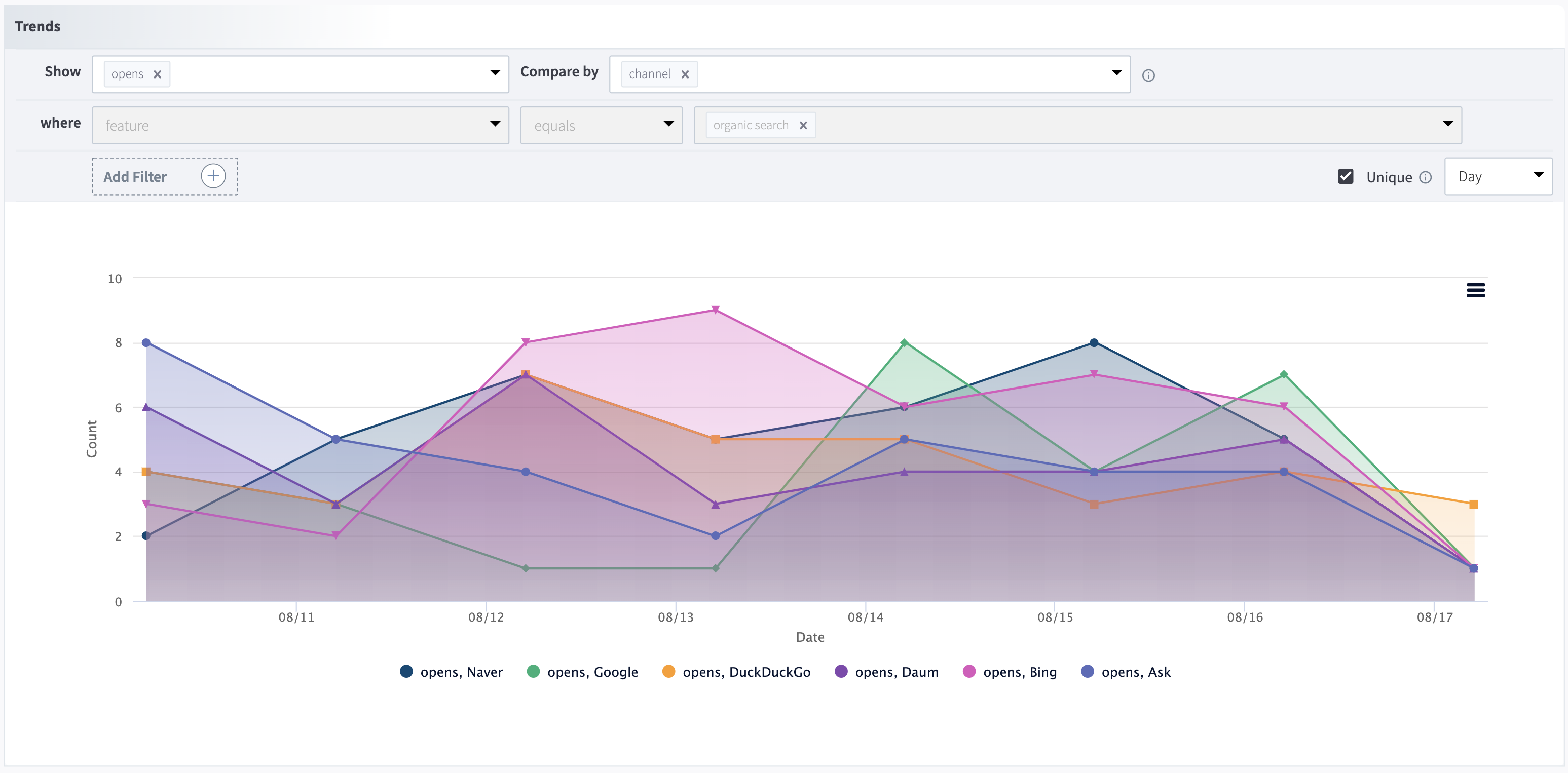
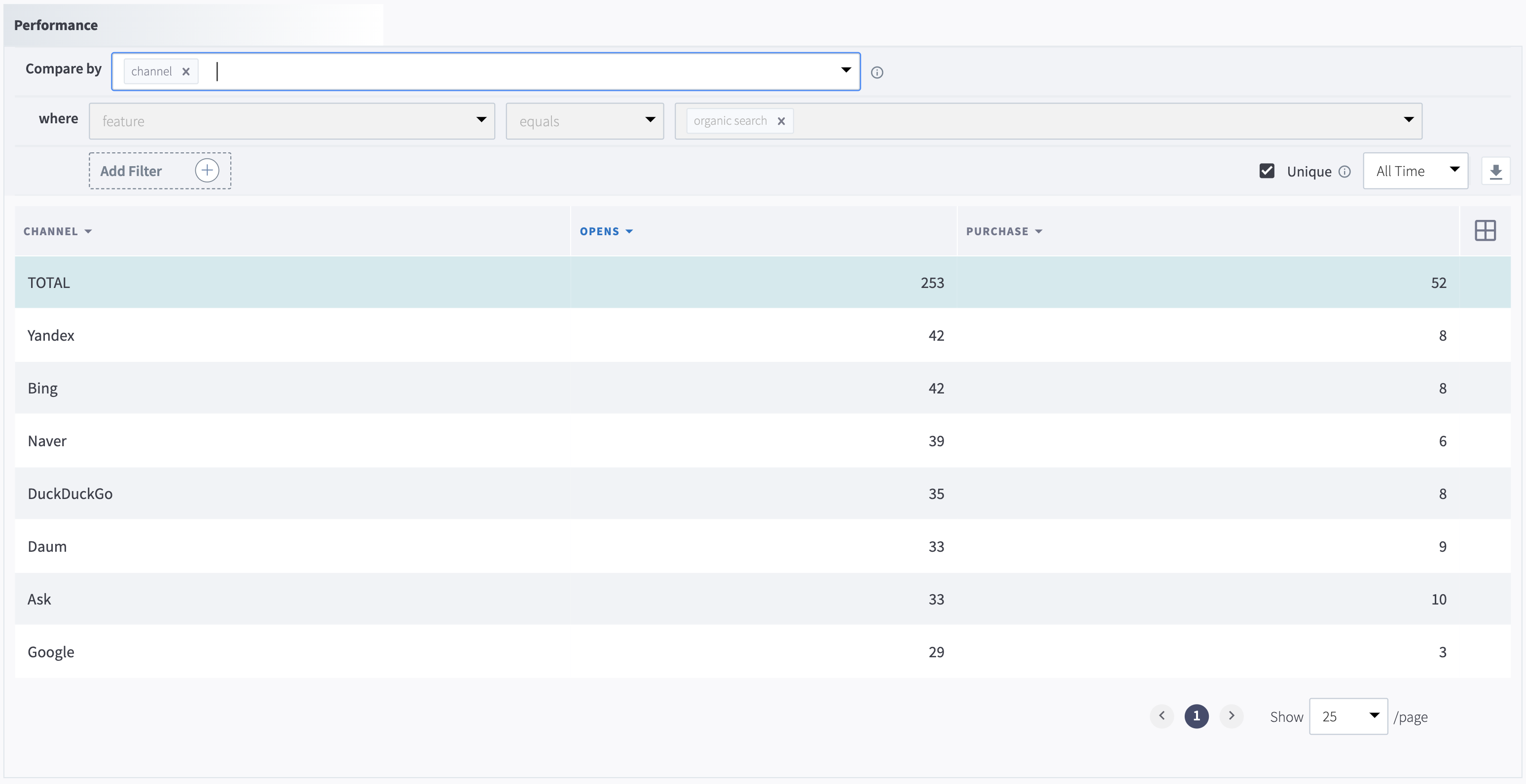
Note
SEO + AIO App Attribution has the same reporting capabilities as Branch's Ads product. For a detailed overview of ad analytics and how to customize them, view our guide.
Access the originating URL
You can access the originating URL through Branch's Dashboard Reports or Exports (through the Dashboard Custom Exports or through the Custom Exports API).
- For Dashboard Reports, add the
Organic Search URLcolumn to the events table. - For Dashboard Custom Exports, include the
Organic Search URLcolumn when configuring your export. - For Custom Exports API, export the
last_attributed_touch_data_tilde_organic_search_urlfield.
For AI chat agent sessions, this field corresponds to the URL that the AI agent surfaced and that the user clicked, allowing you to see which piece of content the AI agent used to drive app engagement.
Analytic tags
Branch surfaces SEO and AIO traffic in Branch and the Data APIs using the following analytic tags.
~feature
| Tag | Value | Example | Data API field |
|---|---|---|---|
~feature | organic search | organic search | last_attributed_touch_data_tilde_feature |
~feature | organic chat agent | organic chat agent | last_attributed_touch_data_tilde_feature |
~channel
For SEO App Attribution, ~channel is the search engine name:
- Bing
- Yahoo
- Naver
- Ask
- DuckDuckGo
- Yandex
- Daum
For AIO App Attribution, ~channel is the AI chat agent name:
- ChatGPT
- Claude
- Gemini
- Copilot
- Perplexity
| Tag | Value type | Example | Data API field |
|---|---|---|---|
~channel | Search engine name | last_attributed_touch_data_tilde_channel | |
~channel | AI chat agent name | ChatGPT | last_attributed_touch_data_tilde_channel |
~organic_search_url
This tag provides the originating URL that led to the app session, whether surfaced via search engine or AI chat agent.
| Tag | Value | Example | Data API field |
|---|---|---|---|
~organic_search_url | Originating URL | https://example.com/category/section | last_attributed_touch_data_tilde_organic_search_url |
Use this value to identify the exact piece of content (page, article, product detail, etc.) that drove the app conversion.
Testing and troubleshooting
Note
If you don't see AIO data in Branch, you may need to clear your browser cache. Bookmarks and saved queries from before AIO was released are cached and may not load the new data. Try clearing your browser's cache to resolve this issue.
You can also try resetting the page state.
Check iOS Universal Links and Android App Links
If you have completed all the setup steps above and are still running into issues, verify that iOS Universal Links and Android App Links are working properly.
Find a URL that would appear in search results. For example, https://www.skyscanner.com/.
Copy and paste that URL into a Universal Links or App Links compatible editor.
Confirm that your app is installed.
Select the link from the compatible editor.
Does your app open?
[Advanced] Use Charles Proxy to verify the domain being sent to Branch in the
v1/openrequest.Look for
universal_link_urlandandroid_app_link_urlIs the URL present and does it match the original URL you clicked?
Check the referrer domain
To confirm that Branch can attribute conversions from SEO or AIO, verify that the SDK is receiving the correct signals.
Find a search result (for SEO testing) or click a link from an AI chat agent (for AIO testing) that matches the URL pattern you registered with Branch.
Click on the search result or AI-generated link.
Does your app open?
- Yes: Continue to the next step.
- No: There's an issue with your Universal Links or App Links setup. Follow the troubleshooting steps for Checking Universal Links / App Links.
[Advanced] Use Charles Proxy to verify the domain and referrer being sent to Branch in the
v1/openrequest.Look for
initial_referrer. Does it match the expected domain (google.com for SEO, or chatgpt.com, gemini.google.com, etc. for AIO)?- Yes: Verify in the Branch Dashboard or exports that the session is attributed correctly.
- No: There's an issue with your Universal Links or App Links setup. Follow the troubleshooting steps for Checking Universal Links / App Links.
Note
Chrome is not supported on iOS.