
Warning
This article outlines the legacy Team tab, which is part of the legacy Branch experience and is slated for deprecation.
In the new Branch platform, you can find team information by navigating to Configuration → Security & Access → Team. See more information about the new Team tab in our guide.
Add Users to Branch Dashboard
In the Branch Dashboard, go to the Settings page under the Account section of the navigation bar, and click to the Team tab.
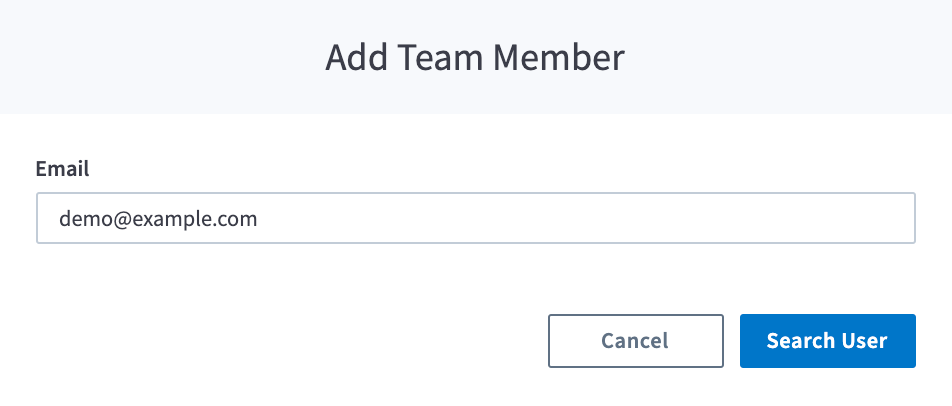
Click Add App Team Member.
Enter the email address of the user you wish to add.
Click Search User.
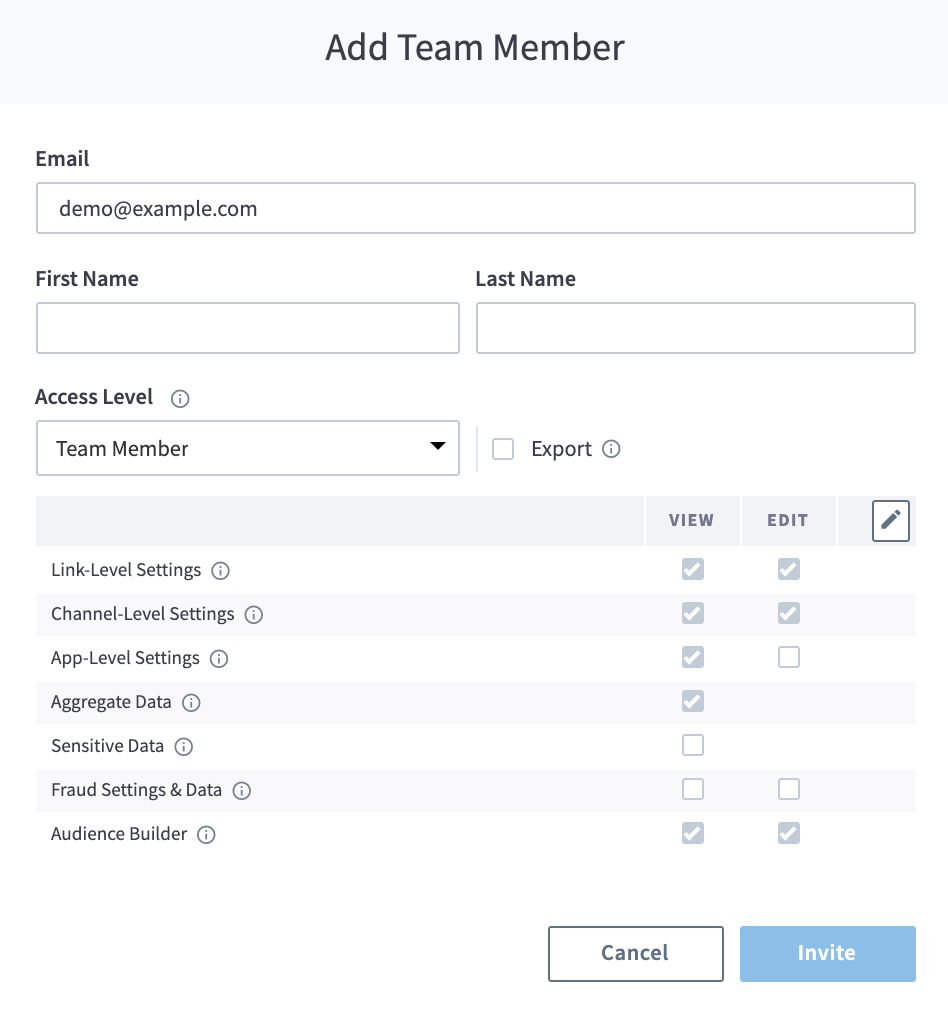
If the user does not already exist, you will be prompted to complete the following fields:
a. First Name
b. Last Name
c. Access Level, your options are:- Admin
- Team Member
- Full Read
- Limited Read
- User Coordinator
- Custom - If you choose Custom, you will have to define each access level you wish to grant that user. Your options are:
a. Link-level Settings - Settings or features that can impact functionality for single links.
b. Channel-level Settings - Settings or features that can impact functionality across a marketing channel.
c. App-level Settings - Settings or features that can impact functionality app-wide.
d. Aggregate Data - Summary data that contains no granular data.
e. Sensitive Data - Data that can contain user-identifying, payment-related, or secret information.
f. Fraud Settings & Data - Settings or data associated with fraud detection and prevention.
Click Invite when you're done.
a. If you are adding a user to your Organization View, select one of the following and click Save:- All apps that inherit from the organization
- All apps
Manage Users
Note
Branch team members are not authorized to complete the following actions on your behalf. Your admin users must complete user management tasks.
Modifying Existing Team Member
To modify an existing team member:
- Find the team member you want to modify and click the
...button in the Actions column for that user. - To edit the Organization Team member, select Edit.
- Click Save.

Warning
If you are using the legacy version of Branch and need to change the email address associated with your account, please contact Support.
To learn about the new Branch experience and the features rolling out in 2026, visit our New Branch Overview guide.
Resend Invitation to Join
To resend the invitation to join the account:
- Find the Organization Team member you want to modify and click the
...button in the Actions column for that user. - Click Resend Invite.
Delete Team Member
- Find the team member you want to delete and click the
...button in the Actions column for that user. - Click Delete.
- In the Are you sure you want to delete? modal, click Yes, Delete.
Request Additional Permissions
As a non-Admin user, you may not be able to access/use certain sections of the Branch dashboard. If you’d like more access, please contact an Admin user on your account to ask for more permissions.
If you need further assistance, feel free to reach out to integrations@branch.io.