> For the complete documentation index, see [llms.txt](https://help.branch.io/llms.txt).
# Salesforce - Open App Default
> Configure Salesforce Marketing Cloud with Branch Email so links open your app by default.
## Overview
Meet Email Studio. Reach your customers with the world’s #1 email marketing platform. Build smarter email, from basic marketing campaigns to sophisticated 1-to-1 messages.
## 1. Complete Branch Email Prerequisites
> **DEVELOPER MAY BE REQUIRED**
>
> The following Branch Email prerequisite includes providing URI schemes and other components that may require a developer:
>
> - [**Add Deep Link Routing & Required Redirects**](https://dashboard.branch.io/configuration/general)
> **DEVELOPER REQUIRED**
>
> The following Branch Email prerequisites involve app code changes:
>
> - [**Implement the Branch SDK**](https://help.branch.io/developer-hub/native-sdks-overview.md)
> - [**Enable Universal Linking**](https://help.branch.io/developer-hub/ios-universal-links.md)
> - [**Add Your ESP’s CTD to Your Associated Domains Entitlement**](https://help.branch.io/developer-hub/ios-basic-integration.md)
> - [**Add Handle Web-Only Content App Code**](https://help.branch.io/developer-hub/ios-advanced-features.md#web-only-content)
> - [**Add Return YES to continueUserActivity**](https://help.branch.io/developer-hub/ios-full-reference.md#continueuseractivity)
## 2. Configure Salesforce
**Secure your Salesforce Click Tracking Domain**
If your click tracking domain is not secure (i.e., secure domains will start with `https://`), you will need to purchase an SSL SKU from your Salesforce Account Manager.
**NOTE**: Please keep in mind Salesforce can take 4-6 weeks to process SSL certificate requests.
**Configure your AASA file in Salesforce Marketing Cloud**
Your Salesforce account must be configured to correctly handle Universal Links. Configure the settings in Deep Linking under the Send Management section in Email Studio. Ensure you're in the account corresponding to the correct click tracking domain.
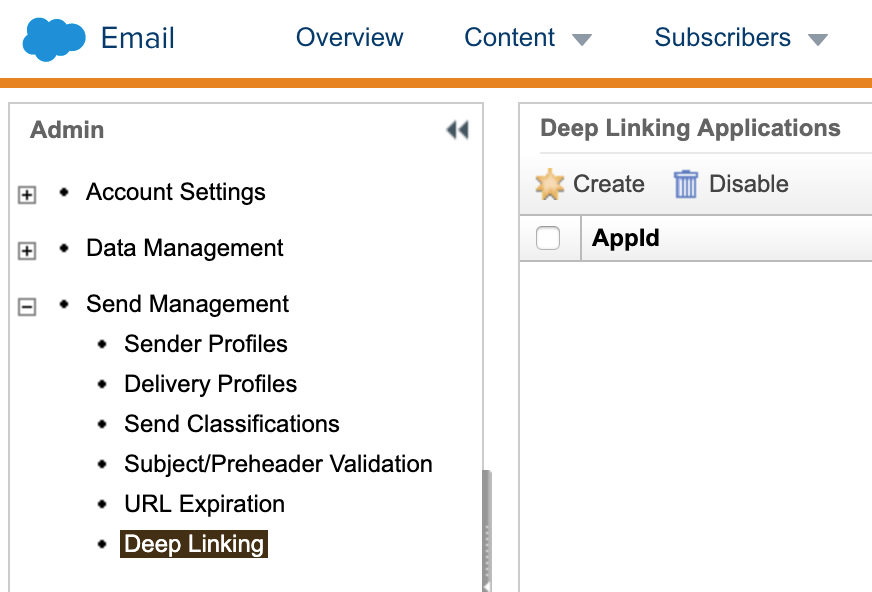
1. Enter the AppID value.
2. Check the "Exclude Profile" and "Unsub Center" checkboxes to force links to these items to open in the browser and not the app, if desired.
3. Click "Save" to save the configuration.
4. Let Salesforce and Branch know that you've finished this step and your Technical Account Manager will verify that everything looks good.
## 3. Enable the Integration
To enable the integration:
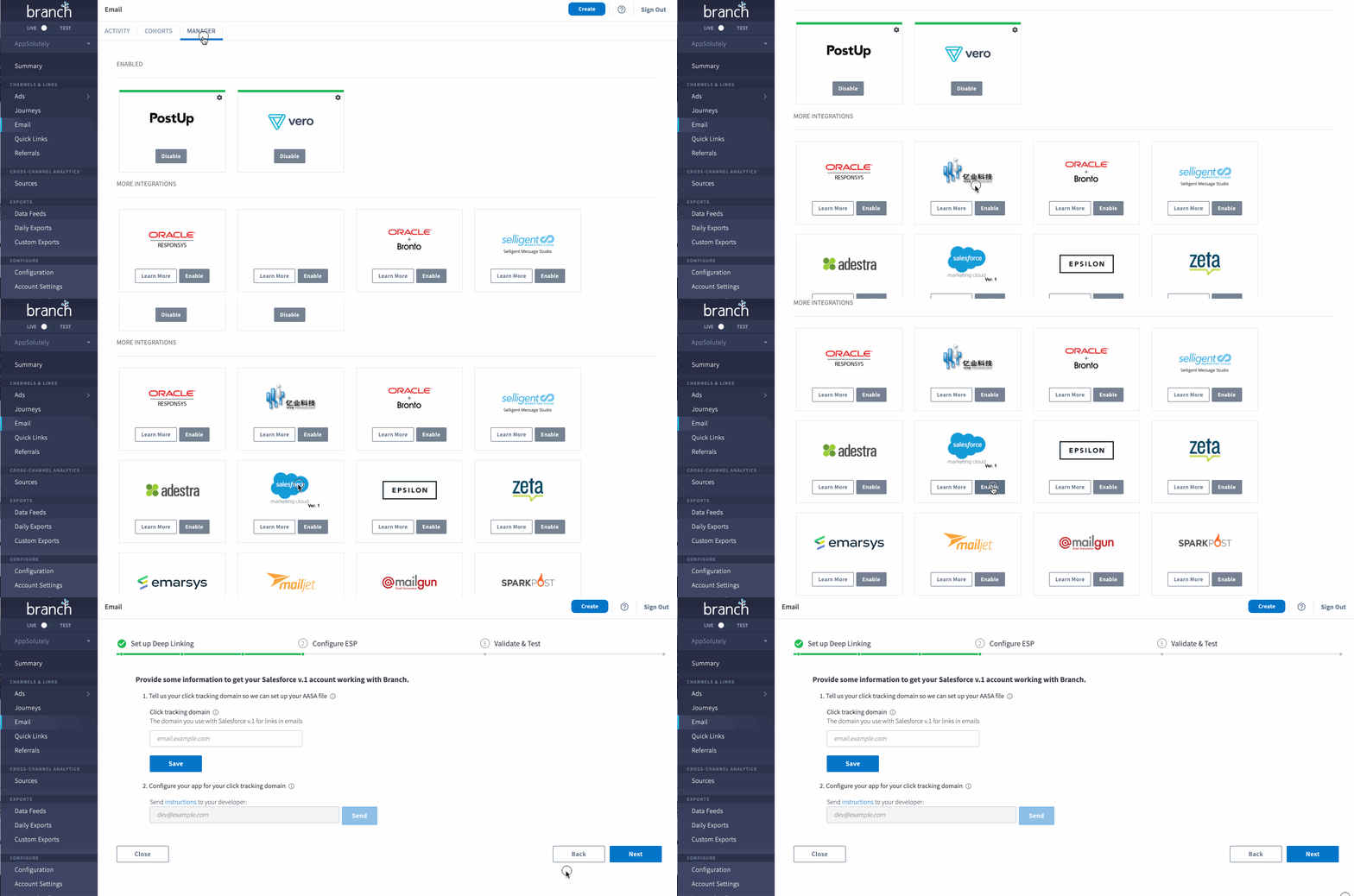
1. In the left-hand navigation, click **Email**.
2. On the Email overview page, click the **Manager** tab at the top.
3. Find your ESP and click **Enable**.
> **Note**
>
> Branch automatically detects any global link settings you have already provided during the initial setup of your Branch account as outlined above.
>
> If you have not set up your [global link settings and redirect preferences](https://help.branch.io/account-hub/basic-link-configuration.md), you will be prompted to do so at this time.
## 4. Provide Click Tracking Domain
Click tracking domains allow you to track engagement on email opens and link clicks.
If you're unsure what your click tracking domain (CTD) is, take a look at one of your recently sent emails. If you hover over the link or right-click/copy the link address, you will see that the domain of the link in the email does not match the URL in your HTML. This domain is your click tracking domain used by your ESP to provide you click reporting.
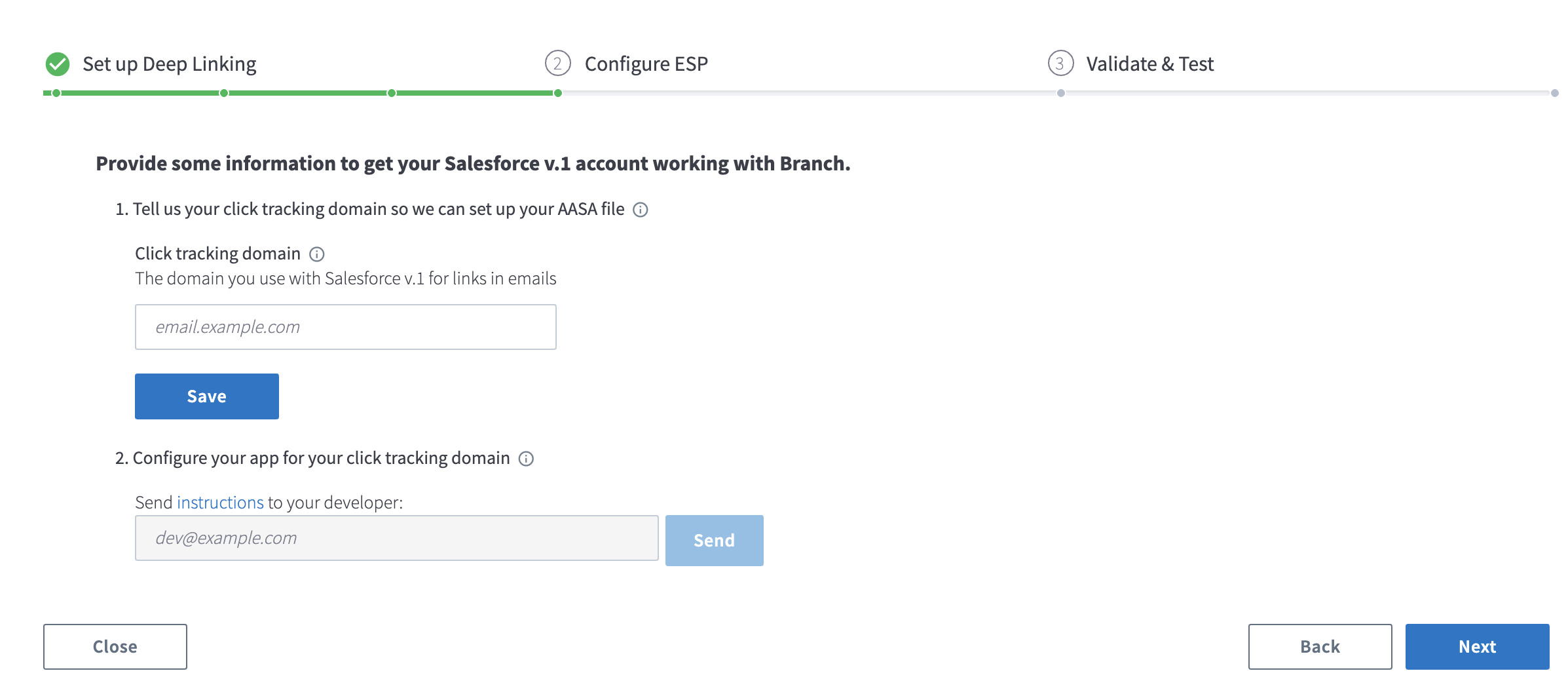
The Salesforce v1 Open App Default integration requires you provide the following:
- **Click Tracking Domain** - The domain you use with Salesforce for links in emails
> **Caution**
>
> Remove `http://` or `https://` when adding your click tracking domain in the Branch dashboard.
**KEEP IN MIND**
- You can enable the integration with multiple CTD if needed, but you cannot add the same CTD to multiple Branch dashboards or ESP integrations.
> **Tip**
>
> Before you click **NEXT** and proceed to the **Validate & Test** section, please complete the following section as it’s required for passing integration validation.
## 5. Validate the Integration
Once the SSL certificates and AASA file (iOS only) have been generated, you can proceed to reviewing the validation tests, fix any issues and then test the integration.
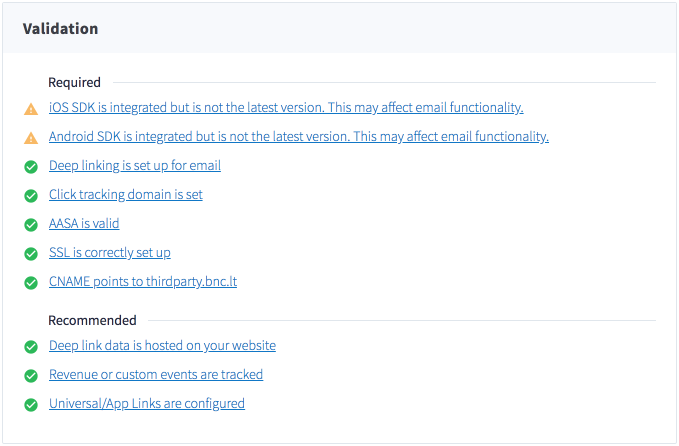
Branch automatically validates the following:
- iOS SDK is integrated (required)
- Android SDK is integrated (required)
- Deep linking is setup (required)
- Click Tracking Domain is setup (required)
- AASA file is valid (required)
- SSL is correctly setup (required)
- CNAME points to thirdparty.bnc.lt (case-by-case requirement)
- Universal Linking is setup (required)
- Hosted deep link data (optional)
- App Events being tracked (optional)
- Android App Links (optional)
> **Common Validation Issues**
>
> **CNAME Does Not Point to Branch**
>
> As this integration requires the CNAME to point to Salesforce, you will always get this error. You can safely ignore.
>
> ---
>
> **SSL Not Correctly Set Up**
>
> If you are having issues with the SSL certificate validating, the culprit is generally the fact that your click tracking domain already has SSL set up and there are restrictions that prevent a third party from submitting a Certificate Signing Request on your behalf.
>
> **AASA File is Invalid**
>
> Luckily the easiest issue to fix as the main reason for this error is the fact that it depends on the SSL being set up correctly. By addressing the SSL error, the AASA file error should resolve itself simultaneously.
## 6. Test the Integration
Once the validation process is complete, you can test the integration by generating a test link. The test link generated by Branch is unique in that it’s already converted to a Branch link for you and allows you to test without creating an email template in your ESP. In reality, this conversion happens behind the scenes once a user clicks on your normal email template link.
To generate a test link:
1. In the **Validate & Test** section, input a URL from your website.
2. Click **Get Test Link**.
3. Once the Test Link is generated, you can share it via:
- Copy to clipboard
- SMS
- Email
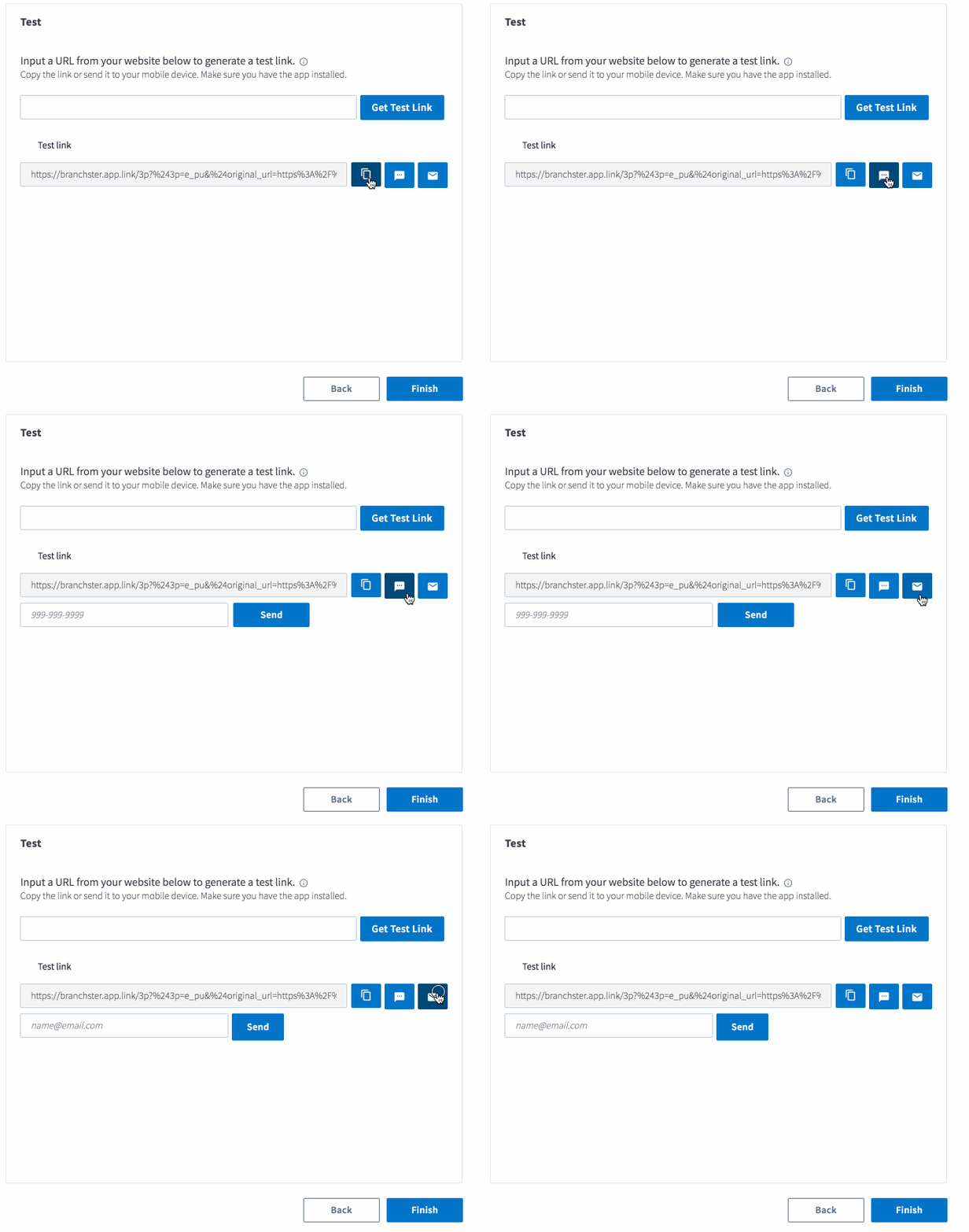
Once you’ve generated your test link, click the link on your mobile device; don’t forget to make sure your mobile device already has the app installed!
## 7. Generating Branch Links for Email
**1. Use Salesforce AMPscript to convert links**
Using Salesforce's AMPscript, we'll add a new Content Area in Salesforce that converts web links in your email templates into Branch Links.
1. Work with your Branch representative to modify the following Salesforce AMPscript snippet, replacing `DOMAIN-HERE` with your Branch base domain (i.e., example.app.link):
```
%%[ VAR @deeplink, @branch_base_url SET @branch_base_url = "https://DOMAIN-HERE/3p?%243p=e_et" SET @deeplink = CONCAT(@branch_base_url, CONCAT("&%24original_url=", URLEncode(@link_to_be_wrapped, 1, 1))) ]%%
```
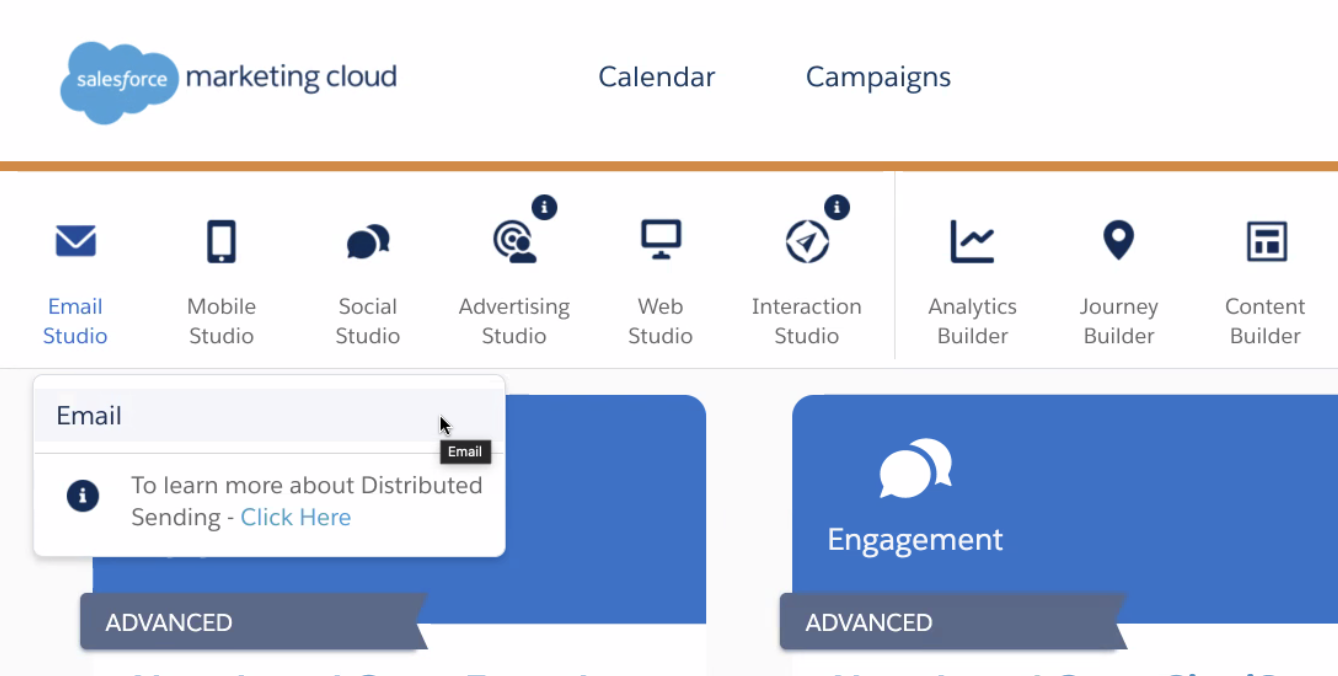
2. After logging into Salesforce Marketing Cloud, click on **Email Studio** and then a sub-menu will appear. Click on **Email** in the dropdown menu:
3. This will take you to the landing page for the Email section. Click on **Content** in the menu bar to navigate to the Content section:

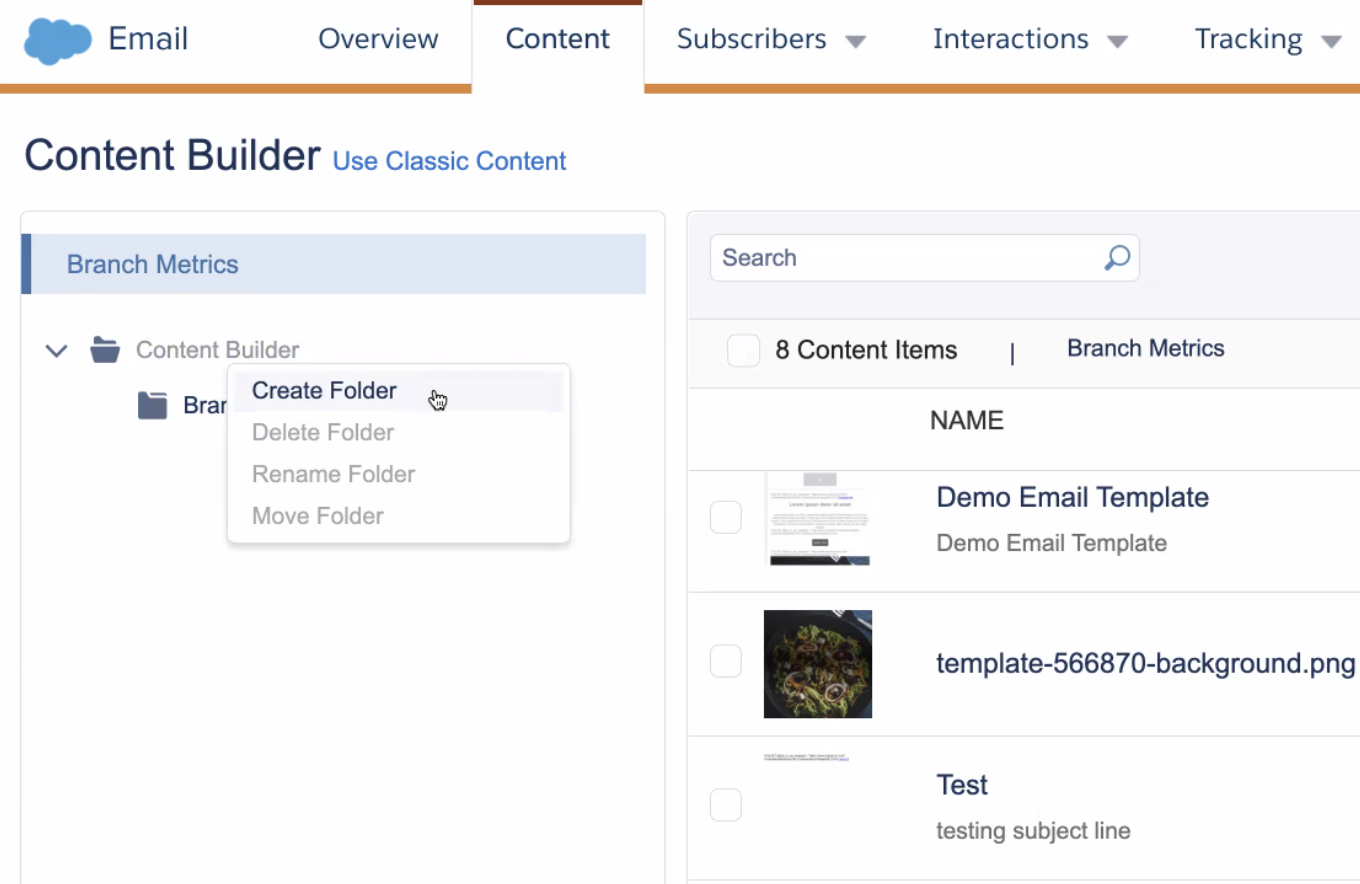
4. In the Content section, you will see a list of folders on the left side. Right click on the **My Contents** folder and choose **Create Folder** in the content builder menu:
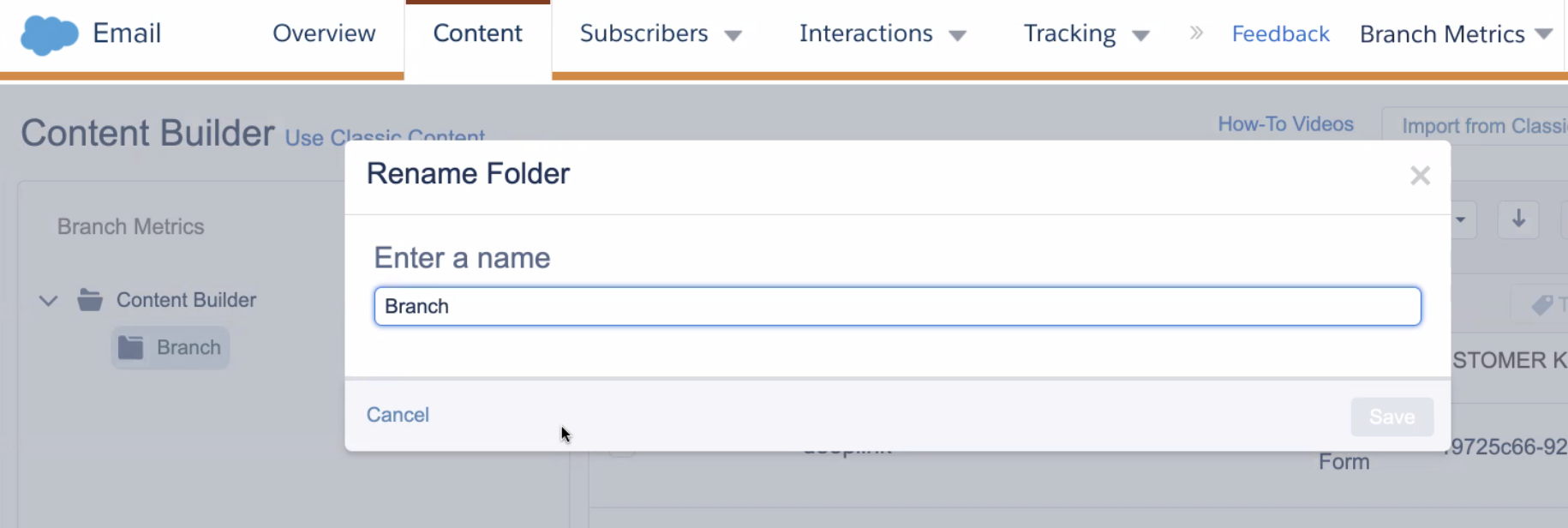
5. Name the folder `Branch`:
6. Once the folder is created, in the upper right side, click on **Create** button, then click **Content Blocks** and finally click **Free Form**:
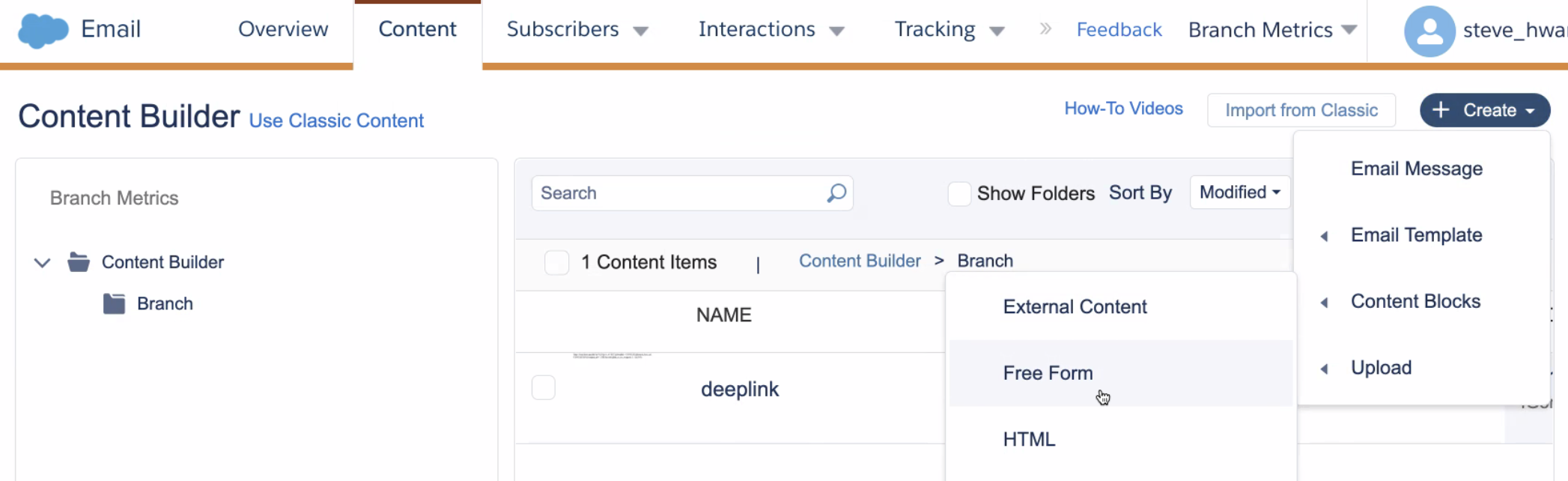
7. On the **Free Form** screen, paste in the snippet you previously generated:
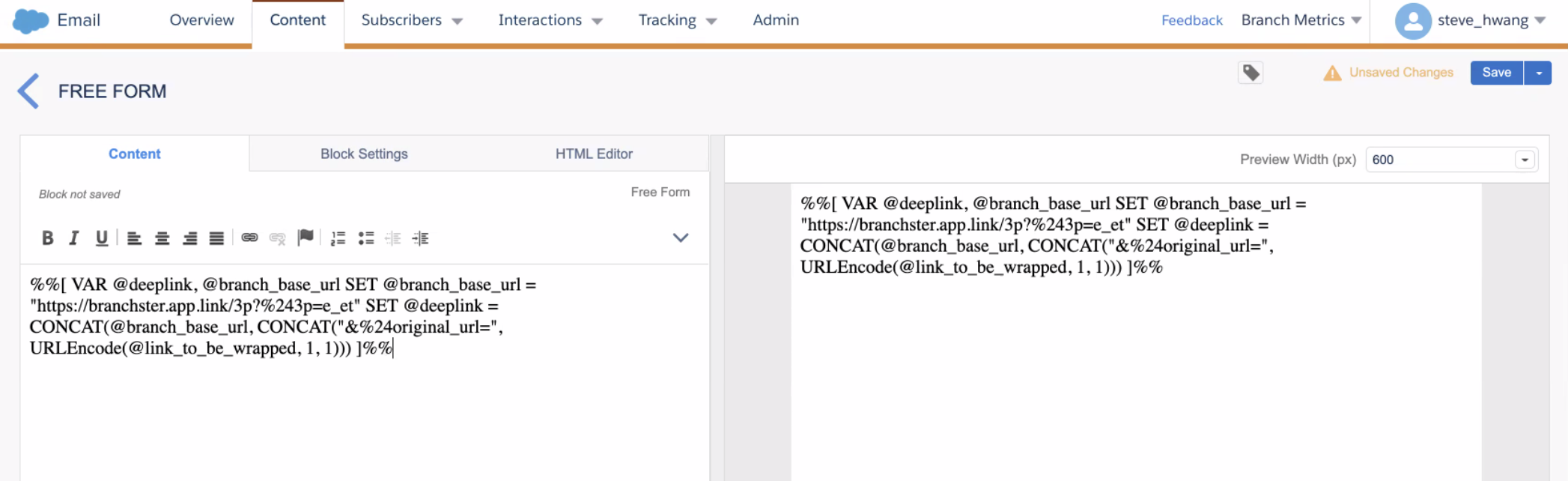
8. Click **Save**.
9. In the **Create Free Form** window that appears, enter `deeplink` in the text field named Content Name. Click on **Save** after you enter the text:
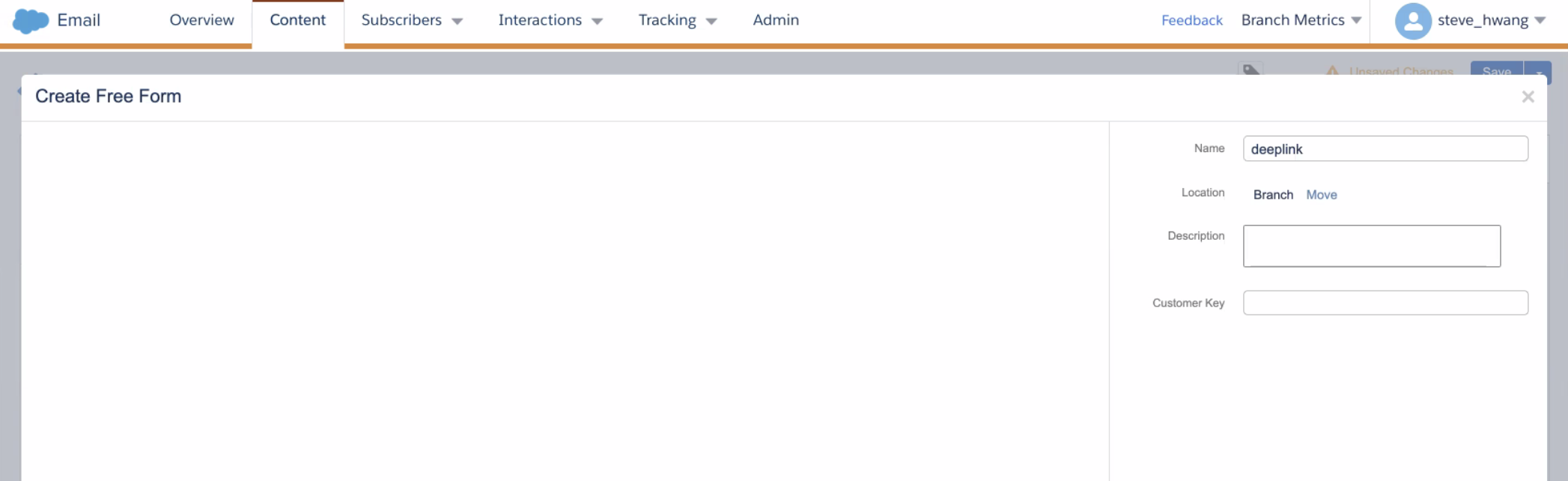
10. You will now be back at your list of folders in the Content section with the file **deeplink** listed:
You have now successfully created the deep linking AMPscript.
> **Code snippet**
>
> The snippet below will follow this format. The code below also has a placeholder for `@branch_base_url`. Replace it with yours.
```
%%[ VAR @deeplink, @branch_base_url SET @branch_base_url = "BASE URL FROM BRANCH" SET @deeplink = CONCAT(@branch_base_url, CONCAT("&%24original_url=", URLEncode(@link_to_be_wrapped, 1, 1))) ]%%
```
**Configure your Salesforce email templates**
This section covers how to convert individual links in your existing email templates into Branch deep links. You will need to do this for all links in your email template that you want to convert to Branch deep links.
For example, if you decide to convert the link below into a Branch Link:
```html
I want it!
```
This is what the link will look like in the email template, **after** you added the AMPscript to convert it into a Branch link:
```
%%[ SET @link_to_be_wrapped = "https://branch.io/product/1234/" ContentAreaByName("My Contents\branch\deeplink") ]%%
Example link
```
The process to convert links into Branch Links using AMPscript is as follows (this flow converts the links in a separate document, and then pastes them back into your final template):
1. Log in to Salesforce Marketing Cloud.
2. Click on **Email Studio** and then a sub-menu will appear. Click on **Email** in the dropdown menu:
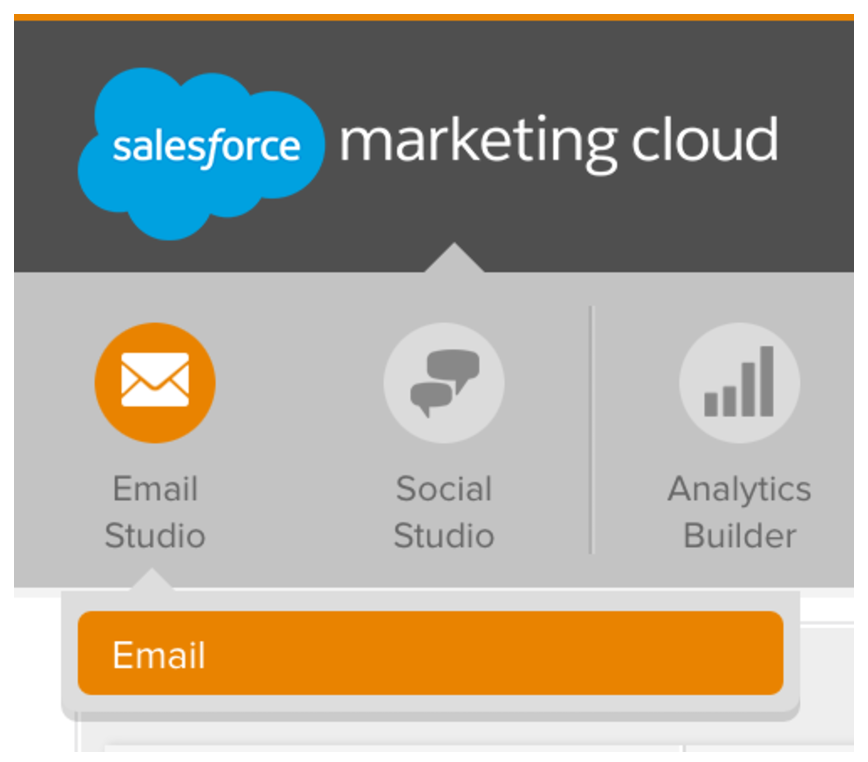
3. This will take you to the landing page for the Email section. Click on **Content** in the menu bar to navigate to the Content section:

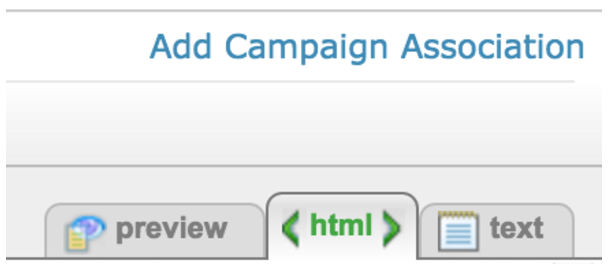
4. Navigate to your folder containing your emails and open an existing email. Make sure the email is in HTML layout as shown below:
5. Choose a link that you want to convert to a Branch deep link. Copy the text right after the `href=` in your email template, and paste it into a separate document. In the example, it is:
`"https://branch.io/product/1234/"`
6. Add `%%[ SET @link_to_be_wrapped =` before the link in your separate document. In the example, this is now:
`%%[ SET @link_to_be_wrapped = "https://branch.io/product/1234/"`
7. Add `ContentAreaByName("My Contents\branch\deeplink"")]%%` after the link:
`%%[ SET @link_to_be_wrapped = "https://branch.io/product/1234/"ContentAreaByName("My Contents\branch\deeplink"")]%%`
8. From the original link in your template, copy the text from and including `I want it!` in the example) and add it to the end:
`%%[ SET @link_to_be_wrapped = "https://branch.io/product/1234/" ContentAreaByName("My Contents\branch\deeplink"") ]%% I want it!`
11. Copy your final result from the separate document back into your email template, replacing everything inside and including the `` tags in the template.
12. Repeat this for all your links in your email template that you want to convert to Branch deep links.
> **Link Conversion Summary**
>
> Wherever you use `` tags in your email templates, replace those with AMPscript to convert the web URLs into Branch Links. The AMPscript references the [Content Area](#_7-generating-branch-links-for-email) set up earlier.
>
> ```
> %%[SET @link_to_be_wrapped = "ADD YOUR LINK HERE" ContentAreaByName("My Contents\branch\deeplink")]%%
> Click Me
> ```
>
> For example,
> **Before:**
> `Example link`
> **After:**
> `%%[ SET @link_to_be_wrapped = "https://branch.io/product/1234" ContentAreaByName("My Contents\deeplink") ]%%`
>
> `Example link`
> **Content Area Folder**
>
> Make sure your `deeplink` Content Area is in the right folder. Either change the folder to "My Contents" or change the path used by "ContentAreaByName" in the Branch script.
**2. Making regular Branch Links compatible with email**
Be sure to add `"$3p":"e_et"` to the deep link data of any links you use in email to ensure Universal Link and click tracking works as expected.
**3. Create email links via API**
To create email links via API, please use the instructions on how to [create links via API](https://help.branch.io/apidocs/deep-linking/overview.md), but include the following key value pairs in your call:
1. `"$3p":"e_et"` This is required for Universal Link and click tracking functionality.
2. `"$original_url":"{{your web url URI encoded}}"` For each piece of content, include a URI encoded version of your content's web URL. You can also add deep link data as query parameters on that web URL. This ensures accurate Content Analytics reporting.
**Example:** `"$original_url":"https%3A%2F%2Fshop.com%2Fshoes%2Fbrown-shoes%3Fmy_key%3Dmy_value%26campaign%3Dshoe_discounts"`
Here is how links look before and after (the latter being a Branch deep link).
1. *Before:*
2. *After:*
**Note** that these are simplified examples, not actual demo links.
**4. Flag your web-only links**
For links that should always open in web, even if the app is installed, add Salesforce's link attribute `mc-deep-link="false"` to your link tag to ensure the app does not open in iOS:
```xml
This link will not open the app.
```
If the link in the "href" part of the tag is a normal web link, the app will NOT open in Android. If the link in the "href" part of the tag is a Branch link, but you don't want the app to open, then you'll need to add `&%24web_only%3Dtrue` as a query parameter:
```xml
This link will not open the app.
```