> For the complete documentation index, see [llms.txt](https://help.branch.io/llms.txt).
# Pinterest
> Learn how to integrate Pinterest and Branch for effective ad tracking.
## Overview
[Pinterest](https://pinterest.com) is a visual discovery engine for finding ideas like recipes, home and style inspiration, and more. With billions of Pins on Pinterest, you'll always find ideas to spark inspiration. When you discover Pins you love, save them to boards to keep your ideas organized and easy to find.
### Partner capabilities
| Partner capabilities | Details |
| --- | --- |
| Company Type | • Ad Network
• DSP
• Publisher
• RTB
• Self Serve |
| Deep Linking | Supported |
| Attribution | • Click-Through Attribution
• View-Through Attribution |
| Ad Campaign Types | • Acquisition campaigns
• Retargeting campaigns |
| Ad Formats | Contact support at Pinterest for more information. |
| Click Types | • Server-side click |
| Supported Platforms | • iOS
• Android
• Windows
• Mac OS
• Unix
• Tizen |
| Link Wrapping | Not Supported |
| Cost Ingestion Support | Supported |
| Cost Ingestion Types | via API |
| Cost Time Zone | GMT |
| Cost Data Scheduling | [ 4, 9, 12, 18, 24, 36, 48, 72, 96, 120, 240, 360, 480, 720 ] in hours from midnight |
| Pricing Models | • CPC
• CPM
• CPA
• CPV
• CPL |
| [v5 Conversions API](https://developers.pinterest.com/docs/track-conversions/track-conversions-in-the-api/) | Supported |
| Data Sharing | Branch does not share Pinterest user-level data (view-through/click-through) with advertisers via Custom Exports, webhook, or Data Integrations. |
## Before you begin
To enable Pinterest for your Branch account, you first need to:
1. Create and [configure](https://help.branch.io/account-hub/index.md) your [Branch](https://dashboard.branch.io) account.
2. Have Branch's Performance [product](https://help.branch.io/marketer-hub/products.md) enabled for your account.
3. Implement the Branch SDK into your mobile app ([iOS](https://help.branch.io/developer-hub/ios-sdk-overview.md) | [Android](https://help.branch.io/developer-hub/android-sdk-overview.md))
- [Track events](https://help.branch.io/developer-hub/track-branch-events.md)
4. Admin, Analyst, Audience, or Campaign [Business Access](https://help.pinterest.com/en/business/article/business-manager-access-roles-and-permissions) to your Pinterest account.
## Enable Pinterest
Use the steps in this section to enable the integration between Branch and Pinterest.
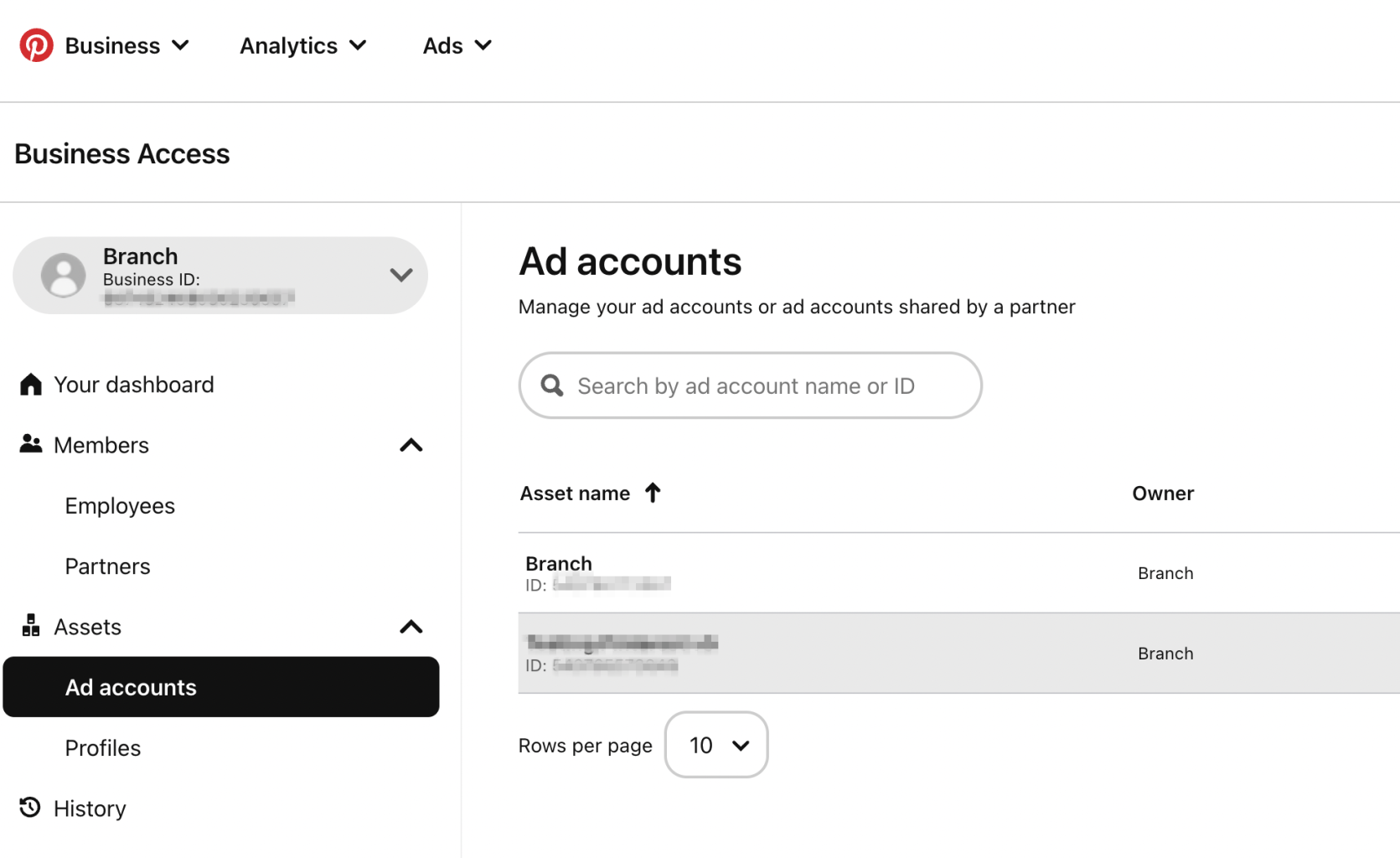
### 1. Retrieve Ad Account ID from Pinterest
1. Log in to your Pinterest Ads Manager account.
2. Navigate to **Ads** **>** **Account Overview**.
3. Locate and note the Ad Account ID in the URL path.
- Ex: `ads.pinterest.com/advertiser/{ad_account_id}/?...`
### 2. Retrieve Conversion Token from Pinterest
1. If you do not have a Conversion Token already created, navigate to **Account Overview >** **Conversions**.
4. Select **Set up API** in the **Conversions API** section.
5. Select **Generate new token**.
2. Use the **copy** icon to copy the Conversion Token.
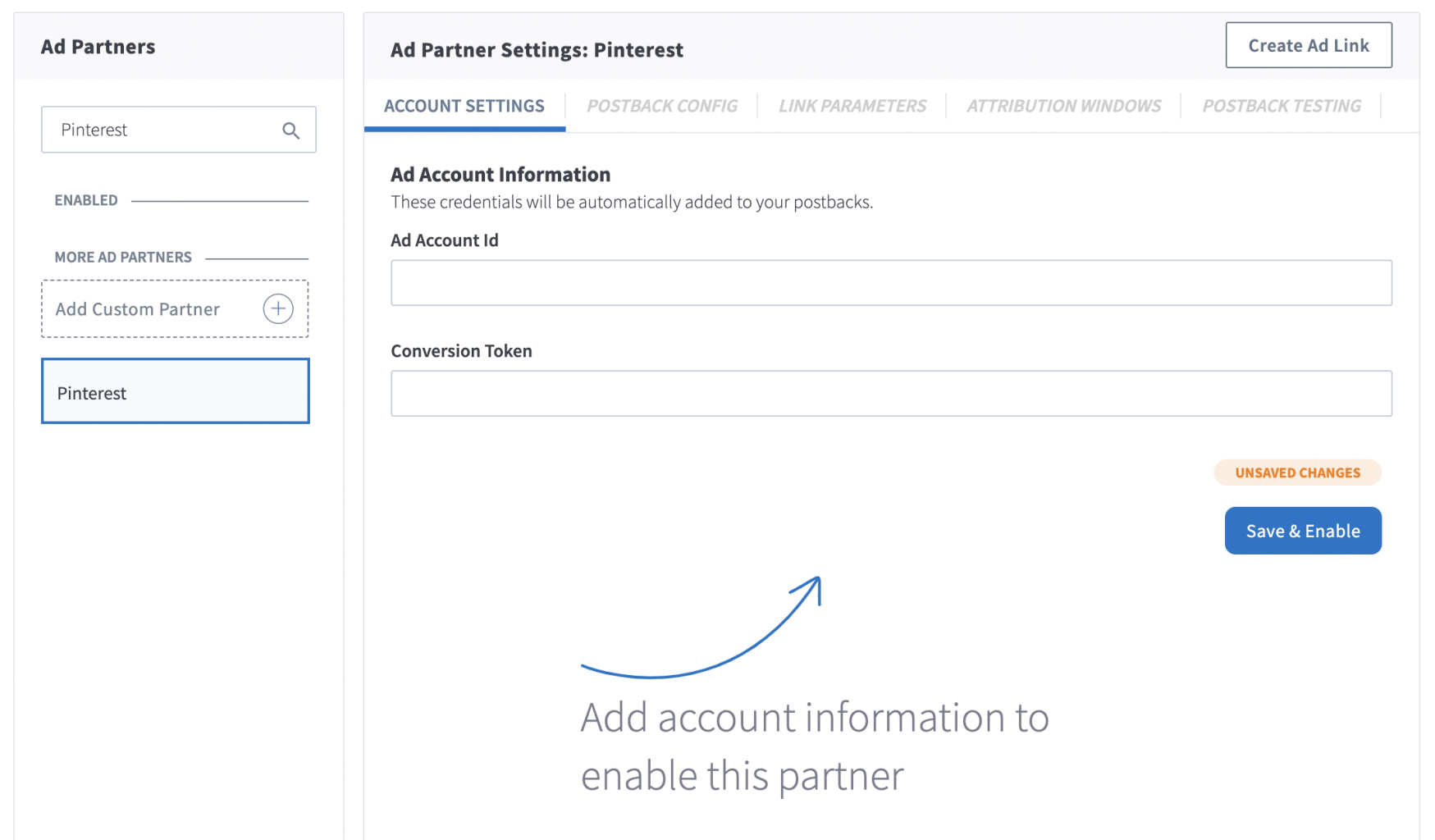
### 3. Connect Pinterest in Branch
1. Visit [Ad Partners](https://dashboard.branch.io/ads/partner-management) in Branch.
2. Search for Pinterest.
3. Enter the Ad Account ID and Conversion Token from steps 1 and 2 into the corresponding fields.
4. Select **Save**.
### 4. Set up tracking links
When creating a Pinterest ad campaign, you’ll see three URL fields. Populate them based on the following table:
| Pinterest field | What to use |
| --- | --- |
| Impression Tracking URL | Your Branch Impression Tracking Link for this campaign. |
| Click Tracking URL | Your Branch Click Tracking Link for this campaign. |
| Destination URL | A Branch Link with **tracking disabled** (visit “Create a Branch Link with tracking disabled” below). |
**Important**: Do not use your Click Tracking URL in the Destination URL field. Pinterest fires the Click Tracking URL separately when a user clicks your ad, so placing a Click Tracking URL in the Destination URL field causes duplicate click events, breaks deep linking, and may result in your ad being disapproved.
#### Create a Branch Link with tracking disabled
When creating the Branch Link you’ll use as the Destination URL, enable the **Do Not Track** option or set `$disable_tracking=true` in your Branch Link’s data. This ensures deep linking continues to work and prevents duplicate click attribution.
### 5. Configure Postbacks
When a conversion/event attributed to an ad campaign occurs, Branch notifies the Ad partner of these events via **postbacks**.
Basic postbacks will be automatically activated for events like **INSTALL** and **PURCHASE** when you enable your ad partner.
After you connect Pinterest to Branch, navigate to the [**Postback Config**](https://dashboard.branch.io/ads/partner-management/a_pinterest?tab=postback) tab and set up the following event mappings between Pinterest and Branch.
#### Default event mappings
| Pinterest Event | Branch Event |
| --- | --- |
| app_install | • INSTALL
• REINSTALL |
| app_open | • OPEN |
| page_visit | • PAGEVIEW
• WEB_SESSION_START |
| initiate_checkout | • INITIATE_PURCHASE |
| checkout | • PURCHASE |
| view_category | • VIEW_ITEM
• VIEW_ITEMS |
| add_to_cart | • ADD_TO_CART |
| signup | • COMPLETE_REGISTRATION |
| add_to_wishlist | • ADD_TO_WISHLIST |
| start_trial | • START_TRIAL |
| subscribe | • SUBSCRIBE |
| lead | • RESERVE |
| search | • SEARCH |
| watch_video | • INITIATE_STREAM
• COMPLETE_STREAM |
| custom | {custom_event_name} |
As best practice, Pinterest recommends toggling the **All Events** checkbox to enable sending Pinterest all in-app conversions. This allows Pinterest to report the full value the platform is driving to your app.
#### Postbacks
For more details on configuring Postbacks, view our guides:
- [Basic Postback Configuration](https://help.branch.io/marketer-hub/basic-postback-configuration.md)
- [Advanced Postback Configuration](https://help.branch.io/developer-hub/advanced-postback-configuration.md)
- [Test Postbacks](https://help.branch.io/marketer-hub/testing-postbacks.md)
### 6. Configure attribution windows
After configuring postbacks, navigate to the [Attribution Windows tab](https://dashboard.branch.io/ads/partner-management/a_pinterest?tab=attribution_windows) to set windows by attribution type.
You can use custom attribution windows to match Pinterest's attribution windows. This overrides your [app-level attribution windows](https://dashboard.branch.io/configuration/attribution-windows).
### 7. Set up cost data
To set up cost ingestion for Pinterest, you will need to authenticate using your login for Pinterest.
1. Use the **Log in** button to authenticate with Pinterest.
2. Select **Save Authentication**.

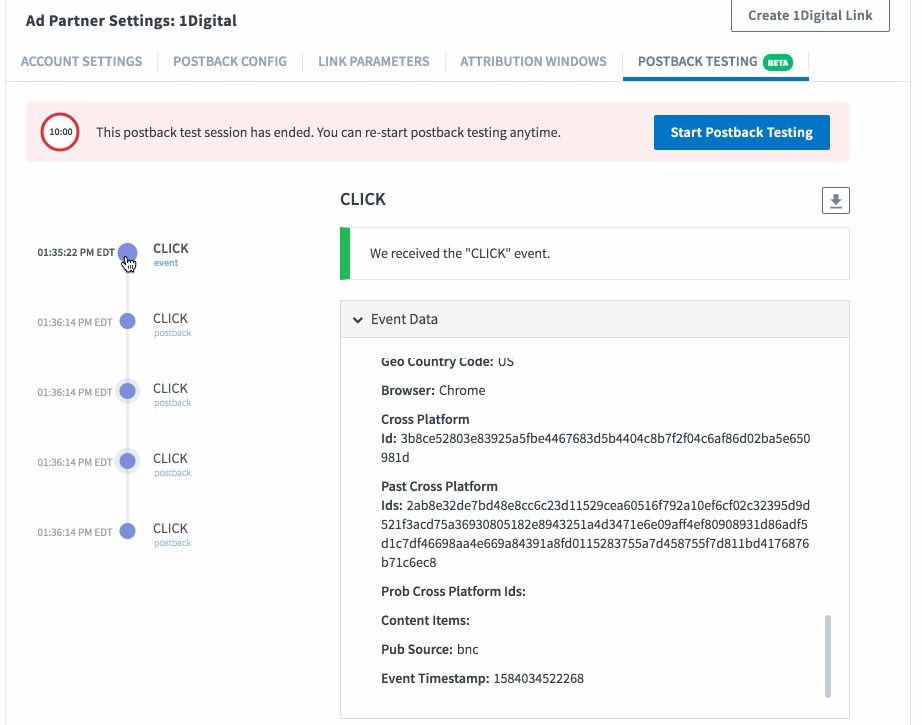
### 8. Validate integration
After configuring attribution windows, navigate to the [Postback Testing tab](https://dashboard.branch.io/ads/partner-management/a_pinterest?tab=postback_testing) to test your integration.
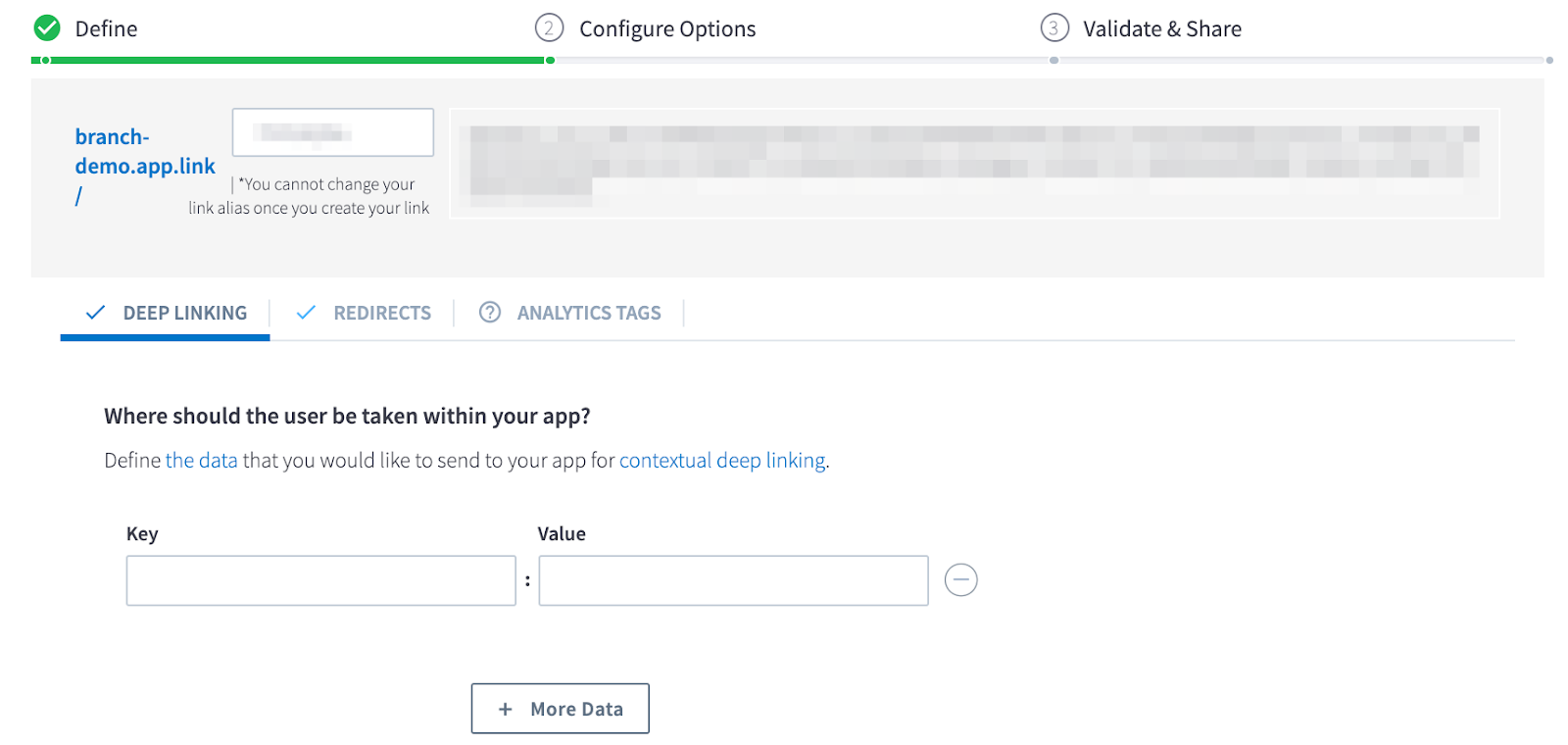
### 9. Create a Branch Link
If you are running paid advertising campaigns, you'll want to create a Branch [Ad Link](https://help.branch.io/marketer-hub/ad-links.md) so we can accurately attribute resulting app conversions to the appropriate advertising partner.
### 10. Create a campaign
1. Use a direct link to your website in the Destination URL field.
1. Remove `$aaid_sha1={sha1_advertising_id}` from your Branch Link if your Destination URL goes to the Apple Store.
2. Remove `$idfa_sha1={sha1_advertising_id}` from your Branch Link if your Destination URL goes to the Google Play Store.
3. Select **App** under the **Ad Destination** dropdown if using a mobile deep link (more info [here](https://help.pinterest.com/en/business/article/mobile-deep-links)).
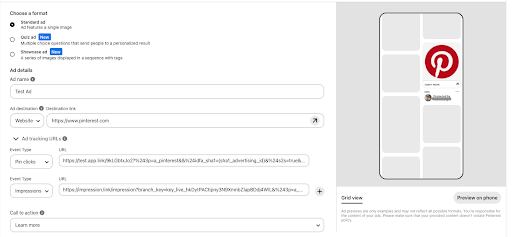
2. Place your Branch Click Tracking Link in the **URL** field for the Pin Clicks Event Type.
3. Place your Branch Impression Tracking Link in the **URL** field for Impressions Event Type.
### 11. Verify data sent
Once the above steps are complete, you are ready to start launching campaigns. Branch-attributed conversions enabled as postbacks will be sent to Pinterest if they were the last touch that drove the conversion.
To verify data is being sent from Branch to Pinterest, you can access [Branch's Liveview Webhook Records](https://dashboard.branch.io/liveview/webhooks), and apply the following filter:
| Filter | Operator | Value |
| --- | --- | --- |
| ad partner (3p) | equals | `a_pinterest` |
#### Verify cost data
To verify that cost data is flowing into Branch, you need to have the following:
- Completed all implementation steps above.
- Be live with campaigns running for the ad network.
- Wait 24 hours for data to be pulled in.
## Troubleshoot
If you are running campaigns on Pinterest and having issues with Attribution on Branch, please check whether you are using correct tracking links:
1. Link to the Apple AppStore or Google Play.
2. Click and Impression links, generated on Branch, configured as described below.
#### Link formatting issues
Verify your link formatting is correct using the examples below.
**Click Tracking Link**
```http
https://branchster.app.link/9kLGbtxJo2?%243p=a_pinterest&&%24idfa_sha1={sha1_advertising_id}&%24s2s=true&~ad_set_id={ad_group_id}&~ad_set_name={ad_group_name}&~campaign={campaign_name}&~campaign_id={campaign_id}&~click_id={click_id}&~creative_id={creative_id}&~creative_name={creative_name}&~secondary_publisher={publisher](https://branchster.app.link/9kLGbtxJo2?%243p=a_pinterest&%24aaid_sha1={sha1_advertising_id}&%24idfa_sha1={sha1_advertising_id}&%24s2s=true&~ad_set_id={ad_group_id}&~ad_set_name={ad_group_name}&~campaign={campaign_name}&~campaign_id={campaign_id}&~click_id={click_id}&~creative_id={creative_id}&~creative_name={creative_name}&~secondary_publisher={publisher)
```
**Impression Tracking Link**
```http
https://impression.link/impression?branch_key=key_live_hkDytPACtipny3N9XmnbZlapBDdj4WIL&%243p=a_pinterest&%24s2s=true&%24aaid_sha1={sha1_advertising_id}&~ad_set_id={ad_group_id}&~ad_set_name={ad_group_name}&~branch_ad_format=App%20Only&~campaign={campaign_name}&~campaign_id={campaign_id}&~click_id={click_id}&~creative_id={creative_id}&~creative_name={creative_name}&~feature=paid%20advertising&~secondary_publisher={publisher](https://impression.link/impression?branch_key=key_live_hkDytPACtipny3N9XmnbZlapBDdj4WIL&%243p=a_pinterest&%24s2s=true&%24aaid_sha1={sha1_advertising_id}&~ad_set_id={ad_group_id}&~ad_set_name={ad_group_name}&~branch_ad_format=App%20Only&~campaign={campaign_name}&~campaign_id={campaign_id}&~click_id={click_id}&~creative_id={creative_id}&~creative_name={creative_name}&~feature=paid%20advertising&~secondary_publisher={publisher)
```
Pinterest uses server-to-server clicks, so make sure the following parameters are always present on the link:
- **%24s2s=true**
- Must be always present on the link.
- **%24aaid_sha1={sha1_advertising_id}**
- For Android campaigns only, must be removed from the link for iOS campaigns.
- **%24idfa_sha1={sha1_advertising_id}**
- For iOS campaigns only, must be removed from the link for Android campaigns.
- Only one OS-specific Advertiser Identifier parameter must be on the link: either **%24idfa_sha1** for iOS or **%24aaid_sha1** for Android campaigns.
#### Advertiser ID is missing from URL
If your URL is missing the Ad Account ID, use the OS-specific Ad ID instead.
#### Both Advertiser IDs present in the URL
If both Advertiser IDs are present in the URL, keep only one OS-specific Ad ID.
#### Clicks are blocked by anti-fraud rule `GEO_CONFLICT`
If your clicks are getting blocked by Branch’s anti-fraud rule `GEO_CONFLICT`, this is because Pinterest currently can’t provide the user’s IP address. If you use a `GEO_CONFLICT` rule, we recommend either disabling it or not running on Pinterest until they are able to pass the client IP to MMPs.