> For the complete documentation index, see [llms.txt](https://help.branch.io/llms.txt).
# Perform[cb]
> Connect Perform[cb] to Branch for attribution and deep linking on performance marketing campaigns.
## Overview
Founded as Clickbooth in 2002, [Perform[cb]](https://www.performcb.com/) is the culmination of years of pioneering in the world of performance marketing. Clickbooth grew organically and through a series of strategic acquisitions, including Adperio and IgniteOPM. In 2020, we rebranded as Perform[cb]. Our Think Bigger vision is of a future in which all marketers are empowered to maximize the ROI of their marketing dollars by paying only for customers acquired.
### Partner Capabilities
| Capability | Details |
| --- | --- |
| Company Type | • Ad Network
• Affiliate Network |
| Deep Linking | Supported |
| Attribution | • Click-Through Attribution |
| Ad Campaign Types | • Acquisition campaigns
• Retargeting campaigns |
| Ad Formats | • Banner
• Interstitial
• Video
• Recommendation
• App of Day |
| Click Types | • Client-side click |
| Supported Platforms | • iOS
• Android
• Windows
• Mac OS |
| Link Wrapping | Supported |
| Cost Ingestion Support | Not Supported |
| Cost Ingestion Types | N/A |
| Pricing Models | • CPI
• CPC
• CPM
• CPA
• CPL |
## Before you begin
In order to enable Perform[cb], you need to have completed the following:
1. Created a [Branch Dashboard](https://dashboard.branch.io/).
2. Have Branch's Performance [product](https://help.branch.io/marketer-hub/products.md) enabled for your Branch Account.
3. Implemented the Branch SDK into your mobile app ([iOS](https://help.branch.io/developer-hub/ios-sdk-overview.md) | [Android](https://help.branch.io/developer-hub/android-sdk-overview.md))
- [Track events](https://help.branch.io/developer-hub/track-branch-events.md)
4. Running campaigns through Perform[cb].
## Enable Perform[cb]
### 1. Enable Perform[cb] in Branch
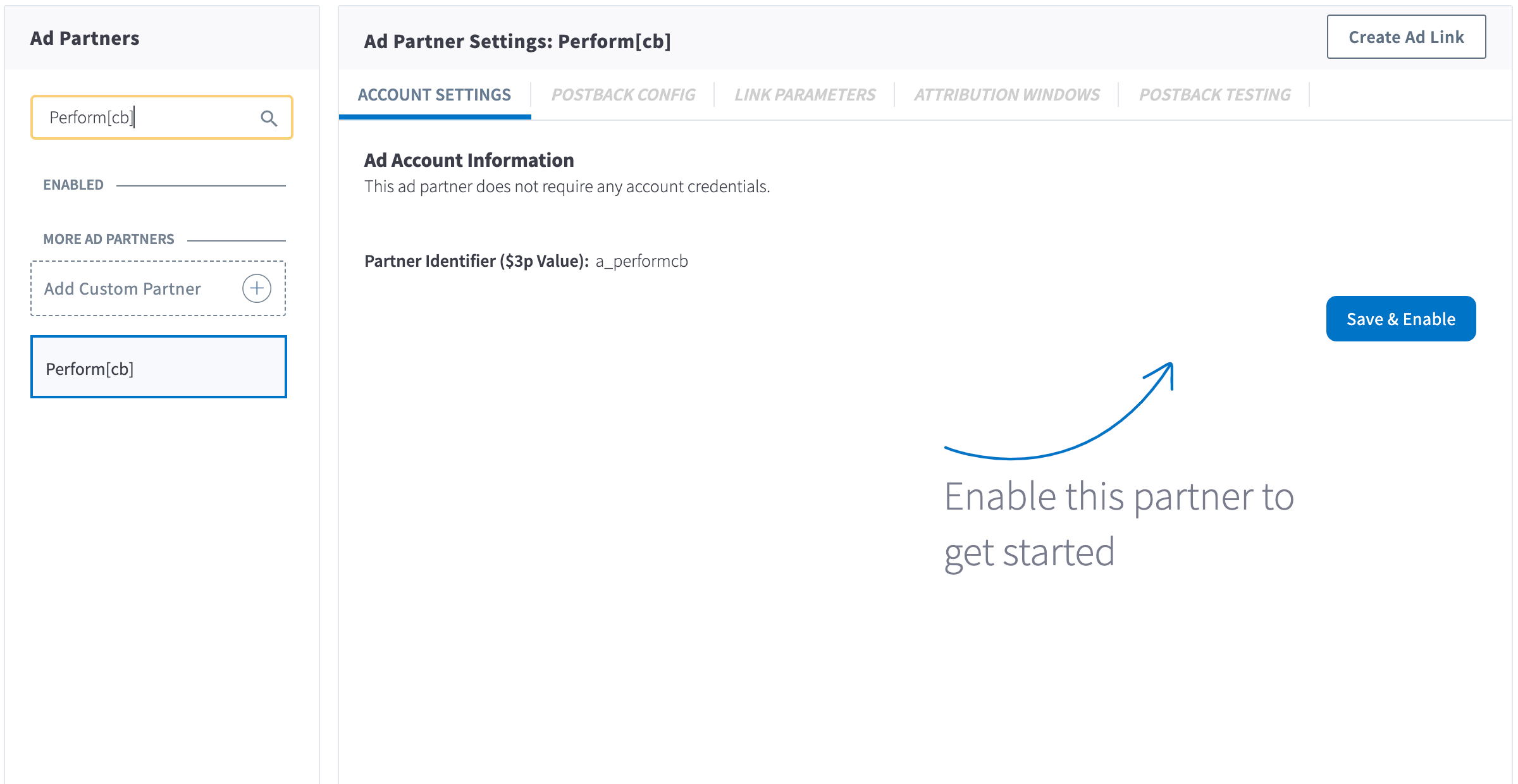
In the Branch Dashboard under **Ads** > [**Partner Management**](https://dashboard.branch.io/ads/partner-management), find/search for Perform[cb]. If you're already logged into the Branch Dashboard, you can also click [here](https://dashboard.branch.io/ads/partner-management/a_performcb?tab=settings) to go there directly.
Click the **Save & Enable** button.
### 2. Configure Postbacks
> **Note: PAM uses two separate toggles**
>
> The **PAM for Publishers** toggle on the **Postback Config** tab is separate from the PAM switch in your attribution settings. **PAM for Publishers** must be enabled to reconcile conversion events with your partner. To attribute events with PAM, you also need PAM enabled at the org-level or app-level under **Configure** > **App Settings** > **Attribution**. Learn more in our [PAM Overview](https://help.branch.io/marketer-hub/predictive-aggregate-measurement.md#pam-for-publishers).
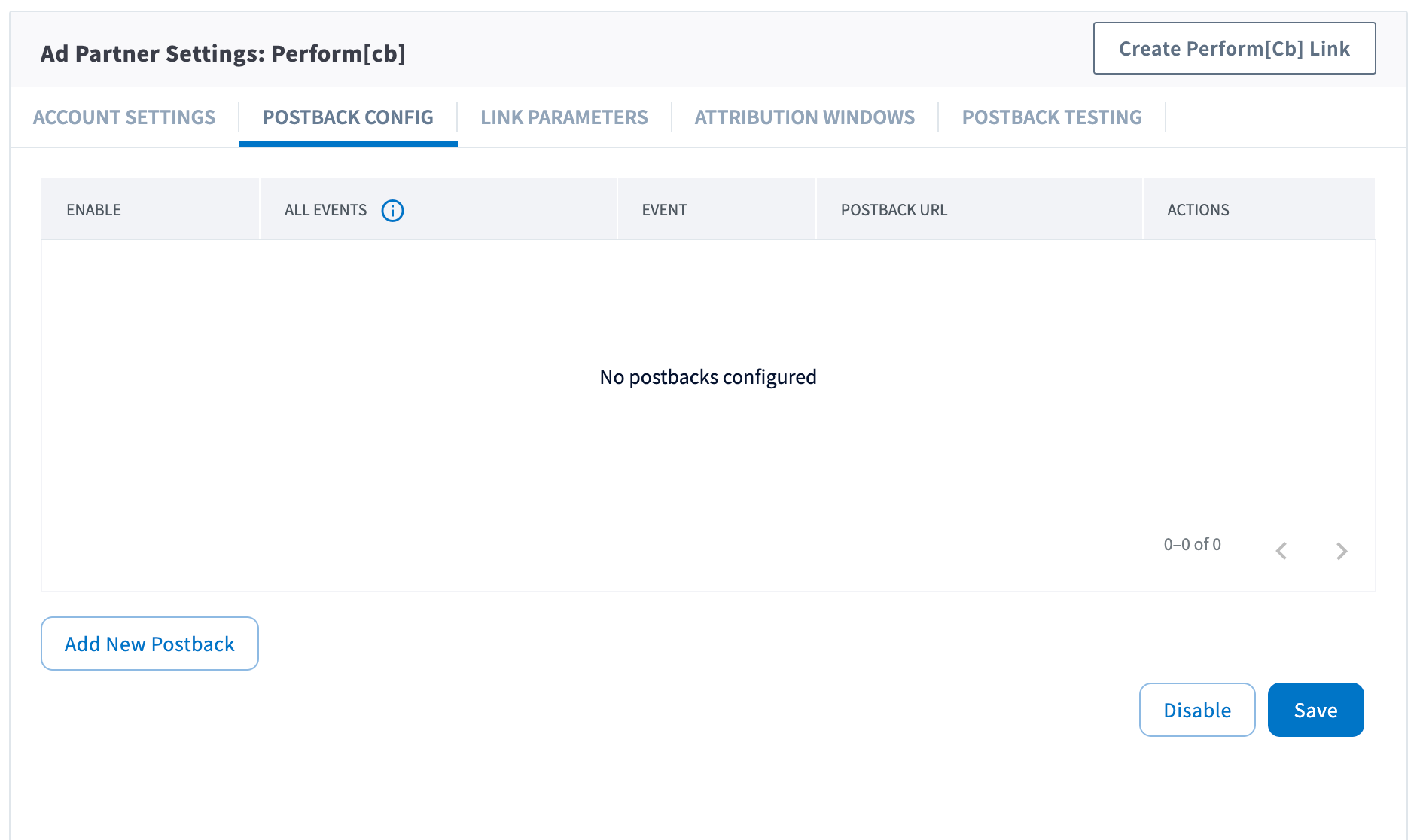
Enabling Perform[cb] does not automatically enable any postback. You can configure these postbacks under the [**Postback Config**](https://dashboard.branch.io/ads/partner-management/a_performcb?tab=postback) tab.
#### Send All Events
Optionally, you can check the checkbox for a given postback for sending all events. When checked, all events will be sent regardless of attribution. Otherwise, the postback will only fire for events attributed to Perform[cb].
#### Adding Postbacks
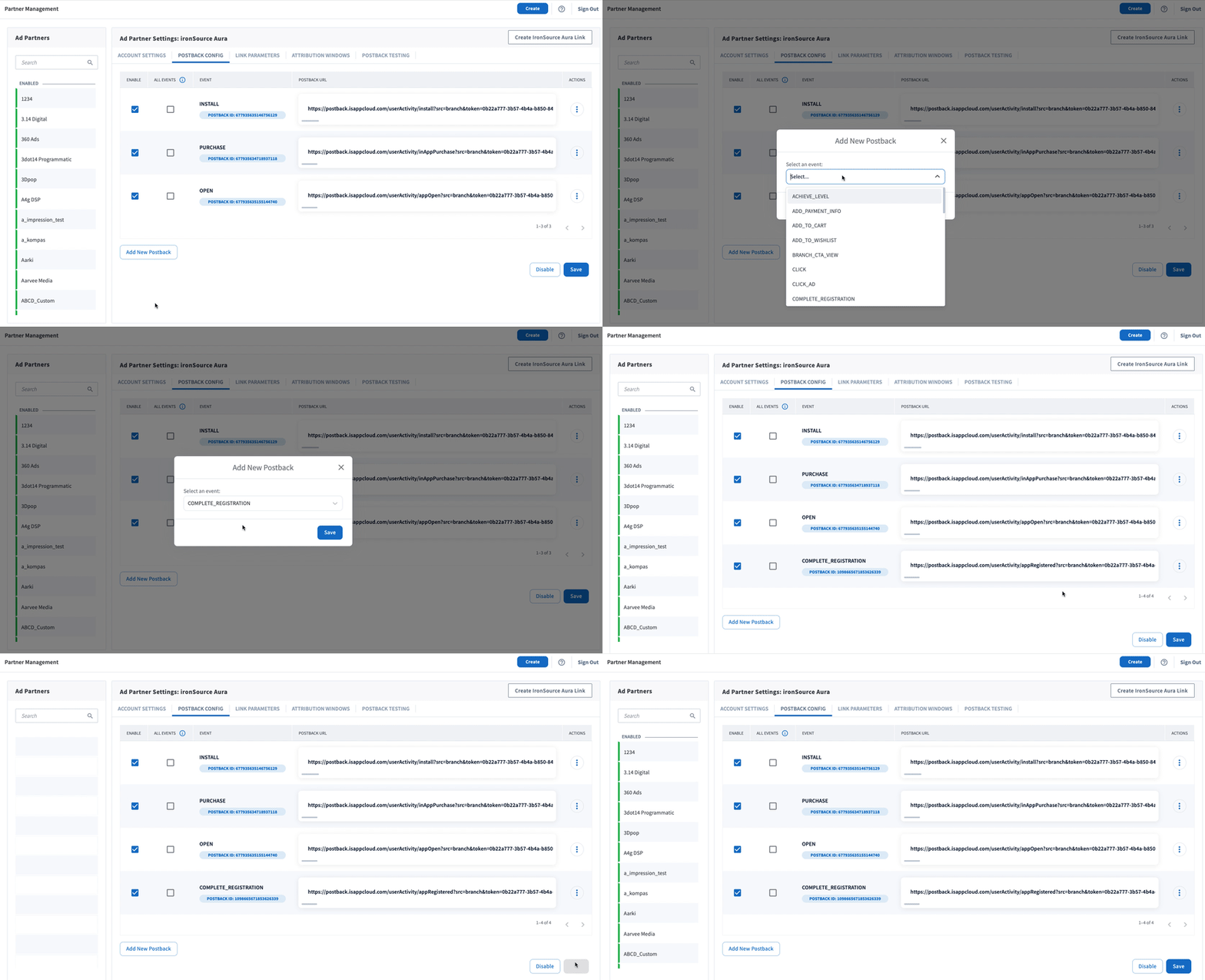
Click the **Add New Postback** button at the bottom of the screen. A modal will appear that will allow you to select an event that you are tracking with the Branch SDKs (including Custom Events).
For more in-depth postback configurations, view our guides:
- [Basic Postback Configuration](https://help.branch.io/marketer-hub/basic-postback-configuration.md)
- [Advanced Postback Configuration](https://help.branch.io/developer-hub/advanced-postback-configuration.md)
- **Recommended** 👍 [Test Postbacks](https://help.branch.io/marketer-hub/testing-postbacks.md)
### 3. Configure Attribution Windows
After configuring your events, navigate to the [**Attribution Windows**](https://dashboard.branch.io/ads/partner-management/a_performcb?tab=attribution_windows) tab to set windows by attribution type.
#### Recommended Attribution Windows
| Attribution Type | Window |
| --- | --- |
| click to session start | 90 days |
| click to install | 30 days |
| click to conversion event | 90 days |
| impression to session start | 1 day |
| impression to install | 1 day |
| impression to conversion event | 1 day |
### 4. Create Branch Ad Link
Next, you'll need to create a Branch Ad Link for your Perform[cb] campaigns in order for Branch to properly attribute conversions.
[Create Ad Links](https://help.branch.io/marketer-hub/ad-links.md)
The Branch Ad Link you create will be placed in your Perform[cb] campaign.
### 5. Verify Data in Branch
After launching your Perform[cb] campaigns, and conversions begin to happen, you'll want to verify data is being sent from Branch to Perform[cb]. You can look at the [Branch Dashboard's Liveview Webhook Records](https://dashboard.branch.io/liveview/webhooks) and apply the following filter:
| Filter | Operator | Value |
| --- | --- | --- |
| ad partner (3p) | equals | `a_performcb` |
Once applied, data should flow through the Liveview, and you can see the data being sent to Perform[cb] from Branch.