> For the complete documentation index, see [llms.txt](https://help.branch.io/llms.txt).
# IconPeak
> Connect IconPeak to Branch for attribution and deep linking on user acquisition campaigns.
## Overview
[IconPeak](https://www.iconpeak.com/) is the extension of your user acquisition team. We combine proprietary technology, expertise, and data to help agencies, brands, and app developers win in today's attention economy. We activate your global audiences by utilizing the best of our state-of-the-art DSP and in-house machine-learning technology.
SmartIcon: Our proprietary AI technology uses real-time post-install data not only to measure KPIs and optimize traffic delivery but also to recommend sources with the right traffic for your app.
RTB DSP: We make calculated real-time buying decisions and pool insights on user behavior to continuously optimize performance. We offer transparency on publishers, audiences, and invest your budget in real people through premium inventory.
### Partner Capabilities
| Capability | Details |
| --- | --- |
| Company Type | Contact support at IconPeak for more information. |
| Deep Linking | Supported |
| Attribution | • Click-Through Attribution |
| Ad Campaign Types | • Acquisition Campaigns |
| Ad Formats | Contact support at IconPeak for more information. |
| Click Types | • Server-side click |
| Supported Platforms | • iOS
• Android
• Windows |
| Link Wrapping | Not Supported |
| Cost Ingestion Support | Supported |
| Cost Ingestion Types | • ~~Click/Impression tracking link~~
• Email Import
• Manual File Upload |
| Pricing Models | • CPI |
## Before you begin
In order to enable IconPeak, you need to have completed the following:
1. Created a [Branch Dashboard](https://dashboard.branch.io/).
2. Have Branch's Performance [product](https://help.branch.io/marketer-hub/products.md) enabled for your Branch Account.
3. Implemented the Branch SDK into your mobile app ([iOS](https://help.branch.io/developer-hub/ios-sdk-overview.md) | [Android](https://help.branch.io/developer-hub/android-sdk-overview.md))
- [Track events](https://help.branch.io/developer-hub/track-branch-events.md)
4. Running campaigns through IconPeak.
## Enable IconPeak
### 1. Enable IconPeak in Branch
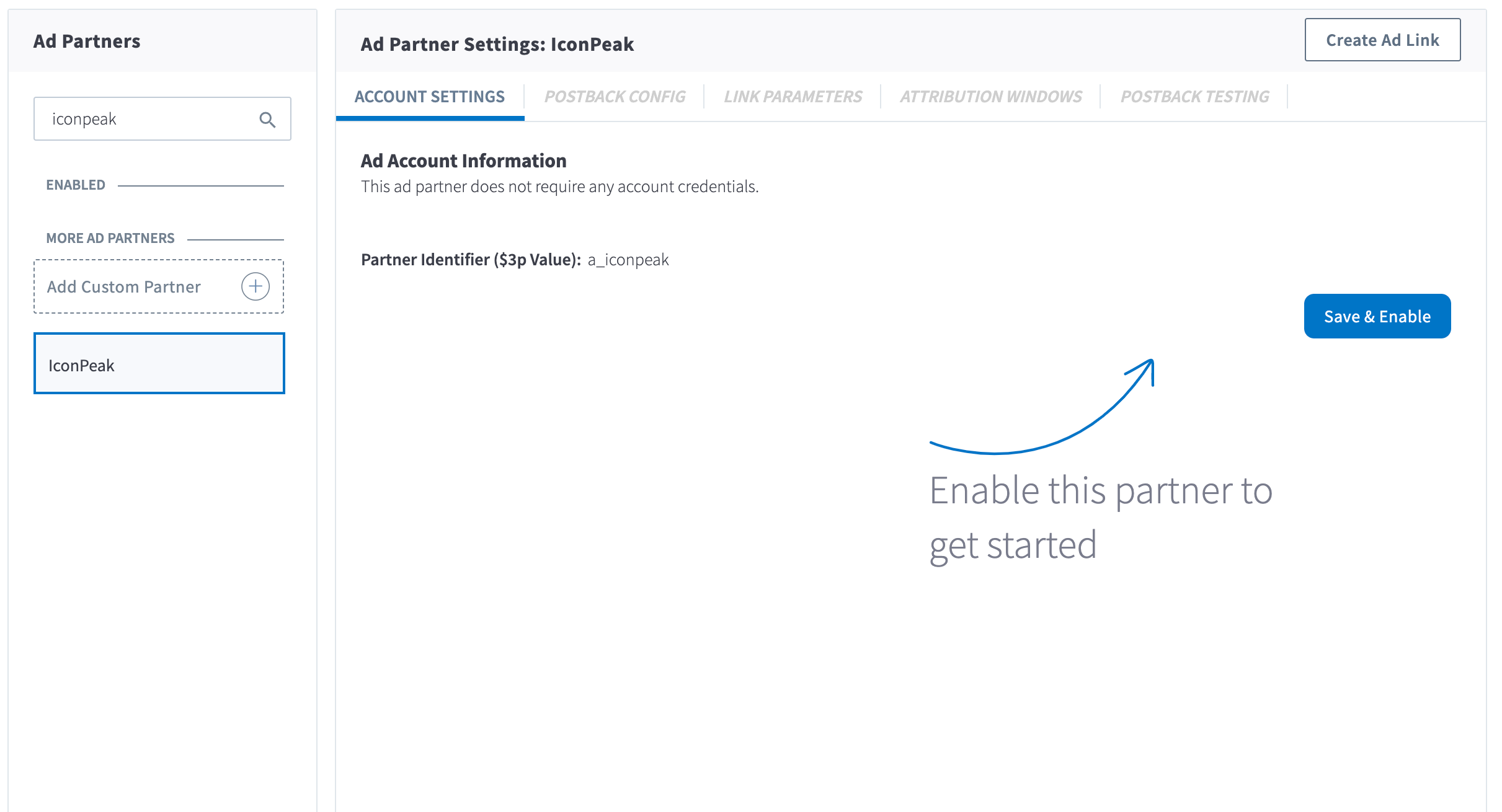
In the Branch Dashboard under **Ads** > [**Partner Management**](https://dashboard.branch.io/ads/partner-management), find/search for IconPeak. If you're already logged into the Branch Dashboard, you can also click [here](https://dashboard.branch.io/ads/partner-management/a_iconpeak?tab=settings) to go there directly.
Click the **Save & Enable** button.
### 2. Configure Postbacks
Enabling IconPeak will automatically enable the following postbacks:
- INSTALL
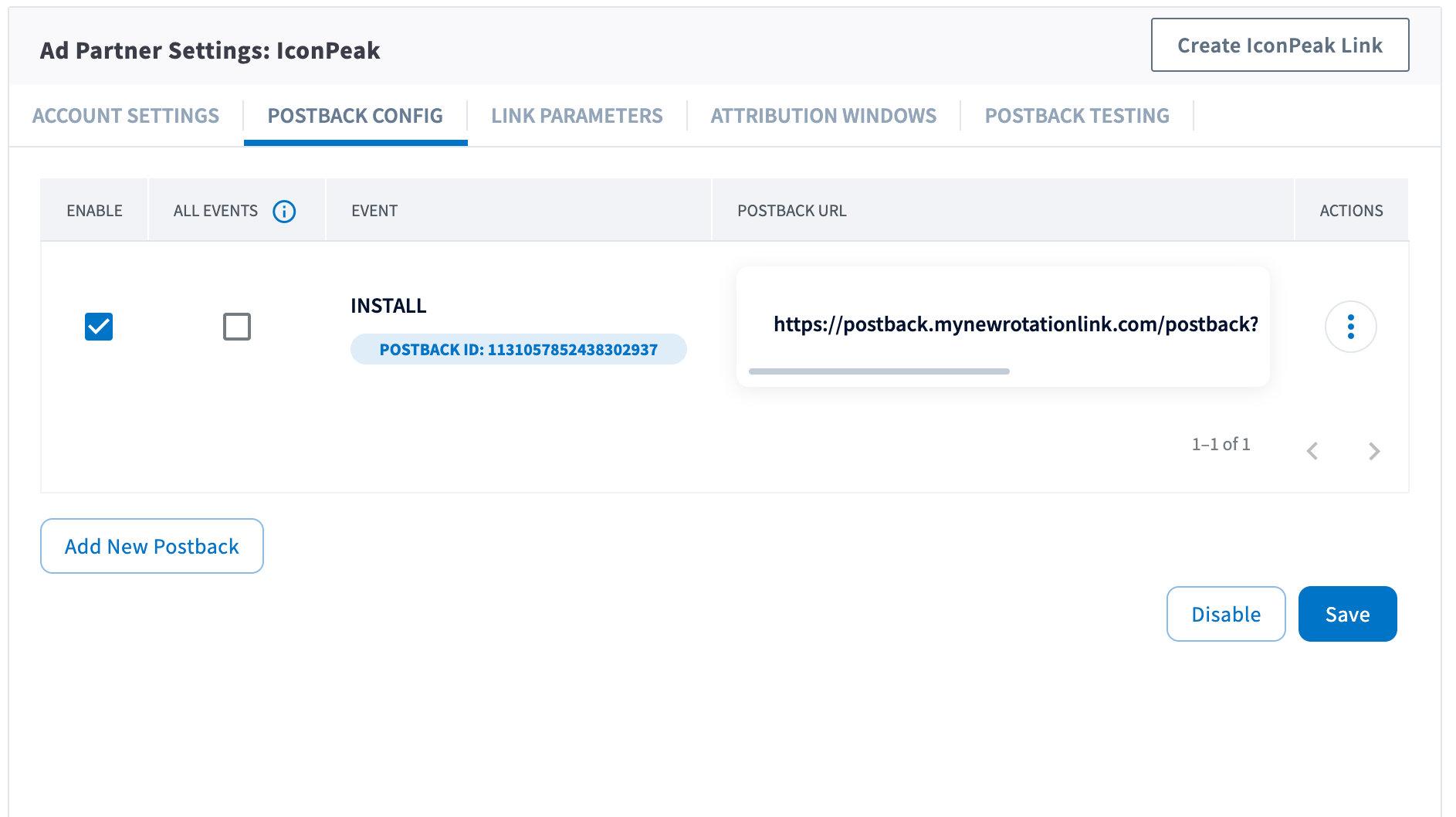
You can configure these postbacks or add more under the [**Postback Config**](https://dashboard.branch.io/ads/partner-management/a_iconpeak?tab=postback) tab.
#### Send All Events
Optionally, you can check the checkbox for a given postback for sending all events. When checked, all events will be sent regardless of attribution. Otherwise, the postback will only fire for events attributed to IconPeak.
#### Adding Postbacks
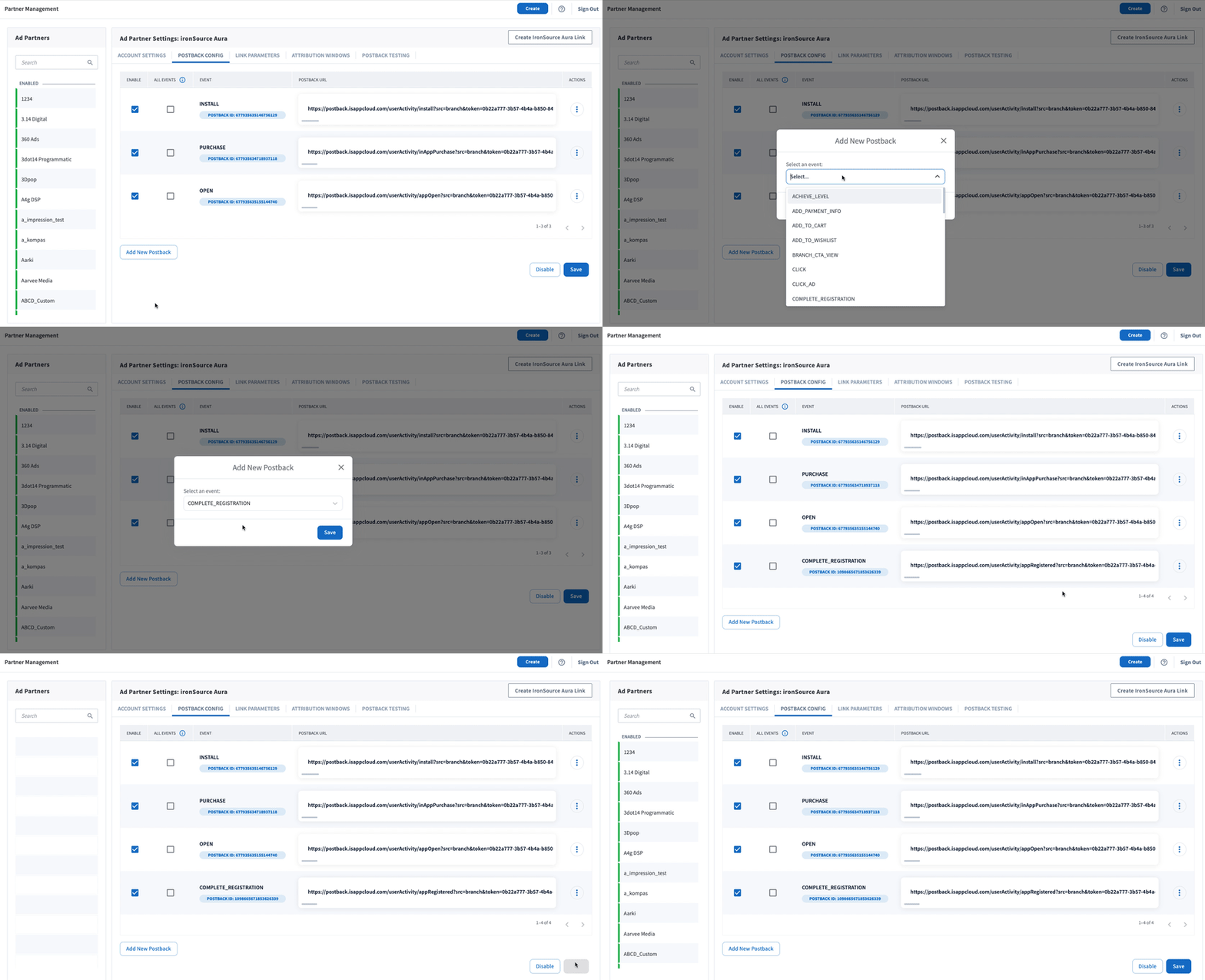
Click the **Add New Postback** button at the bottom of the screen. A modal will appear that will allow you to select an event that you are tracking with the Branch SDKs (including Custom Events).
For more in-depth postback configurations, view our guides:
- [Basic Postback Configuration](https://help.branch.io/marketer-hub/basic-postback-configuration.md)
- [Advanced Postback Configuration](https://help.branch.io/developer-hub/advanced-postback-configuration.md)
- **Recommended** 👍 [Test Postbacks](https://help.branch.io/marketer-hub/testing-postbacks.md)
### 3. Configure Attribution Windows
After configuring your events, navigate to the [**Attribution Windows**](https://dashboard.branch.io/ads/partner-management/a_iconpeak?tab=attribution_windows) tab to set windows by attribution type.
#### Recommended Attribution Windows
| Attribution Type | Window |
| --- | --- |
| click to session start | 90 days |
| click to install | 30 days |
| click to conversion event | 90 days |
| impression to session start | 1 day |
| impression to install | 1 day |
| impression to conversion event | 1 day |
### 4. Create Branch Ad Link
Next, you'll need to create a Branch Ad Link for your IconPeak campaigns in order for Branch to properly attribute conversions.
[Create Ad Links](https://help.branch.io/marketer-hub/ad-links.md)
The Branch Ad Link you create will be placed in your IconPeak campaign.
### 5. Verify Data in Branch
After launching your IconPeak campaigns, and conversions begin to happen, you'll want to verify data is being sent from Branch to IconPeak. You can look at the [Branch Dashboard's Liveview Webhook Records](https://dashboard.branch.io/liveview/webhooks) and apply the following filter:
| Filter | Operator | Value |
| --- | --- | --- |
| ad partner (3p) | equals | `a_iconpeak` |
Once applied, data should flow through the Liveview, and you can see the data being sent to IconPeak from Branch.