> For the complete documentation index, see [llms.txt](https://help.branch.io/llms.txt).
# Example Journeys Audience Configuration
> See example Journeys audience configurations you can adapt for your own web-to-app campaigns.
The Journeys audience tool is extremely powerful, but sometimes a few examples can help kickstart your creative juices. Here are some of the common audience use cases to help you get started.
## New Users
In this example, you'll configure an audience to target people who have visited your site **less than 3 times** historically. Anyone who had visited more than this will be excluded.
1. From the **Select Audience** screen, under **Select the audience you want to target** click to add a new filter.
2. Select **Has visted web**.
3. Choose the option **Less than or equal to** in the middle section:
4. Enter `2` in the last part to indicate you want to target people who have visited less than 3 times historically.
5. Click **Save & Continue**.

## Loyal Users
In this example, you'll configure an audience to target people who have visited your site **at least 4 times** historically. Anyone who had visited less than this will be excluded.
1. From the **Select Audience** screen, under **Select the audience you want to target** click to add a new filter.
2. Select the option **Has visited web**.
3. Choose the **More than or equal to** in the middle section:
4. Enter `4` in the last part to indicate you want to target people who have visited at least 4 times historically.
5. Click **Save & Continue**.

## Viewing a specific page URL
In this example, you'll configure an audience to target people who land on a specific page URL. This option has several targeting options:
| Targeting option | Description |
| --- | --- |
| exactly matching | This is used if you want to target users landing on a page URL that's domain, path, and query parameter sensitive. For example, you can use this to target people who land on the homepage of your site and only the homepage (i.e. users who directly type your homepage into their address bar) or users who land on a specific product page. |
| not matching | This is used as a negation of the *"exactly matching"* option. |
| starting with | This is used if you want to target users landing on a page URL that starts with a specific URL and ends with anything. |
| not starting with | This is used as a negation of the *"starting with"* option. |
| with query param key | This is used if you want to target users landing on a page URL that contains a specific query parameter key. This option lets you further target based on the options for the value of the query parameter: • whose value matches
• whose value starts with
• whose value matches anything |
| without query param key | This is used as a negation of the *"with query param key"* option. |
| whose domain matches | This is used if you want to target users landing on a page URL on a specific domain. This option is good if your website used multiple domains and you would like to target them specifically (stripped of any http(s), www., subdomains, paths, and query parameters).
`example.com` |
| whose domain does not match | This is used as a negation of the *"whose domain matches"* option. |
| whose path contains | This is used if you want to target users landing on a page URL that contains a specific path. This option is good if you want to target based on specific sections of your website (i.e. mid-funnel).
`shoes` (targeting users who are looking at pages like `https://example.com/shoes` and `https://example.com/shoes/abc123`) |
| whose path does not contain | This is used as a negation of the *"whose path contains"* option. |
Here are a few examples of using this target for a specific audience:
- User lands on Post Transaction or Order Confirmation Page using the `exactly matching` option
- User is mid-funnel in a transaction on a specific path using the `whose path contains` option
- User lands on a page URL coming from a specific ad using the `with query param key` option
## Retargeting Users
In this example, you'll configure an audience to target people who have completed some action on your site in a past or current session. For example, if a user had added something to their cart or had previously completed a purchase. This filter will consider all Branch Standard and Custom events created either in-app or web. You can retarget these users with a custom call to action to download. We'll use a generic event called `MyAction` in the example.
1. From the **Select Audience** screen, under **Select the audience you want to target** click to add a new filter.
2. Select the option **Has completed event**.
3. Choose the custom event to retarget from. Here, we'll use a generic event called `some_event` but you would select `Purchase` or something more meaningful to your use case.
4. Choose the **More than or equal to**.
5. Enter `3` in the last field to indicate you want to target people who have completed `some_action` more than 2 times historically.
6. Click **Save & Continue**.

> **Event-Based Targeting**
>
> Note: There requires some time before Branch can properly trigger Journeys banners on event completion. This filter is intended to target based on repeated actions completed over time.
>
> If you require point-in-time banner rendering, you would need to implement [Web SDK methods](https://help.branch.io/developer-hub/web-full-reference.md#addlistener).
## SEO Friendly
Google announced that they will begin punishing sites that show a full-page interstitial when a user comes from search. Because of this, you'll likely need to treat Google search traffic differently than traffic that comes from any other source. In this example, you'll set up an audience specific to users who come from Google.
1. From the **Select Audience** screen, under **Select the audience you want to target** click to add a new filter.
2. Select the option **Came directly from a url**.
3. Choose the **starting with** in the middle section to match a substring.
4. Type in `google.com` and click enter. This will target users who come from Google search (where the referrer starts with google.com):

Alternatively, you can target users who did **not** come from Google search (where the referrer doesn't start with google.com):

5. Click **Save & Continue**.
## English-speaking iOS users
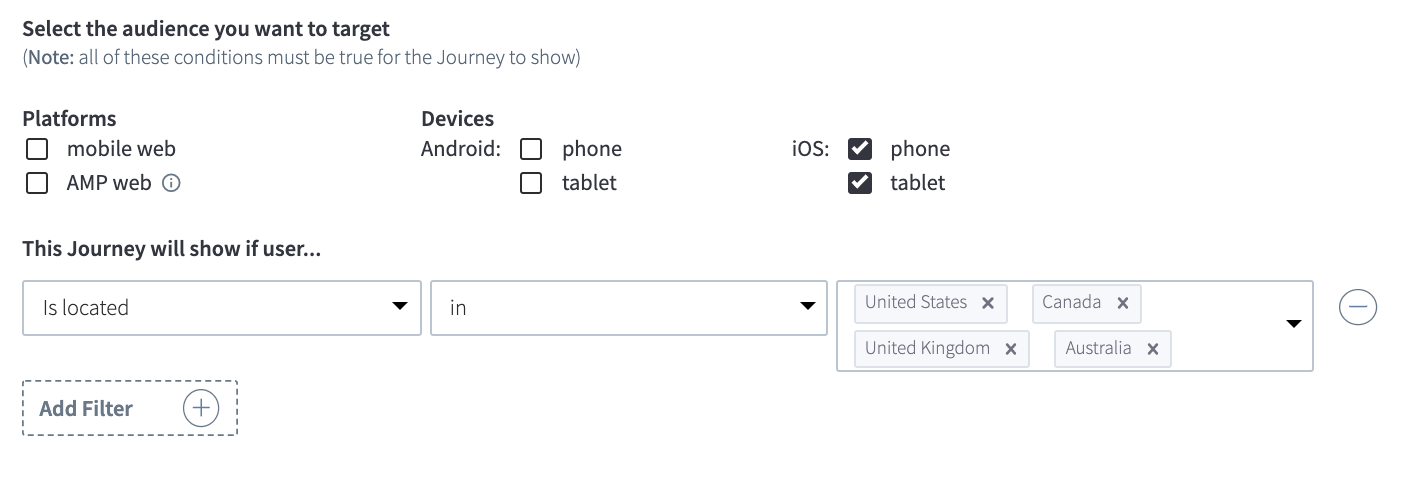
In this example, you'll restrict the audience to users in countries where English is the native language that are on the iOS operating system. To set this up:
1. From the **Select Audience** screen, select the devices you want your Journey to appear on.
2. Under **Select the audience you want to target**, add a filter and select **Is located** `in` and choose the following countries: `United States`, `Canada`, `United Kingdom`, and `Australia`.
3. Click **Save & Continue**.