> For the complete documentation index, see [llms.txt](https://help.branch.io/llms.txt).
# Enable Engagement Builder
> Enable Engagement Builder to create targeted engagement groups for re-engagement campaigns while adhering to data usage restrictions.
## Overview
By enabling Engagement Builder, Branch will be able to surface specific audiences to be used for re-engagement campaigns.
Please note that any use of imported user data to create Engagement Groups may be subject to certain limitations and restrictions imposed by those respective platforms from which the data was sourced. If you use the Engagement Builder feature, we recommend that you review the agreements you have in place with your partners to ensure you understand and can abide by, any limitations and restrictions from those platforms regarding the use of any data you import.
## Before you begin
In order to enable Engagement Builder, you need to have completed the following:
1. Created a Branch Dashboard.
2. Enabled Ads **and** Engagement Builder for your Branch account.
- Enterprise clients should contact their account manager to schedule deployment.
3. Implemented the Branch SDK into your mobile app ([iOS](https://help.branch.io/developer-hub/ios-sdk-overview.md) | [Android](https://help.branch.io/developer-hub/android-sdk-overview.md)).
- [Track events](https://help.branch.io/developer-hub/track-branch-events.md)
4. Logged into the Branch Dashboard with the [Engagement Builder Permission enabled](https://help.branch.io/account-hub/default-access-levels-users-roles-permissions.md).
## Enable Engagement Builder
### 1. Create an Engagement Group
In the Branch Dashboard, navigate to the [Engagement Builder screen](https://dashboard.branch.io/engagement), and click the blue **New Group** button.
### 2. Define Rules
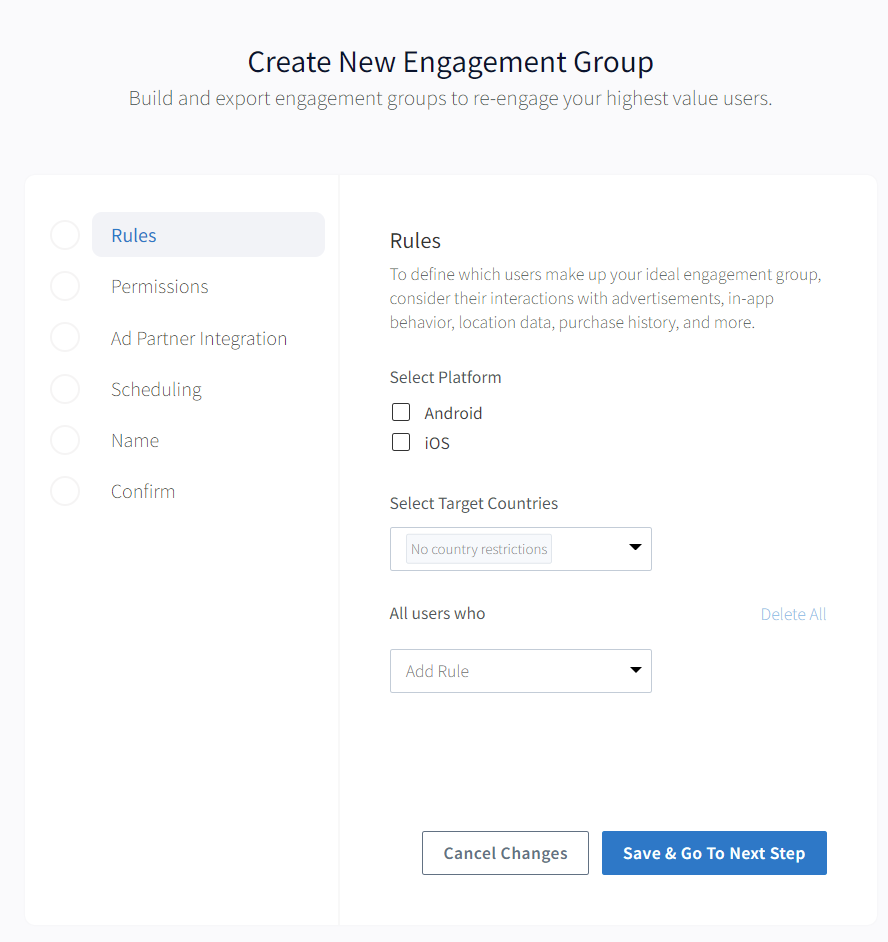
Rules allow you to select users based on past behaviors and established attributes. Rules can be combined by using **AND** logic.
#### Select Target Platforms

#### Select App Version

#### Select Target Countries
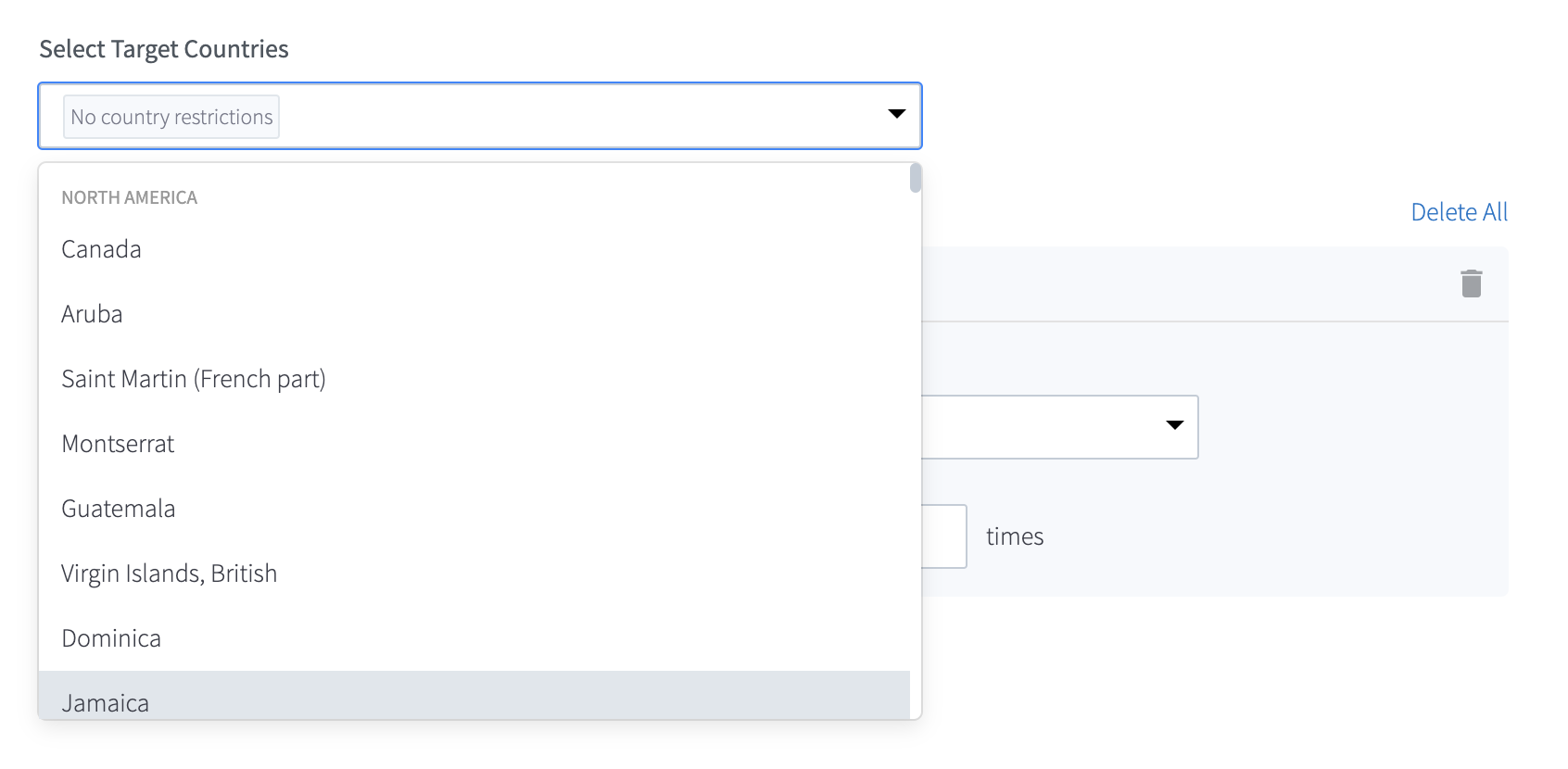
You can select multiple from the drop-down. By default, **No country restrictions** is selected.
#### Select User Group Rules
| Category | Rules |
| --- | --- |
| In-App Behavior | • Active App Users
• Complete Event
• Recently Installed App
• Lapsed App Users |
| Monetization | • Abandoned Cart
• Purchasers
• Revenue |
| Advertising Exposure | • Advertising Partner
• Clicked Adverts
• Clicked Emails
• Interacted with Journey
• Organically Acquired
• Viewed Adverts |
#### Select Timeframe
| Timeframe | Options |
| --- | --- |
| In the last | • 1 Day (yesterday)
• 7 Days
• 30 Days
• 60 Days
• 90 Days
• 179 Days
• Exactly X Days
• Quarter to date
• Month to date |
| Between dates | • Start Date & End Date |
Timeframes can reach back up to 179 days.
#### Select Frequency
| Frequency | Options |
| --- | --- |
| More than or equal to X times | 1 to 250 Integer |
| Less than or equal to X times | 1 to 250 Integer |
| Exactly X times | 1 to 250 Integer |
| Between X and Y times | 1 to 250 Integer |
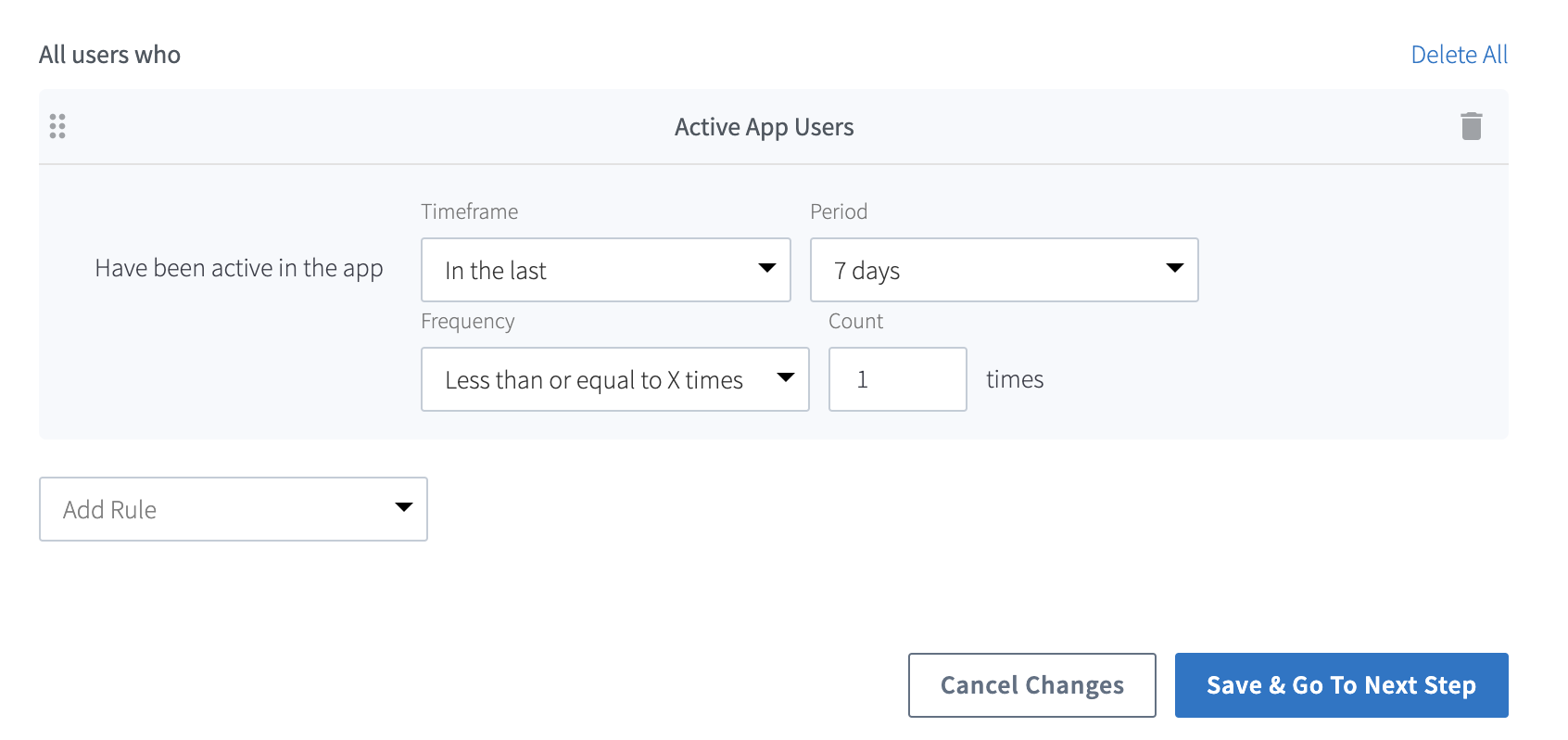
Once rules are defined, click **Save & Go To Next Step**.
### 3. Choose Permissions (OPTIONAL)
You can share access to this engagement group with agencies and ad partners working on this account.
To share access with third parties connected to your account, click the **Select partner** dropdown, and **Add** the agency and/or ad partner.
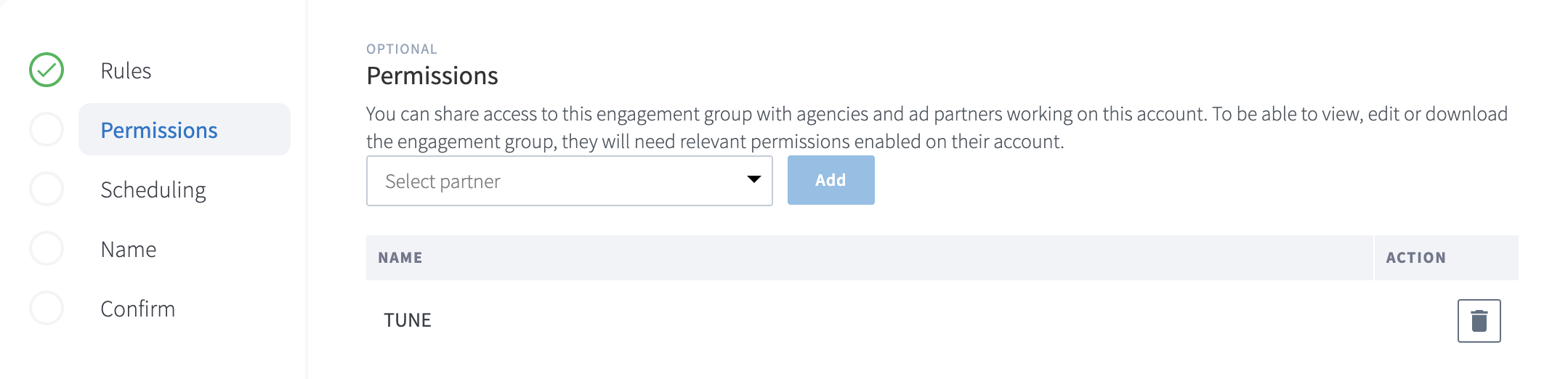
To be able to view, edit, or download the engagement group, they will need [relevant permissions](https://help.branch.io/account-hub/default-access-levels-users-roles-permissions.md#access-levels) enabled on their account.
### 4. Connect Engagement Group to an Ad Partner
Using the **Select Ad Partner** dropdown, select one of the following options:
- Facebook
- Google Adwords
- Snap
- TikTok
Then select **Ad Account** to find your ad account.
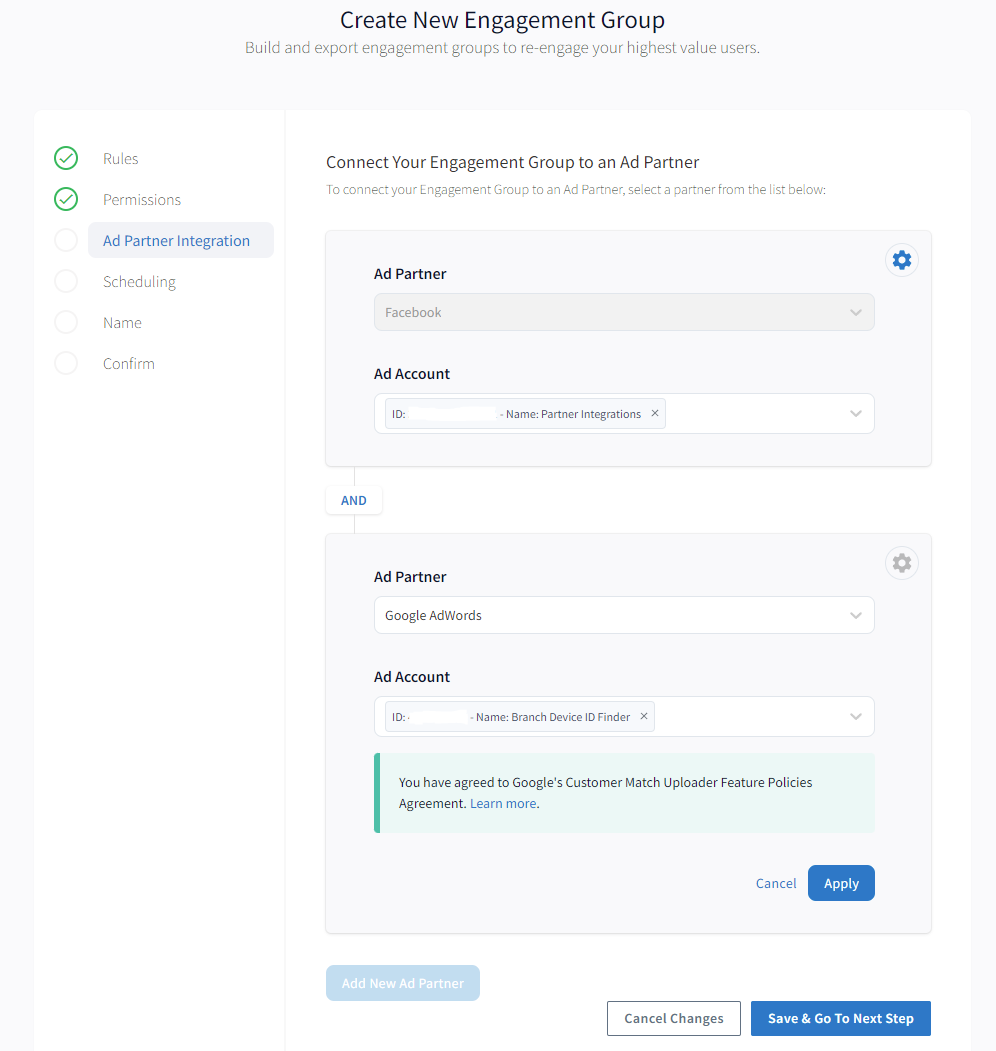
You can continue to use the **AND** logic to add multiple ad partners.
#### Facebook
> **Custom Audience Terms**
>
> To upload the data to Facebook, please agree to the [Facebook Custom Audience Terms](https://developers.facebook.com/docs/marketing-api/audiences/reference/custom-audience-terms-of-service/) at `https://business.facebook.com/ads/manage/customaudiences/tos/?act=`.
For Facebook, you must do the following **if you already had Facebook integrated with Branch**:
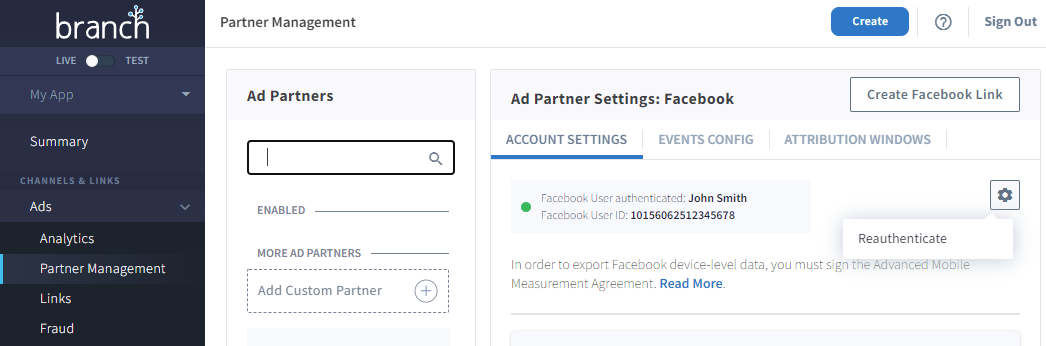
1. Navigate to your [Facebook Settings in the Branch Dashboard](https://dashboard.branch.io/ads/partner-management/a_facebook?tab=settings)
2. Hover over the cog icon, and click **Reauthenticate**
- **Note:** This will cause a slight discrepancy in the Branch Dashboard as it reestablishes its connection to Facebook.
#### Google Adwords
For Google Adwords, you must do the following:
1. Reach out to your Google Ads account manager to enable and use [Customer Match](https://support.google.com/google-ads/answer/6379332?hl=en).
2. Agree to the additional permissions (if applicable) when prompted before being able to integrate your engagement group with Google.
### 5. Select Scheduling
Choose how often your engagement group should update. “One-time” creates an export file just once, while daily will automatically refresh the segment based on users that start or stop meeting your criteria.
To choose how often your engagement group is updated:
1. Select either **One-time** or **Refresh Daily**.
- **One-time** - The engagement group is generated once, and not scheduled to refresh.
- **Refresh Daily** - The engagement group is re-generated every 24 hours.
2. Once done defining the rule, click **Save & Go To Next Step**.
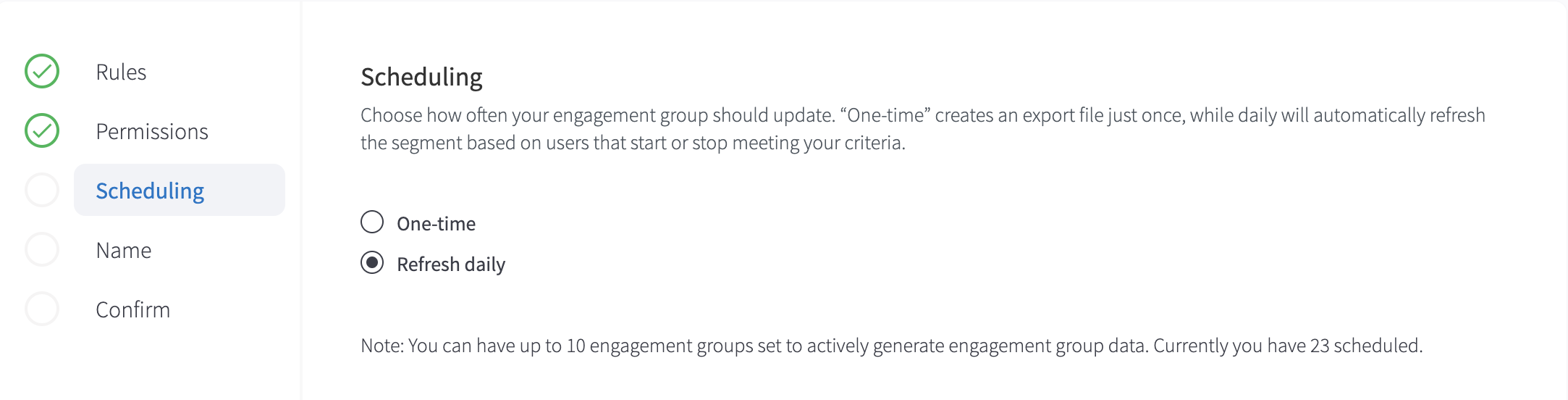
You can have up to 10 engagement groups set to actively generate engagement group data.
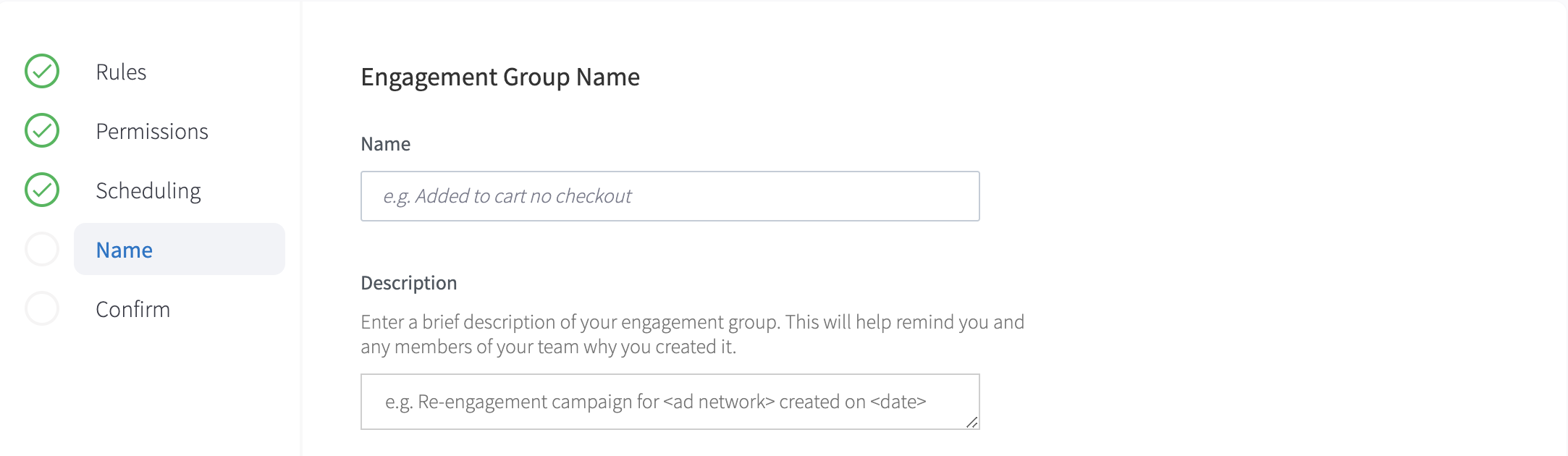
### 6. Set Engagement Group Name
Name your Engagement group and provide a description to help remind you and any members of your team why you created it.
### 7. Confirm Your Engagement Group
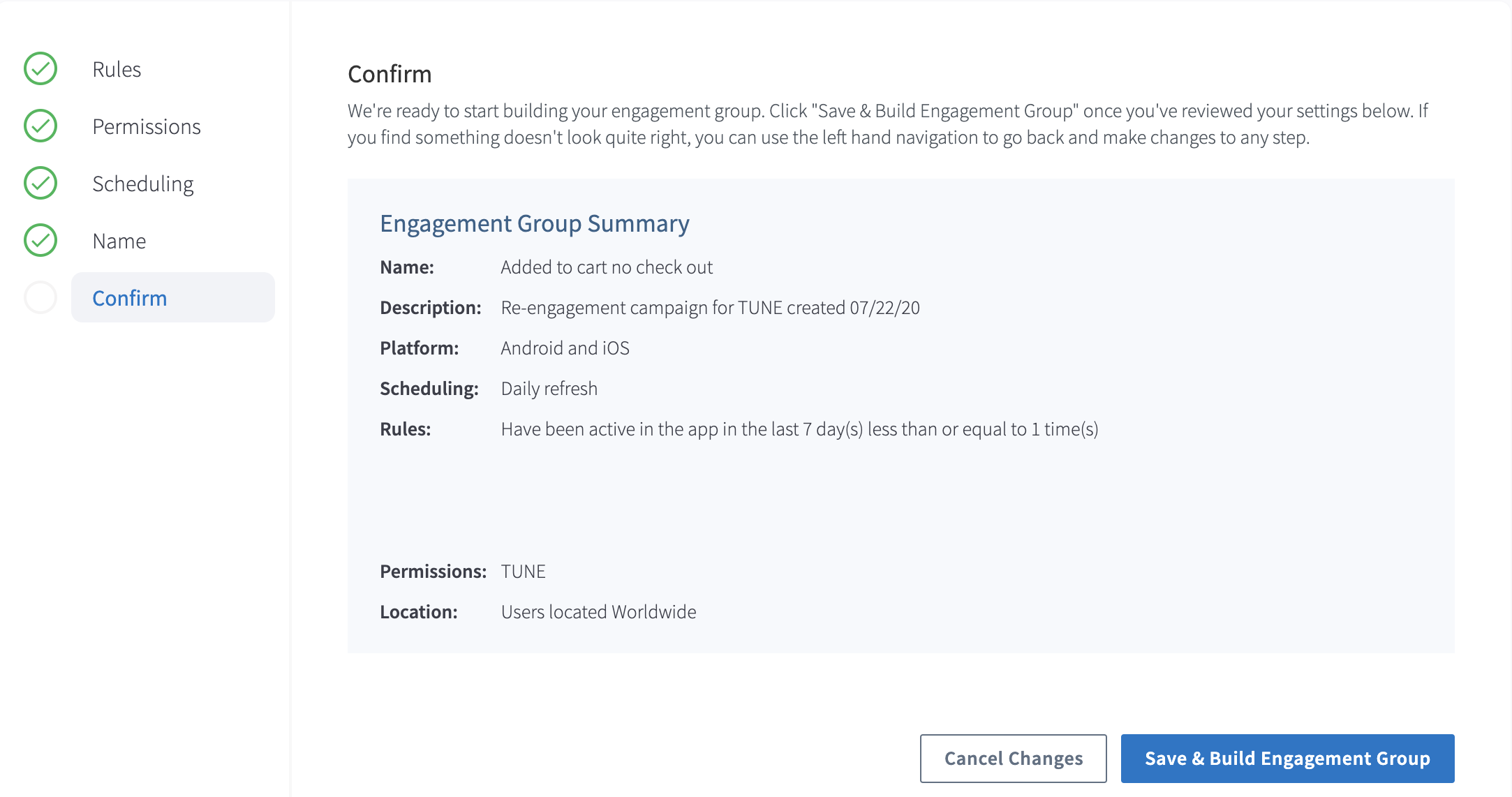
Click **Save & Build Engagement Group** once you've reviewed your settings. If you find something doesn't look quite right, you can use the left hand navigation to go back and make changes to any step.