> For the complete documentation index, see [llms.txt](https://help.branch.io/llms.txt).
# Dashboard Custom Exports
> Build custom Branch data exports to analyze campaign performance at a granular level, with agency access notes.
## Overview
Branch data is valuable when it comes to truly understanding your campaign performance. One way to understand Branch data at a granular level is through Branch Custom Exports. Users with the correct permission can access Custom Exports via the Branch Dashboard (this guide) or via the [Custom Exports API](https://help.branch.io/apidocs/custom-exports/overview.md).
Custom Exports through the Branch Dashboard will be outputted in CSV or JSON.
## Limitations
> **Caution**
>
> **Apple requires users to opt in to sharing their device data through** [**Apple's AppTrackingTransparency framework**](https://developer.apple.com/app-store/user-privacy-and-data-use/)**. When an install is attributed to paid ads, a 2nd install event will fire post user opt-in.**
>
> Opt-ins will affect your final install count. Our recommendation is to use a different identifier (ex. IDFV) to de-dupe install events on your internal systems.
>
> For additional information on changes post iOS 14.5, visit our [FAQ Pages](https://help.branch.io/marketer-hub/category/ios-14-faqs.md).
| Limitation | Details |
| --- | --- |
| Max number of days that can be queried at a time | 60 days |
| Max number of records per export | 2 million |
| Max lookback | 180 Days |
| Rate Limits | • 10 requests per minute
• 25 requests per hour |
| Test Environment Custom Export | Not supported |
| Identical Requests | Export requests made within 60 minutes will be cached to avoid the case of hundreds or thousands of requests being made for the exact same data set within seconds or minutes of each other. After 60 minutes, your request will kick off a new job to retrieve data. |
If more records are required, please make multiple requests with smaller intervals to pull the necessary data in "batches".
## Before you begin
In order to access Custom Exports, you need to have completed the following:
1. Created a [Branch Dashboard](https://dashboard.branch.io/).
2. Enabled Data Feeds for your Branch account.
- Contact your Branch account manager or visit
3. Implemented the Branch SDK into your mobile app ([iOS](https://help.branch.io/developer-hub/ios-sdk-overview.md) | [Android](https://help.branch.io/developer-hub/android-sdk-overview.md)).
- [Track events](https://help.branch.io/developer-hub/track-branch-events.md)
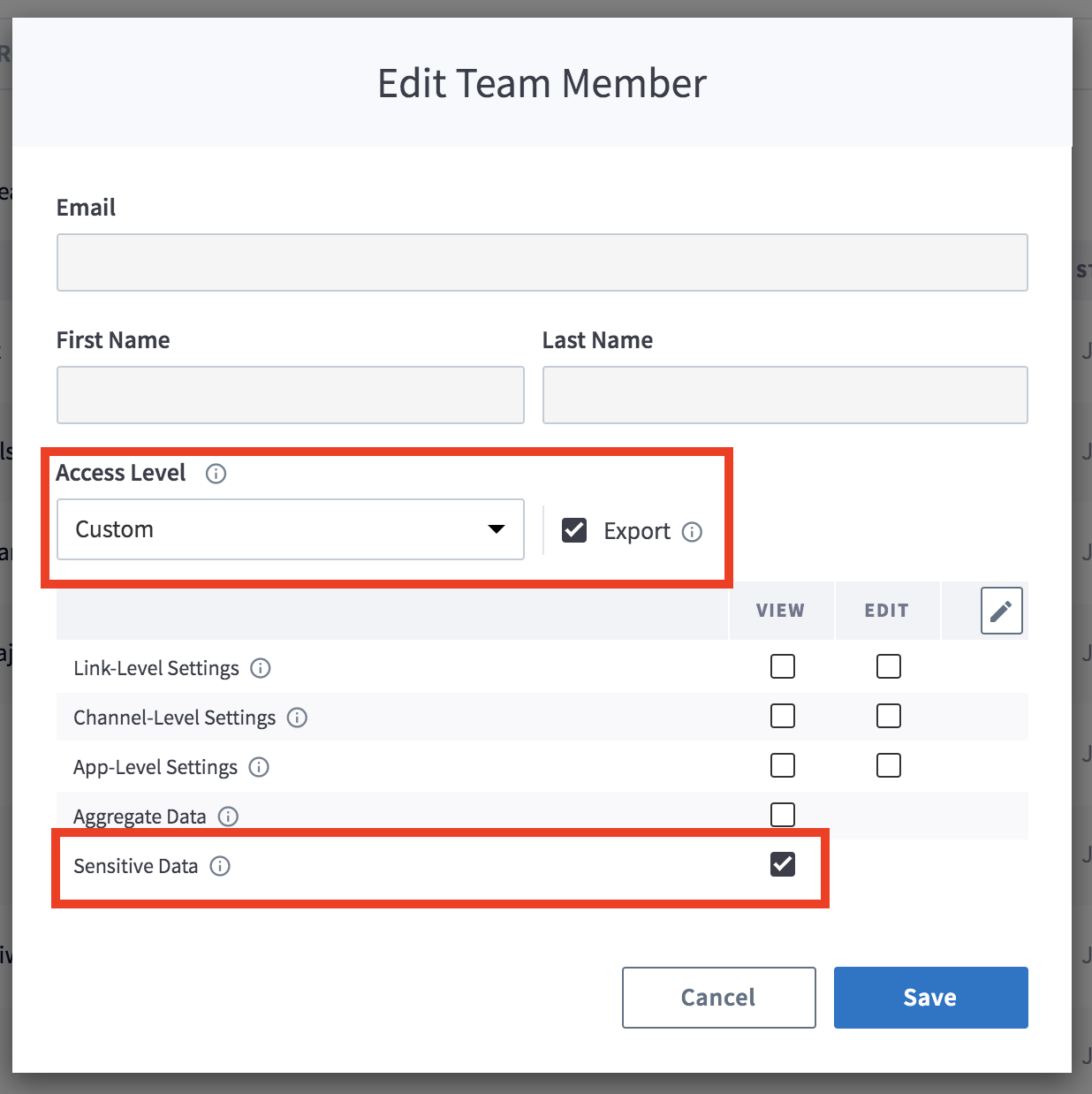
4. Have [**Sensitive Data and Export access**](https://help.branch.io/account-hub/default-access-levels-users-roles-permissions.md).
### Agency Access
If you work with an agency that runs your advertising campaigns and you want to give them access to export the subsequent data, you can provide them with access to the Custom Exports.
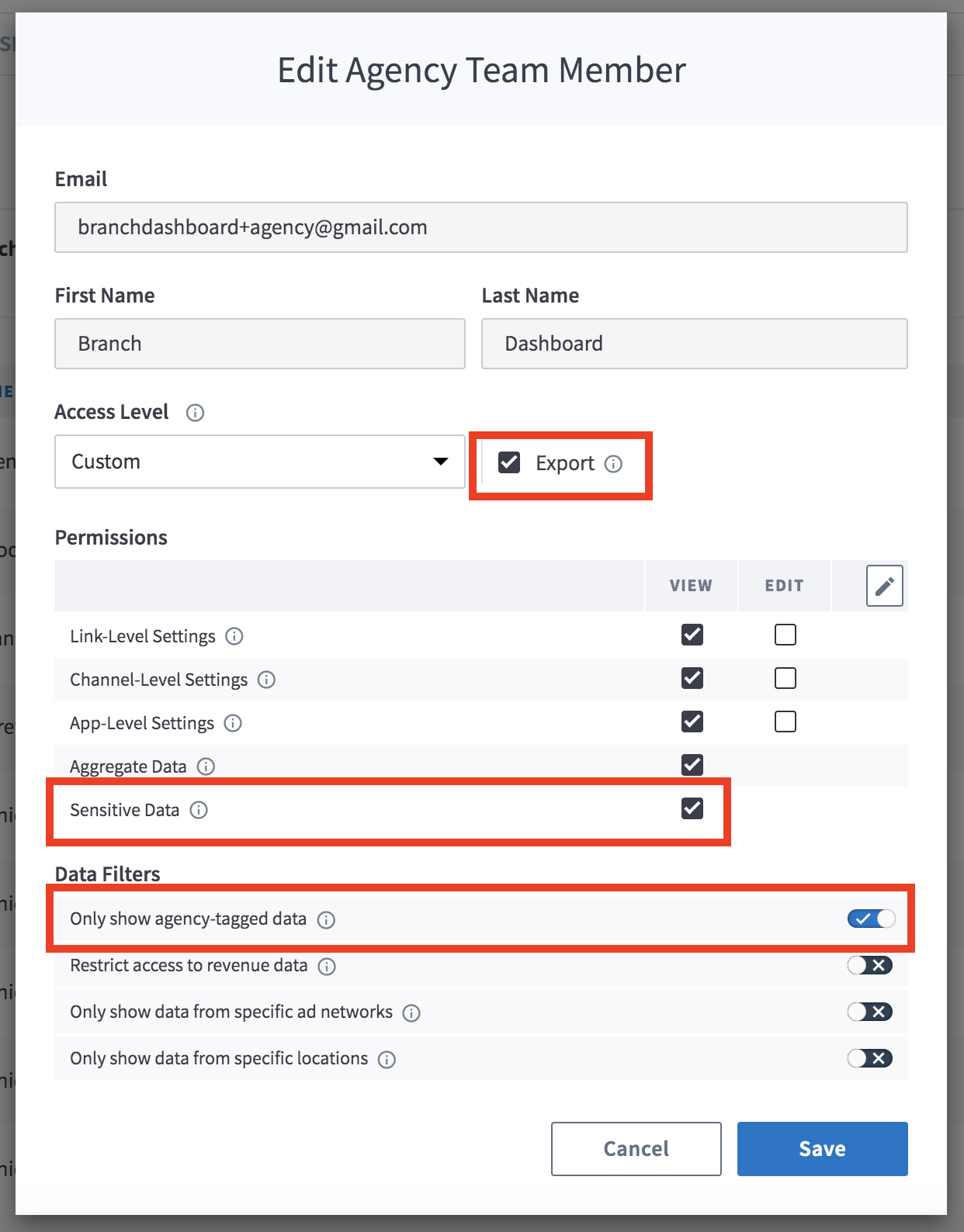
To provide an agency team member with access to the Custom Export API:
1. In the left-hand navigation, under **Configure**, click on **Account Settings**.
2. On the **Account Settings** page, click on the **Agencies** tab.
3. Expand the agency in question, find the agency team member you want to give access to, hover on the button in the **Actions** column and click **Edit**.
4. In the **Edit Agency Team Member** modal:
- Under **Access Level**, check the **Export** box.
- Under **Permissions**, check the **Sensitive Data** box.
5. Optional: add data filters
- Under **Data Filters**, toggle any necessary data filters on. Exported data will be filtered accordingly.
6. Click **Save**.
## Pre-Configured Exports
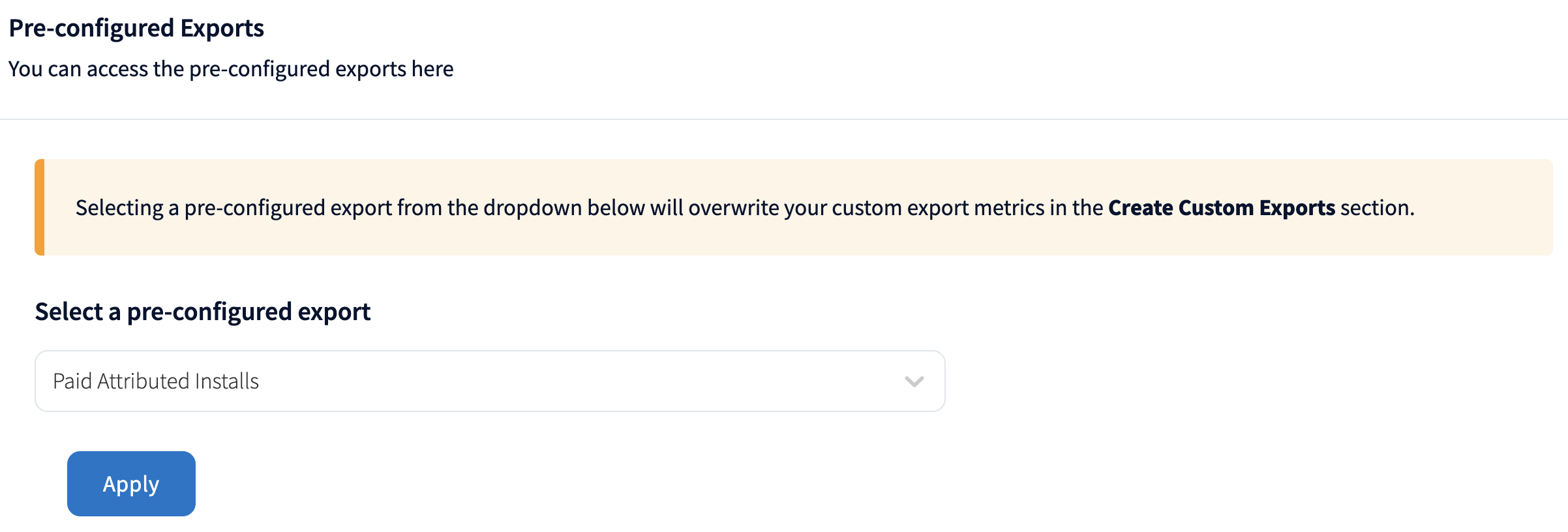
Use pre-configured exports to quickly access specific exports configured by Branch or created by other users who have access to your Branch Dashboard.
After logging in to Branch Dashboard, in the left-hand navigation, under the **Exports** section, click [**Custom Exports**](https://dashboard.branch.io/custom-exports). Pre-configured exports should be accessible through the dropdown, and selecting one will overwrite anything set in the **Create Custom Exports** section with pre-configured settings (topic, dimensions, filters).
### Default Pre-Configured Exports
Branch supplies a set of pre-configured exports that will make getting started easier:
| Pre-Configured Export | Description |
| --- | --- |
| Paid Attributed Installs | Export attributed installs for paid ads campaigns. |
| SAN Attributed Installs | Export attributed installs for ads campaigns from self-attributing networks (Facebook, Google Adwords, Google Marketing Platform, Twitter, Snap, Apple). |
| SAN Attributed Purchase | Export attributed commerce events for ads campaigns from self-attributing networks (Facebook, Google Adwords, Google Marketing Platform, Twitter, Snap, Apple). |
| SAN Touch | Export self-attributing network touches used for measuring multi-touch attribution. |
| Non-Paid Channels Installs | Export attributed installs for non-paid ads channels. |
| Acquisition Cohort Purchase | Export attributed purchase events. |
## Create Custom Exports
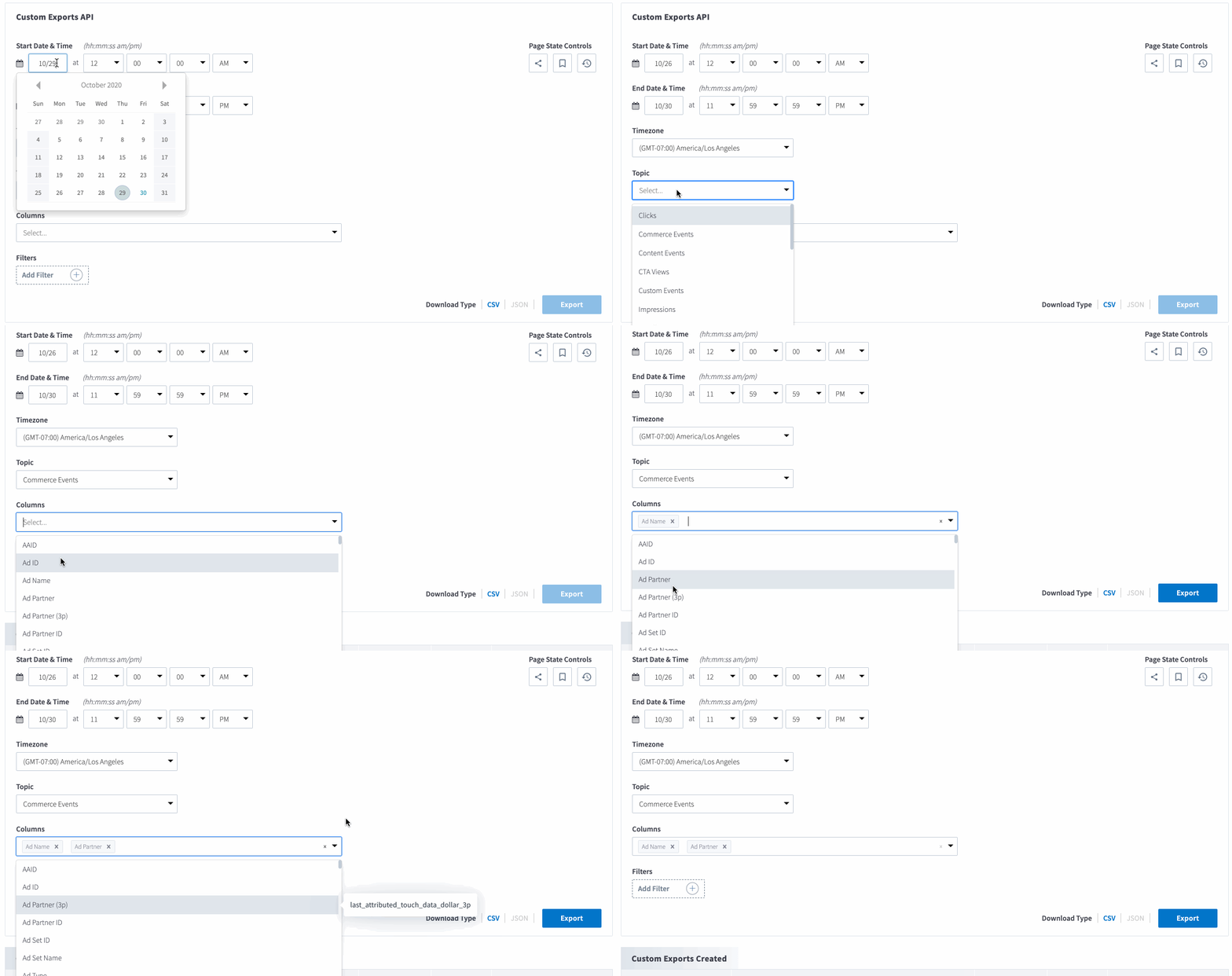
After logging in to Branch Dashboard, in the left-hand navigation, under the **Exports** section, click [**Custom Exports**](https://dashboard.branch.io/custom-exports).
### 1. Set Dates, Times, and Timezone
When setting your date, time, and timezone, be sure that your export is within the [limitations](https://help.branch.io/marketer-hub/dashboard-custom-exports.md#limitations).
### 2. Set Topic
The topic you select should be based on what you are looking to export. For most cases, you will want to select the topic that matches your event name. See below to outline which topic to select based on the event:
#### Topic Event Mappings:
| Event Type | Event Names |
| --- | --- |
| Commerce Events | • Add To Cart
• Add To Wishlist
• View Cart
• Initiate Purchase
• Add Payment Info
• Click Ad
• Purchase
• Reserve
• Spend Credits
• View Ad |
| Content Events | • Search
• View Item
• View Items
• Rate
• Share
• Initiate Stream
• Complete Stream |
| User Lifecycle Events | • Complete Registration
• Complete Tutorial
• Achieve Level
• Unlock Achievement
• Invite
• Login
• Start Trial
• Subscribe
• Opt In
• Opt Out |
| Custom Events | All other event names |
> **Fraud**
>
> You can also set the Topic to any of the **Blocked** events to filter for any fraudulent events with device IDs.
### 3. Select Columns
The columns you select are dependent on what you are looking to understand out of your export.
### 4. Configure Filters
You can add filters to get even more granular with what you are exporting. Filters help you specify the values for the columns you are looking to export.
## Example Custom Exports
There are many purposes for initiating a Custom Export depending on the type of data you are looking to analyze. Below are a few examples:
### Android & iOS Installs with Device IDs
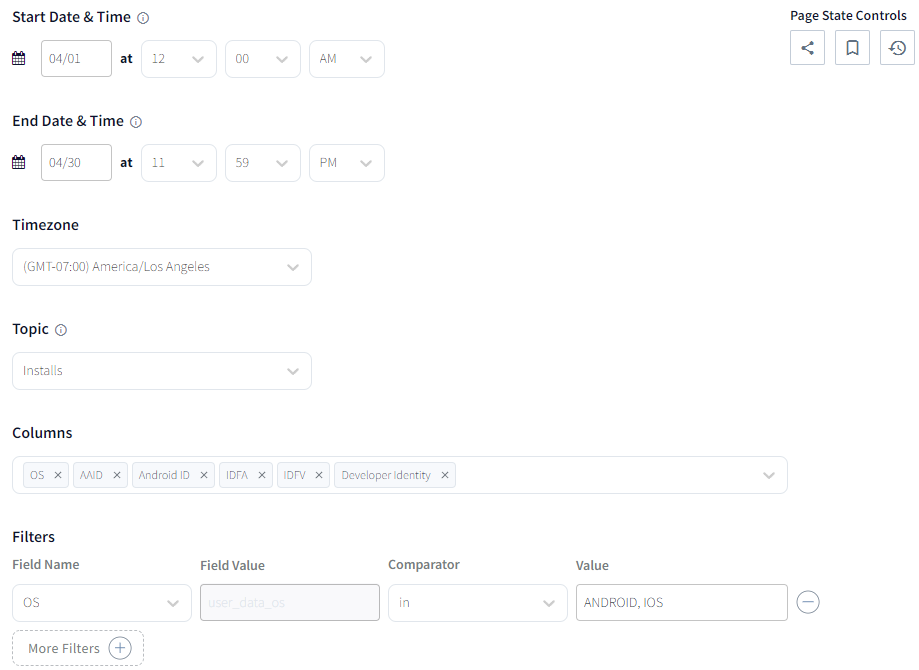
| Configuration | Details |
| --- | --- |
| Topic | Installs |
| Columns | • Attributed
• OS
• AAID
• Android ID
• IDFA
• IDFV
• Developer Identity |
| Filters | `OS` in `ANDROID, IOS` |
### Purchase Event Data
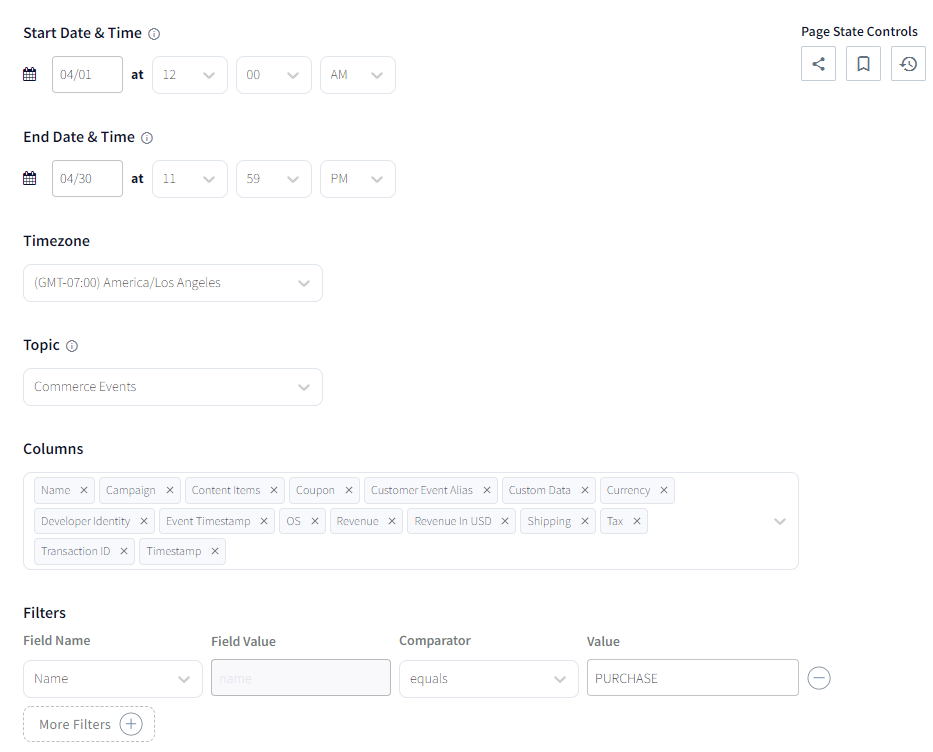
| Configuration | Details |
| --- | --- |
| Topic | Commerce Events |
| Columns | • Attributed
• Name
• Campaign
• Content Items
• Coupon
• Customer Event Alias
• Custom Data
• Currency
• Developer Identity
• Event Timestamp
• OS
• Revenue
• Revenue in USD
• Shipping
• Tax
• Transaction ID
• Timestamp |
| Filters | `Name` equals `PURCHASE` |