> For the complete documentation index, see [llms.txt](https://help.branch.io/llms.txt).
# Create Journeys Banners or Interstitials
> Create a Journeys banner or interstitial, with prerequisites for SDK integration and domain configuration.
## Before you begin
To create a Journey, you first need to:
- Integrate the [Branch SDK](https://help.branch.io/developer-hub/native-sdks-overview.md) into your app and configure deep link routing and attribution.
- Add your `xxxx-alternate.app.link` domain in your Associated Domains. Journeys uses your alternate domain for iOS Universal Links and Android App Links. If you use a custom domain or subdomain for your Branch Links, add entries for both `applinks:[mycustomdomainorsubdomain]` and `XXXX-alternate.app.link`.
- Add the [Branch Web SDK](https://help.branch.io/developer-hub/web-sdk-overview.md) to your site.
## 1. Select audience
To create a Journey, click **Create** on the top right of any page on the Branch Dashboard, then select **Journey**. You can also select **Create a New Journey** on the **Journeys** page.
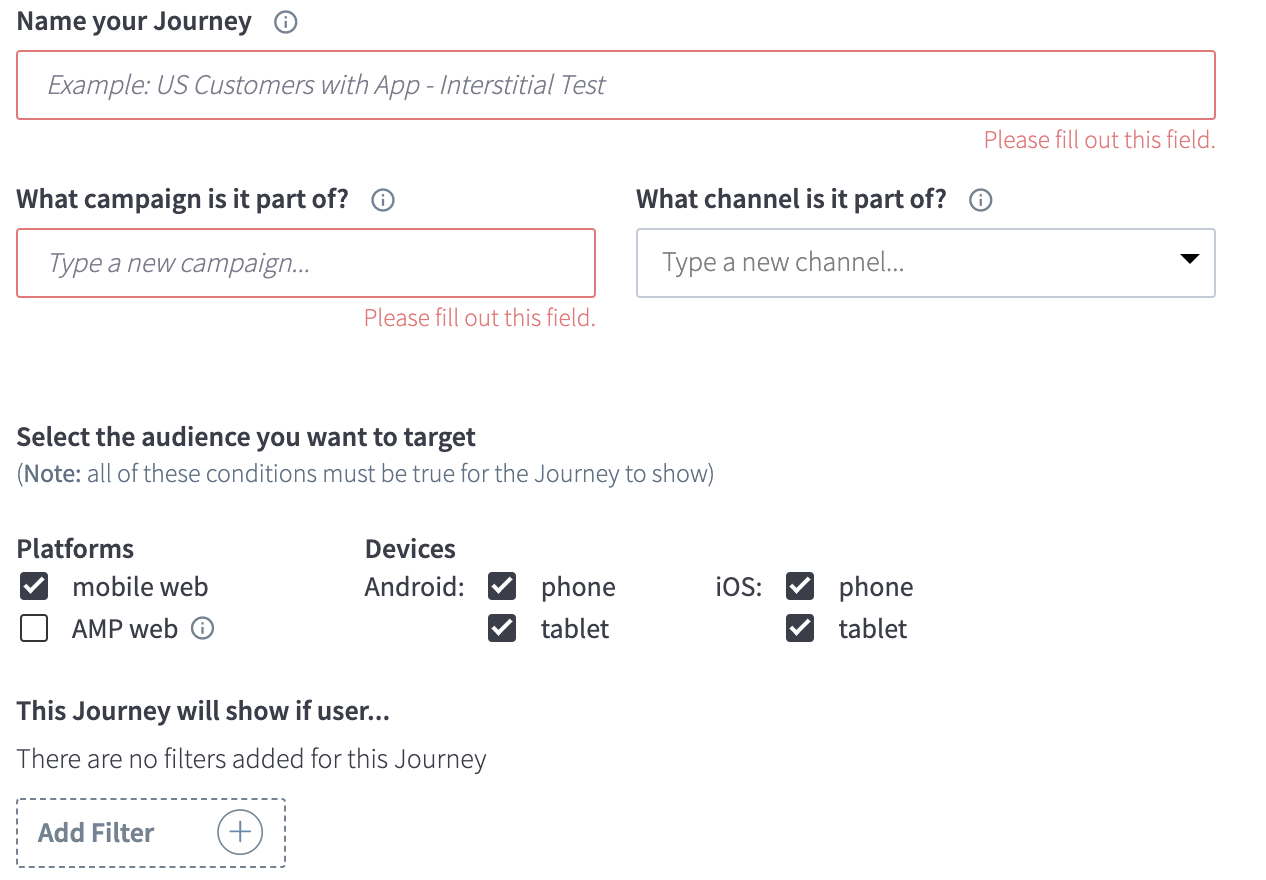
Customize the audience that will see your Journey by completing the following fields:
1. **Name Your Journey**: Enter a name for your Journey. This name appears in the Branch Dashboard and is not visible to your users. Use a naming convention for easy reference later, such as: Date - Template - OS - Target.
2. **What campaign is it part of?**: The campaign name defaults to the Journey name.
3. **What channel is it part of?**: This optional field helps you analyze your Journey performance later.
4. **Select the audience you want to target**: Customize the audience that will see your Journey. All conditions must be true for the Journey to display.
- **Platform**: Select **Mobile Web**, **AMP Web**, or **Desktop**. You can select **Mobile Web** and **AMP Web** together. Selecting **Desktop** prevents you from selecting the other options.
- **Devices**: If you selected **Mobile Web**, **AMP Web**, or both, select which mobile operating systems and device types to target.
- **Browser Targeting**: Use the dropdown menu to select which browsers to target. You can add multiple browsers. The available browser options depend on your **Platform** selections.
> **Note**
>
> Only Branch Standard Banner Bottom is supported on AMP because Google requires banners to appear in the top 75% of an AMP page.
5. **This Journey will show if user**: Add user-targeting filters using the following options.
| Filter | Description |
| --- | --- |
| Has completed event | Target users based on events you define if you have [event tracking](https://help.branch.io/developer-hub/track-branch-events.md) set up. For example, show a Journey to users who completed a purchase. |
| Is located | Target or exclude users viewing your website in different regions by country, state/province, or city. The location list is powered by MaxMind. |
| Is viewing a page url | Define which subsets of your website display the Journey. For example, if you have `yoursite.com/settings` and `yoursite.com/products/1234`, enter "products" so only users visiting a URL containing that substring see the Journey. |
| Came directly from a url | Target users based on their last touchpoint before entering your website. For example, to target users from Google Search, select "whose domain matches" and enter "google.com". |
| Has visited web | Target users based on the number of days they have visited your website (for example, users who visited at least 5 days). You can define criteria using "greater than," "equal to," "less than," or "in between" logic. A drop-down menu lets you switch between "Days" and "Time" modes. "Time" mode cannot be used with time-bound banners. |
| Has visited the app | Target users by app visits. For example, encourage users who visited the app twice and are now on mobile web to return to the app.
Note: This audience filter relies on `has_app`, which has [limitations as defined here](https://help.branch.io/marketer-hub/journeys-faqs.md). |
| Has clicked on Email | Target users who clicked a link from Branch Email. Use this for users who were part of an email campaign, such as prompting app downloads for those on mobile web without the app. |
| Has clicked on Ad | Target users who clicked a link from Deep Linked Feeds. Use this to target users from ad campaigns with a specific call to action to improve ROI. |
| Has the app installed | Target users based on app installation status. For example, only show an "Open the app" Journey to users who already have it installed.
Note: This audience filter relies on `has_app`, which has [limitations as defined here](https://help.branch.io/marketer-hub/journeys-faqs.md). |
| Is viewing a page with metadata key | Target users viewing web pages with specific metadata. Specify this data in HTML tags, in the `init()` call, or using the `track()` call. Format HTML tags as [Branch hosted deep link data](https://help.branch.io/developer-hub/web-advanced-features.md). |
| Has interacted with Journey | Target users who interacted with a specific Journey by choosing the Journey, interaction type, and time window. For example, display Journey A only to users who dismissed Journey B in the past seven days. |
> **Tips on filtering**
>
> - Using multiple filters creates an "and" condition. The Journey only displays if all conditions are true.
> - You can add additional options for each filter, such as adding different URLs for an exact matching clause.
> - For URL filters, multiple URL entries create an "or" condition. The Journey displays if a user visits either URL A or URL B.
> - If your web page ends with "?", the question mark is treated as an optional expression quantifier for the **viewing a page URL starting with** filter. For example, setting "yoursite.com/?" causes the Journey to appear on "yoursite.com/?", "yoursite.com/settings", or "yoursite.com/".
> - For certain filters (such as *is viewing page url exactly matching*), click **Edit All** to paste multiple values. This creates an OR condition for that filter.
>
> You can also view example audience suggestions [here](https://help.branch.io/marketer-hub/example-journeys.md).
6. Click **Save and Continue** when you're ready to move to the next phase.
## 2. Configure creatives
In this phase, design the creative your audience will see, or add multiple view variations to A/B test the experience.
1. **Add Variation**: Run an A/B test by designing multiple templates and assigning a percentage of your audience to each one (totaling 100%). Click **Add Variation +** to add a new Journey banner or interstitial, and use the percentage fields to control the ratio of your audience that sees each variation.
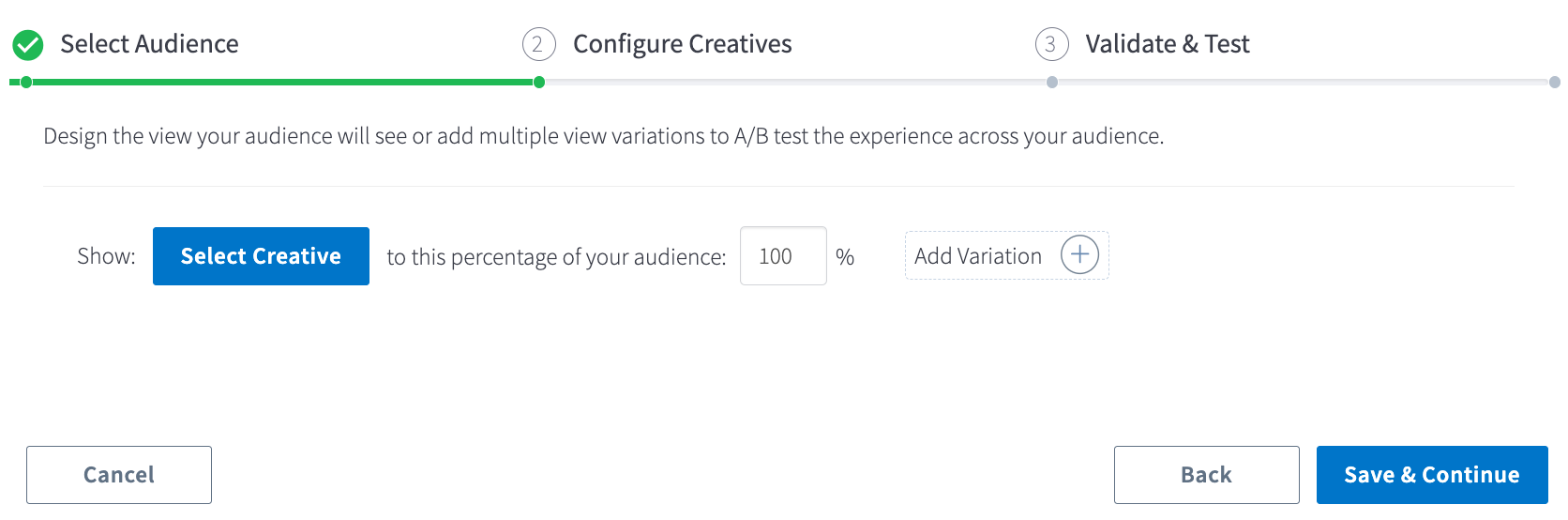
2. Click **Select Creative** to start designing your banner or interstitial. On the Templates page, click **Use** on the template you want to work with.
### WYSIWYG
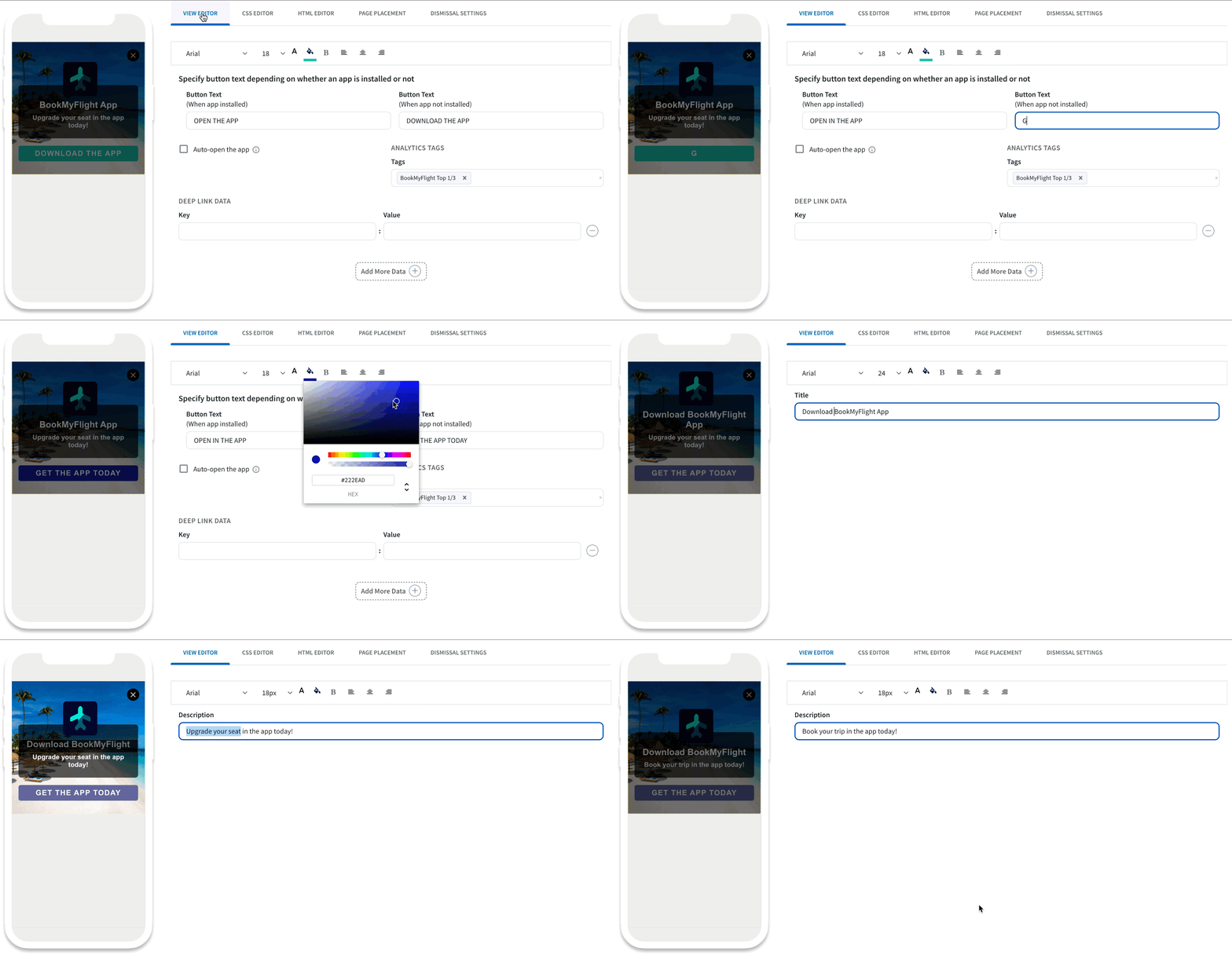
First, name your creative in the **View Name** field. Use a naming convention for easy reference. Branch uses a What You See Is What You Get (WYSIWYG) editor to simplify customization. In the preview window, click the element you want to customize, such as Icon, Title, Description, Star Rating, or [Background Image](https://help.branch.io/marketer-hub/journeys-image-recommendations.md).
### Advanced UI editor
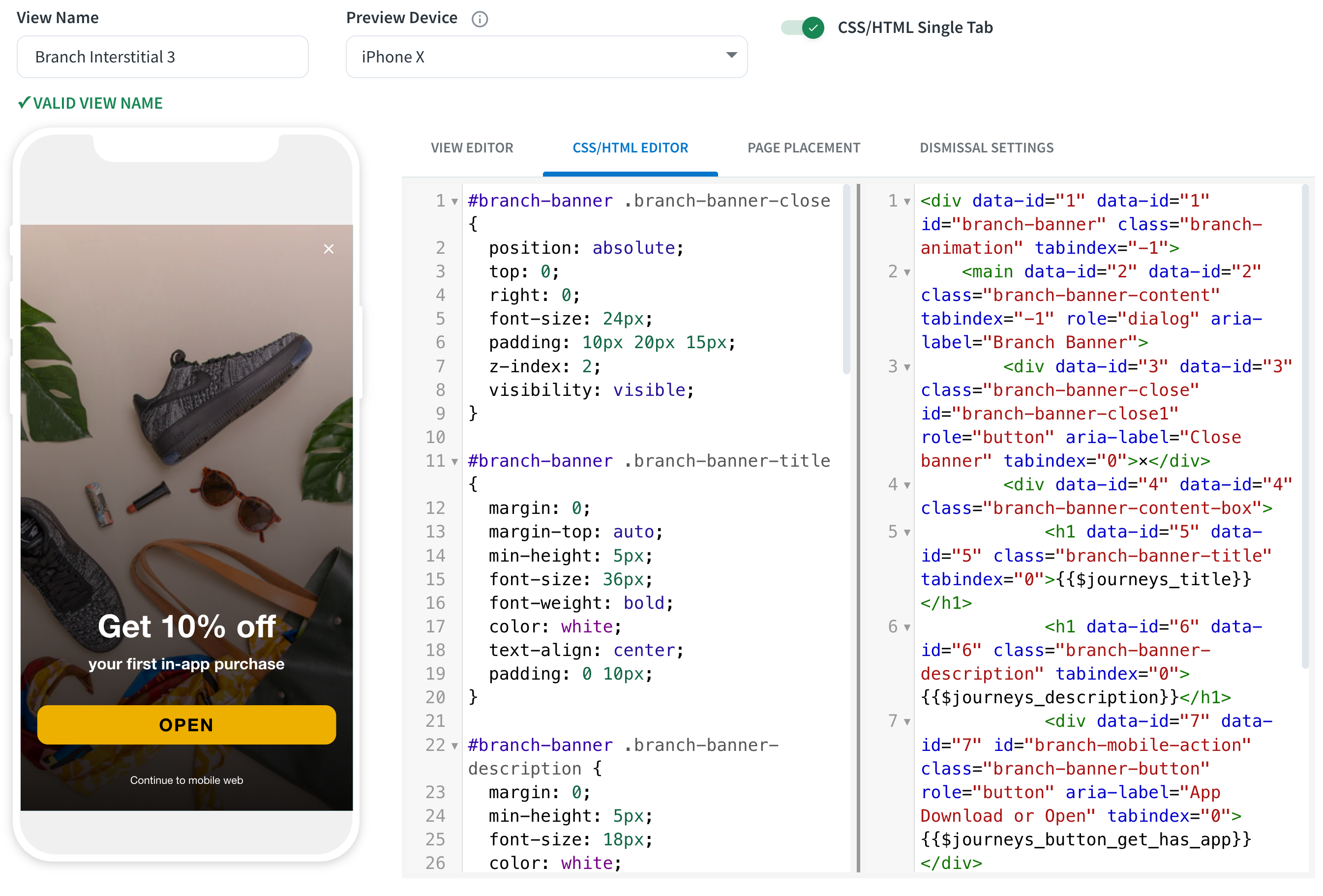
For more detailed tweaks, use the **CSS Editor**, **HTML Editor**, and **Page Placement** tabs to customize your creative to match your brand guidelines.
> **Advanced UI configuration**
>
> Branch has a detailed guide on advanced UI configuration [here](https://help.branch.io/developer-hub/advanced-journeys-ui-html-css.md).
### Dismissal settings
Adjust the Journey behavior when users dismiss the creative on the **Dismissal Settings** tab.
| Customization | Description |
| --- | --- |
| Dismissal Behavior | Choose what happens when a user dismisses a Journey. "Close Journey" closes the Journey. "Redirect to a web page" closes the Journey and redirects to a specified webpage. |
| Dismissal Period | Select how long the Journey remains dismissed using the dropdown. Then decide whether dismissing this Journey also dismisses only this Journey or all Journeys for the chosen period. |
Click **Save & Close** when you finish customizing your creative.
You will return to the Configure Creatives step, where you can see the name of the creative you created. You can create another variation or click **Save and Continue**.
## 3. Validate and test
In the **Validation** section, green checkmarks indicate everything is set up properly. If you see any errors, return to that step to complete the configuration. Access a list of errors and their meanings under [Troubleshooting](https://help.branch.io/developer-hub/troubleshoot-journeys-banners.md).
If you have multiple variations, use the dropdown menu to preview them.
### Preview the Journey
Once everything is validated, test the Journey by:
1. Enter a URL to your website where the Branch Web SDK is integrated and click **Get Test Link**.
2. Visit the generated unique link in your mobile web browser to preview the Journey. Note that the preview ignores your targeting settings because it forces the view to trigger on page load.
### Schedule the Journey
When you're ready to run your Journey, click **Schedule**. In the **Schedule** box, configure the following:
- Start/Stop Time and Date
- Repeat Settings (Daily/Weekly)
- Time Zone
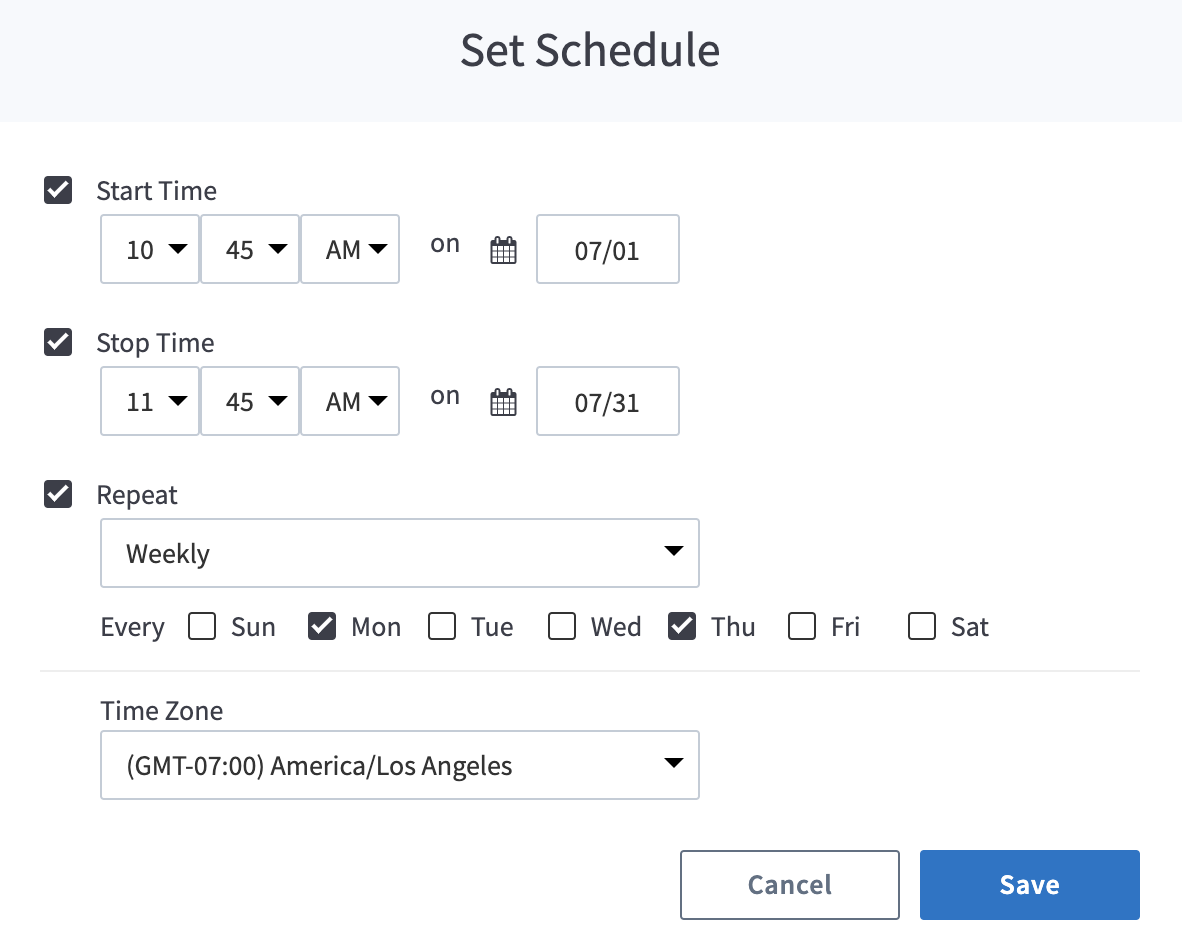
Click **Start Journey** to run your Journey immediately. Otherwise, click **Save & Close** to start it later.