> For the complete documentation index, see [llms.txt](https://help.branch.io/llms.txt).
# AppNext
> Connect AppNext to Branch using the legacy ads experience. For new Branch, see the current ad partner guides.
## Overview
> **Attention**
>
> Branch's new experience is rolling out in phases, so your interface may differ. This article covers the legacy version of ad partner setup. For the new version, see [Ad Partners (New)](https://help.branch.io/marketer-hub/category/ad-partners-new.md).
[Appnext](http://appnext.com) is a leading mobile discovery platform helping millions of users experience apps at the right moments throughout the day. Every day over 700M users worldwide are interacting with Appnext-powered app recommendations tailored to their preferences, daily habits, and unique real-life context.
Leading mobile and in-app advertising since 2012, Appnext has disrupted the mobile industry, allowing app marketers to seize unique contextual user moments to get their apps discovered, and used again and again. We are proud to bring a better, more efficient way to experience smart devices, helping thousands of mobile businesses grow, monetize, and shape the future of mobile.
### Partner Capabilities
| Capability | Details |
| --- | --- |
| Company Type | Contact support at AppNext for more information. |
| Deep Linking | Supported |
| Attribution | • Click-Through Attribution
• View-Through Attribution |
| Ad Campaign Types | • Acquisition campaigns
• Retargeting campaigns |
| Ad Formats | Contact support at AppNext for more information. |
| Click Types | • Server-side click |
| Supported Platforms | • iOS
• Android |
| Link Wrapping | Not Supported |
| Cost Ingestion Support | Supported |
| Cost Ingestion Types | • Email Import
• Manual File Upload |
| Pricing Models | • CPI
• CPC |
## Before you begin
In order to enable AppNext, you need to have completed the following:
1. Created a [Branch Dashboard](https://dashboard.branch.io/).
2. Have Branch's Performance [product](https://help.branch.io/marketer-hub/products.md) enabled for your Branch Account.
3. Implemented the Branch SDK into your mobile app ([iOS](https://help.branch.io/developer-hub/ios-sdk-overview.md) | [Android](https://help.branch.io/developer-hub/android-sdk-overview.md))
- [Track events](https://help.branch.io/developer-hub/track-branch-events.md)
4. Running campaigns through AppNext.
## Enable AppNext
### 1. Enable AppNext in Branch
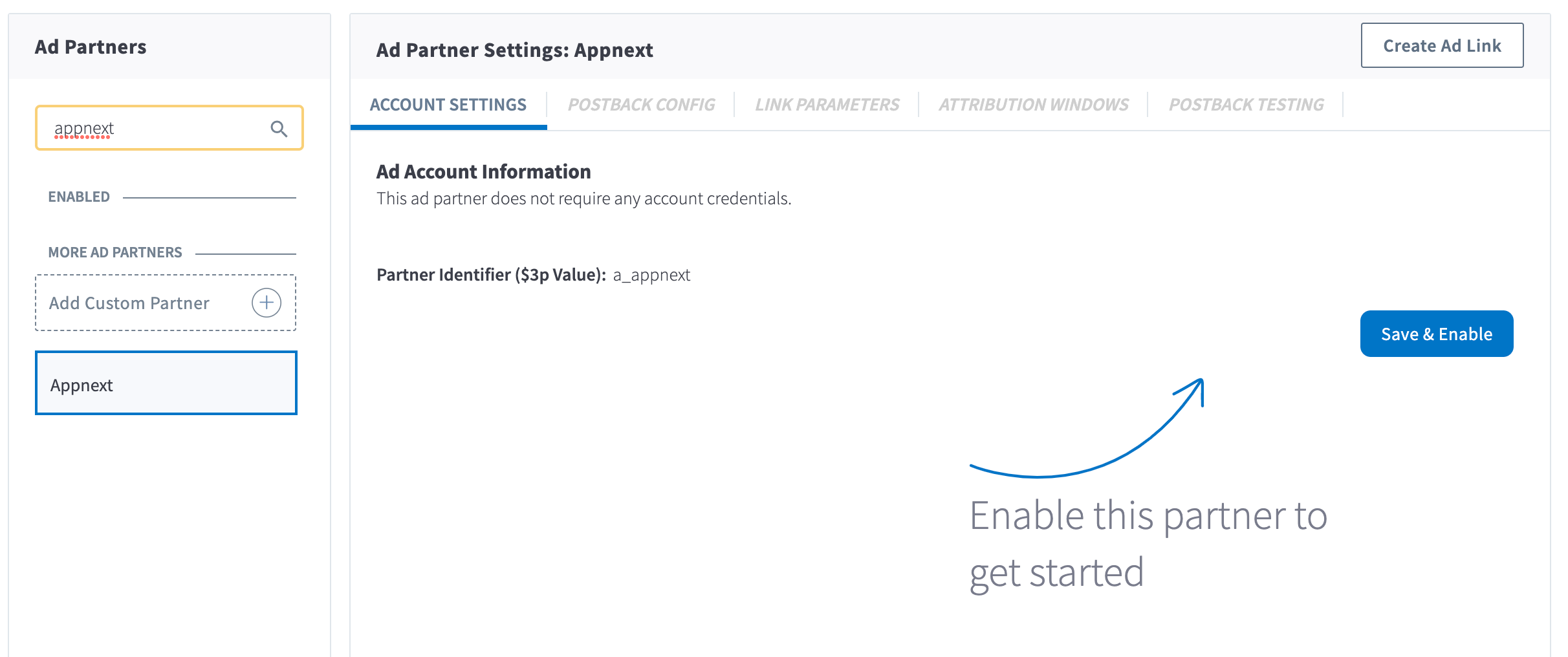
In the Branch Dashboard under **Ads** > [**Partner Management**](https://dashboard.branch.io/ads/partner-management), find/search for AppNext. If you're already logged into the Branch Dashboard, you can also click [here](https://dashboard.branch.io/ads/partner-management/a_appnext?tab=settings) to go there directly.
Click the **Save & Enable** button.
### 2. Configure Postbacks
Enabling AppNext will automatically enable the following postbacks:
- INSTALL
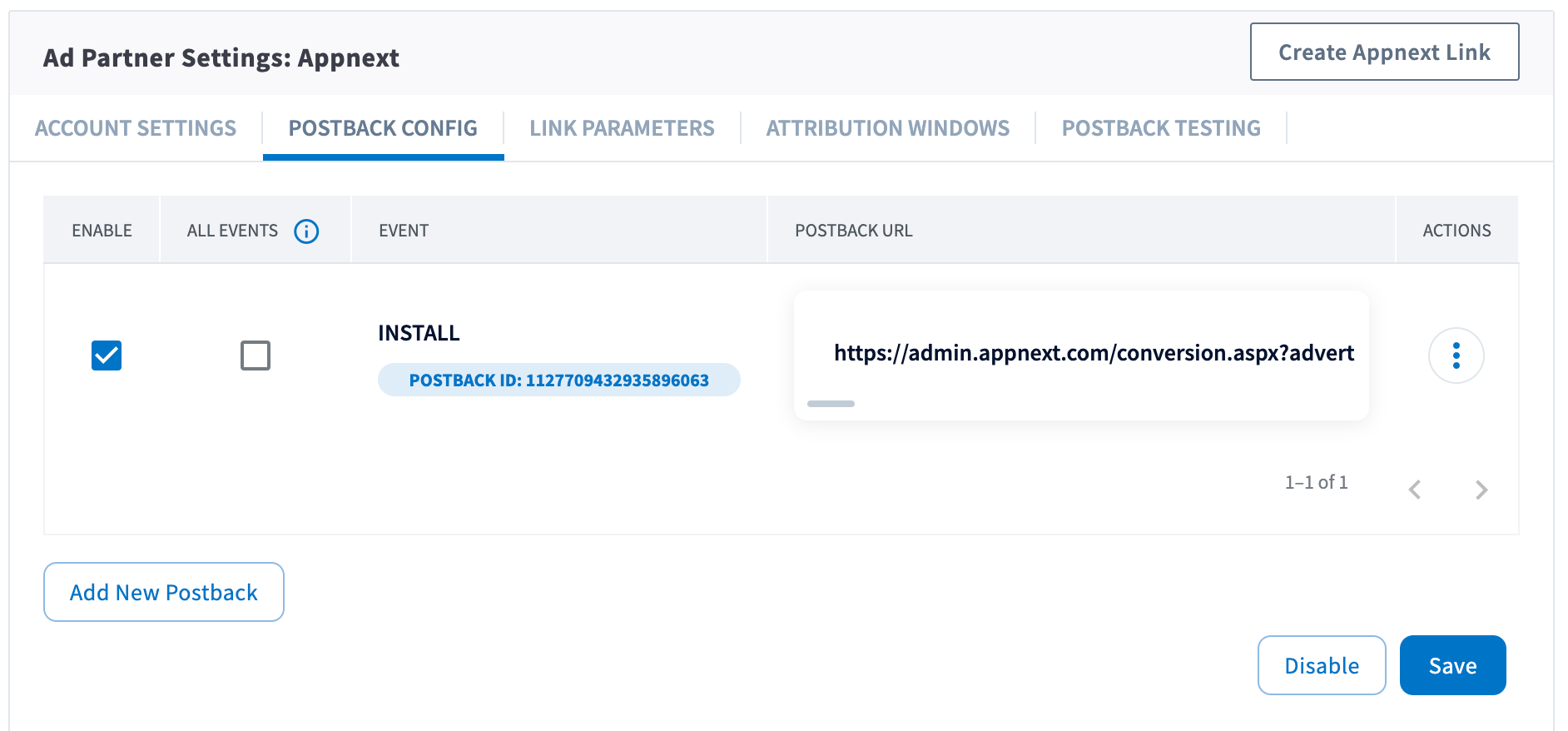
You can configure these postbacks or add more under the [**Postback Config**](https://dashboard.branch.io/ads/partner-management/a_AppNext?tab=postback) tab.
#### Send All Events
Optionally, you can check the checkbox for a given postback for sending all events. When checked, all events will be sent regardless of attribution. Otherwise, the postback will only fire for events attributed to AppNext.
#### Adding Postbacks
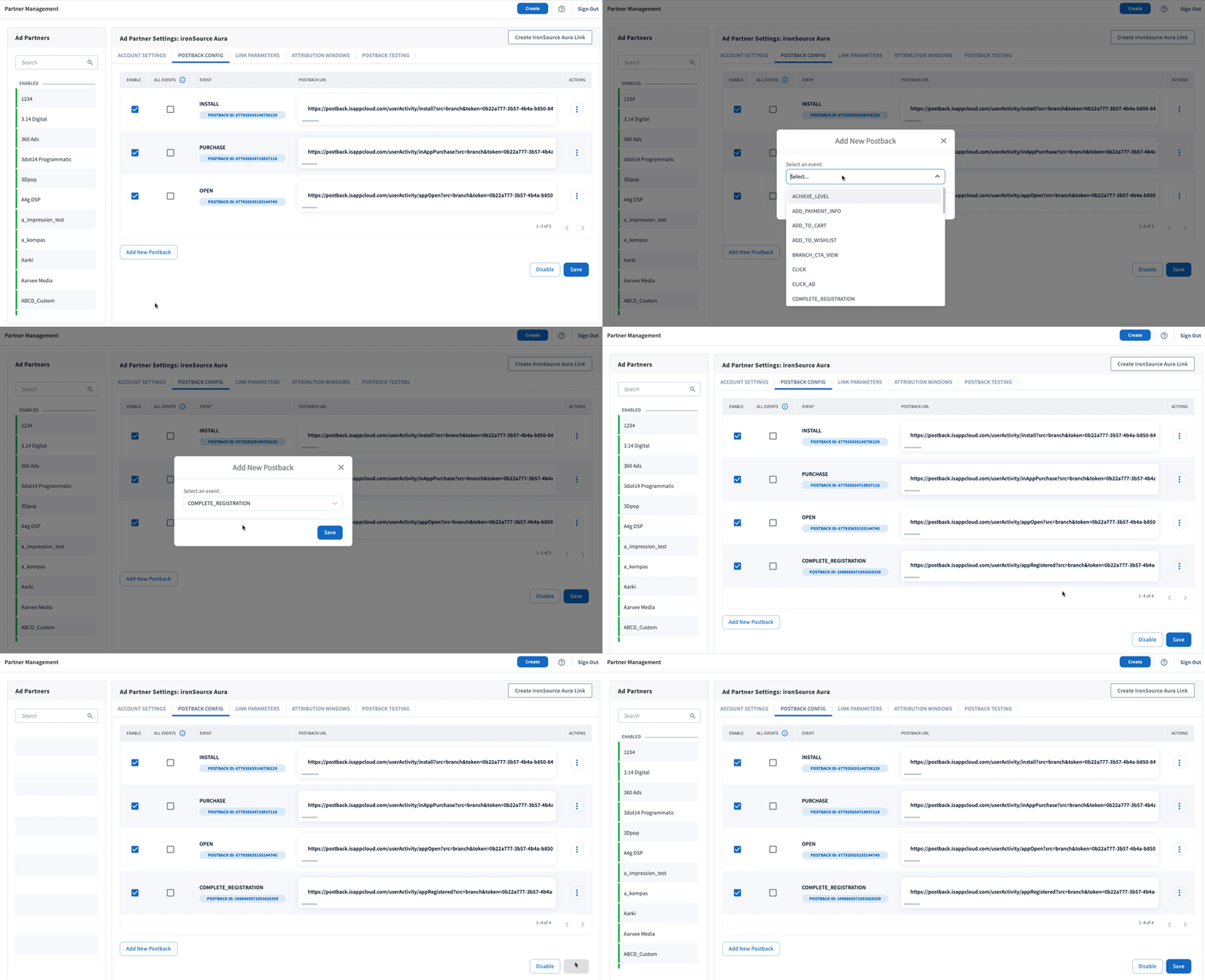
Click the **Add New Postback** button at the bottom of the screen. A modal will appear that will allow you to select an event that you are tracking with the Branch SDKs (including Custom Events).
For more in-depth postback configurations, view our guides:
- [Basic Postback Configuration](https://help.branch.io/marketer-hub/basic-postback-configuration.md)
- [Advanced Postback Configuration](https://help.branch.io/developer-hub/advanced-postback-configuration.md)
- **Recommended** 👍 [Test Postbacks](https://help.branch.io/marketer-hub/testing-postbacks.md)
### 3. Configure Attribution Windows
After configuring your events, navigate to the [**Attribution Windows**](https://dashboard.branch.io/ads/partner-management/a_appnext?tab=attribution_windows) tab to set windows by attribution type.
#### Recommended Attribution Windows
| Attribution Type | Window |
| --- | --- |
| click to session start | 90 days |
| click to install | 30 days |
| click to conversion event | 90 days |
| impression to session start | 1 day |
| impression to install | 1 day |
| impression to conversion event | 1 day |
### 4. Create Branch Ad Link
Next, you'll need to create a Branch Ad Link for your AppNext campaigns in order for Branch to properly attribute conversions.
[Create Ad Links](https://help.branch.io/marketer-hub/ad-links.md)
The Branch Ad Link you create will be placed in your AppNext campaign.
### 5. Verify Data in Branch
After launching your AppNext campaigns, and conversions begin to happen, you'll want to verify data is being sent from Branch to AppNext. You can look at the [Branch Dashboard's Liveview Webhook Records](https://dashboard.branch.io/liveview/webhooks) and apply the following filter:
| Filter | Operator | Value |
| --- | --- | --- |
| ad partner (3p) | equals | `a_appnext` |
Once applied, data should flow through the Liveview, and you can see the data being sent to AppNext from Branch.