> For the complete documentation index, see [llms.txt](https://help.branch.io/llms.txt).
# Vibes Configuration
> Set up Vibes SMS campaigns with Branch so your SMS links become multi-platform deep links.

## Overview
This guide will walk you through how to set up your SMS campaigns with [Vibes](https://vibes.com) using [Branch Email](https://help.branch.io/marketer-hub/email-overview.md) to automatically convert your SMS links into multi-platform deep links.
Branch Email allows you to automatically convert your SMS links into multi-platform deep links that take users directly to content in the app on mobile devices, while still maintaining the same web experience for desktop and mobile users without the app.
## How does it work?
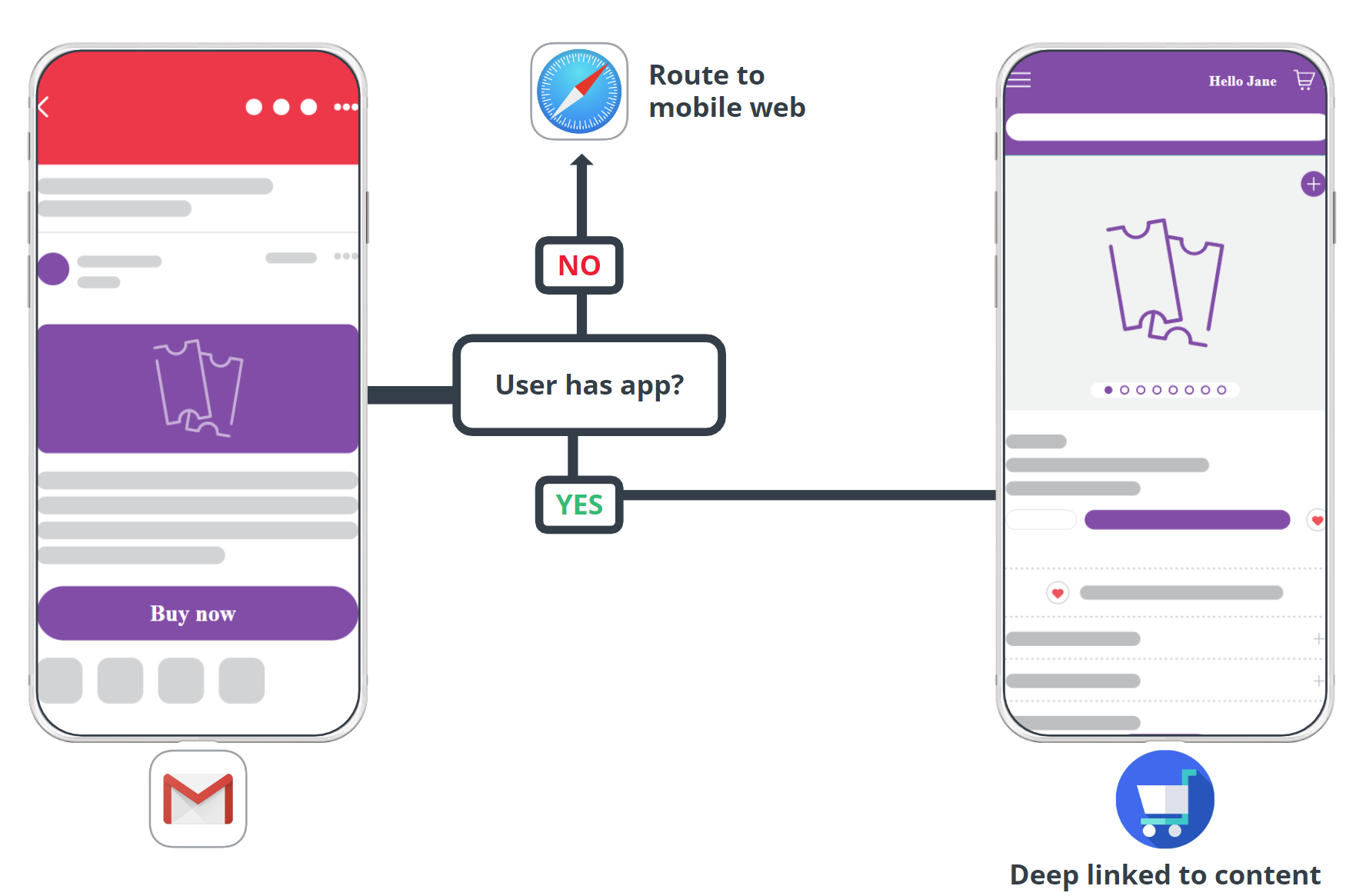
1. User clicks on a link in an SMS.
2. If the user has the app installed and the link has a corresponding screen in the app, the app will open and deep link the user to the right content.
- Ex. Product detail page, category shopping page, etc.
3. If the user does not have the app installed or the link only corresponds to a screen on the web, the user is routed to the website using their default mobile web browser.
- Ex. Unsubscribe link, privacy policy, etc.
## Before you begin
> **Required Roles**
>
> Branch Email requires the following roles involved in order to enable:
>
> - Developers
> - CRM/Email Team
> - Vibes Account Manager / Support Team
In order to enable Vibes, you need to have completed the following:
1. Admin access to your [Branch Dashboard](https://dashboard.branch.io/).
2. Enabled Branch Email for your Branch account. Branch Email is part of Branch's Engagement [product](https://help.branch.io/marketer-hub/products.md).
3. Implemented the Branch SDK into your mobile app ([iOS](https://help.branch.io/developer-hub/ios-sdk-overview.md) | [Android](https://help.branch.io/developer-hub/android-sdk-overview.md)).
- Set Up Deep Link Routing. How your mobile app routes to in-app content will determine how you will create and tag your Branch Links.
- [Build custom routing inside the routing callback](https://help.branch.io/developer-hub/in-app-routing.md#option-1-build-custom-routing-inside-the-routing-callback)
- [Let Branch use your existing deep link routing](https://help.branch.io/developer-hub/in-app-routing.md#option-2-let-branch-use-your-existing-deep-link-routing)
- [Track events](https://help.branch.io/developer-hub/track-branch-events.md)
4. Obtained or set up your Vibes **click tracking domain** (CTD). Reach out to your Vibes account manager for assistance on this.
## Connect Vibes Service in Branch
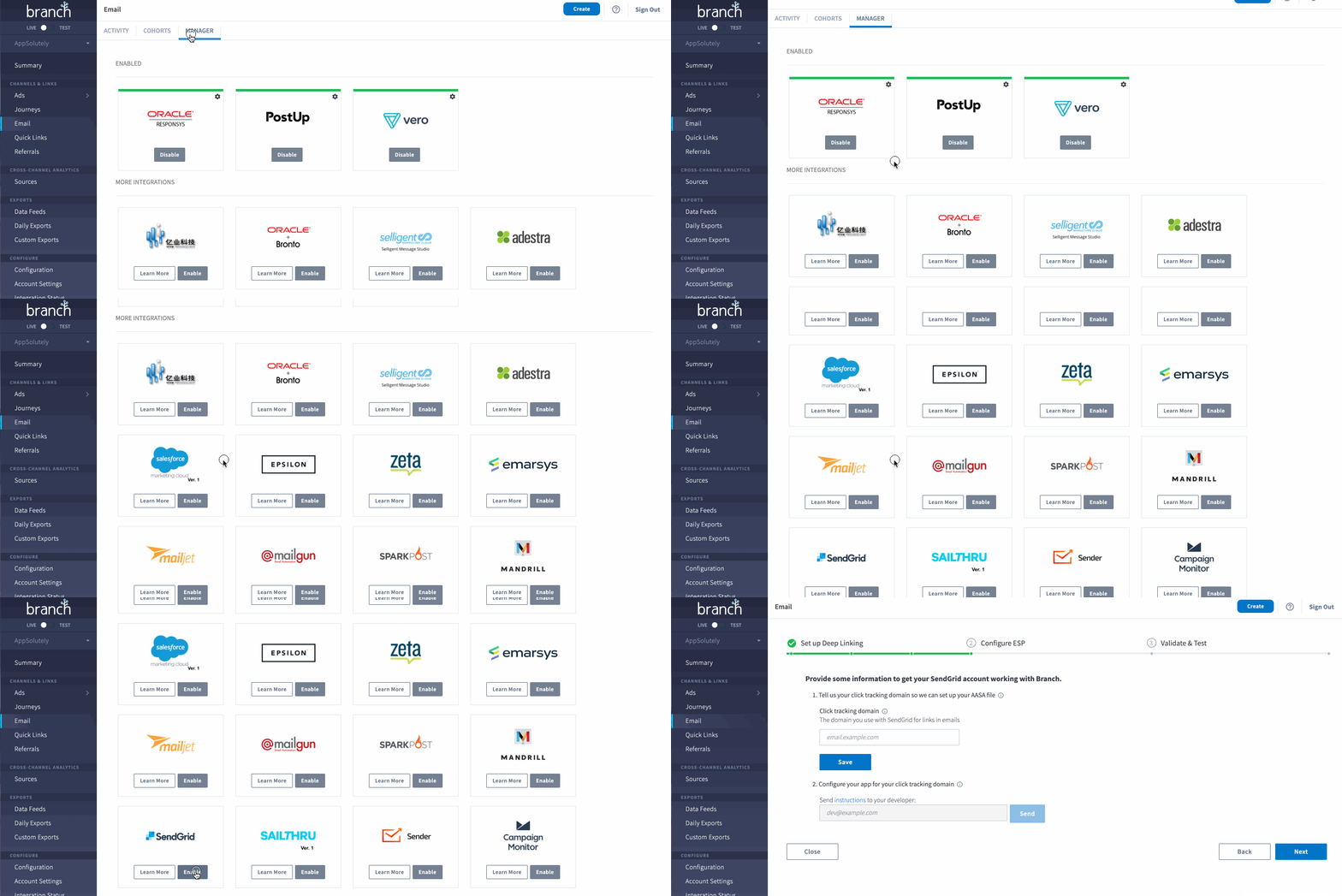
In the Branch Dashboard in Email → [Manager tab](https://dashboard.branch.io/email/manager), find **Vibes** and click **Enable**.
### Input Click Tracking Domain
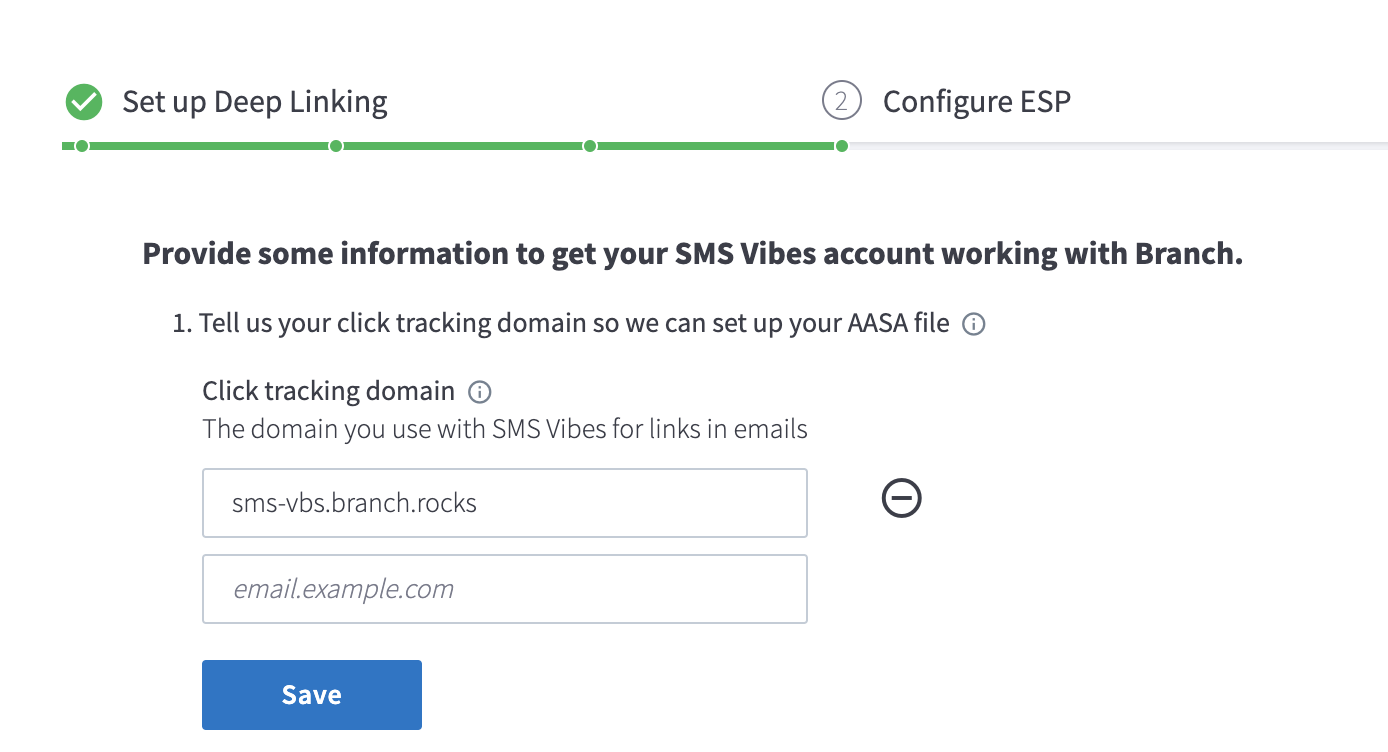
Click tracking domains allow you to track engagement on email opens and link clicks.
The Vibes integration requires you to provide the following:
- **Click Tracking Domain** - The domain you use with Vibes for links in SMS
For additional help, please email Vibes at **live@vibes.com** for support.
> **Click Tracking Domain**
>
> - Remove `https://` when adding your click tracking domain.
> - Never add the same CTD to both your **Live** and **Test** Branch environments.
> - You can enable the integration with multiple CTDs, if needed, but you **cannot** add the same CTD to multiple Branch Dashboards or ESP integrations.
## Configure your App
### Add your Vibes CTD to your Associated Domains
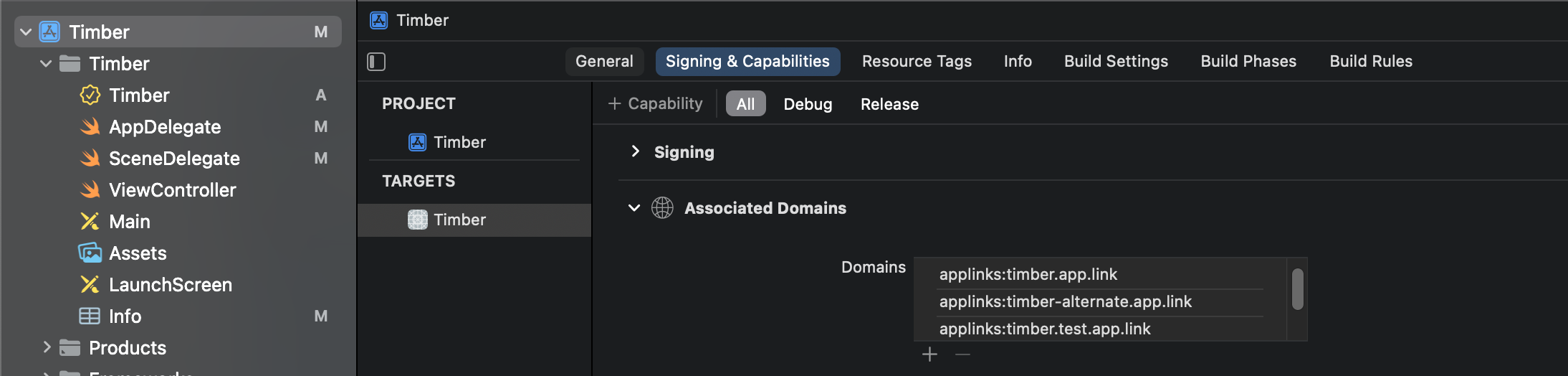
For your iOS App, you must add the CTD to the Associated Domains. Additional details can be found [here](https://help.branch.io/developer-hub/ios-basic-integration.md#_3-configure-associated-domains).
### Return `YES` to `continueUserActivity`
Additionally, you will need to add the CTD to your iOS app's info.plist file. Additional details can be found [here](https://help.branch.io/developer-hub/ios-advanced-features.md#esp-ctd-email).

## Point DNS CNAME to Branch
Please follow your web hosting provider’s instructions on how to configure your DNS CNAME.
Update the DNS CNAME and point it to `thirdparty.bnc.lt`. Once the CNAME record is added, please allow up to an hour for Branch to generate SSL and AASA files for your click tracking domain.
**Important CNAME Info**
- The Branch dashboard must be enabled & reflect the CTD **BEFORE** you add the CNAME.
- If the CTD already has SSL setup, confirm if your security credentials allow a third party to submit a CSR on behalf of the domain. If not, contact Branch's Support team, to coordinate providing an SSL certificate manually to Branch.
- Once the CNAME is added, Branch auto-generates an SSL certificate and AASA file for your click tracking domain. It may take up to an hour to resolve SSL errors once you change the CNAME. During this time, link redirects on the click tracking domain will redirect to the **Default URL** you provided in the **General Configuration** section of your account.
- If you are making this change to a live domain with active email click traffic, schedule the CNAME change to occur during an off-hours time with low click traffic.
## Add Branch Links to your SMS Campaigns
Before you start setting up your SMS campaigns, you need to determine what flow you want the user to experience and flag your links accordingly.
### Add Deep Linking Flag
For the links that you would like to deep link to content, add `$deep_link=true` to the URL as a query parameter, for example:
```xml
Link to your app!
```
This will ensure that your links are converted to Branch Links that will open the app on iOS and Android, with full tracking and attribution.
### Add Web-only Flag
In order for your app to know that the email link should bounce to web after opening the app, add `$web_only=true` to your links as a query parameter, for example:
```xml
Link to your app!
```
**Analytics on the Branch Dashboard**
To see how the email campaigns have performed and break it down into campaigns, it is very essential to tag your email links with the ~campaign tag. If your team uses UTM tags, Branch will also ingest the UTM_campaign tag. This will help dedupe the numbers and hence see the downstream events. You can add the campaign tag in any comparisons and filters in any Dashboard views.