> For the complete documentation index, see [llms.txt](https://help.branch.io/llms.txt).
# mParticle Android SDK
> Send mParticle events from your Android app to Branch, and see where to configure the reverse direction.
This documentation explains how to send **mParticle events to your Branch dashboard**. If you'd like to send Branch installs to your mParticle dashboard, please review the [Branch/mParticle Data Integration](https://help.branch.io/developer-hub/mparticle-export-configuration.md).
> **Note**
>
> **These instructions apply to the mParticle SDK version 5+ integration**
>
> mParticle introduced a new attribution & deep linking API in v5 of their SDK ([http://docs.mparticle.com/developers/sdk/android/getting-started/#upgrade-to-version-5-of-the-sdk](https://docs.mparticle.com/developers/client-sdks/android/upgrade-to-version-5/)), so please contact your Branch or mParticle Account Managers for more details, if you have mParticle SDK
> **Google Play Services version 17+**
>
> A major Google Play Services change made in June 2019 has caused Branch's Android SDK (and various other cross-platform SDKs, e.g. Unity) to stop collecting Android AID.
>
> To ensure Branch deep linking and attribution continue to work, you must follow Google's update instructions [here](https://developers.google.com/android/guides/releases#june_17_2019).
>
> If you are running Google Play Services versions below 17, no update is necessary.
## Technical Requirements
- [mParticle SDK for Android](https://docs.mparticle.com/developers/client-sdks/android/)
- [mParticle Branch Kit](https://github.com/mparticle-integrations/mparticle-android-integration-branchmetrics)
## Branch Setup
### Configure Branch & Enable App Links
- Retrieve your [app's fingerprint](https://help.branch.io/developer-hub/android-app-links.md#_1-generate-signing-certificate-fingerprint) to enable App Links in Branch
- Decide on a URI scheme to use, and configure Branch:
- **New Branch**: Go to **Configuration** and select **Link Controls**. Navigate to the **Link Routing Rules** tab, then find the **Mobile Routing** > **Android**.
- **Legacy Branch**: Navigate to the [Link Settings page](https://dashboard.branch.io/settings/link).
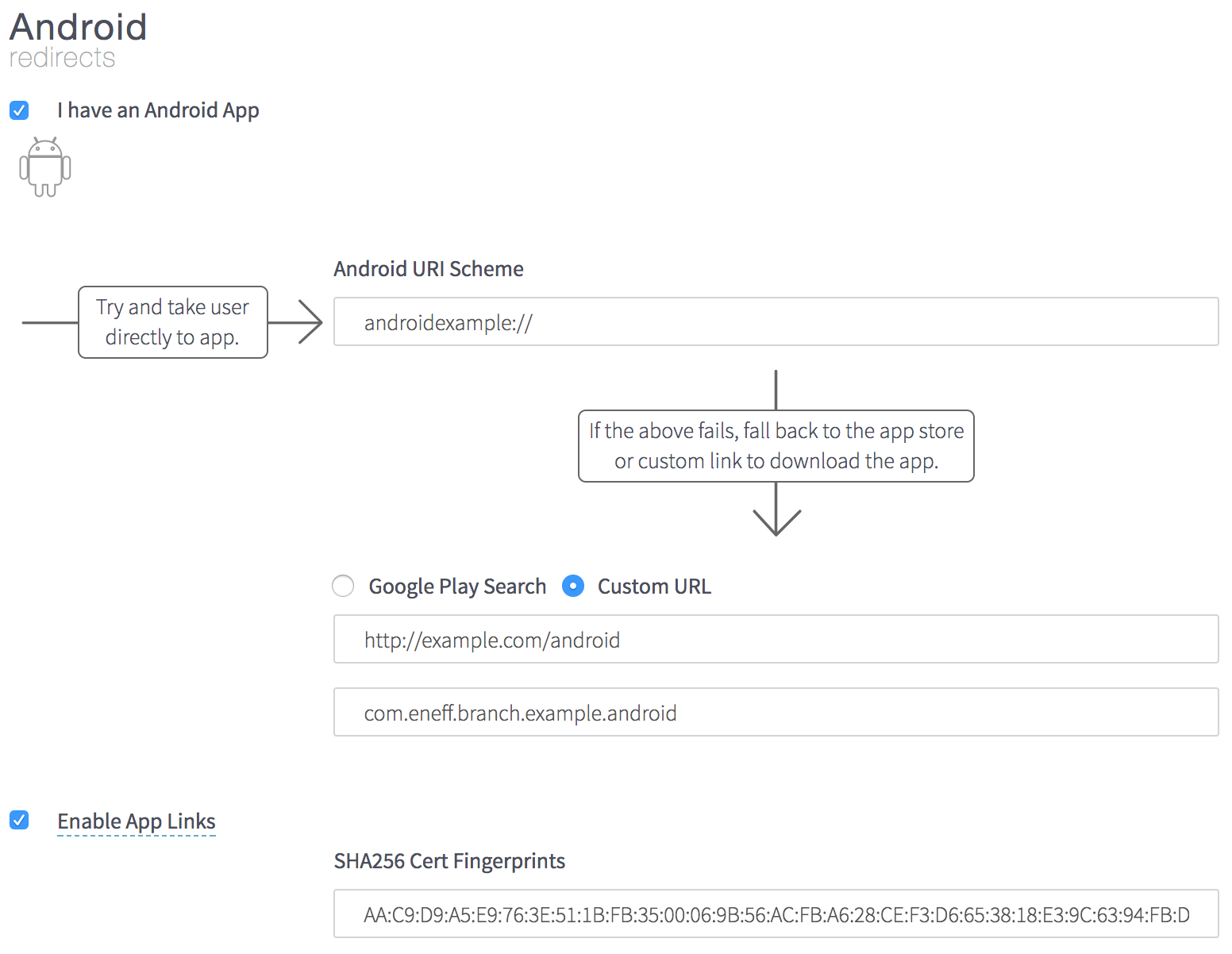

- Add the following intent filter for the Branch URI scheme to the `LauncherActivity` in your Android Manifest
```xml
```
- Add the following intent filter for the Branch `app.link` domains to the `LauncherActivity` in your Android manifest
```xml
```
- Add `android:launchMode="singleTask"` to the `LauncherActivity`
```xml
```
- Make sure onNewIntent is setting a new intent every time your `LauncherActivity.java` opens
**Java**
```java
public class LauncherActivity extends AppCompatActivity {
@Override
public void onNewIntent(Intent intent) {
this.setIntent(intent);
}
}
```
**Kotlin**
```kotlin
class LauncherActivity : AppCompatActivity() {
public override fun onNewIntent(intent: Intent) {
this.intent = intent
}
}
```
## mParticle Setup
### Enable Branch on mParticle
- Before you can enable Branch in your mParticle dashboard, you must retrieve your Branch Key from Branch:
- **New Branch**: In the left-hand navigation, go to **Configuration** and click on **Keys & Domains**.
- **Legacy Branch**: Navigate to the [Link Settings](https://dashboard.branch.io/settings/link) page.
- Please follow mParticle's documentation on how to [Connect an Event Output](https://docs.mparticle.com/guides/getting-started/connect-an-event-output/); i.e. enable the Branch integration.
### Install the mParticle Branch Kit
- [mParticle Github](https://github.com/mparticle-integrations/mparticle-android-integration-branchmetrics)
#### Import the Android Support Libraries
- `'com.android.support:customtabs:23.3.0'`
- `'com.google.android.gms:play-services-ads:9+'`
- `'com.google.android.gms:play-services-appindexing:9.+'`
### Initializing Branch in the mParticle Kit
As with any kit, mParticle will automatically handle initializing Branch sessions. Please ensure `mParticle.start()` is called in your Android Application class (this should already be accounted for in your base mParticle integration).
At this point you should start seeing your Branch session data - including installs, re-opens, and any custom events - in your Branch dashboard.
> **Requirements**
>
> As with any attribution-related integration, be sure that you have added the mParticle `ReferrerReceiver` to your app’s `AndroidManifest.xml`.
### Retrieve Deep Link Data via mParticle
Our integration with mParticle supports the creation and attribution of deep links to install and open an app. A deep link will typically contain some additional information to be used when the user ultimately opens your application, so that you can properly route the user to the appropriate content, or otherwise customize their experience.
Please ensure you've followed [mParticle's documentation](https://docs.mparticle.com/developers/client-sdks/android/kits/#deep-linking) to ensure your deep link data is being retrieved.
> **mParticle in React Native**
>
> If you integrate mParticle in React Native, you will still integrate the Branch kit as a Native module and follow the setup steps above. However, instead of retrieving deep link data in the native layer, you'll retrieve deep link data via [mParticle's React Native function found here](https://github.com/mParticle/react-native-mparticle/blob/master/README.md#attribution).
## Test Deep Link
1. Create a link from Branch:
- **New Branch**: Go to **Links** and select **Create** > **Short Link**.
- **Legacy Branch**: Go to [LinkHub](https://dashboard.branch.io/marketing).
2. Delete your app from the device.
3. Compile your app to your device.
4. Paste deep link in **Google Hangouts.**
5. Select the link to open your app.
## Implementing Features
- Please refer to mParticle's [making direct calls to kits](https://docs.mparticle.com/developers/client-sdks/android/kits/#making-direct-calls-to-kits) documentation for how to access the Branch kit via the mParticle SDK.
- Direct calls to the Branch SDK will also require using `.getAutoInstance()`, rather than `.getInstance()`.
- Once you have a reference to the Branch kit, refer to Branch's [native Android SDK](https://help.branch.io/developer-hub/create-branch-objects-and-events.md#android-examples) documentation for how to implement secondary functionality.
## Sample Testing Apps
- [Sample Application](https://github.com/mparticle-integrations/mparticle-android-integration-branchmetrics/tree/main/SampleApplication)
## Troubleshooting
Please refer to the [Branch Android SDK troubleshooting section](https://help.branch.io/developer-hub/android-troubleshooting.md).