> For the complete documentation index, see [llms.txt](https://help.branch.io/llms.txt).
# MAUI SDK Configuration
> Configure a .NET MAUI project for the Branch SDK, including target platforms and build settings.
## 1. Set Target Platforms
Update your project's target platforms:
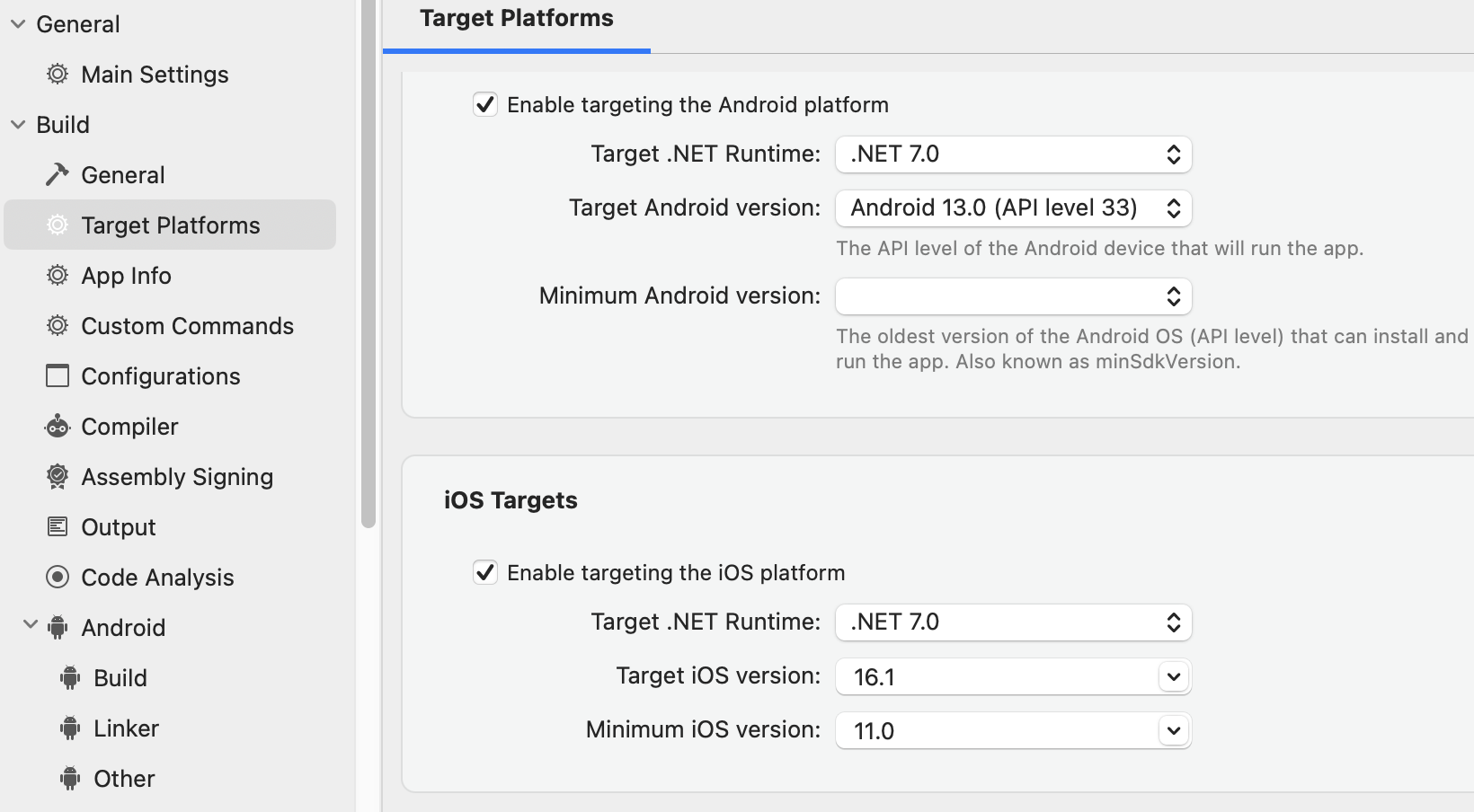
1. Open Visual Studio and right-click on your project, then select **Properties → Build → Target Platforms**.
2. Check the **Enable targeting the Android platform** box and make sure the **Target .NET Runtime** is set to **.NET 7.0** - also confirm you have the appropriate **Target Android version** and **Minimum Android version** set.
3. Check the **Enable targeting the iOS platform** box and make sure the **Target .NET Runtime** is set to **.NET 7.0** - also confirm you have the appropriate **Target iOS version** and **Minimum iOS version** set.
## 2. Install Branch NuGet Package
**IMPORTANT**: MAUI applications should use versions 9.0.0 or higher of the `Branch-Xamarin-Linking-SDK` [NuGet package](https://www.nuget.org/packages/Branch-Xamarin-Linking-SDK) - lower versions are for Xamarin applications.
To add the Branch NuGet package to your project:
1. Right-click on your project and select **Add → Add NuGet Packages**.
2. Find the `Branch-Xamarin-Linking-SDK` package and add it to the project. Make sure you are using version 9.0.0 or higher for a Xamarin application.
## 3. Configure App
### iOS
#### 1. Configure Branch
Now that you have completed the general project setup requirements in Visual Studio, [configure](https://help.branch.io/developer-hub/ios-basic-integration.md#_1-configure-branch) the iOS settings of your MAUI application in Branch:
**New Branch**
For New Branch:
1. Go to **Configuration** > **Link Controls** > **Link Routing Rules** in Branch.
2. In the **Mobile Routing** section, locate the **iOS** settings.
3. Enter the app's URI Scheme in the **iOS URI Scheme** field. For an app with the URI Scheme `MyMauiApp`, the entry would be `MyMauiApp://`.
4. Enter the App Store URL in the **iOS URL** field. If the app is not yet available in the App Store, enter a placeholder URL.
5. Check the **Enable Universal Links** checkbox.
6. Enter the app's case-sensitive Bundle ID in the **Bundle Identifiers** field, as shown on the [Apple Developer Portal](https://developer.apple.com/account/ios/identifier/bundle). Click **Add another Bundle ID** if needed.
7. Enter the Apple App Prefix (Team ID) in the **Apple App Prefix** field, as shown on the [Apple Developer Portal](https://developer.apple.com/account/ios/identifier/bundle).
8. Click **Save changes**.
**Legacy Branch**
For Legacy Branch:
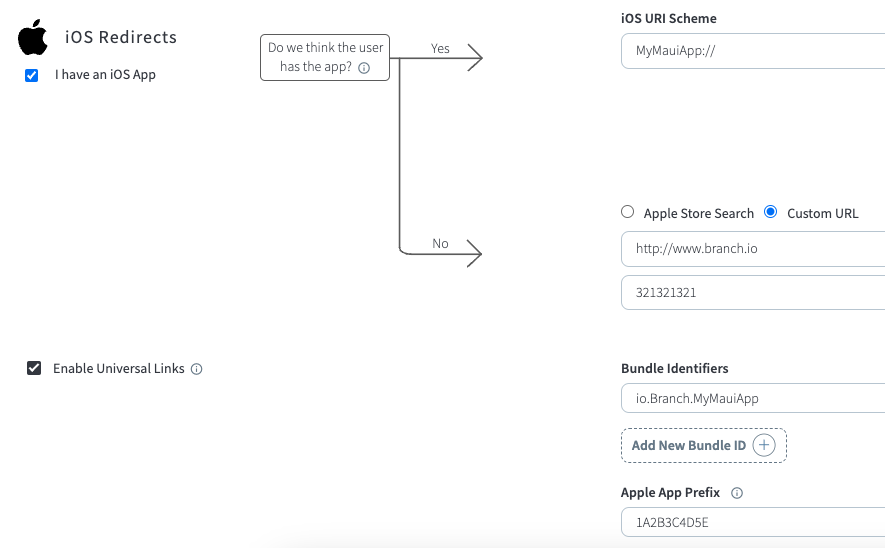
1. On the [Configuration](https://dashboard.branch.io/configuration/general) page, check the **I have an iOS App** checkbox.
2. Enter the app's URI Scheme in the **iOS URI Scheme** field. For an app with the URI Scheme `MyMauiApp`, the entry would be `MyMauiApp://`.
3. Enter the app's Apple Store name in the **Apple Store Search** field. If the app is not yet available in the App Store, select **Custom URL** and enter the URL of an appropriate web site as a placeholder (the exact site does not matter).
4. Check the **Enable Universal Links** checkbox and enter the app's case-sensitive Bundle ID, as well as Apple App Prefix as shown on the [Apple Developer Portal](https://developer.apple.com/account/ios/identifier/bundle).
#### 2. Update `Info.plist` File
1. Navigate to **Project/Platforms/iOS/Info.plist**, then right-click on the file and select **Open With**. Choose the editor you would like to use.
2. Update your `Info.plist` file so it has the `CFBundleIdentifier` and `CFBundleURLTypes` keys, as shown in this sample file:
```xml
LSRequiresIPhoneOS
UIDeviceFamily
1
2
UIRequiredDeviceCapabilities
arm64
UISupportedInterfaceOrientations
UIInterfaceOrientationPortrait
UIInterfaceOrientationLandscapeLeft
UIInterfaceOrientationLandscapeRight
UISupportedInterfaceOrientations~ipad
UIInterfaceOrientationPortrait
UIInterfaceOrientationPortraitUpsideDown
UIInterfaceOrientationLandscapeLeft
UIInterfaceOrientationLandscapeRight
XSAppIconAssets
Assets.xcassets/appicon.appiconset
CFBundleIdentifier
io.Branch.MyMauiApp
CFBundleURLTypes
CFBundleURLSchemes
MyMauiApp
```
#### 3. Add Associated Domains in `Entitlements.plist`
**New Branch**
For New Branch:
1. If your project doesn't already have an `Entitlements.plist` file, add one now. Navigate to **Project/Platforms/iOS**, right-click on the **iOS** folder, then click **Add → New File**. Create an XML file with the name `Entitlements.plist` and save the file.
2. Once you have an `Entitlements.plist` file, edit it by right-clicking on the file, then select **Open With** and choose the editor you would like to use.
3. Add the `com.apple.developer.associated-domains` key, as well as an array that contains the **Default Link Domain** and **Alternate Link Domain** for your app, which can be found by going to **Configuration** > **Link Controls** > **Link Appearance** > **Link Domains** in Branch. Make sure you prepend `applinks:` to the beginning of each link in the `Entitlements.plist` file:
```xml
com.apple.developer.associated-domains
applinks:h06h3.app.link
applinks:h06h3-alternate.app.link
```
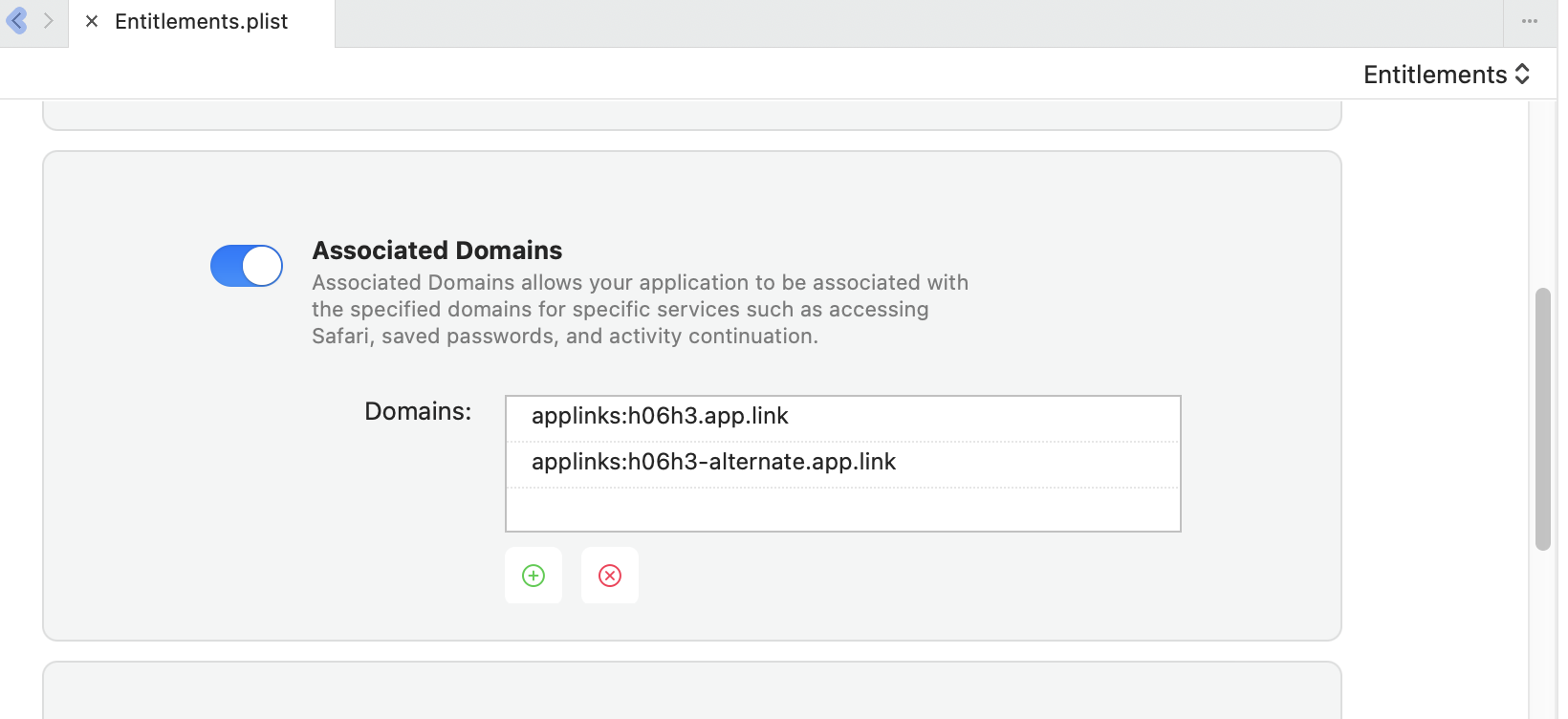
4. Confirm the state of the `Entitlements.plist` file by using the Visual Studio **entitlements editor**. Do this by opening the file in Visual Studio and switching the view to **Entitlements**. Make sure the **Associated Domains** toggle is switched on and you see the relevant domains listed.
**Legacy Branch**
For Legacy Branch:
1. If your project doesn't already have an `Entitlements.plist` file, add one now. Navigate to **Project/Platforms/iOS**, right-click on the **iOS** folder, then click **Add → New File**. Create an XML file with the name `Entitlements.plist` and save the file.
2. Once you have an `Entitlements.plist` file, edit it by right-clicking on the file, then select **Open With** and choose the editor you would like to use.
3. Add the `com.apple.developer.associated-domains` key, as well as an array that contains the **Default Link Domain** and **Alternate Link Domain** for your app, which can be found on the Branch [Configuration](https://dashboard.branch.io/configuration/general) page. Make sure you prepend `applinks:` to the beginning of each link in the `Entitlements.plist` file:
```xml
com.apple.developer.associated-domains
applinks:h06h3.app.link
applinks:h06h3-alternate.app.link
```
4. Confirm the state of the `Entitlements.plist` file by using the Visual Studio **entitlements editor**. Do this by opening the file in Visual Studio and switching the view to **Entitlements**. Make sure the **Associated Domains** toggle is switched on and you see the relevant domains listed.

#### 4. Configure Bundle Signing
1. Make sure that your Apple Developer Account is associated with your solution. To do this, go to **Tools → Preferences** and [sign in to your account](https://learn.microsoft.com/en-us/dotnet/maui/ios/apple-account-management?tabs=vs#add-an-apple-developer-account).
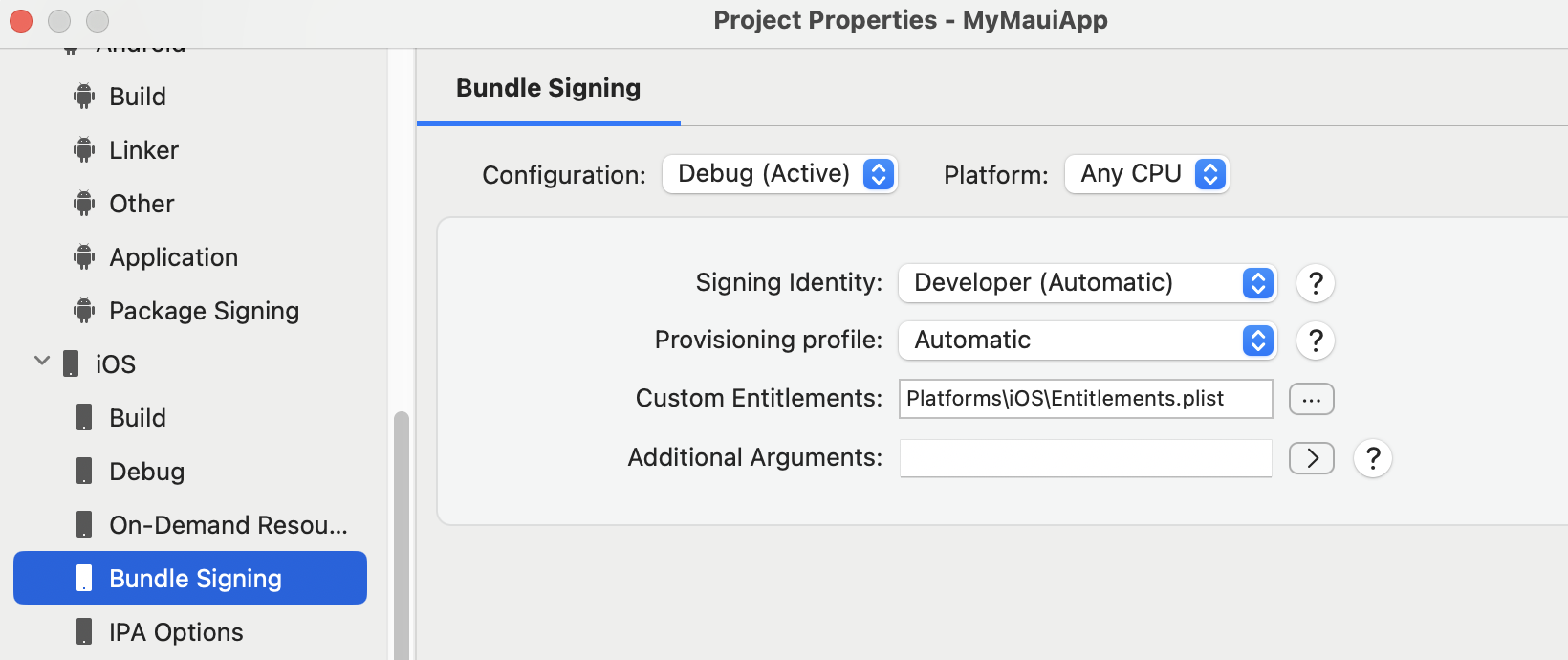
2. Right-click on your project, then navigate to **Properties**. Open the **Bundle Signing** section under **iOS**.
3. In the **Custom Entitlements** field, add the path to the `Entitlements.plist` file you [created](https://help.branch.io/developer-hub/maui-configuration.md#_3-add-associated-domains-in-entitlements-plist).
4. Make sure the appropriate options are selected for **Signing Identity** and **Provisioning Profile**.
#### 5. Update `AppDelegate.cs` File
Use the following sample file to update your `AppDelegate.cs` file to initialize Branch and turn on logging. Import the Branch SDK at the top of the file and replace `key_live_` with your Branch key:
```csharp
using BranchSDK;
using Foundation;
using UIKit;
namespace MyMauiApp;
[Register("AppDelegate")]
public class AppDelegate : MauiUIApplicationDelegate, IBranchSessionInterface
{
protected override MauiApp CreateMauiApp() => MyMauiApp.MauiProgram.CreateMauiApp();
public override bool FinishedLaunching(UIApplication application, NSDictionary launchOptions)
{
Branch.EnableLogging = true;
BranchIOS.Init("key_live_", launchOptions, this);
return base.FinishedLaunching(application, launchOptions);
}
// Handle URI opens
public override bool OpenUrl(UIApplication application, NSUrl url, NSDictionary options)
{
return BranchIOS.getInstance().OpenUrl(url);
}
// Handle Universal Links
public override bool ContinueUserActivity(UIApplication application, NSUserActivity userActivity, UIApplicationRestorationHandler completionHandler)
{
return BranchIOS.getInstance().ContinueUserActivity(userActivity);
}
public void InitSessionComplete(Dictionary data)
{
LogMessage("InitSessionComplete: ");
foreach (var key in data.Keys)
{
LogMessage(key + " : " + data[key].ToString());
}
}
public void SessionRequestError(BranchError error)
{
LogMessage("SessionRequestError: ");
LogMessage("Error Message: " + error.ErrorMessage);
LogMessage("Error Code: " + error.ErrorCode);
}
void LogMessage(string message)
{
Console.WriteLine(message);
}
}
```
### Android
#### 1. Configure Branch
Now that you have completed the general project setup requirements in Visual Studio, [configure](https://help.branch.io/developer-hub/android-basic-integration.md#_1-configure-branch) the Android settings of your MAUI application in Branch:
**New Branch**
For New Branch:
1. Go to **Configuration** > **Link Controls** > **Link Routing Rules** in Branch.
2. In the **Mobile Routing** section, locate the **Android** settings.
3. Enter the app's URI Scheme in the **Android URI Scheme** field. For an app with the URI Scheme `MyMauiApp`, the entry would be `MyMauiApp://`.
4. Enter the Google Play Store URL in the **Android URL** field. If the app is not yet available in Google Play, enter a placeholder URL.
5. Enter your app's package name in the **Android Package Name** field, which should match your `AndroidManifest.xml` file.
6. Click **Save changes**.
**Legacy Branch**
For Legacy Branch:
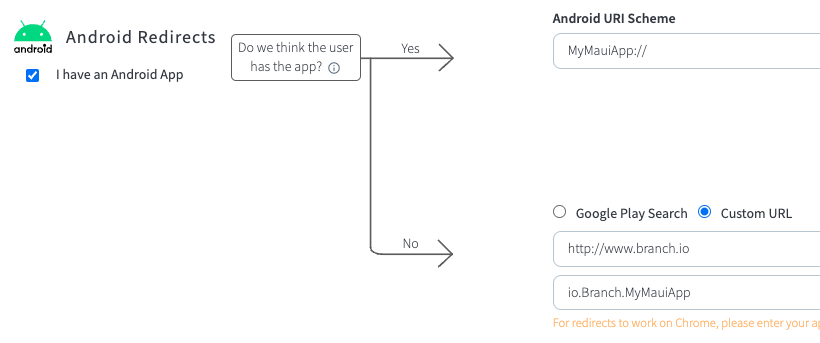
1. On the [Configuration](https://dashboard.branch.io/configuration/general) page, check the **I have an Android App** checkbox.
2. Enter the app's URI Scheme in the **Android URI Scheme** field. For an app with the URI Scheme `MyMauiApp`, the entry would be `MyMauiApp://`.
3. Enter the app's name in the **Google Play Search** field. If the app is not yet available in Google Play, select **Custom URL** and enter the URL of an appropriate web site as a placeholder (the exact site does not matter).
4. Enter your app's package name, which should match your `AndroidManifest.xml` file.
#### 2. Update `AndroidManifest.xml` File
Although you have already set the minimum and target Android versions in your project's properties, you also need to do this in the `AndroidManifest.xml` file. You also need to set your Branch key in the file:
1. Navigate to **Project/Platforms/Android/AndroidManifest.xml**, then right-click on the file and select **Open With**. Choose the editor you would like to use.
2. Use the following sample code to update your `AndroidManifest.xml` file. Add a `` field for your Branch key and a `` field for your minimum/target version values:
```xml
```
#### 3. Add `strings.xml` File
**New Branch**
For New Branch:
1. Navigate to **Project/Platforms/Android/Resources/values**, then right-click on the **values** folder and select **Add → New File**. Create an XML file with the name `strings.xml` and save the file.
2. Add the following code to your file, replacing `key_live_YOUR-GUID-HERE` with your Branch key from **Configuration** > **Security & Access** > **Credentials** tab in Branch:
```xml
key_live_YOUR-GUID-HERE
```
**Legacy Branch**
For Legacy Branch:
1. Navigate to **Project/Platforms/Android/Resources/values**, then right-click on the **values** folder and select **Add → New File**. Create an XML file with the name `strings.xml` and save the file.
2. Add the following code to your file, replacing `key_live_YOUR-GUID-HERE` with your Branch key from the [Account Settings](https://dashboard.branch.io/account-settings/profile) page in Branch:
```xml
key_live_YOUR-GUID-HERE
```
#### 4. Update `MainActivity.cs` File
Use the following sample code to update the `MainActivity` class in your `MainActivity.cs` file. Give the `Activity` a name, set a `LaunchMode`, implement `IBranchSessionInterface`, and replace `key_live_YOUR-GUID-HERE` with your Branch key:
```csharp
using Android.App;
using Android.Content.PM;
using Android.OS;
using BranchSDK;
using Android.Content;
namespace MyMauiApp;
[IntentFilter(new[] { "android.intent.action.VIEW" },
Categories = new[] { "android.intent.category.DEFAULT", "android.intent.category.BROWSABLE" },
DataScheme = "MyMauiApp",
DataHost = "open")]
[IntentFilter(new[] { "android.intent.action.VIEW" },
Categories = new[] { "android.intent.category.DEFAULT", "android.intent.category.BROWSABLE" },
DataScheme = "https",
DataHost = "MyMauiApp.app.link")]
/*
* Update the Activity
*
* Add a `Name` so this Activity can be located by name
* Set the `LaunchMode` (`SingleTop` or `SingleTask` is recommended)
*
* Implement `IBranchSessionInterface` to get Branch payloads
*
*/
[Activity(Name = "io.Branch.MyMauiApp.MainActivity", Theme = "@style/Maui.SplashTheme", MainLauncher = true, LaunchMode = LaunchMode.SingleTop, ConfigurationChanges = ConfigChanges.ScreenSize | ConfigChanges.Orientation | ConfigChanges.UiMode | ConfigChanges.ScreenLayout | ConfigChanges.SmallestScreenSize | ConfigChanges.Density)]
public class MainActivity : MauiAppCompatActivity, IBranchSessionInterface
{
protected override void OnCreate(Bundle savedInstanceState)
{
base.OnCreate(saavedInstanceState);
BranchAndroid.Init(this, "key_live_", this);
}
protected override void OnNewIntent(Intent intent)
{
base.OnNewIntent(intent);
intent.PutExtra("branch_force_new_session", true);
Intent = intent;
}
public void InitSessionComplete(Dictionary data)
{
if (data == null)
{
LogMessage(" InitSessionComplete with data: null");
}
else
{
var dataString = string.Join(", ", data.Select(kvp => $"{kvp.Key}: {kvp.Value?.ToString() ?? "null"}"));
LogMessage($"InitSessionComplete with data: {dataString}");
}
}
public void SessionRequestError(BranchError error)
{
LogMessage("SessionRequestError: ");
LogMessage("Error Message: " + error.ErrorMessage);
LogMessage("Error Code: " + error.ErrorCode);
}
void LogMessage(string message)
{
Console.WriteLine(message);
}
}
```
#### 5. Update `MainApplication.cs` File
Use the following sample code to add Branch initialization and logging to your `MainApplication.cs` file:
```csharp
using Android.App;
using Android.Runtime;
using BranchSDK;
namespace MyMauiApp;
[Application]
public class MainApplication : MauiApplication
{
public MainApplication(IntPtr handle, JniHandleOwnership ownership)
: base(handle, ownership)
{
}
public override void OnCreate()
{
base.OnCreate();
Branch.EnableLogging = true;
BranchAndroid.GetAutoInstance(ApplicationContext);
}
protected override MauiApp CreateMauiApp() => MauiProgram.CreateMauiApp();
}
```
## 4. Send Branch Events
To start sending Branch Events, update your `MainPage.xaml.cs` code to use the Branch `SendEvent()` method:
```csharp
using BranchSDK;
namespace MyMauiApp;
public partial class MainPage : ContentPage
{
int count = 0;
public MainPage()
{
InitializeComponent();
}
private void OnCounterClicked(object sender, EventArgs e)
{
count++;
if (count == 1)
CounterBtn.Text = $"Clicked {count} time";
else
CounterBtn.Text = $"Clicked {count} times";
SemanticScreenReader.Announce(CounterBtn.Text);
// Send Branch Test Event
SendEvent();
}
void SendEvent()
{
BranchEvent branchEvent = new BranchEvent(BranchEventType.PURCHASE);
branchEvent.SetAlias("new_user_purchase");
branchEvent.SetRevenue((float)1.5);
branchEvent.SetShipping((float)10.5);
branchEvent.SetCurrency(BranchCurrencyType.USD);
branchEvent.SetTax((float)12.3);
BranchUniversalObject buo1 = new BranchUniversalObject();
buo1.canonicalIdentifier = "id12345";
buo1.title = "id12345 title";
buo1.contentDescription = "ITEM 1";
BranchUniversalObject buo2 = new BranchUniversalObject();
buo2.canonicalIdentifier = "id12345";
buo2.title = "id12345 title";
buo2.contentDescription = "ITEM 2";
List list = new List();
list.Add(buo1);
list.Add(buo2);
branchEvent.AddContentItems(list);
Branch.GetInstance().SendEvent(branchEvent);
}
}
```
You can now create [Branch Universal Objects](https://help.branch.io/developer-hub/create-branch-objects-and-events.md#branch-universal-object) and log various types of [Branch Events](https://help.branch.io/developer-hub/dotnet-feature-implementation.md#track-events).
## 5. Test
Test that your application is sending Branch Events as expected:
**New Branch**
For New Branch:
1. Run the debug releases of your MAUI application on either an iOS or Android simulator within Visual Studio.
2. In Branch, go to **Configuration** > **Testing & Monitoring** > **Liveview** and start a new session.
3. Go back to the simulator and perform the action that is meant to send the Branch Event.
4. In Branch, filter the Branch Events by the type of Branch Event you are trying to log. The example on this page uses a `PURCHASE` Branch Event, which falls under the **commerce event** category.
5. You should see the Branch Events populate in Branch.
**Legacy Branch**
For Legacy Branch:
1. Run the debug releases of your MAUI application on either an iOS or Android simulator within Visual Studio.
2. Navigate to the [Liveview](https://dashboard.branch.io/liveview/events) page in Branch and start a new session.
3. Go back to the simulator and perform the action that is meant to send the Branch Event.
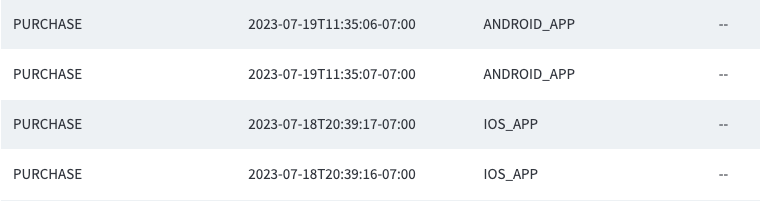
4. In Branch, filter the Branch Events by the type of Branch Event you are trying to log. The example on this page uses a `PURCHASE` Branch Event, which falls under the **commerce event** category.
5. You should see the Branch Events populate in Branch:
## 6. Troubleshoot
#### MAUI Sample Application
**Full application**:
**iOS configuration**:
**Android configuration**:
#### Visual Studio
- Visual Studio aggressively caches build products, so make sure your build folder has no errors.
- Confirm you are using the correct Branch NuGet package. MAUI applications **should use versions 9.0.0 or higher** of the `Branch-Xamarin-Linking-SDK` NuGet package (lower versions are for Xamarin applications).
#### iOS
| Issue | Solution |
| --- | --- |
| Universal links do not work | Your `Entitlements.plist` file is likely not set up correctly. Check the format, that it is included in Visual Studio, and the Apple account logged-in and associated with the project can manage signing. |
| Integrity verification error | Causes app install to fail and means that the logged-in Apple Developer account does not have permission to sign for the app. Either switch accounts or request access from your organization. |
#### Android
| Issue | Solution |
| --- | --- |
| "Unable to find BranchAndroid" | Use a .NET 7 test app because .NET 6 is unreliable about resolving its Android dependencies. |
| Minimum version error | Make sure you have set an appropriate minimum version in both **Project → Properties → Target Platforms** as well as your `AndroidManifest.xml` file. |
| JNI exception at runtime | Within `MainApplication.cs`, the `BranchAndroid.GetAutoInstance(ApplicationContext)` function fails with a JNI error. This can occur due to a missing Branch key. Set the key both programmatically and within the `AndroidManifest.xml` file. |
| "Mismatch between instruction set variant of device" | App fails to run on device and error appears in logcat. To fix this, make sure you are using release builds for devices, not debug builds. |
| "Installation of the app failed" | Make sure you are using debug builds for simulators, not release builds. |