> For the complete documentation index, see [llms.txt](https://help.branch.io/llms.txt).
# macOS SDK Testing
> Test your Branch macOS SDK integration by creating a deep link and opening it from a test webpage.
### Test Deep Link
- Create a deep link from the [Branch Dashboard](https://dashboard.branch.io/marketing).
- Run your macOS app from Xcode.
- Create a test webpage with the test link.
```xml
link
```
- Open this test webpage in any browser and click the test link.
- Allow the browser to open your app. The permission dialog varies from browser to browser.
- Delete your debug app.
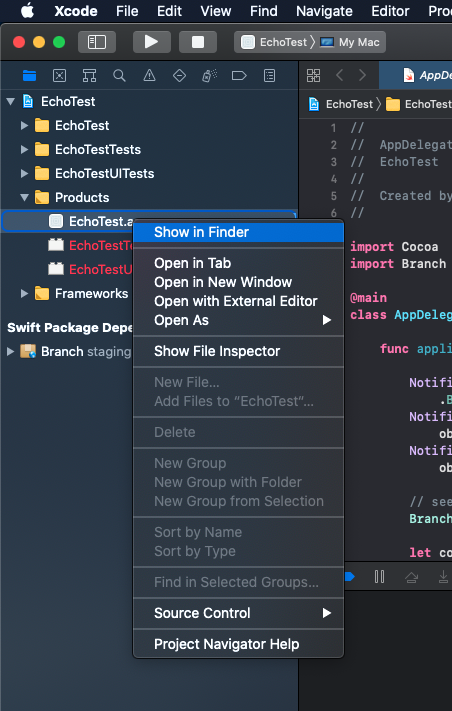
You can locate your debug app in Xcode under `Products` and `Show in Finder`.
### Enable Logging
- Add before `Branch.sharedInstance.start(with: config)`
- Remove before releasing to production
**Swift**
```swift
Branch.loggingIsEnabled = true
```
**Objective-C**
```objective-c
Branch.loggingEnabled = YES;
```
### Use Test Key
To use the Branch `test key` instead of the `live key`, initialize the `BranchConfiguration` with the `test key`.
- The `test key` of the app must match the `test key` of your deep link
- Switch back to the `live key` before releasing to production
**Swift**
```swift
BranchConfiguration *configuration = [[BranchConfiguration alloc] initWithKey:@"key_test"];
```
**Objective-C**
```objective-c
let config = BranchConfiguration(key: "key_test")
```