> For the complete documentation index, see [llms.txt](https://help.branch.io/llms.txt).
# GTM Web Setup
> Set up Google Tag Manager with the Branch Web SDK to trigger Branch events and identity calls from GTM.
## Overview
You can use Google Tag Manager (GTM) to trigger specific actions related to Branch.
This guide walks you through how to do this for your web app, in combination with the Branch Web SDK.
## Before you begin
In order to use GTM and Branch together, you first need to:
1. Create a Google Tag Manager account that has a container with "Web" as the chosen platform.
2. [Integrate](https://help.branch.io/developer-hub/web-basic-integration.md) the Branch Web SDK into your web app.
## Setup
### Install Google Tag Manager
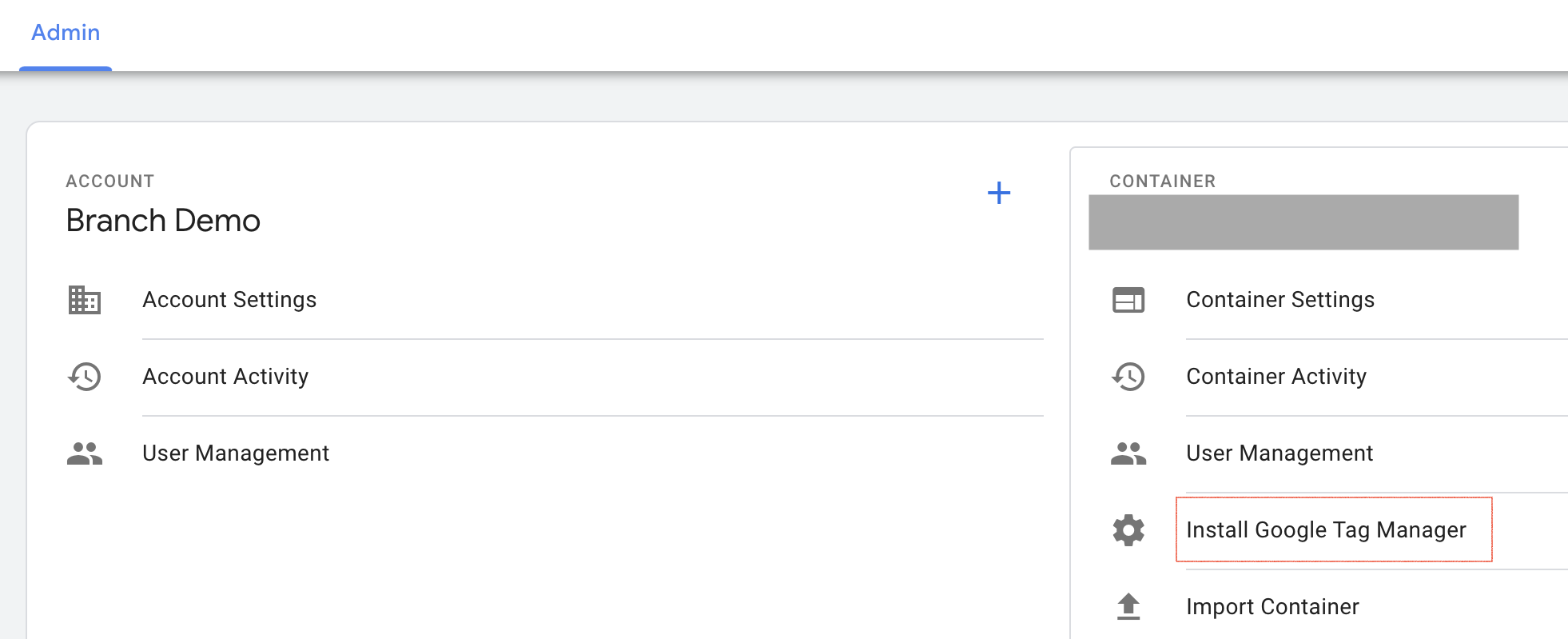
1. Navigate to the **Admin** tab.
2. In the section with container details, select **Install Google Tag Manager**.
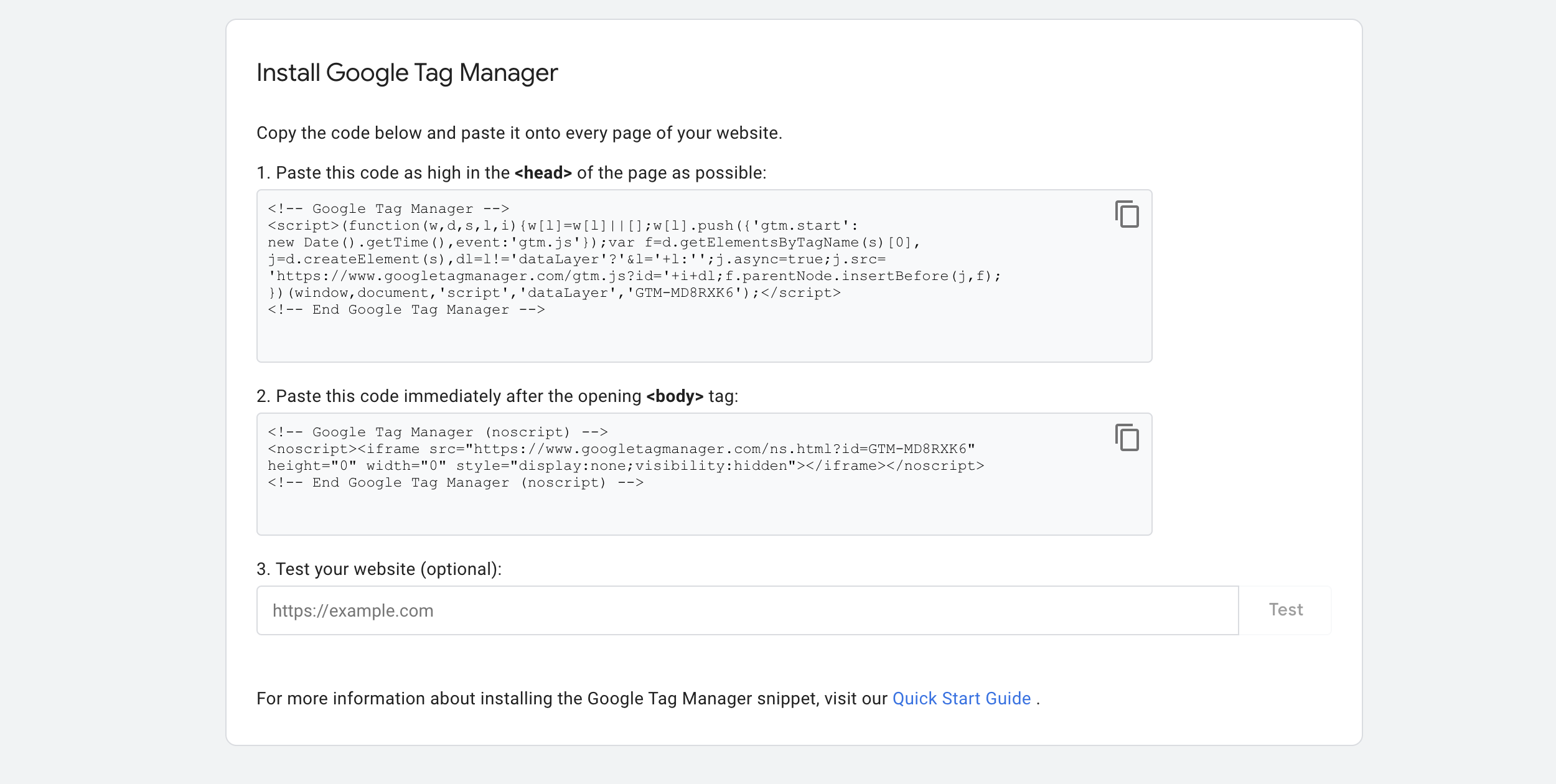
3. You will be taken to a screen with two code snippets; follow GTM's instructions for adding the code snippets to your HTML files.
4. **Optional**: you can also set metadata that you want to have included with tracked events. To do this, place the script containing the metadata **before** the GTM script in your `` tag. An example:
```xml
```
### Initialize Branch SDK
1. Go to the **Workspace** tab, then navigate to **Tags**.
2. Click **New** and set the tag type as "Custom HTML".
3. Paste your Branch Web SDK [script snippet](https://help.branch.io/developer-hub/web-basic-integration.md#_2-install-branch) into the HTML box. Make sure to also [initialize](https://help.branch.io/developer-hub/web-basic-integration.md#_3-initialize-branch) Branch.
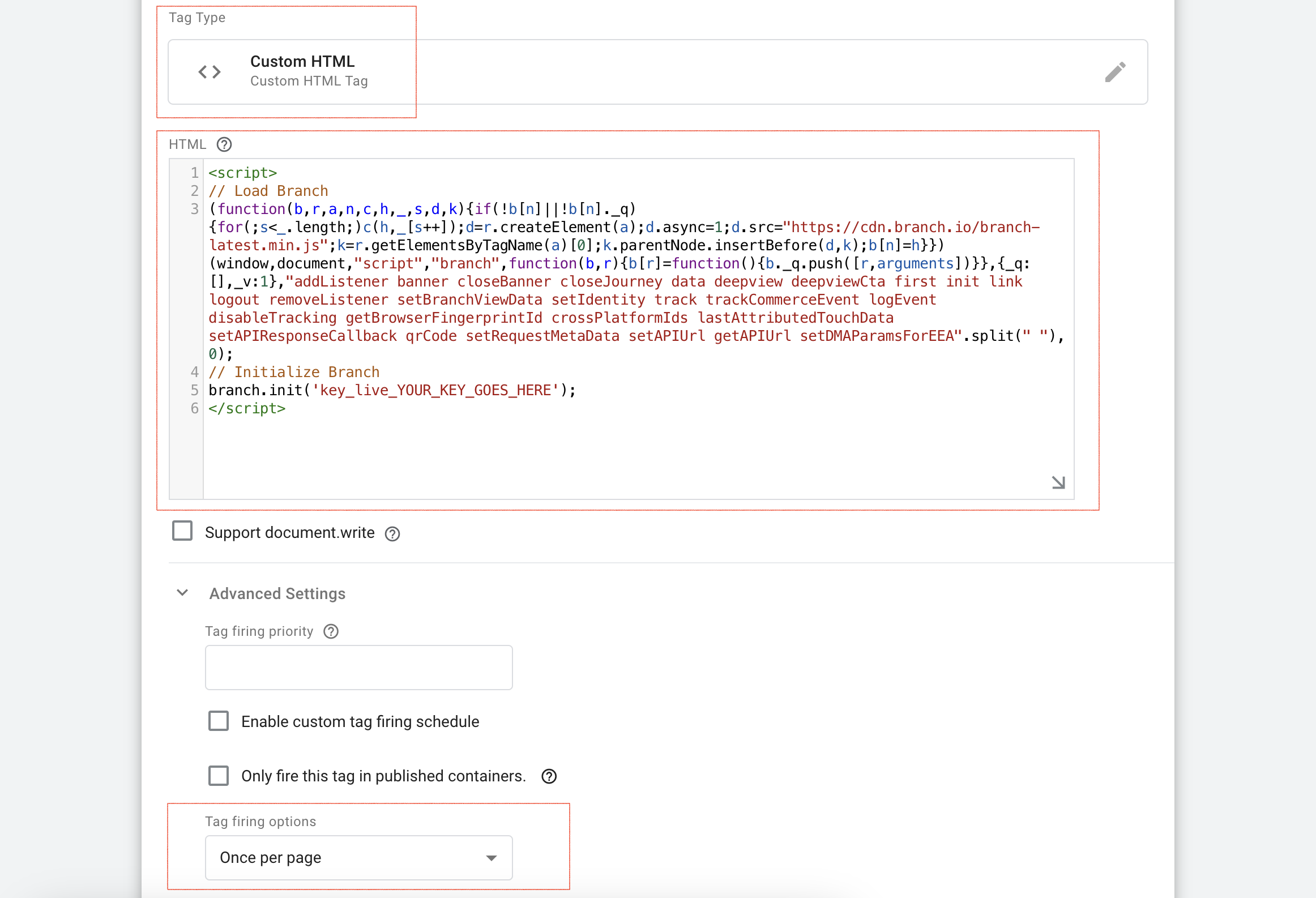
4. Set **Tag firing options** to "Once per page".
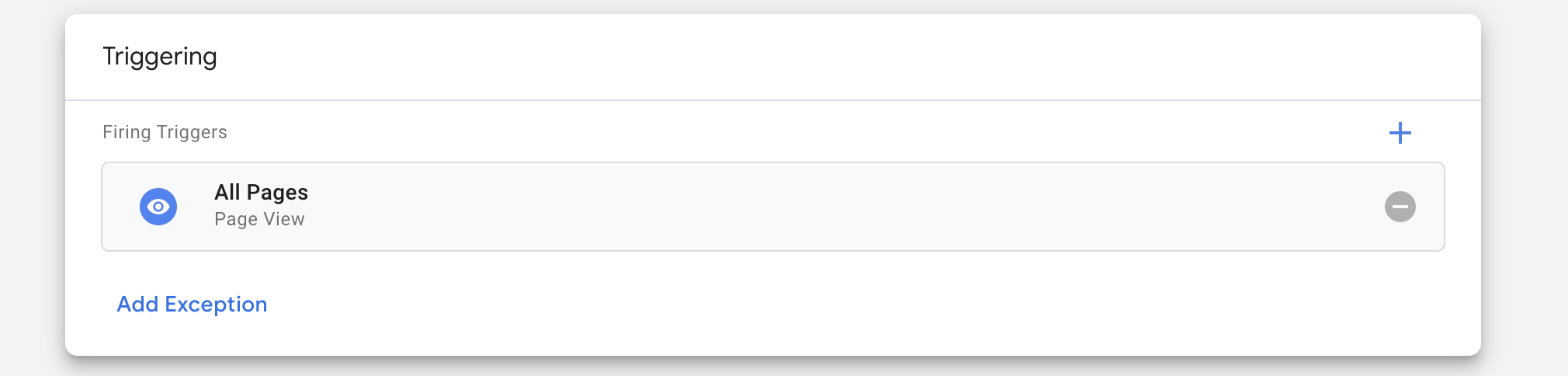
5. Scroll down to the **Triggering** section to choose a trigger to associate with the tag.
6. Select the "All Pages" trigger with type "Page View". If you only want the Branch Web SDK to initialize on certain pages, select "Some Pages" instead.
## Implement Branch Features
### Track Events
To track events with Branch using GTM, you will need to create user-defined variables, a trigger, and a tag.
#### 1. Create Variables
Create a new user-defined variable that will describe the event you are logging.
1. In the **Workspace** tab, click on **Variables**.
2. In the **User-Defined Variables** section, click **New**.
3. For variable type, select "Data Layer Variable".
4. Give the variable a name that correlates to the name of the metadata property you want to log alongside the event.
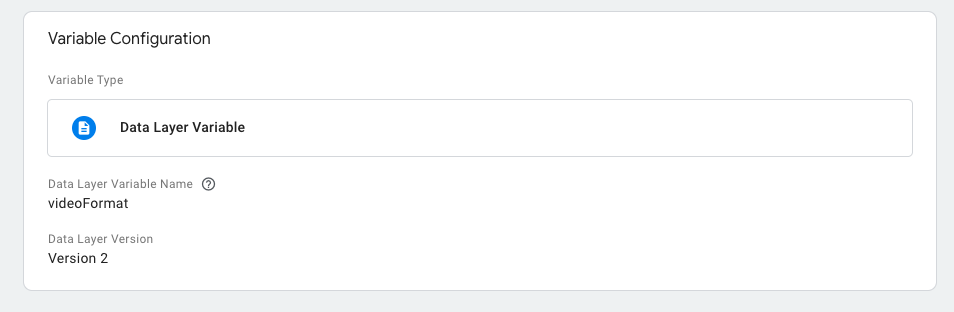
5. Repeat this process to create a new user-defined variable for each metadata property you want to include in the event.
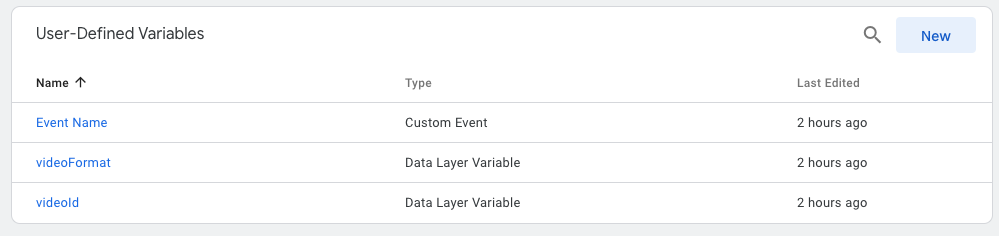
For example, if you have the following metadata structure:
```xml
```
You might have the following user-defined variables:
#### 2. Create A Trigger
Create a new trigger that will define when you want to log an event.
1. In the **Workspace** tab, click on **Triggers**.
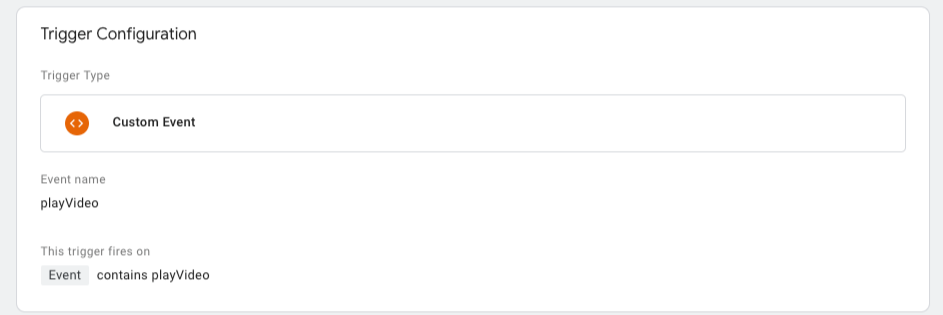
2. Click **New**, and create a trigger with type **Custom Event**.
3. Provide an event name and configure when you want the trigger to fire.
4. Click **Save**.
#### 3. Create A Tag
Create a new tag, which will describe what you want to have occur when a trigger fires.
1. In the **Workspace** tab, click on **Tags**.
2. Click **New**, and create a tag with type "Custom HTML".
3. Paste a script into the HTML box that sends variable data to Branch. This is done via the Web SDK's `logEvent()` [method](https://help.branch.io/developer-hub/web-full-reference.md).
If your variable data in GTM looks like this:
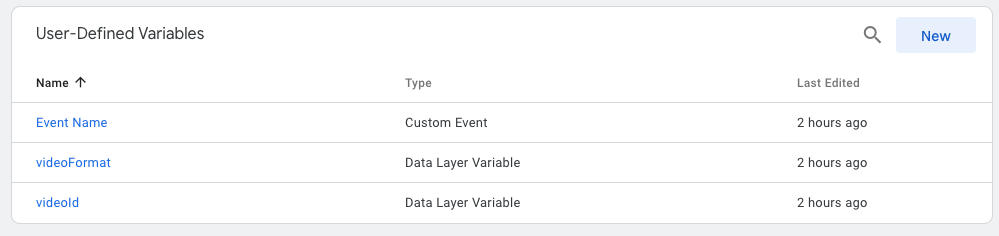
Then your script will look like this:
```xml
```
4. In the **Triggering** section, associate the trigger you created in step 2 with this tag you are creating.
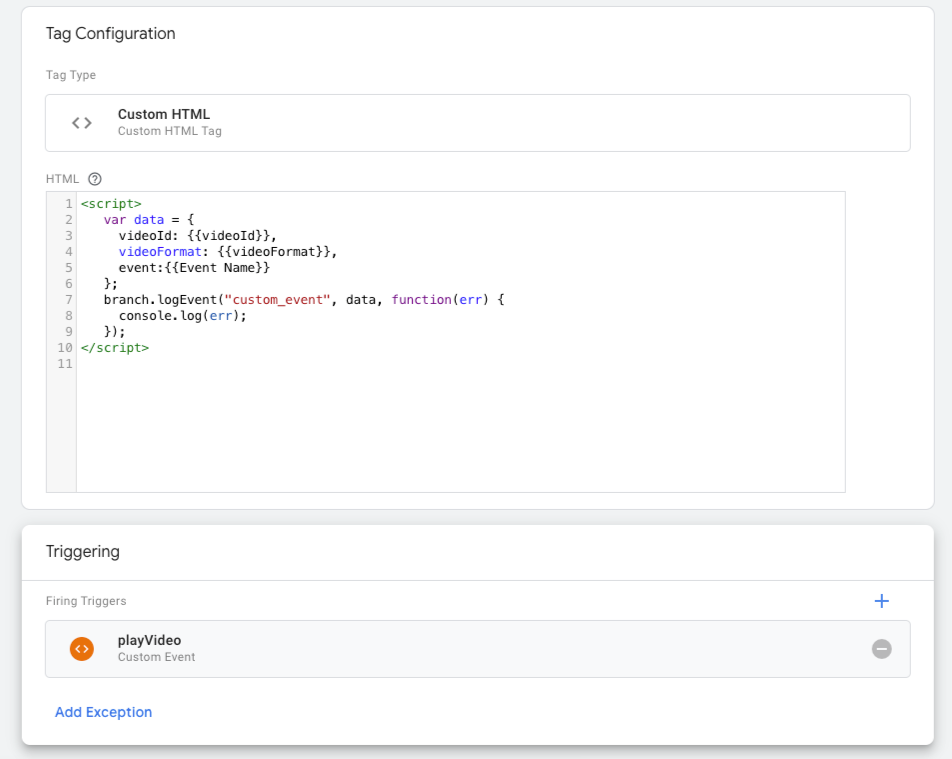
5. Click **Save**.
### Set User Identities
To set user identities, you will need to make changes in both GTM and your HTML files.
#### 1. Create Identity Variable
Create a variable that will correlate to the user identity metadata property.
1. In the **Workspace** tab, click on **Variables**.
2. In the **User-Defined Variables** section, click **New**.
3. For variable type, select "Data Layer Variable".
4. Give the variable a name, such as `customerID`.
5. Click **Save**.
#### 2. Create Trigger
Create a trigger and configure it to fire when you want an ID set.
1. In the **Workspace** tab, click on **Triggers**.
2. Click **New**, and select the trigger type you want to use. This will likely be "Page View" or "Custom Event".
3. Give the trigger an event name, and configure when you want it to fire.
4. Click **Save**.
#### 3. Create Tag to Set ID
Create a tag that will invoke the Branch Web SDK's `setIdentity()` [method](https://help.branch.io/developer-hub/web-full-reference.md#setidentity) when your trigger is fired.
1. In the **Workspace** tab, click on **Tags**.
2. Click **New**, and create a tag with type "Custom HTML".
3. Paste a script into the HTML box that uses the `setIdentity()` method. For example:
```xml
```
4. In the **Triggering** section, associate the trigger you created in step 2 with this tag you are creating.
#### 4. Set Metadata in HTML
Make sure you are setting the user identity in the data layer so GTM can read it. Do this **before** the GTM script in your `` tag.
```xml
```
## Testing
To make sure you've successfully set up GTM to work with the Branch Web SDK:
1. Trigger the event you are interested in, based on the trigger you set up in GTM.
2. Go to the Liveview [page](https://dashboard.branch.io/liveview/events) of the Branch Dashboard.
3. Filter the dropdown to the relevant event type that you are interested in, such as "custom event".
4. Check to make sure that the event is being triggered with the expected details.
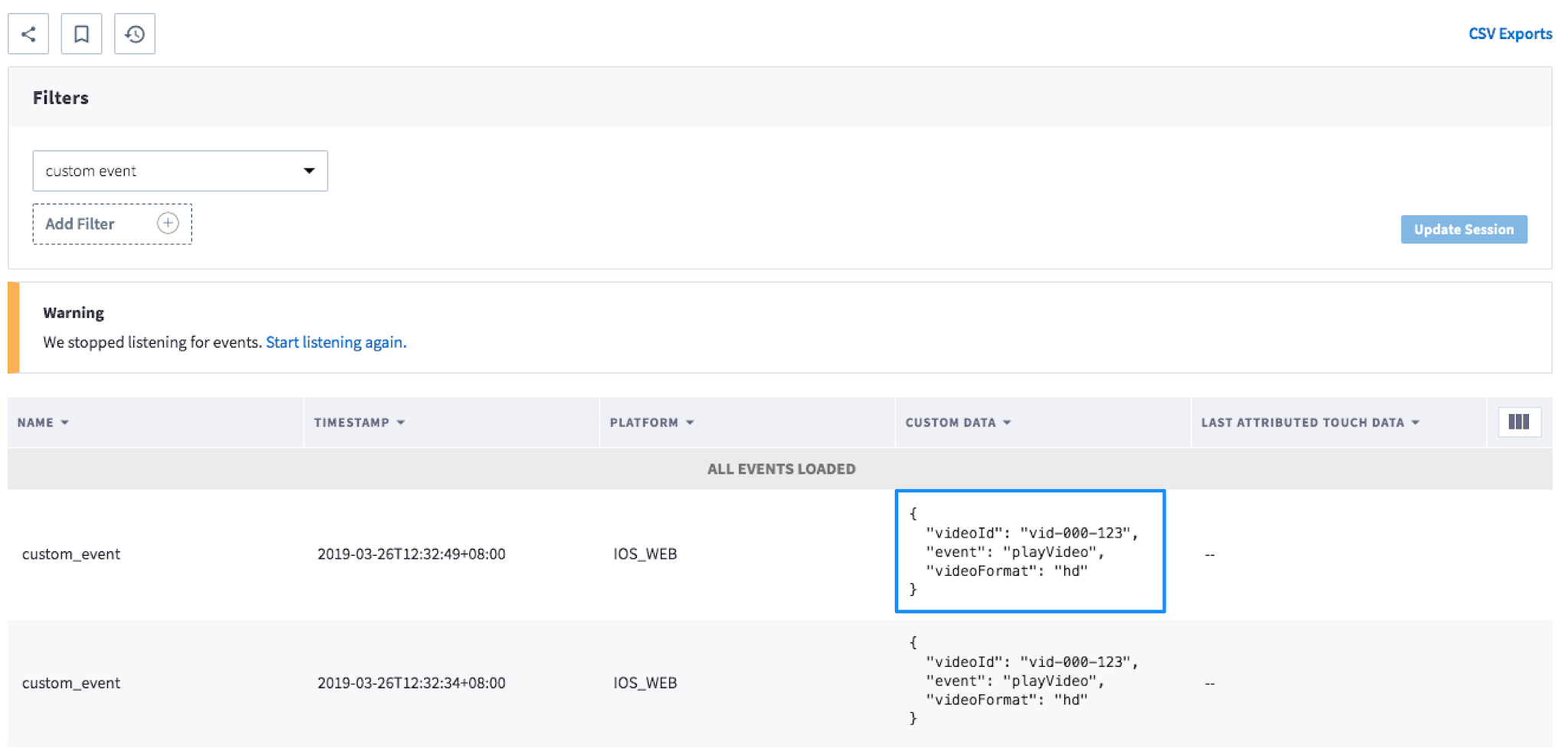
Note that when a user's identity is set, you will see a network call to Branch's `v1/profile` endpoint.
## FAQs
Visit our [FAQs section](https://help.branch.io/developer-hub/google-tag-manager.md#faqs) to learn more about implementing Branch with GTM.