> For the complete documentation index, see [llms.txt](https://help.branch.io/llms.txt).
# Google Analytics 4 Configuration (New)
> Send Branch referral data to Google Analytics 4 to measure Branch as an acquisition and re-engagement pathway.

## Overview
Send your referred Branch data to your Google Analytics Dashboard, helping you understand the power of Branch as an acquisition and re-engagement pathway. If you're interested in the segment of users coming into your apps through Branch and want to measure their events against your other cohorts, this guide can help.
## How does it work?
Once the Branch SDK is integrated into an app, Branch can detect which Branch Links are leading to opens, installs, re-installs, and down funnel events. Enabling this integration and providing your Google Analytics Tracking ID will result in Branch automatically forwarding events to Google Analytics, in the exact format Google Analytics expects. This includes automatically setting various UTM tags that can be used to determine the source of new users.
### Branch events sent to Google Analytics
Branch will send referred **installs** and **opens**, **commerce**, **content**, **user lifecycle**, as well as any **custom events** you track with Branch. Clicks, web session starts, and web pageviews will not be sent. Branch also sends over analytics data that is attached to the link, whether it's UTM tags or fields set in Branch (e.g. Campaign, Channel, Feature). This will allow you to analyze which campaigns, channels, etc. are helping you acquire and engage users. You can see the list of fields that we send to Google Analytics in [Properties sent to Google Analytics](https://help.branch.io/developer-hub/google-analytics-4-configuration-new.md#properties-sent-to-google-analytics).
| App Events | Commerce Events | User Lifecycle Events | Content Events | Custom Events |
| --- | --- | --- | --- | --- |
| • Install
• Open | • Add to Cart
• Add to Wishlist
• View Cart
• Initiate Purchase
• Add Payment Info
• View Ad
• Click Ad
• Purchase
• Reserve
• Spend Credits | • Complete Registration
• Login
• Complete Tutorial
• Achieve Level
• Unlock Achievement
• Invite
• Start Trial
• Subscribe
• Opt In
• Opt Out | • Search
• View Item
• View Items
• Rate
• Share
• Initiate Stream
• Complete Stream | • Custom |
## What does it look like?
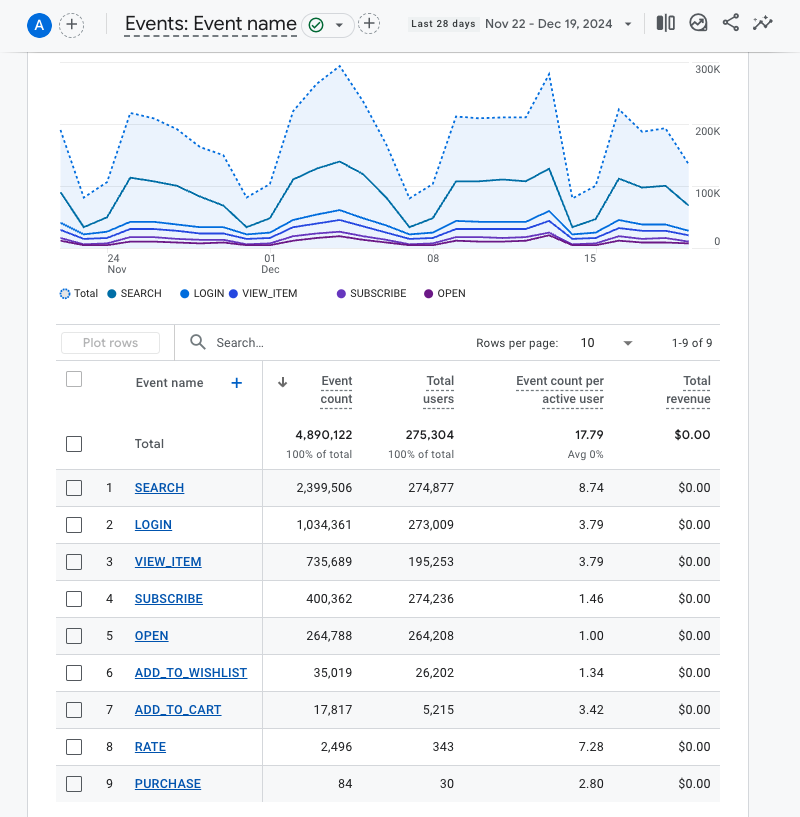
Branch events will appear alongside your other tracked events in Google Analytics. Here is an example of the Events screen with sample data.
## Before you begin
To set up the Google Analytics integration, you first need to:
1. Admin access to your [Branch](https://dashboard.branch.io/) account.
2. Have data export functionality enabled on your Branch account. Availability varies by Branch plan. See [Branch pricing](https://www.branch.io/pricing/) or contact your Branch representative.
3. Implemented the Branch SDK into your mobile app ([iOS](https://help.branch.io/developer-hub/ios-sdk-overview.md) | [Android](https://help.branch.io/developer-hub/android-sdk-overview.md)).
- [Track events](https://help.branch.io/developer-hub/track-branch-events.md)
4. [Implement the Google Analytics SDK](https://developers.google.com/analytics/devguides/collection).
5. Admin access to your Firebase and Google Analytics accounts.
## Enable Google Analytics 4
Complete the following steps to enable Google Analytics 4:
## 1. Retrieve IDs from Firebase & Google Analytics
Retrieve the following from your Firebase and Google Analytics 4 accounts:
### Retrieve Firebase App ID
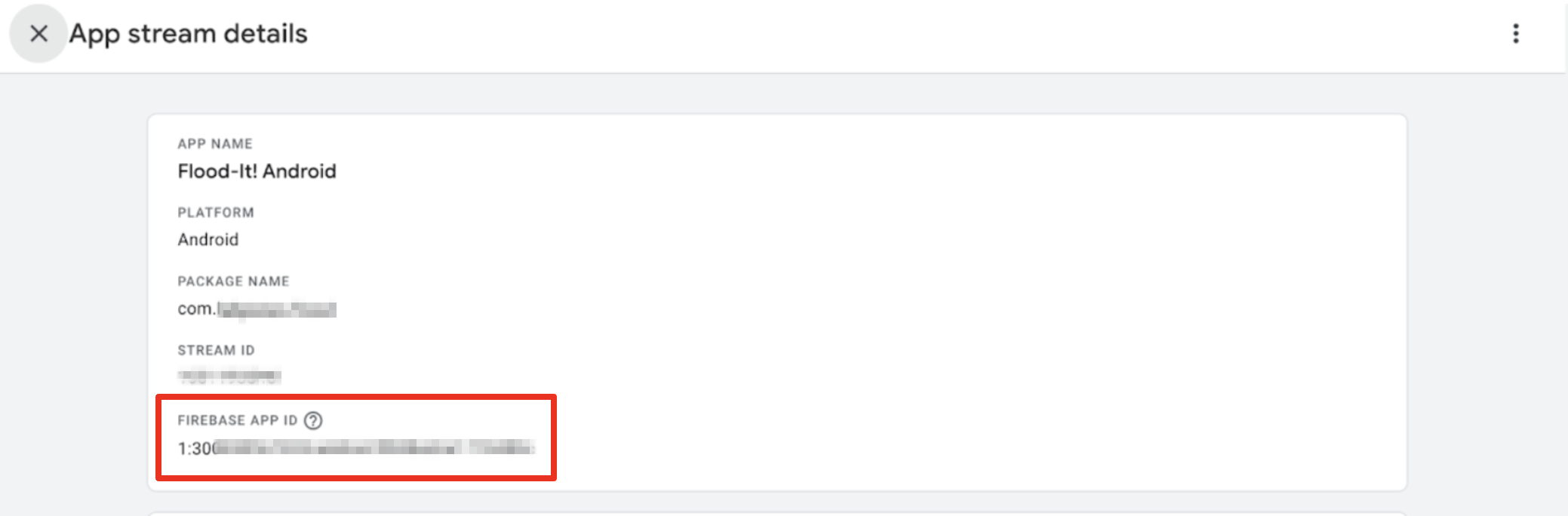
- In the GA4 Admin UI, open **Data Streams**, there you should find your App Stream Details. Use this to find your **Firebase App IDs**.
> **iOS & Android App IDs**
>
> Typically, you will have separate Firebase App IDs for the different platforms. Be sure to retrieve **both** of your iOS and Android Firebase App IDs.
### Retrieve API Secret
If you do not have an API Secret already created, navigate in the Google Analytics Dashboard to:
- In [Admin](https://support.google.com/analytics/answer/6132368), make sure that you have the desired account and property selected.
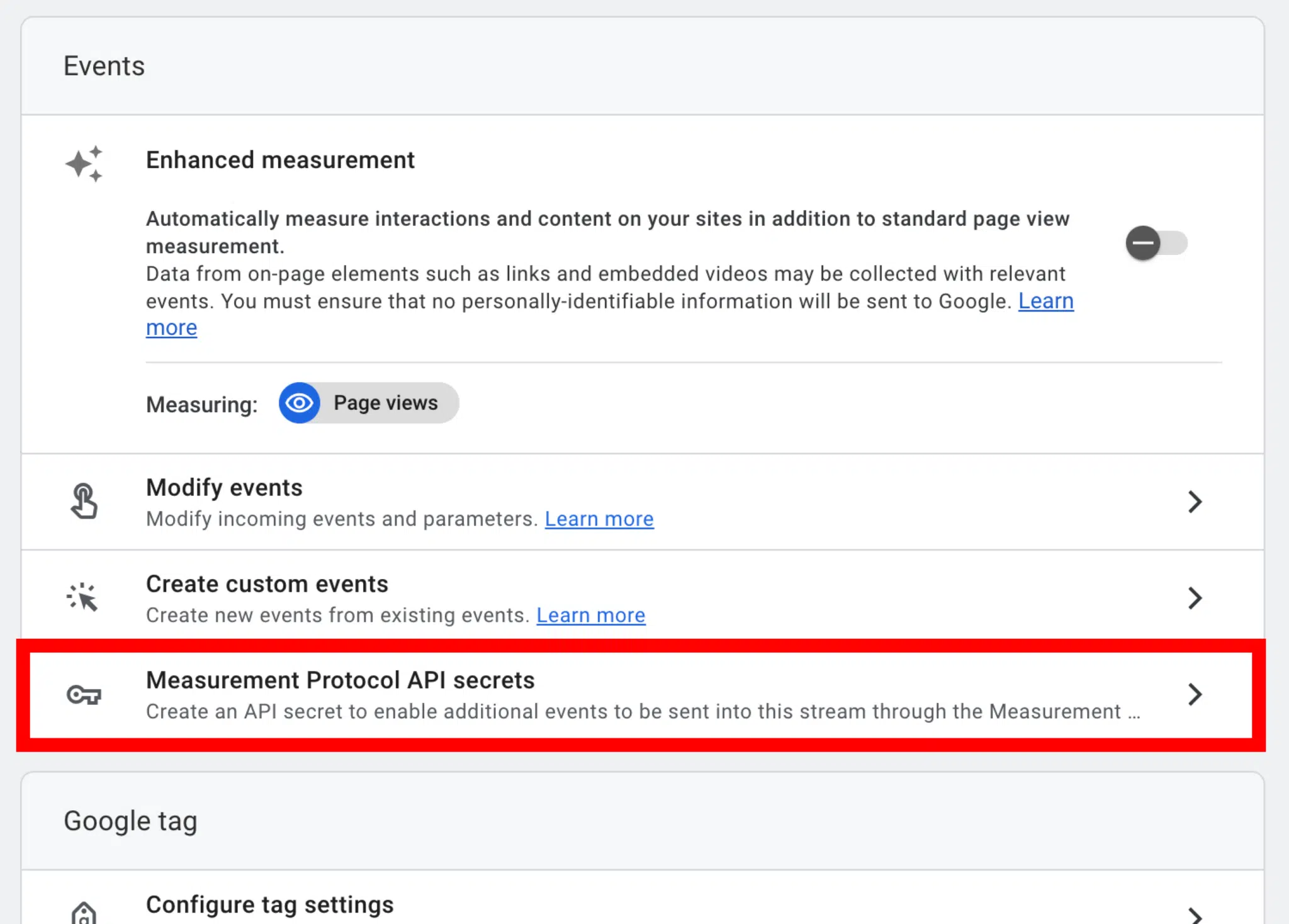
- In the *Property* column, select **Data Streams**, then select your stream. Select **Measurement Protocol API secrets**. From here a new page will prompt you to create a new API secret. Select the **Create** button.
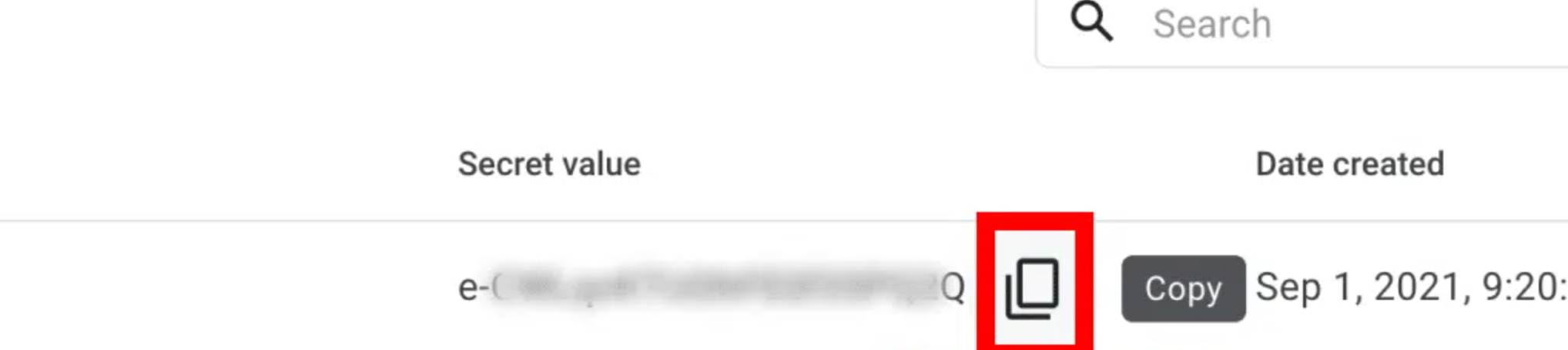
- After you create an API secret, make sure to copy the **Secret Value**.
> **API Secret**
>
> Note - You will need an API Secret for iOS and **another** API Secret for Android.
## 2. Connect Google Analytics in Branch
Google Analytics 4 is available in Branch as two separate data partners: **Google Analytics 4 for Mobile** for your mobile app data, and **Google Analytics 4 for Web** for your web data. Enter the IDs from the previous step into whichever partner matches where you want to send data.
In Branch, go to **Configuration > Integrations** and select the **Data** tab. Depending on where you want to send data, search for and configure one or both of the following partners.
### Google Analytics 4 for Mobile
To send your mobile app data, search for **Google Analytics 4 for Mobile** and select it to open its data partner page. In the **Export** section, enter the following, then toggle **Export** to **Enabled** and select **Save**:
- **Firebase App ID (iOS)**
- **API Secret (iOS)**
- **Firebase App ID (Android)**
- **API Secret (Android)**
### Google Analytics 4 for Web
To send your web data, search for **Google Analytics 4 for Web** and select it to open its data partner page. In the **Export** section, enter the following, then toggle **Export** to **Enabled** and select **Save**:
- **Measurement ID** (format `G-XXXXXXXX`).
- **API Secret**
## 3. Pass metadata to the Branch SDK
> **Developer Required**
>
> Developers on your mobile app are required for this step.
For a given app session, these unique Google Analytics identifiers need to be passed to the Branch SDK (**before the Branch SDK initializes**) in order for Branch to properly send events to Google Analytics.
### Compatible IDs
| Origin | Identifier | Branch Metadata Key | Required |
| --- | --- | --- | --- |
| Firebase | App Instance ID | `$firebase_app_instance_id` | **Yes** |
| Firebase | User ID | `$firebase_user_id` | No |
Specify the Branch metadata key for your Google Analytics tracking identifier.
### Pass Firebase IDs to Branch
**iOS - Swift**
```swift
// Call before Branch SDK initialization
// App Instance ID - ID dedicated to the install; will change when app is uninstalled and reinstalled.
Branch.getInstance().setRequestMetadataKey("$firebase_app_instance_id", Analytics.appInstanceID())
// User ID
Branch.getInstance().setRequestMetadataKey("$firebase_user_id", "{user_id}")
```
**iOS - Obj-C**
```objective-c
// Call before Branch SDK initialization
// App Instance ID
[[Branch getInstance] setRequestMetadataKey:@"$firebase_app_instance_id" value: [Analytics appinstanceID]];
// User ID
[[Branch getInstance] setRequestMetadataKey:@"$firebase_user_id" value:@"{user_id}"];
```
**Android - Java**
```java
// Call before Branch SDK initialization
// App Instance ID
Branch.getInstance().setRequestMetadata("\$firebase_app_instance_id", Analytics.getAppInstanceId());
// User ID
Branch.getInstance().setRequestMetadata("\$firebase_user_id", "{user_id}");
```
**Android - Kotlin**
```kotlin
// Call before Branch SDK initialization
// App Instance ID
Branch.getInstance().setRequestMetadata("\$firebase_app_instance_id", Analytics.getAppInstanceId())
// User ID
Branch.getInstance().setRequestMetadata("\$firebase_user_id", "{user_id}")
```
**Xamarin - C#**
```csharp
// Call AFTER Branch SDK initialization
setRequestMetadataKey("$firebase_app_instance_id", Analytics.appInstanceID())
```
**Flutter - Dart**
```dart
// App Instance ID
FlutterBranchSDK.setRequestMetadata(key: "\$firebase_app_instance_id", value: "");
// User ID
FlutterBranchSDK.setRequestMetadata(key: "\$firebase_user_id", value: "");
```
## 4. Verify data sent
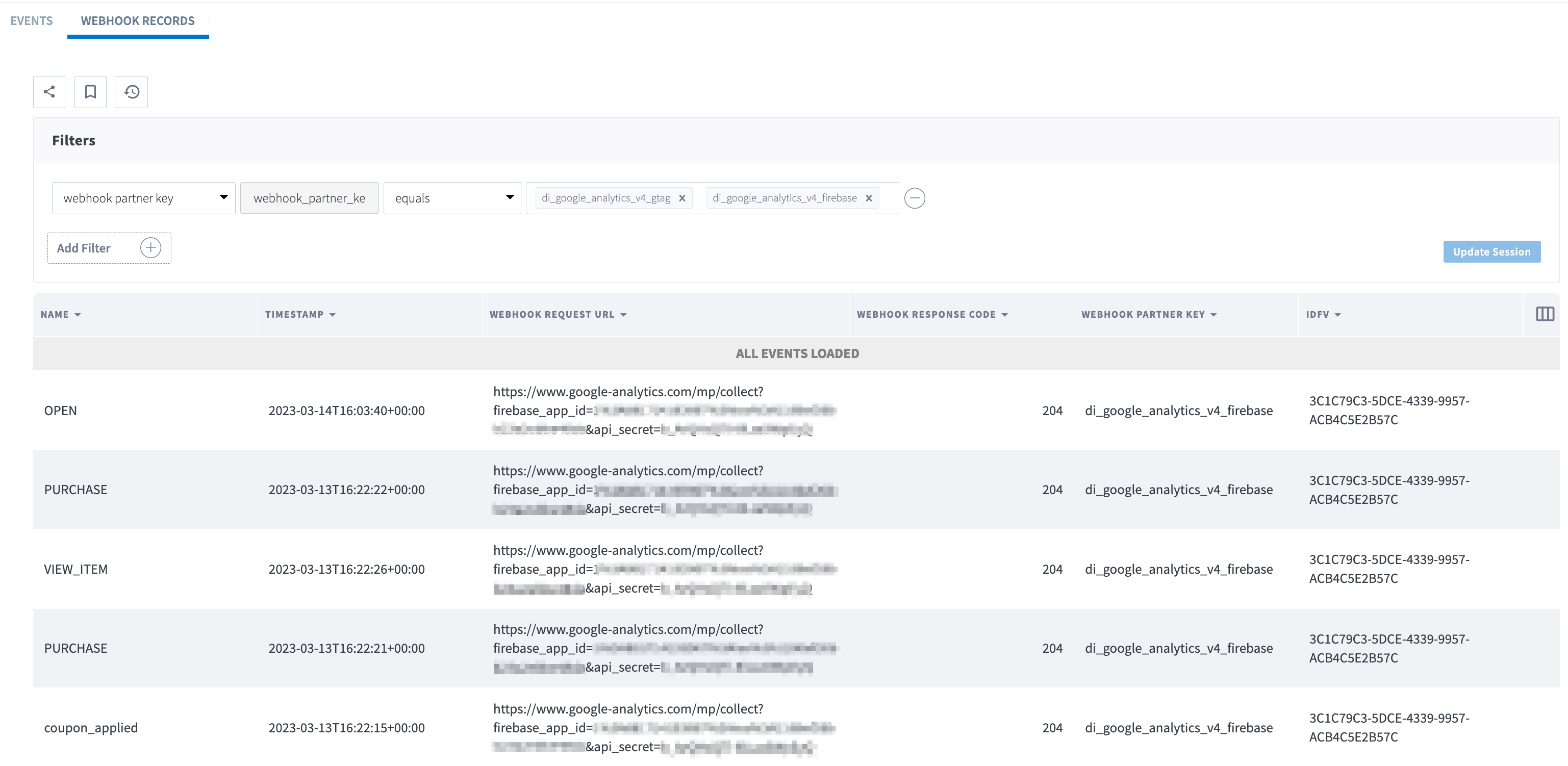
Once the above steps are complete, you are now ready to start launching campaigns. Branch-attributed conversions will be sent to Google Analytics. To verify data is being sent from Branch to Google Analytics, you can look at Branch's [Liveview Webhook Records](https://dashboard.branch.io/liveview/webhooks) and apply the following filter:
| Filter | Operator | Value |
| --- | --- | --- |
| webhook partner key | equals | `di_google_analytics_v4_firebase` |
> **Wait Period**
>
> Data may take some time to flow through Branch's attribution systems and onto Google Analytics. If data has not appeared in Google Analytics after 30 minutes of completing a test conversion, review the above steps to see if you may have missed something.
## Properties sent to Google Analytics
| Google Property Name | Branch Property Name | Example Commerce Event |
| --- | --- | --- |
| `app_instance_id` | `custom_data.$firebase_app_instance_id` | `1d4f3658fa5304dd42e9531187a4bf0e` |
| `name` | `name` | `PURCHASE` |
| `description` | `event_data_description` | `Customer made a purchase` |
| `user_id` | `custom_data.$firebase_user_id` | `user1234` |
| `timestamp_micros` | `timestamp` \* 1000 | `1679432023497000` |
| `utm_campaign` | `last_attributed_touch_data_tilde_campaign` | `Test Campaign` |
| `utm_source` | `last_attributed_touch_data_tilde_channel` | `Test Source` |
| `utm_medium` | `last_attributed_touch_data_tilde_feature` | `Test Medium` |
| `utm_keyword` | `last_attributed_touch_data_tilde_keyword` | `Test Keyword` |
| `utm_content` | `last_attributed_touch_data_tilde_tags` | `Test Content` |
| `currency` | `event_data_currency` | `USD` |
| `revenue` | `event_data_revenue` | `1.5` |
| `revenue_in_usd` | `event_data_revenue_in_usd` | `1.5` |
| `exchange_rate` | `event_data_exchange_rate` | `1` |
| `shipping` | `event_data_shipping` | `0` |
| `tax` | `event_data_tax` | `9.75` |
| `coupon` | `event_data_coupon` | `Coupon Code` |
| `affiliation` | `event_data_affiliation` | `Test Affiliation` |
| `search_query` | `event_data_search_query` | `Test Search Query` |
| `revenue_in_local_currency` | `event_data_revenue_in_local_currency` | `124.083532` |
| `local_currency` | `event_data_local_currency` | `INR` |
| `local_currency_exchange_rate` | `event_data_local_currency_exchange_rate` | `82.7222355` |
## Troubleshooting
The following sections cover common issues and how to resolve them.
### Data not appearing in Google Analytics
1. Check your Measurement/Tracking/Firebase IDs in Branch matches the Measurement/Tracking/Firebase IDs in Google Analytics.
2. Ensure you are looking at the right part of the Google Analytics Dashboard with the right app selected.
3. Check that your Google Analytics Reports don't have any comparisons on them. For example, if your report compares users in the United Kingdom, and your Branch opens are from users in the United Kingdom, you won't see this Branch data in your report.