> For the complete documentation index, see [llms.txt](https://help.branch.io/llms.txt).
# Braze | Sparkpost Configuration
> Connect Braze with SparkPost to Branch so your email links deep link users into your app with full attribution.
## Overview
Connect Braze and SparkPost to Branch so the links in your Braze emails open your app with full tracking and attribution. Branch hosts your SparkPost click tracking domain (CTD), so a tracked link becomes a Branch Link when a user selects it.
> **Warning: Every tracked link opens your app**
>
> SparkPost rewrites every `http://` and `https://` link in your email to your CTD, including footer links such as unsubscribe, privacy policy, and terms of service. When you add the CTD to your app's Associated Domains, iOS opens your app for every one of those links before the request reaches Branch. Android App Links work the same way once Branch hosts your `assetlinks.json` file. Branch can't send a link to the browser on its own, because the operating system never sends the click to Branch.
>
> Before you send to customers, handle every link that has no screen in your app. Either add the `$web_only=true` flag and make sure your app handles it, or exclude the link from click tracking. Otherwise, those links fail for every user who has your app installed. See [Route web-only links](#route-web-only-links).
## How it works
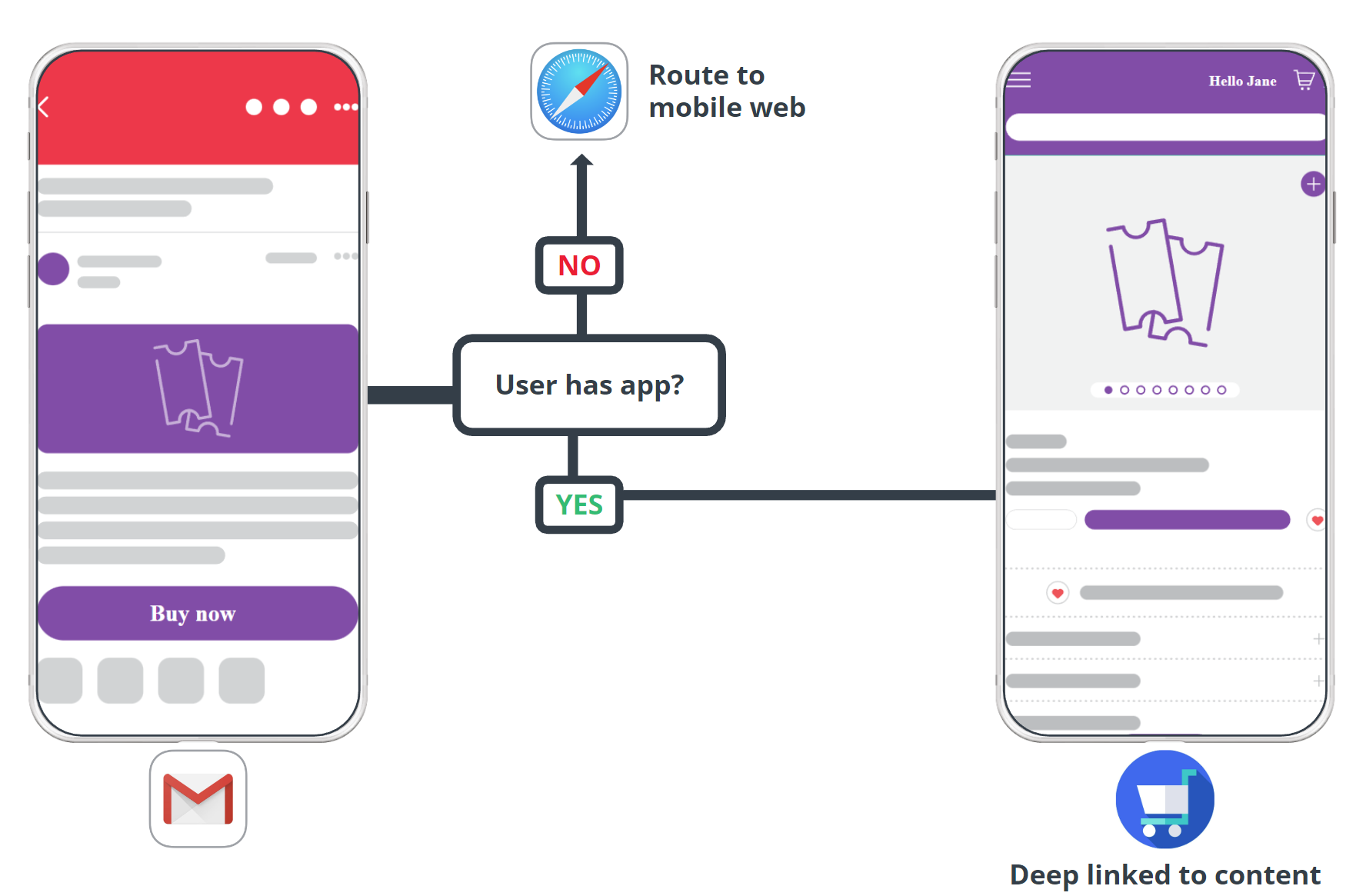
1. A user selects a link in an email from a mobile mail client such as Gmail or Apple Mail.
2. If the user has your app installed, the operating system opens your app. Branch routes the user to the matching in-app content, such as a product detail page or category page.
3. If the user doesn't have your app installed, Branch routes the user to the web URL in their default mobile browser.
4. If you flag a link as web-only your app opens the web URL in the browser. Your app **must include the web-only handler for this to work**.
## Before you begin
> **Required roles**
>
> Branch Email requires the following roles to enable:
>
> - Developers
> - CRM/Email Team
> - Braze Account Manager / Support Team
To enable Braze + SparkPost, you first need to:
1. Have admin access to [Branch](https://dashboard.branch.io/).
2. Have Branch's Engagement [product](https://help.branch.io/marketer-hub/products.md) enabled for your Branch account.
3. Implement the Branch SDK into your mobile app ([iOS](https://help.branch.io/developer-hub/ios-sdk-overview.md) | [Android](https://help.branch.io/developer-hub/android-sdk-overview.md)).
- Set up deep link routing. How your mobile app routes to in-app content determines how you create and tag your Branch Links.
- [Build custom routing inside the routing callback](https://help.branch.io/developer-hub/in-app-routing.md#option-1-build-custom-routing-inside-the-routing-callback)
- [Let Branch use your existing deep link routing](https://help.branch.io/developer-hub/in-app-routing.md#option-2-let-branch-use-your-existing-deep-link-routing)
- [Track events](https://help.branch.io/developer-hub/track-branch-events.md).
4. Add the web-only link handler to your app ([iOS](https://help.branch.io/developer-hub/ios-advanced-features.md#web-only-content) | [Android](https://help.branch.io/developer-hub/email-integration-for-developers.md#how-to-open-emails-in-android-to-support-web-only-use-case)). You need this step if your emails contain any link that doesn't have a screen in your app.
5. Obtain or set up your Braze click tracking domain (CTD). Contact your Braze account manager for help.
6. Review the [Email Overview](https://help.branch.io/marketer-hub/email-overview.md) and [Basic Email Integration Guide](https://help.branch.io/marketer-hub/email-integration-guide.md) to understand the feature and our integrations.
## Connect Braze + SparkPost in Branch
In Branch, navigate to **Email > [Manager](https://dashboard.branch.io/email/manager)**, find **Braze Sparkpost**, and select **Enable**.
### Input click tracking domain
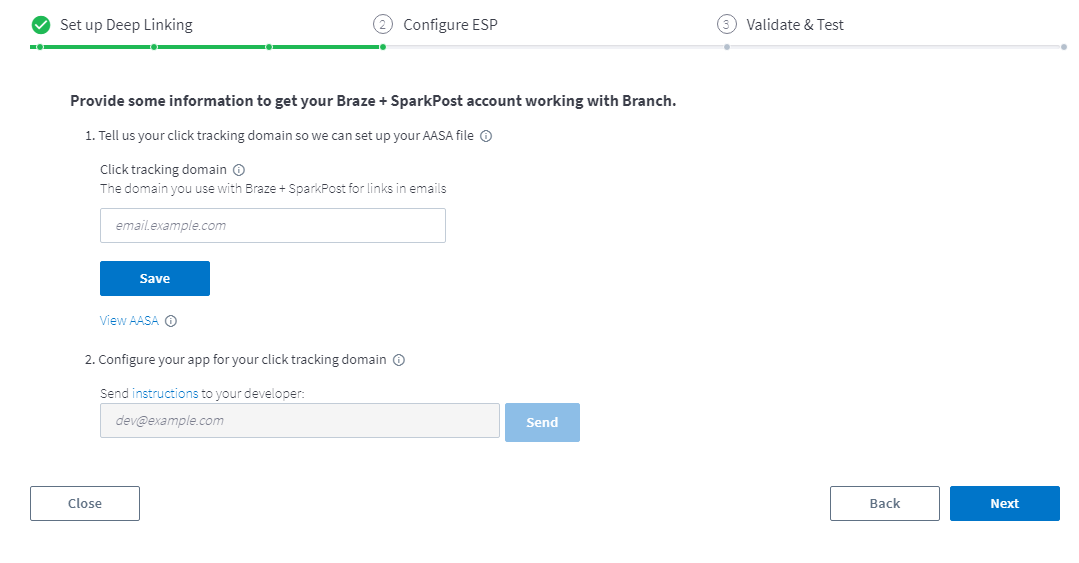
Click tracking domains let you track engagement on email opens and link selections. The Braze + SparkPost integration requires you provide the click tracking domain. This is the domain you use with Braze + SparkPost for links in emails.
For additional help, see SparkPost's [documentation](https://bird.com/en-us/docs/guides/email/tracking-and-metrics?sp=true).
> **Important click tracking domain rules**
>
> - Remove `https://` when adding your click tracking domain.
> - Never add the same CTD to both your **Live** and **Test** Branch environments.
> - You can enable the integration with multiple CTDs, if needed, but you **can't** add the same CTD to multiple Branch instances or email service provider (ESP) integrations.
### SparkPost proxy domain
The Braze + SparkPost integration includes an optional **SparkPost Proxy Domain** field. This is the domain SparkPost uses to proxy click tracking requests. This field may appear blank in Branch. If you leave it blank, Branch applies a default proxy domain behind the scenes, so your integration continues to work as expected. If SparkPost has provided you with a specific proxy domain (such as `eu.spgo.io` for accounts in Europe, the Middle East, and Africa), enter it in this field. If you're unsure which proxy domain to use, contact your SparkPost account team for confirmation.
## Configure your app
### Add your Braze + SparkPost CTD to your associated domains
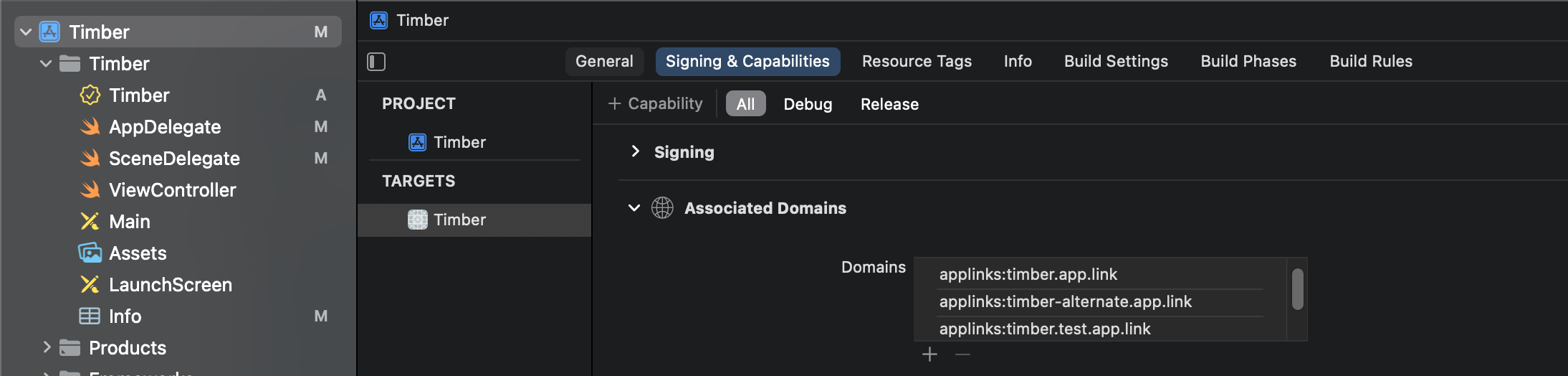
For your iOS app, add the CTD to the Associated Domains. Find additional details in the [iOS basic integration guide](https://help.branch.io/developer-hub/ios-basic-integration.md#_3-configure-associated-domains).
Once the CTD is an associated domain, iOS opens your app for every link on that domain, not only the links you intend to deep link. **Important**: before you ship your app, complete the steps to [Handle web-only links in your app](#handle-web-only-links-in-your-app).
### Return `YES` to `continueUserActivity`
Add the CTD to your iOS app's `Info.plist` file. Find additional details in the [iOS advanced features guide](https://help.branch.io/developer-hub/ios-advanced-features.md#esp-ctd-email).

### Handle web-only links in your app
When a user who has your app installed selects a web-only link, the operating system opens your app. The Branch SDK then returns the link data to your deep link handler. The Branch SDK doesn't open the URL for you: it doesn't show any UI, open a WebView, or launch a browser. Your app must check for the `$web_only` parameter and open the original URL itself, either in the system browser or in an in-app browser such as `SFSafariViewController` on iOS or Chrome Custom Tabs on Android.
> **Deep link handler**
>
> If you don't add a deep link handler, links for pages like unsubscribe, privacy policy, and other web-only links open your app and go nowhere.
- **iOS**: Add the handler from [Handle deep links for web-only content](https://help.branch.io/developer-hub/ios-advanced-features.md#web-only-content). The handler checks the link parameters for `$3p` and `$web_only`, then opens the URL in `$original_url` with the system browser.
- **Android**: Add the handler from [How to open emails in Android to support web-only use case](https://help.branch.io/developer-hub/email-integration-for-developers.md#how-to-open-emails-in-android-to-support-web-only-use-case). The handler checks for `$web_only` and opens the URL in `$canonical_url` with an intent.
## Point DNS CNAME to Branch
Follow your web hosting provider's instructions to configure your DNS CNAME.
Here are a few common providers' instructions for reference:
- [AWS](https://docs.aws.amazon.com/Route53/latest/DeveloperGuide/resource-record-sets-creating.html)
- [GoDaddy](https://www.godaddy.com/help/edit-a-cname-record-19237)
- [CloudFlare DNS](https://support.cloudflare.com/hc/en-us/articles/360020615111-Configuring-a-CNAME-setup)
Update the DNS CNAME and point it to `thirdparty.bnc.lt`. Once you add the CNAME record, wait up to an hour for Branch to generate SSL and Apple App Site Association (AASA) files for your click tracking domain.
> **Important CNAME info**
>
> - Enable the integration in Branch and add the CTD **before** you add the CNAME.
> - If the CTD already has SSL set up, confirm your security credentials let a third party submit a certificate signing request (CSR) on behalf of the domain. If not, contact Branch Support to coordinate providing an SSL certificate manually.
> - Once you add the CNAME, Branch automatically generates an SSL certificate and AASA file for your click tracking domain. It may take up to an hour to resolve SSL errors. During this time, link redirects on the click tracking domain redirect to the **Default URL** you provided in **General Configuration**.
> - If you are making this change to a live domain with active email click traffic, schedule the CNAME change during off-hours with low click traffic.
## Add Branch Links to your emails
Before you send a campaign, decide what each link in the email does and flag it accordingly. You don't need to tag every link. Tracked links open your app by default, so only links that must open a web page need a flag. Every link falls into one of three groups:
| Link type | Examples | What to do |
| --- | --- | --- |
| Opens a screen in your app | Product page, category page, account page | No flag required to open the app. Add `$deep_link=true` as a query parameter so Branch converts the link to a Branch Link with deep link data and attribution. |
| Opens a web page, with click tracking | Promotion landing page, blog post | Add `$web_only=true` as a query parameter. **Requires the [web-only handler](#handle-web-only-links-in-your-app) in your app.** |
| Opens a web page, no click tracking | Unsubscribe, privacy policy, terms of service, links whose URL Braze generates | Add `data-msys-clicktrack="0"` to the anchor tag so SparkPost leaves the link alone. |
### Add deep linking flag
For the email links that you want to deep link to content, add `$deep_link=true` to the URL as a query parameter:
```html
Link to your app!
```
This converts your links to Branch Links that open the app on iOS and Android, with full tracking and attribution. Tracked links open your app whether or not you add this flag. The flag tells Branch to convert the link, so your app receives deep link data and Branch attributes the click.
### Route web-only links
All tracked email links open the app on devices that have it installed. To route a link to the web instead, add `$web_only=true` to the URL as a query parameter:
```html
Read more on our site
```
When a user selects this link, your app opens, reads the `$web_only` flag, and opens the web URL in the browser. The handler in [Handle web-only links in your app](#handle-web-only-links-in-your-app) does this for you. Braze and SparkPost still record the click, and Branch still attributes it.
Use this flag for links that benefit from click tracking and attribution but don't have a screen in your app.
### Exclude a link from click tracking
SparkPost doesn't rewrite a link that carries the `data-msys-clicktrack="0"` attribute. The `href` stays on your own domain, so the link opens in the browser on every device and never touches your CTD or your app. Braze, SparkPost, and Branch don't record engagement on it.
```html
Privacy policy
Unsubscribe
```
Use this attribute for:
- Footer links that must work on every device and don't need click tracking, such as unsubscribe, privacy policy, and terms of service.
- Links whose URL Braze generates with Liquid, such as the unsubscribe URL, where you can't reliably append a query parameter.
Braze passes SparkPost link attributes through in your email HTML. In the Braze drag-and-drop editor, add the attribute in the link's **Attributes** section as an anchor tag. For details, see Braze's [documentation on Universal Links and App Links](https://www.braze.com/docs/user_guide/channels/email/customize/universal_links_and_app_links) and SparkPost's [Using Mobile Universal and App Links with SparkPost](https://support.sparkpost.com/docs/tech-resources/deep-links-self-serve).
### Keep click tracking without opening the app
If a web-only link needs click tracking but must never open your app, use a SparkPost custom sub-path and ask Branch to exclude that path from the AASA file on your CTD.
1. Add `data-msys-sublink="web"` to the anchor tag of each link that must open in the browser. SparkPost rewrites the link to `https:///f/web/...` instead of the default `/f/a/...` path.
2. Contact [Branch Support](https://help.branch.io/account-hub/support-guide.md) and ask us to exclude `/f/web/*` from the AASA file on your CTD. Include your CTD and the sub-path you chose.
3. **After Branch confirms the change**, test the link on a device that has your app installed. It opens in the browser, and Braze and SparkPost still record the click.
Branch makes this change on request for a business need, and it applies only to the sub-path you specify. Links that don't carry the sub-path keep opening your app.
If most of the links in your emails are web-only, ask for the reverse instead. We configure the AASA file so that only links with a sub-path such as `data-msys-sublink="app"` open your app, while every other tracked link opens in the browser.
### Tag email campaigns for analytics
To view email campaign performance in Branch, tag your email links with the `~campaign` tag. If your team uses UTM tags, Branch also ingests `utm_campaign`. This helps remove duplicate counts and surface downstream events. You can add the campaign tag in any comparisons and filters across dashboard views.
## Test your links
Test with a device that has your app installed, because this is the case where web-only links fail if they aren't flagged.
1. Send a test email that includes your standard footer to a device that has your app installed.
2. Select a deep link. Your app opens to the matching content.
3. Select the unsubscribe link and each other footer link. Each one opens in the browser.
4. Repeat steps 2 and 3 on a device that doesn't have your app installed. Every link opens in the browser.