> For the complete documentation index, see [llms.txt](https://help.branch.io/llms.txt).
# Basic Link Configuration
> Configure link behavior for redirects, domains, and social media previews with advanced settings for deep linking and analytics in this comprehensive guide.
## Overview
This article will help you configure link behavior for redirects and link domains.
It covers various settings such as default link behavior for different operating systems (Android, iOS), social media preview customization, and link domain selection.
It also explains advanced settings like URI scheme deep link mode, redirect allowlist, and UTM tag usage for analytics. Additionally, it discusses desktop app default link behavior, advanced mobile redirects, and provides a table mapping UTM parameters to Branch parameters.
## 1. Default link behavior
> **Caution**
>
> This is a required setting.
In the left-side navigation of the Branch Dashboard, find the [**App Settings**](https://dashboard.branch.io/configuration/general) page under **Configure**. Find the **General** tab, and in the **Required Redirects** section, enter in your fallback URL for mobile devices that do not have a specified redirect.

## 2. Android default link behavior
> **Caution**
>
> This is a required setting.
Complete the following steps to configure the default behavior for your deep links:
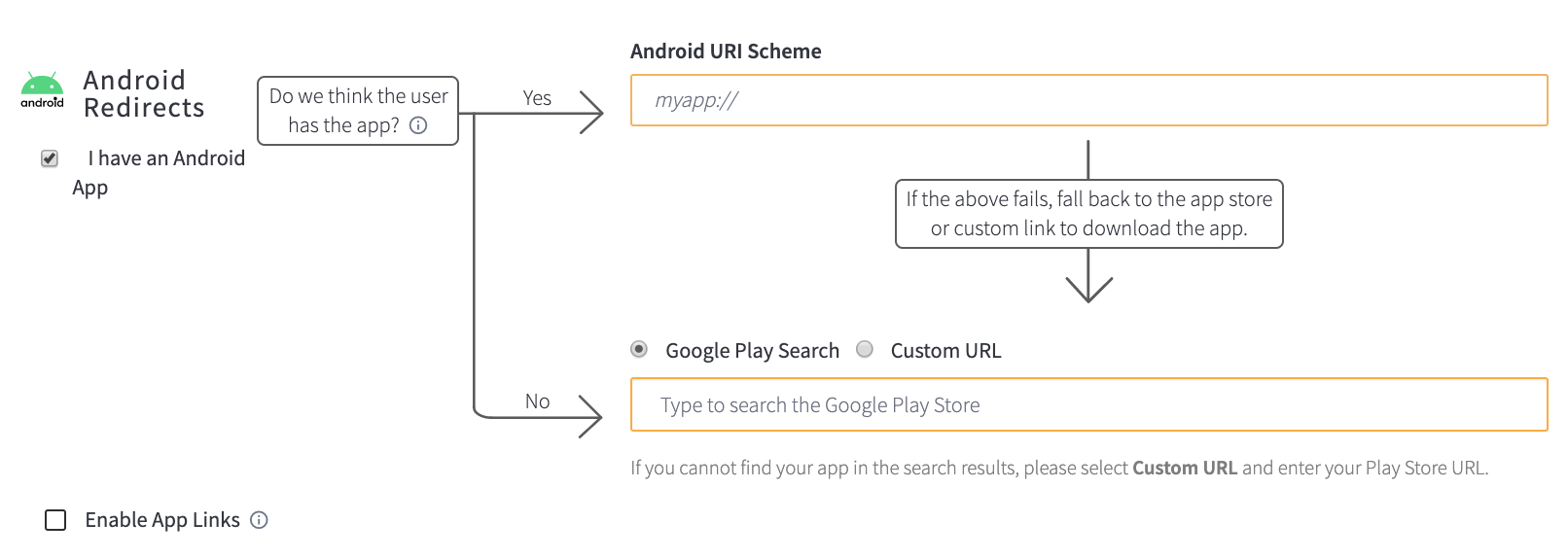
1. In the Branch Dashboard, navigate to [**App Settings**](https://dashboard.branch.io/configuration/general) → **General** tab → **Required Redirects** section → **Android Redirects**.
2. Use the settings in this section to control the default behavior of your deep links on Android.
> **Note**
>
> The Play Store is for published apps. If your app cannot be located or is a local/dev build, please use the Custom URL option.
### Generate SHA256 cert fingerprint
If you choose to **Enable App Links** you will need to generate a SHA256 Cert Fingerprint. Use one of the following methods to do this:
#### **KeyStore file method**
1. Navigate to your `keystore file` (used to build the debug and production version of your APK file before it gets deployed).
2. Run `keytool -list -v -keystore my-release-key.keystore` to generate a fingerprint.
\* Example fingerprint:
`AA:C9:D9:A5:E9:76:3E:51:1B:FB:35:00:06:9B:56:AC:FB:A6:28: CE:F3:D6:65:38:18:E3:9C:63:94:FB:D2:C1` to add to your Branch Dashboard.
#### **Android Studio method**
1. In Android Studio, open the Gradle options from the top-right corner of the page by selecting the elephant icon.
2. Select the terminal icon. It will say “Execute Gradle Task” when you hover over it.
3. Enter `--signingReport` and press Enter/Return.
4. Select the cat icon to open logcat. Copy the SHA256 Cert Fingerprint from logcat at the bottom of Android Studio.
> **Note**
>
> To host an `assetlinks.json` file that includes **multiple package names** for your development environment, please [submit a ticket](https://help.branch.io/account-hub/submit-a-ticket.md) with the complete `digital assetlink.json` file.
## 3. iOS default link behavior
> **Caution**
>
> This is a required setting.
Use these settings to control the default behavior of your deep links on iOS.
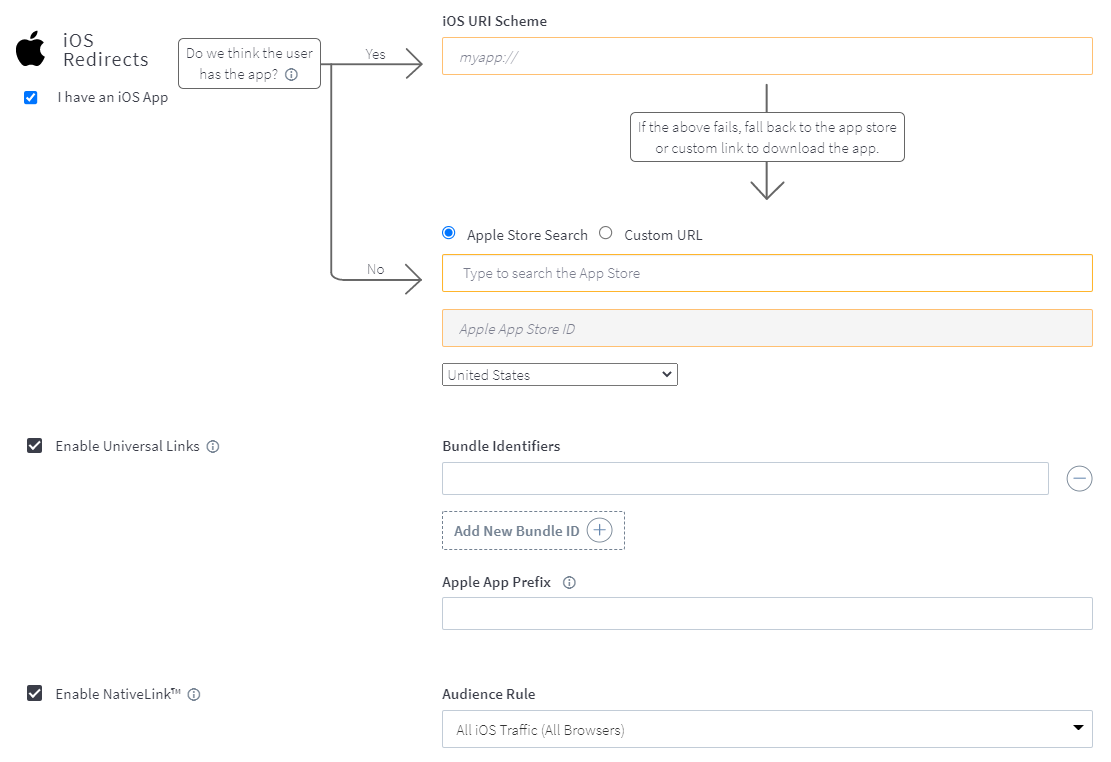
1. In the Branch Dashboard, navigate to [**App Settings**](https://dashboard.branch.io/configuration/general) → **General** tab → **Required Redirects** section → **iOS Redirects**.
2. If you choose to **Enable Universal Links**, you will need to enter your **Apple App Prefix** which can be found within the Apple Developer Portal for your app.
3. To enable deferred deep linking via [NativeLink](https://help.branch.io/developer-hub/nativelink-deferred-deep-linking.md#integration-guide)™, you can click the **Enable NativeLink™** checkbox. Doing so means your users will be presented with a [Deepview](https://help.branch.io/marketer-hub/category/deepviews.md) that lets them continue their experience in an app, even if they don’t have it installed.
1. Make sure to choose the appropriate audience in the **Audience Rule** dropdown.
2. Please ensure your iOS URI Scheme and Universal Links are properly configured.
3. Once enabled, follow the instructions in our [developer documentation](https://help.branch.io/developer-hub/ios-advanced-features.md#nativelinktm-deferred-deep-linking) to use NativeLink™.
> **Note**
>
> To host an Apple App Site Association (AASA) file that includes multiple App Prefixes (Team IDs) for your development environment, please [submit a ticket](https://help.branch.io/account-hub/submit-a-ticket.md) with your finalized AASA file.
> **Warning**
>
> For any user running on an iOS version below 12.3, a popup first appears prompting the user to open in the App Store when being redirected to the app store. The user must click **OK** to be fully routed to the App Store to download your app. This popup cannot be removed from the user flow as it's inherent to iOS.
> **Caution**
>
> Branch currently does **not** support using the same iOS App Store ID across multiple Branch apps. This limitation exists because Branch’s SKAN implementation requires a 1:1 mapping between each iOS App Store ID and Branch App ID. **Exception**: Test apps may use the same iOS App Store ID as production apps.
## 4. Social media preview
> **Note**
>
> You can change the social media preview for individual Short Links when you create them.
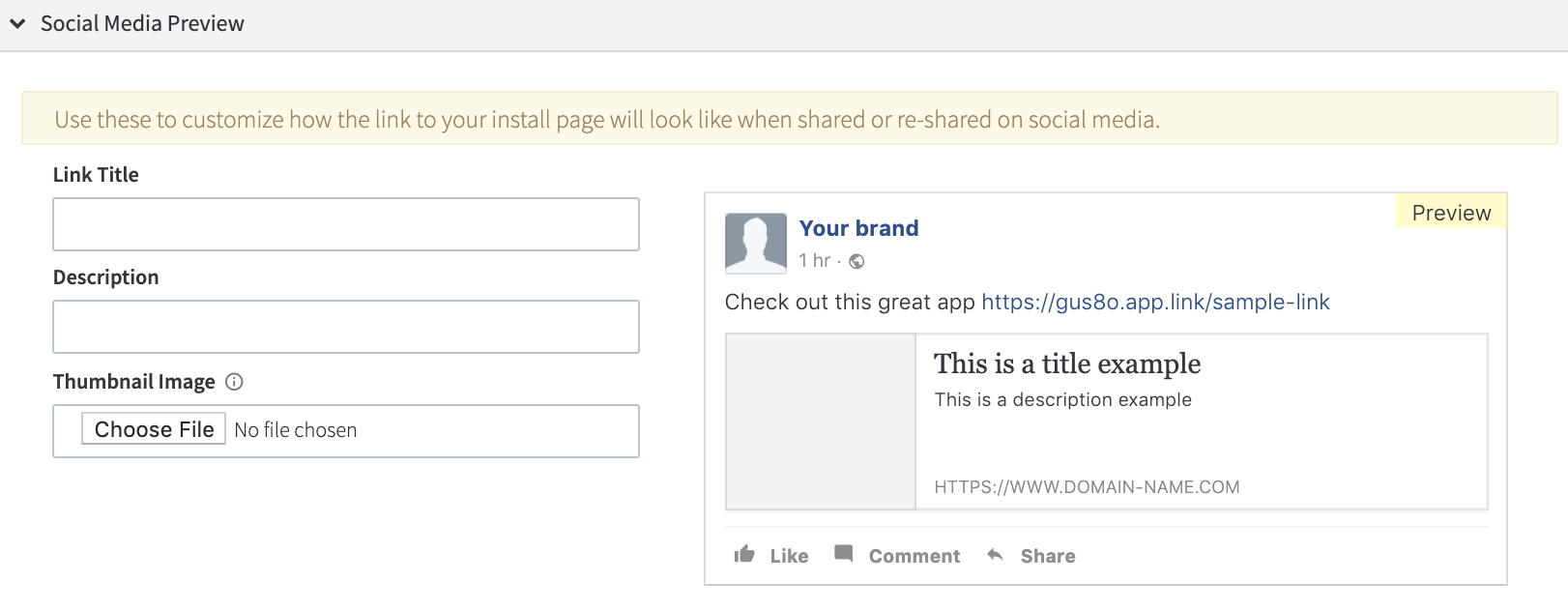
1. In the Branch Dashboard, navigate to [**App Settings**](https://dashboard.branch.io/configuration/general) → **General** tab → **Social Media Preview** section.
2. Fill in the following fields to customize how the link to your install page will look when shared or re-shared on social media:
a. Link Title
b. Description
c. Thumbnail Image
## 5. Link domain
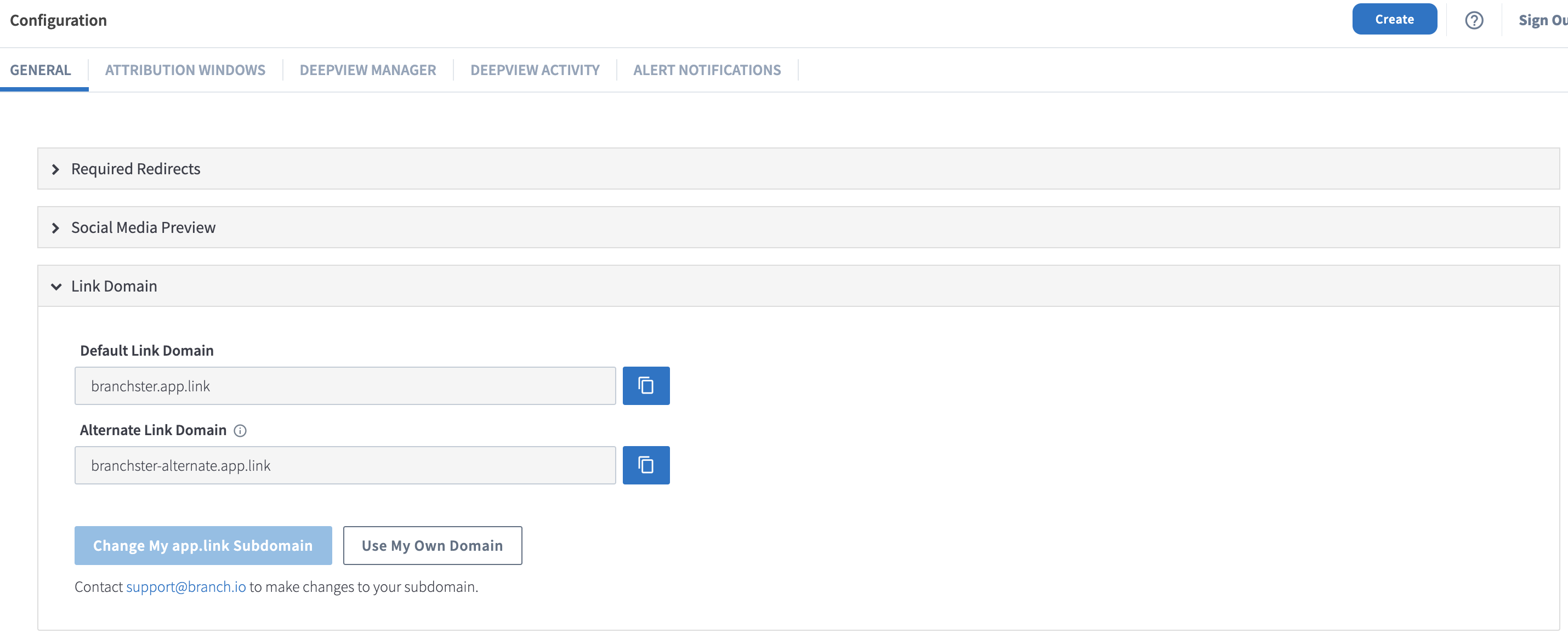
To see your app’s default link domain and alternate link domain, navigate to the [General tab](https://dashboard.branch.io/configuration/general) of the App Settings page of the Branch Dashboard.
When you first create your account, you will be assigned a unique domain for all of your Branch Links.
### Change link domain
> **Caution**
>
> Before changing your Branch link domain, it is important to understand all behavior changes that occur when you do so. This will help ensure you do not run into any unwanted experiences for your users clicking your Branch Links.
| Change | Example | Behavior |
| --- | --- | --- |
| `app.link` to `app.link` | `abcdef.app.link` → `mycompany.app.link` | • Your old `app.link` URLs will redirect to the **LINK NOT FOUND** page.
• Your old `app.link` URLs will fail to open your mobile app.
• Your new `app.link` URLs will not open your app until you update your code to utilize the new link domain ([iOS](https://help.branch.io/developer-hub/ios-basic-integration.md) / [Android](https://help.branch.io/developer-hub/android-basic-integration.md)).
• If you are already using your original/old `app.link` URLs in the wild and need them to keep working, it is recommended to explore [Using Your Own Domain](https://help.branch.io/account-hub/basic-link-configuration.md#use-your-own-domain) instead. |
| `app.link` to Custom Domain | `mycompany.app.link` → `app.mycompany.com` | • Your old `app.link` URLs will still work.
• Your new Custom Domain URLs will not open your app until you update your code to utilize the new link domain ([iOS](https://help.branch.io/developer-hub/ios-basic-integration.md) / [Android](https://help.branch.io/developer-hub/android-basic-integration.md)).
• [Creating Long Links Details](https://help.branch.io/marketer-hub/deep-link-reference.md) |
| Custom Domain to Custom Domain | `app.mycompany.com` → `mycompany.app` | • Your old Custom Domain URLs will fail to deep link.
• Your new Custom Domain URLs will not open your app until you update your code to utilize the new link domain ([iOS](https://help.branch.io/developer-hub/ios-basic-integration.md) / [Android](https://help.branch.io/developer-hub/android-basic-integration.md)). |
| Legacy `bnc.lt` to `app.link` or Custom Domain | `bnc.lt` → `mycompany.app.link` `bnc.lt/branch` → `app.mycompany.com` | • Both your `bnc.lt` and `app.link`/Custom Domain deep links will work.
• Your new `app.link`/Custom Domain URLs will not open your app until you update your code to utilize the new link domain ([iOS](https://help.branch.io/developer-hub/ios-basic-integration.md) / [Android](https://help.branch.io/developer-hub/android-basic-integration.md)). |
### Change app.link subdomain
> **Caution**
>
> Changing your `app.link` subdomain can only be performed **once** for your Branch app.
You have the ability to change your `app.link` subdomain for your Branch Links to better match your brand. It is recommended to set your `app.link` subdomain to be the name of your app, in case you have multiple mobile apps under your brand.
To customize your `app.link` subdomain:
1. Review and understand [what it means to change your domain](https://help.branch.io/account-hub/basic-link-configuration.md#change-link-domain).
2. Click the **Change My** `app.link` **Subdomain** button.
3. Input your new preferred `app.link` subdomain. You can only set it to a subdomain that is not already taken by another Branch app.
4. Update your mobile app to use the new `app.link` subdomain.
### Use your own domain
Depending on your [package](http://branch.io/pricing), you may have the ability to use your own custom domain to be used for your Branch Links. Branch supports the use of a custom subdomain or a custom root domain for you to be able to set your Branch Links closer to your branding preferences.
#### Considerations
- Whenever you change the NS or CNAME records of your domain, you are making Branch the authoritative registrar of your domain. This will grant Branch control of your domain and you will lose access to that custom subdomain or custom root domain. The web page will become blank, and the control of the domain will change to Branch.
- Branch will use the domain to route all deep linked traffic.
- Branch will host your AASA file and SSL certifications.
- If you have content on your custom root domain, Branch recommends using an unused custom subdomain.
| Limitation | Details |
| --- | --- |
| Android App Links & Web Limitations | Android App Links together on custom subdomains and custom root domains currently do not support Branch's web-only link functionality. Using the `$web_only` parameter on Branch Links that only open the web even if the app is installed. Because of this limitation, **Android App Links will force the app to open even when using the** `$web_only` **parameter**. **Note**: This limitation only applies to Engagement. This does not apply to Activation. |
| Web | If you have Activation, you can use a custom domain for web links. For other packages, **you must use the assigned default link alias**. |
#### Implementation options for Activation
These options only apply if you have Branch Activation and have the ability to add multiple custom domains.
**Option 1: Single domain for web and app**
Use this approach to have a single custom domain to handle links that point to both web pages and in-app locations.
- **How it works**: This configuration relies on Universal Links (iOS) and Android App Links to prioritize opening the app. If a user has your app and clicks a web link, the link will open in an in-app webview.
- **Requirements**: Your apps must have *at least* the following SDK versions to support this option:
- iOS SDK ≥ 3.12.0
- Android SDK ≥ 5.18.0
- **Pro:** You can change a link's destination between a web page and an app view at any time without needing to generate a new link or update a QR code.
- **Con**: Requires having updated SDK versions to ensure a consistent user experience for all link types.
**Option 2: Separate domains**
Use this approach to have separate dedicated domains for web links and app links, ensuring a clear separation of user experiences.
- **How it works**: You configure at least two domains:
- **Web domain**: A domain designated for web links. Links using this domain will never open the app and will always direct users to their mobile browser.
- **App domain**: A separate domain (for example, your default app.link domain or another custom domain) used exclusively for deep linking.
- **Requirements**: No SDK update is required to implement this strategy, as the web domain does not interact with the SDK. However, you must integrate the Branch SDK if you want to deep link to locations in your app with app links.
- **Pro**: This method provides a predictable user experience by avoiding the in-app webview and does not require an SDK update to create web links.
- **Con**: A link's behavior is fixed to its domain. To switch a link's destination from a web page to an app view (or vice-versa), you must create an entirely new link using the appropriate domain.
### Use a custom subdomain
> **Warning**
>
> Do not use your main website domain for your Branch Links.
If your enterprise is highly restrictive of the domains that you utilize and wants to ensure that your Branch domain matches the rest of your relevant subdomains, you can utilize a custom subdomain, for example `link.yourbrand.com`.
Before you set up a custom subdomain:
1. Review and understand the table outlining [what it means to change your link domain](https://help.branch.io/account-hub/basic-link-configuration.md#change-link-domain).
2. Update the DNS CNAME of your custom subdomain to point to `custom.bnc.lt`. If using AWS Route 53, do this in the Registered Domain tab, not in Hosted Zones.
3. Use the [CAA Lookup Tool](https://www.nslookup.io/caa-lookup/) to see if you need to update your `CAA` records of your custom subdomain to include `letsencrypt.org`.
To set up your custom subdomain:
1. In the Branch Dashboard, select **App Settings** from the navigation menu.
2. Scroll down to the **Link Domain** section.
3. Select **Use My Own Domain**.
4. Input your custom subdomain (without the `www`) and select **Confirm**.
5. Update your mobile app to use the new custom subdomain.
> **Note**
>
> For instructions about adding custom domains in the new Branch experience, read our [Link Appearance (New)](https://help.branch.io/account-hub/link-appearance-new.md) article.
#### Use a custom root domain
If you need to establish an entirely separate domain for your Branch domain, you can use a custom root domain, for example `yourbrand-link.com`. This is only recommended if your company is not open to `app.link` or a custom subdomain option.
Before you set up a custom root domain:
1. Review and understand [what it means to change your link domain](https://help.branch.io/account-hub/basic-link-configuration.md#change-link-domain).
2. Update the `NS` records of your custom root domain using the following nameservers:
- `ns-1581.awsdns-05.co.uk`
- `ns-234.awsdns-29.com`
- `ns-1059.awsdns-04.org`
- `ns-843.awsdns-41.net`
3. Use the [CAA Lookup Tool](https://www.nslookup.io/caa-lookup/) to see if you need to update your `CAA` records of your custom subdomain to include `letsencrypt.org`.
To set up your custom root domain:
1. In the Branch Dashboard, select **App Settings** from the navigation menu.
2. Scroll down to the **Link Domain** section.
3. Select **Use My Own Domain**.
4. Input your custom root domain (without the `www`) and select **Confirm**.
5. Update your mobile app to use the new custom subdomain.
> **Note**
>
> For instructions about adding custom domains in the new Branch experience, read our [Link Appearance (New)](https://help.branch.io/account-hub/link-appearance-new.md) article.
#### Add additional custom domains
You can add additional multiple custom domains for your Branch links. This can be useful for having separate domains for web or app links, using different domains for different channels, and more.
Follow the directions in the “Use a custom subdomain” or “Use a custom root domain” sections above to add additional domains.
> **Note**
>
> The ability to add multiple custom domains is only available in [some Branch packages](https://www.branch.io/pricing/).
## Next steps
For steps on how to configure the other settings in the **General** tab, visit our [Advanced Settings](https://help.branch.io/account-hub/advanced-link-configuration.md) and [Additional Setting](https://help.branch.io/account-hub/additional-link-configuration.md)s guides.